Chapter 5 Managing Wireless Network
This chapter contains the following sections:
• Wireless
Wireless
Configure the SSID, encryption method, password, and other wireless parameters for both the 2.4G and 5G networks.
- Navigate to Wireless or go to More > Wireless > Wireless.
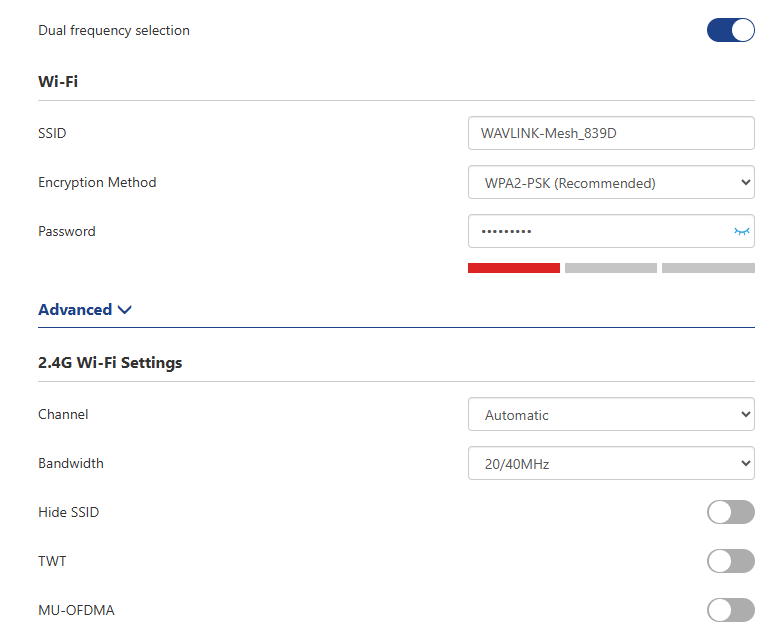

Configuring Wireless Network
1)Dual Frequency Selection
Enabling Dual Frequency Selection combines the 2.4GHz and 5GHz Wi-Fi bands into a single network to provide a better overall network experience. Disabling this feature allows for separate configuration of the 2.4G and 5G networks.
-
Navigate to Wireless or go to More > Wireless > Wireless.
-
Click to enable/disable Dual Frequency Selection.
2)Setting Wi-Fi SSID and Password
-
Navigate to Wireless or go to More > Wireless > Wireless.
-
Set a new wireless network name in the SSID.
-
In the Encryption Method, select an encryption method from the dropdown list.(It is recommended to choose WPA3-SAE or WPA2-PSK)
-
Set a new password for your wireless network in the Password.
Note: After setting up the new network, you will need to reconnect to the WiFi network using the new password.
Advanced Settings
1)Setting Channel and Bandwidth
-
Navigate to Wireless > Advanced or go to More > Wireless > Wireless > Advanced.
-
From the Channel dropdown list, select the operating channel for your wireless network. (If you are unsure about which channel to choose, it is recommended to select Automatic, so the device can automatically select the optimal channel based on the surrounding environment for your better network experience.)
-
From the Bandwidth dropdown list, select the bandwidth for the router's wireless data transmission.
2)Setting Hide SSID
-
Navigate to Wireless > Advanced or go to More > Wireless > Wireless > Advanced.
-
Click to enable Hide SSID. After enabling this, the wireless signal for the corresponding network will be hidden.
3)Setting DFS
After enabling this, the device will automatically avoid channels that are restricted in your region.
-
Navigate to Wireless > Advanced or go to More > Wireless > Wireless > Advanced.
-
Click to enable DFS.
4)Setting TWT
After enabling this feature, the router will automatically optimize resource scheduling between devices, negotiate target wake time to reduce contention, increase device sleep time, and ultimately extend the lifespan of the router.
-
Navigate to Wireless > Advanced or go to More > Wireless > Wireless > Advanced.
-
Click to enable TWT.
Note: This feature requires terminal devices that support Wi-Fi 6. If the terminal device is inactive for a long time, it may disconnect from the router.
5)Setting MU-OFDMA
After enabling this feature, the router will multiplex multiple users to improve transmission efficiency and reduce network latency in multi-user internet environments.
-
Navigate to Wireless > Advanced or go to More > Wireless > Wireless > Advanced.
-
Click to enable MU-OFDMA.
Guest Wi-Fi
This feature allows you to provide Wi-Fi to guests without exposing your main network. When you have visitors at your home, apartment, or workplace, you can create a guest Wi-Fi for them. Additionally, you can customize guest Wi-Fi settings to ensure security and privacy.

-
Navigate to More > Wireless > Guest Wi-Fi.
-
Click to enable Guest Wi-Fi.
-
Set the SSID.
-
In the Guest Wi-Fi Mode, set the encryption method: Encryption Mode, No Encryption Mode, and WPA/WPA2. If you select WPA/WPA2, you will need to set the RADIUS server IP, RADIUS port, and RADIUS password.
-
Set the Device Isolation. Once on, this feature will isolate devices connected to the same LAN from each other, enhancing network security and privacy protection.
-
Click Save to complete the settings.
Parental WiFi
-
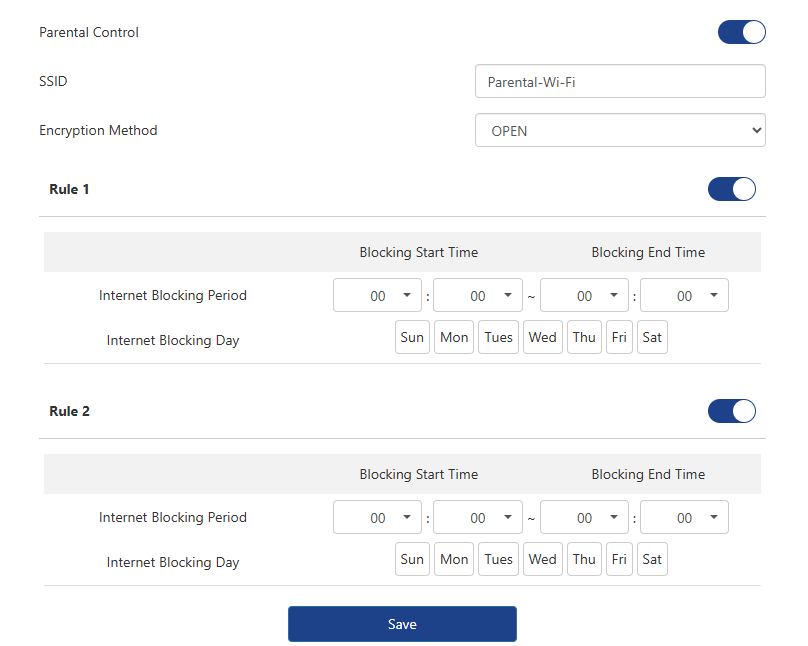
Enable Parental Control switch.
-
Set SSID(WiFi name) and password, then choose Encryption Method. WPA2-PSK is recommended.
-
Enable Rule 1 and Rule 2 switch.
-
Select Internet Blocking Period and Internet Blocking Day.
-
Click on Save.