Chapter 10 VPN Server and Client
This chapter contains the following sections:
VPN Server and Client
VPN (Virtual Private Network) can encrypt your network connection to ensure the safe transfer of important data and avoid information stealing. Remote users (VPN clients) can safely connect VPN server.
VPN Server Configuration
Open VPN Server Configuration
OpenVPN Server is used for remote devices to establish an OpenVPN connection to access your home network. If you use VPN function, you need to enable the OpenVPN server on a router and then install and run VPN client apps on remote devices.
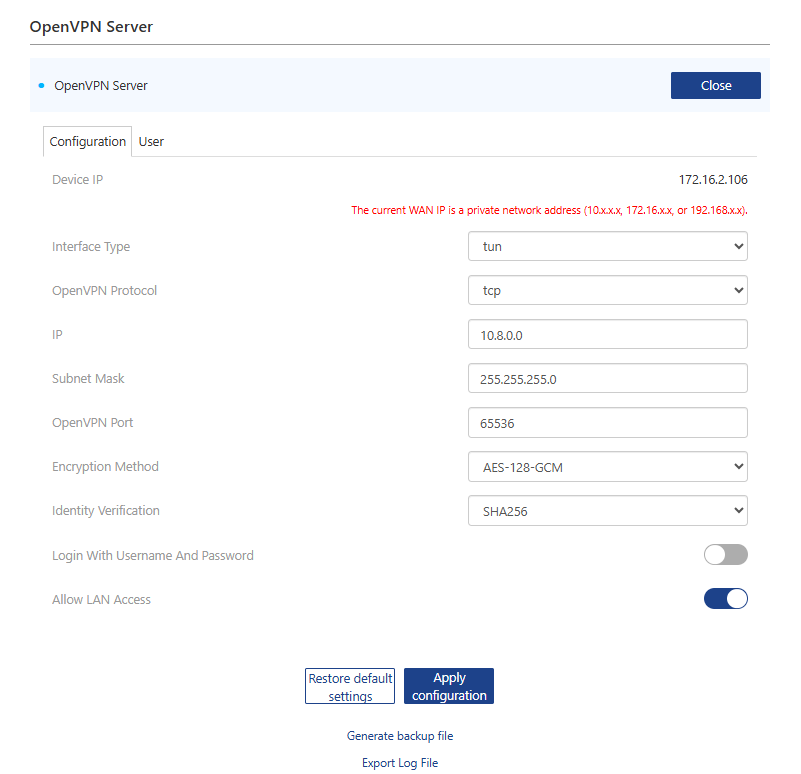
1 . Access More>VPN>OpenVPN Server.
2 . Open OpenVPN Server.
3 . Select Interface Type and OpenVPN Protocol.
4 . Input the OpenVPN Port, which should be from 1024-65535.
5 . In IP and Subnet Mask, enter the range of IP addresses the OpenVPN server can lease to devices.
6 . Select Encryption Method and Identity Verification type.
7 . Click Apply configuration.
8 . Click Generate backup file to save it. VPN client device will establish VPN connection by using the file.
Note: Whenever the OpenVPN server settings are adjusted, the OpenVPN configuration file needs to be re-exported as step 8.
Use WireGuard VPN Server

1 . Review the preset WireGuard VPN settings. Do not change them unless necessary.
2 . Click Enable.
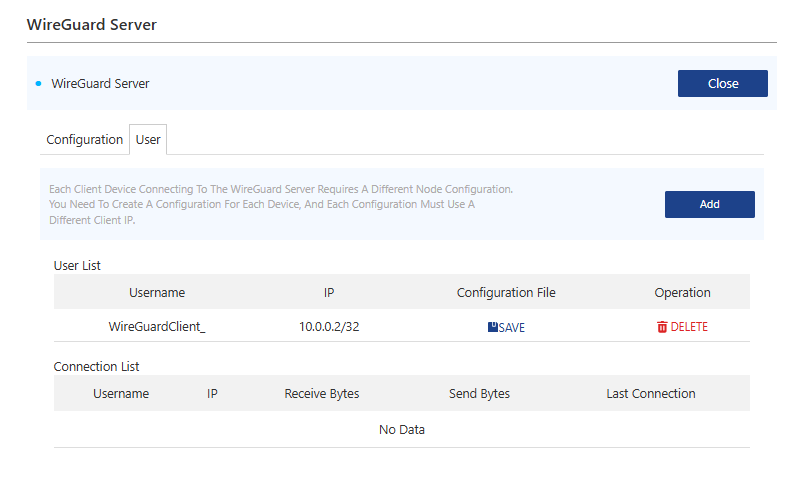
3 . Downloading configuration files: Each client that needs to connect to the WireGuard Server requires unique node configuration, so creating a configuration in unique client IP for each device as the following steps:
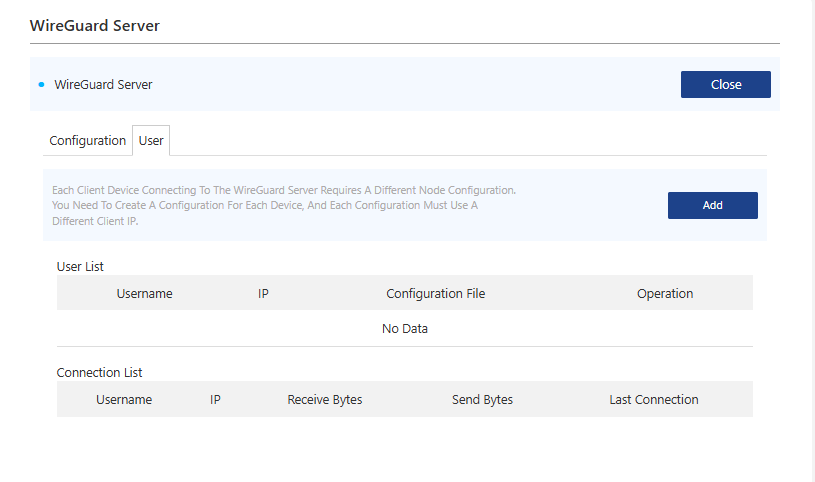
3.1 Click User.
3.2 Click Add, then input Username and click APPLY.
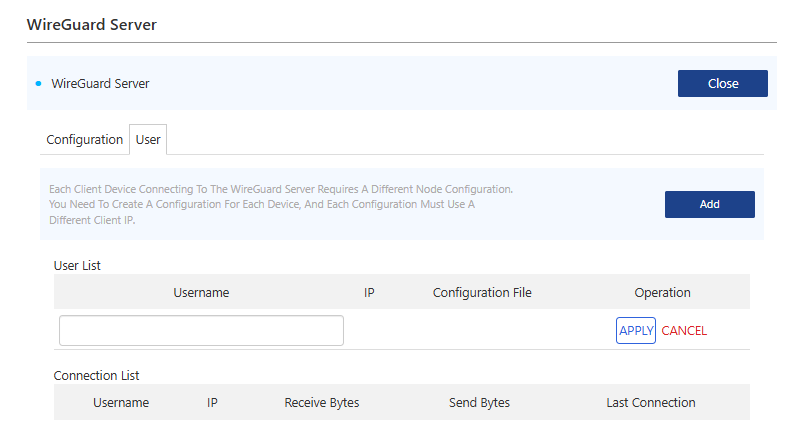
3.3 After adding successfully, click SAVE to obtain a .conf configuration file, then import this file into your WireGuard client.
VPN Client Configuration
VPN client can establish VPN connection for devices in your home network to access remote a VPN server.
PPTP/L2TP VPN Client Configuration
VPN converts public networks (Internet, etc.) into private networks using encryption technology to offer greater security and privacy protection.

1 . Access More>VPN>VPN Client.
2 . Open VPN Client.
3 . Select Internet Access Method.
4 . Select server domain or server address in Server, then enter corresponding parameter in Server Address.
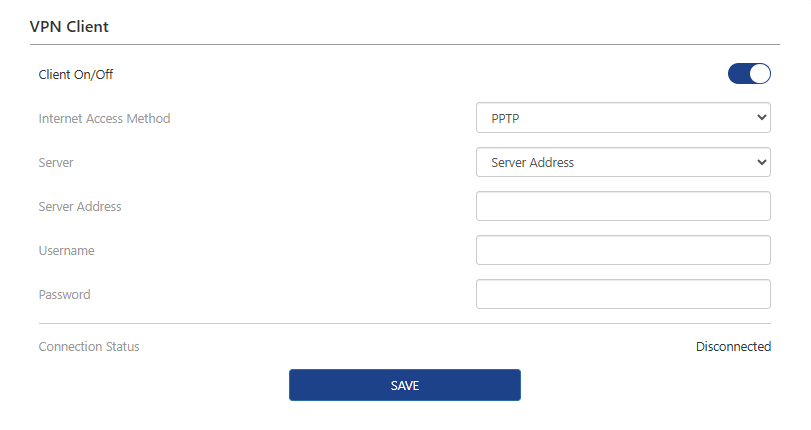
5 . Click SAVE to finish the configuration.
OpenVPN Client Configuration
1 . Access More>VPN>OpenVPN Client.
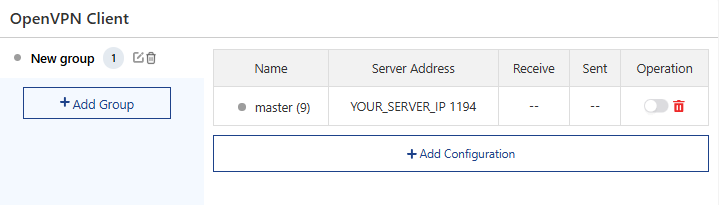
2 . Click Add Group to add new group, then click Add Configuration to add new configuration.

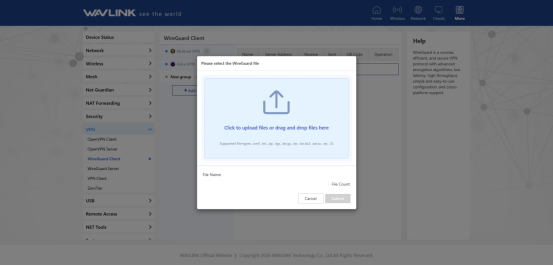
3 . Click to upload files or drag and drop files into the box.
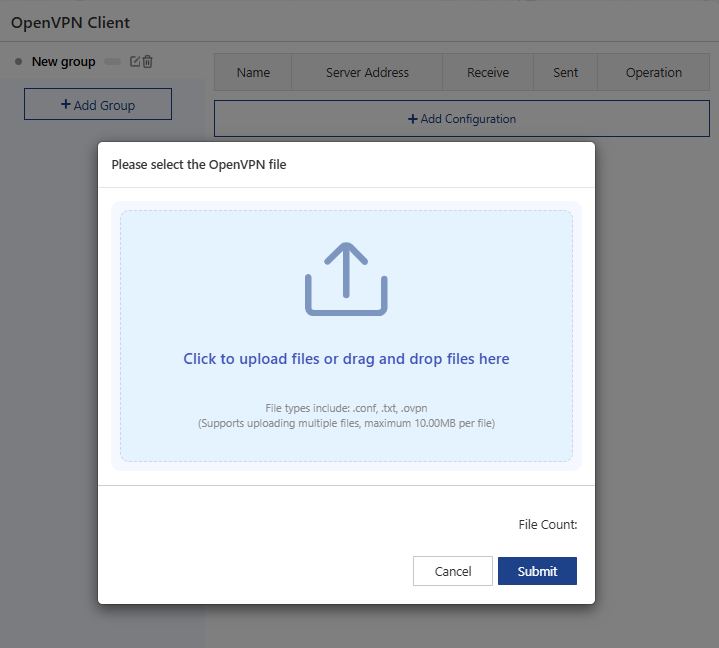
4 . After a successful configuration, click the checkbox below the action bar to enable OpenVPN.
WireGuard VPN Client Configuration
1 . Access More>VPN>WireGuard VPN Client.
- Choose VPN or Add Group
2.1 . Choose Mullvad VPN
2.1.1 . Enter your 16-digit account number, then Click Login.
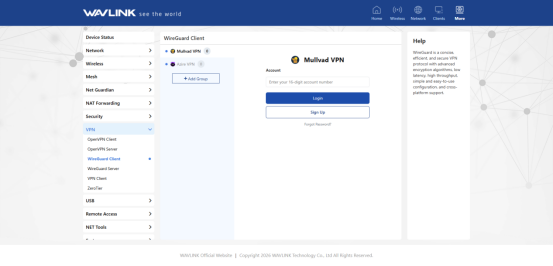
2.1.2 . After a successful configuration, turn on the operation button to enable WireGuard.
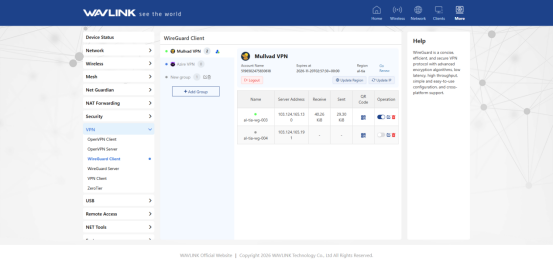
2.2 Choose Azire VPN
2.2.1 . Enter your Username and Password, then click Login.
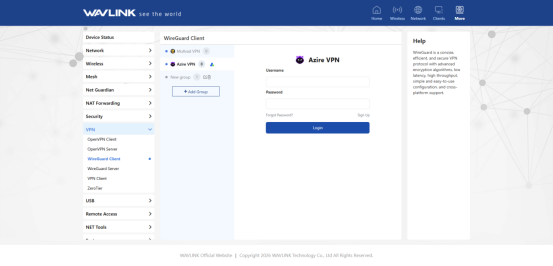
2.2.2 . After a successful configuration, turn on the operation button to enable WireGuard.
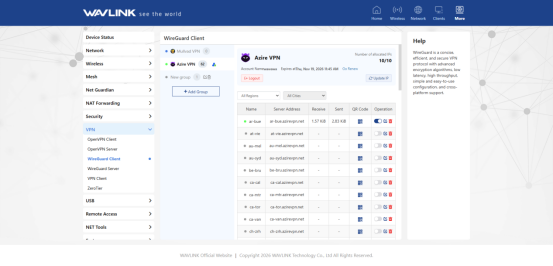
2.3 Add WireGuard Client via Add New Group.
2.3.1 . Click Add Group in New group, then click Add Configuration, select Upload Configuration File or Manual Configuration.
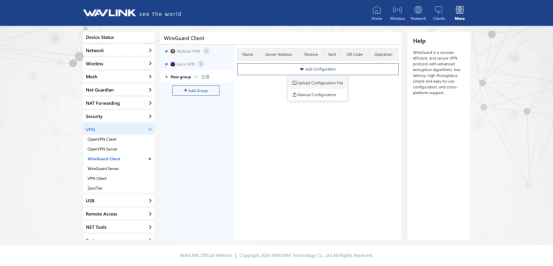
2.3.2 . After selecting Upload Configuration File, click to upload files or drag and drop files into the box, then click Submit.
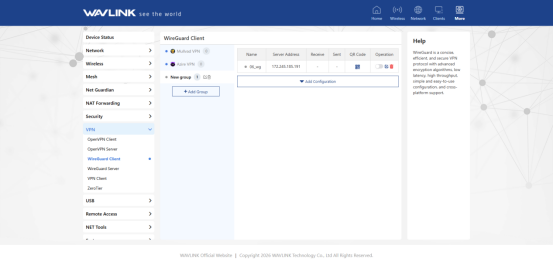
2.3.3 . After a successful configuration, click the checkbox below the action bar to enable WireGuard.
ZeroTier Configuration
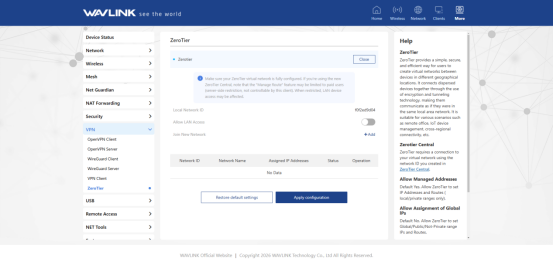
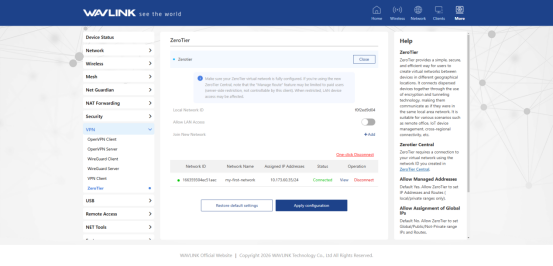
1 . Access More>VPN>ZeroTier.
2 . Open ZeroTier.
3 . Click Add to jion Network ID.
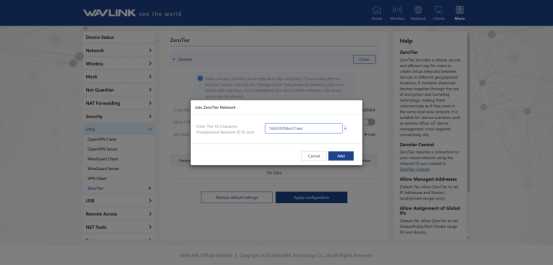
4 . Click Apply Configuration to finish it.