Chapter 2 How to Use
This chapter contains the following sections :
Installation
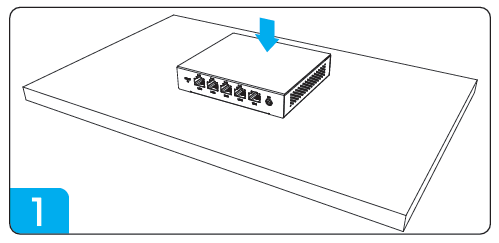
- Access Controller can be placed on a smooth tabletop. This installation method is relatively simple to operate.
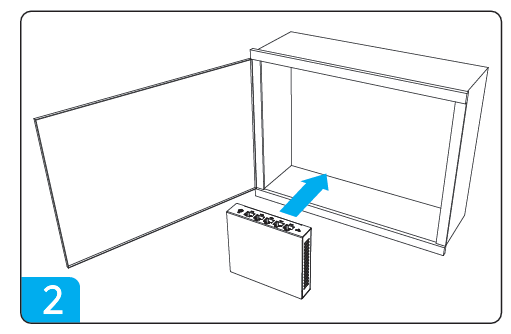
- Access Controller can be hung in the weak electric box through the notch on the back.
Connection
- Connect the power adapter for power supply.
- Connect the WAN port of the Access Controller to the LAN port of the upstream router.
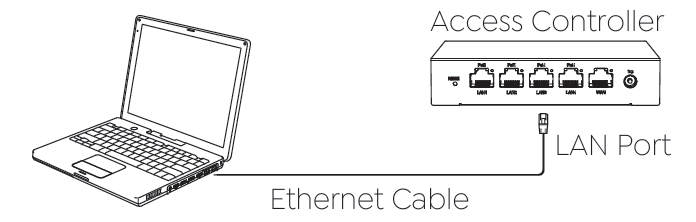
- The LAN port of the Access Controller can be connected to AP, switch, WAN port of router, PC, laptops, etc.
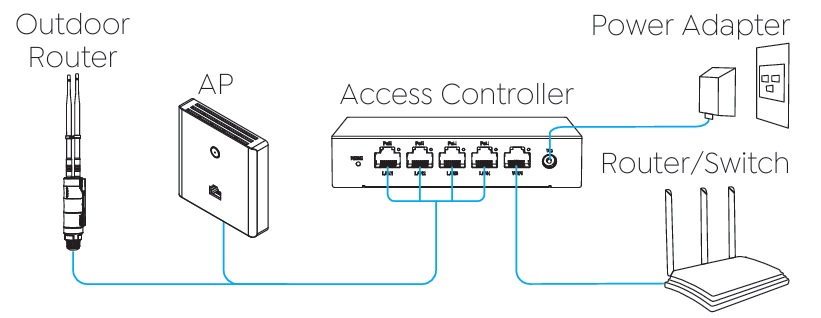
Wired Connection
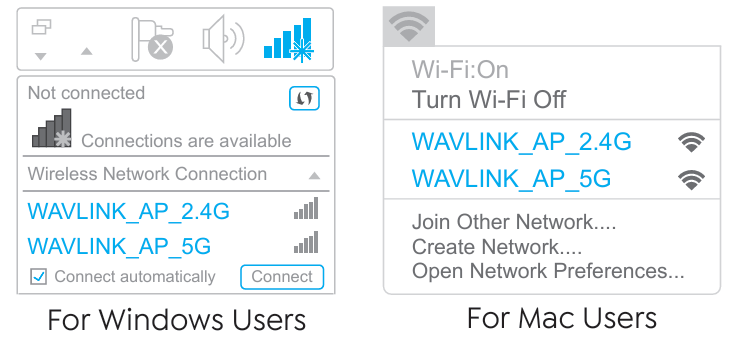
Wireless Connection
If you want to set it up via wireless connection, at least you will need one AP device. Connect to the AP's Wi-Fi, then proceed to configure your Access Controller.
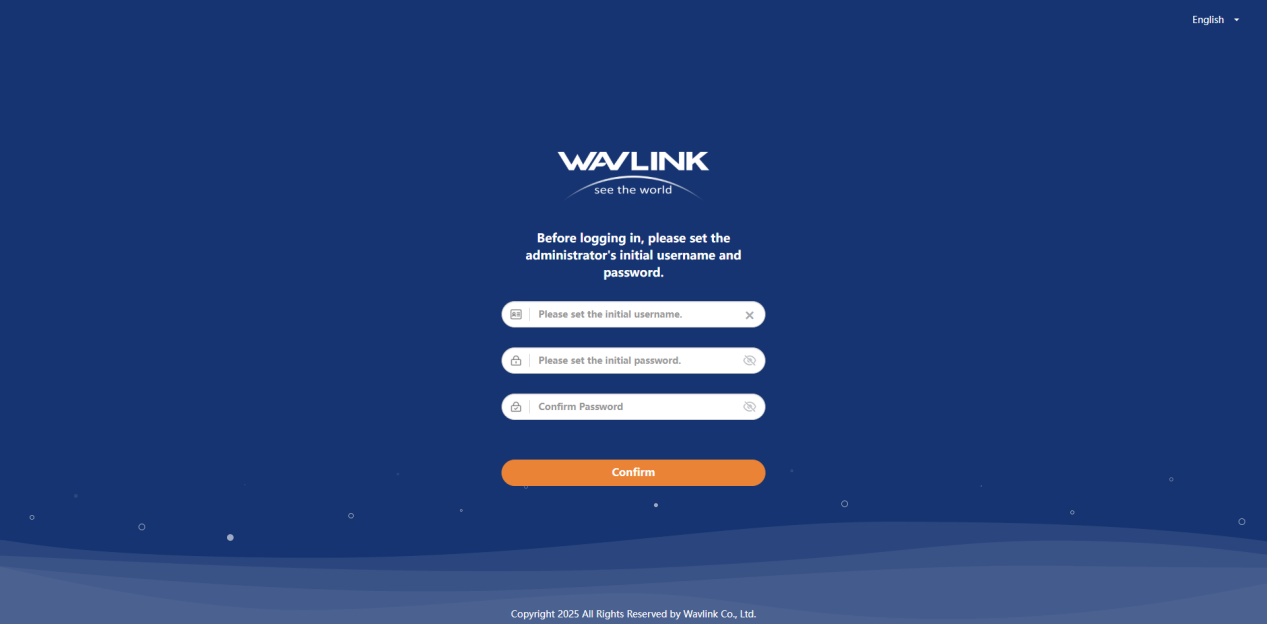
Configuration
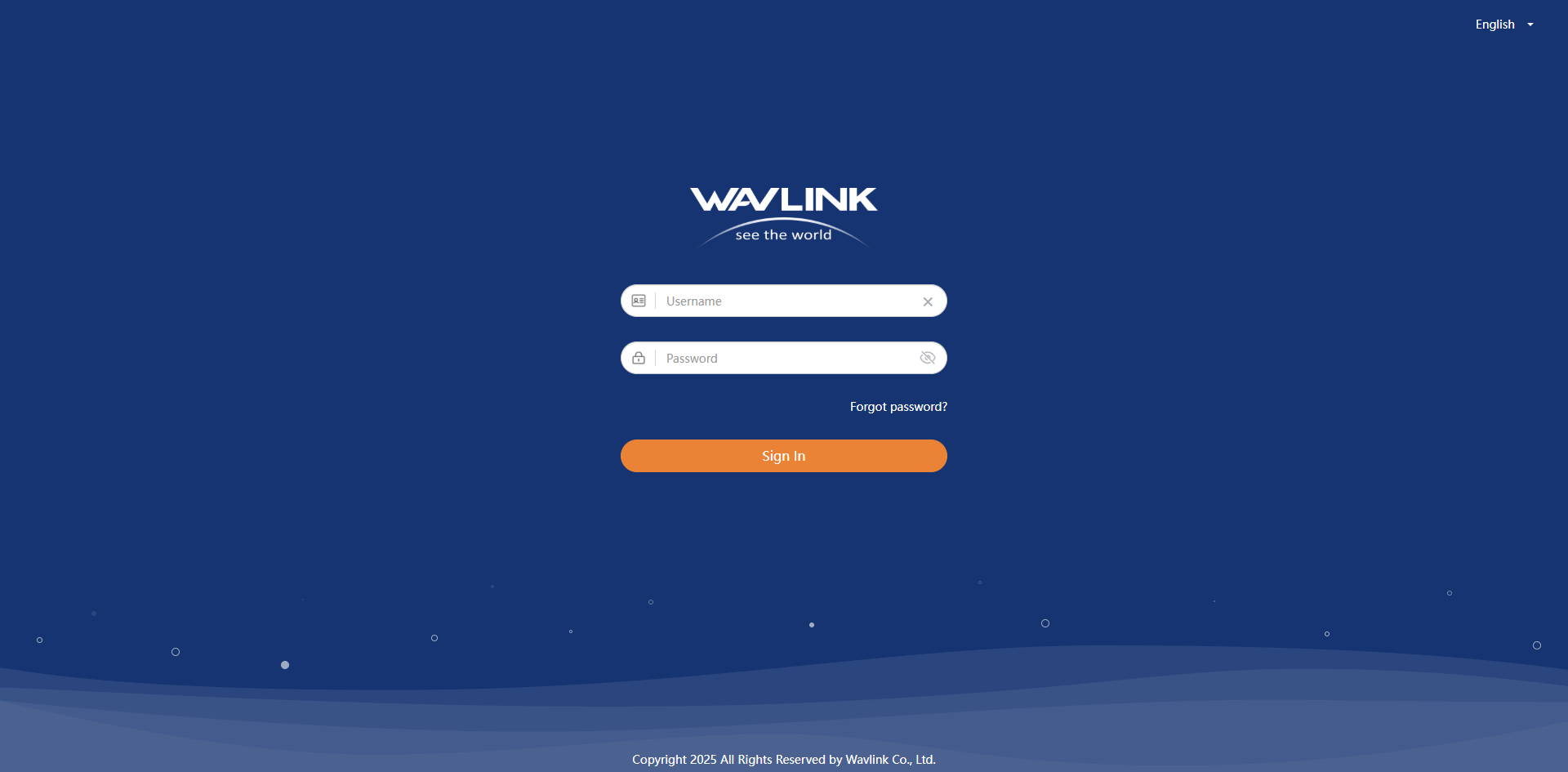
- Please enter 192.168.10.1 or http://wavlogin.link in the address bar of your browser on PC/laptop or phone. Please set the username and password first, and then enter the username and password you set to log in.
Mode Selection
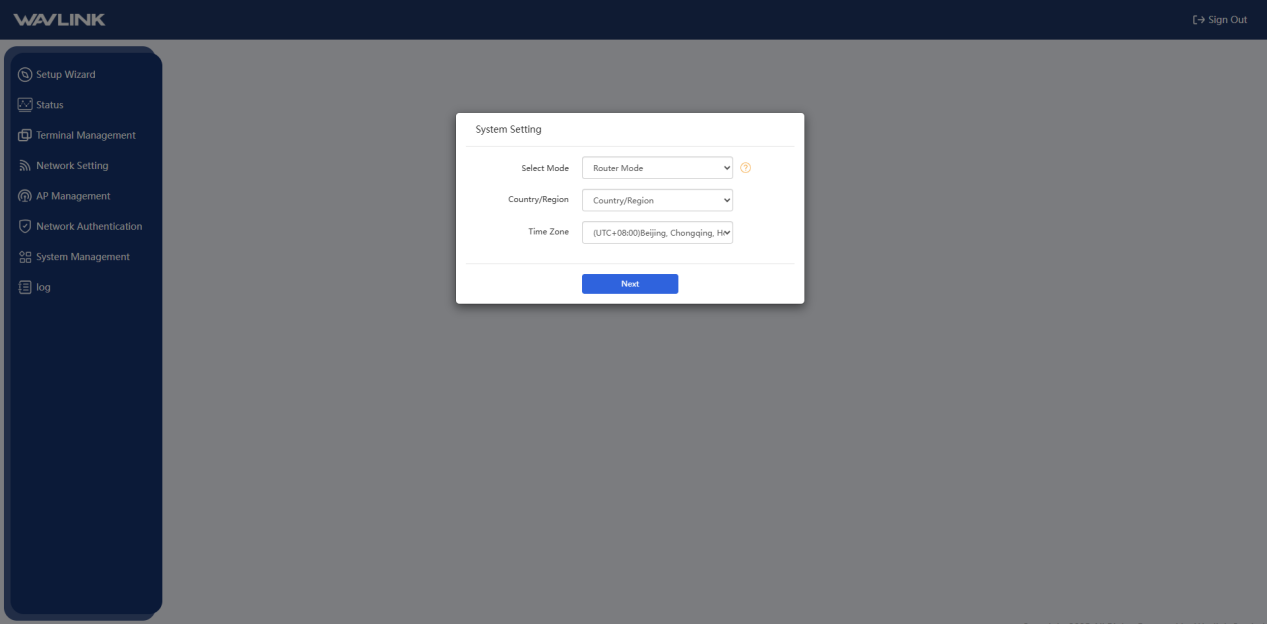
Router Mode
Enter the setting interface of System Setting. Select Router Mode. Choose WANType. In Routing Mode, the lP of the AP/terminal device is assigned by the Access Controller.
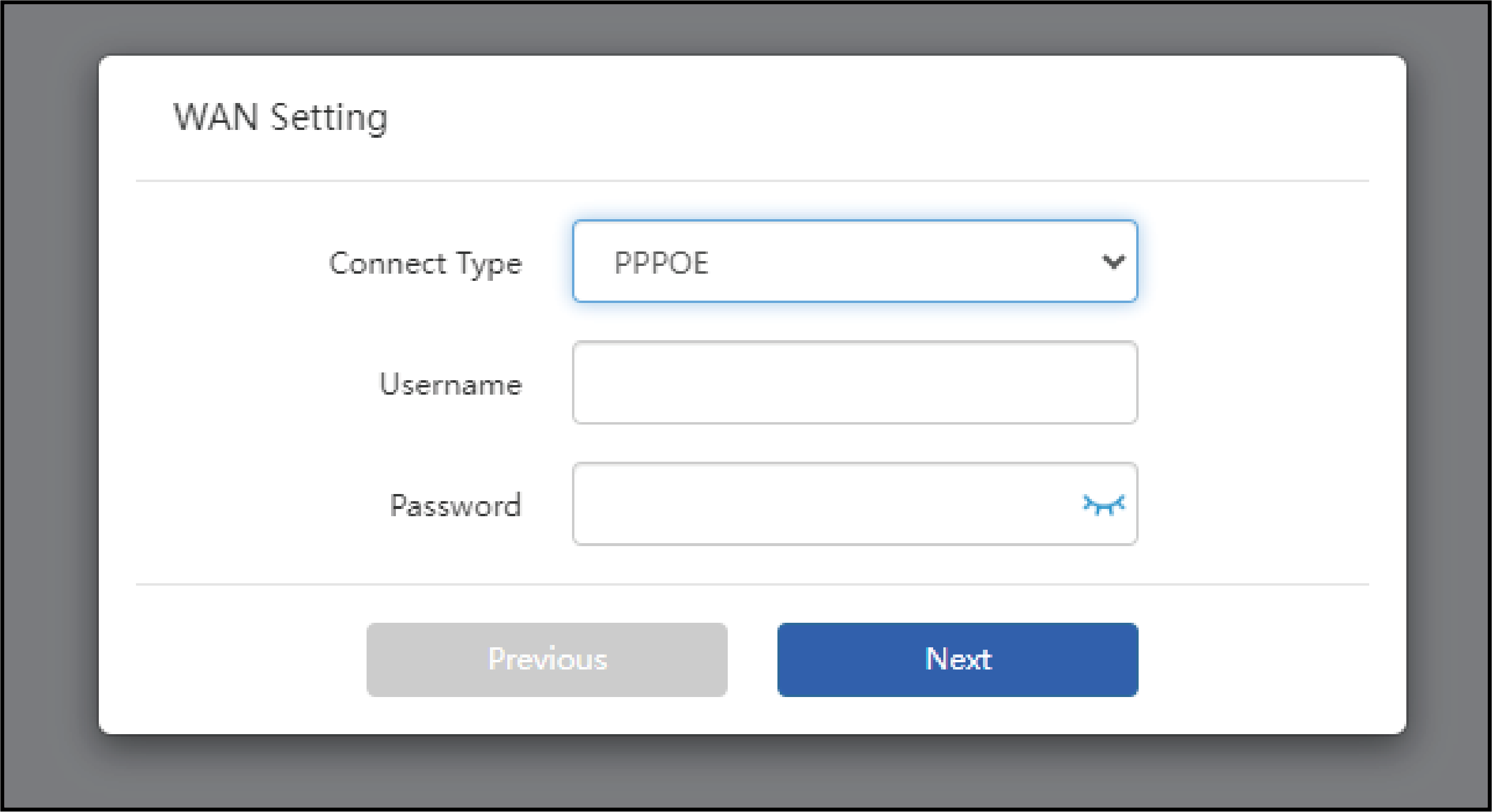
Which WAN Type am I supposed to choose?
If you use DSL line and you are only provided an account name and a password by your ISP, choose PPPoE. lf you use cable TV or fiber cable, choose DHCP(Dynamic IP) If you are provided information such as IP address, Subnet Mask and Default Gateway, choose StaticIP.
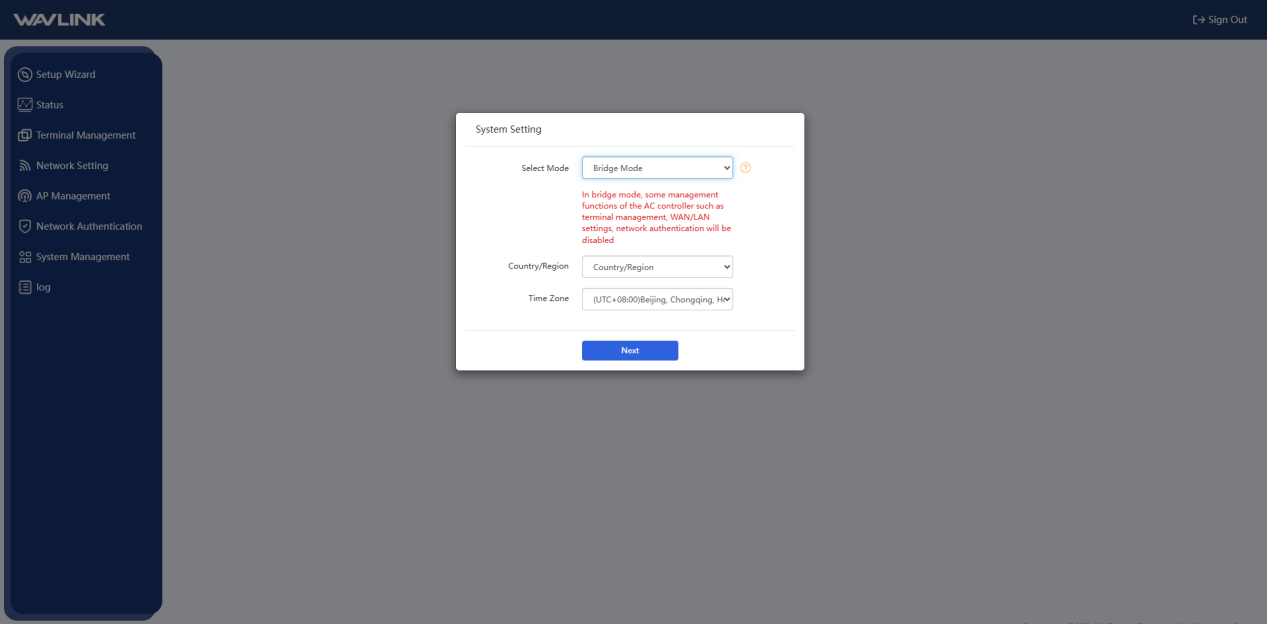
Bridge Mode
Select Bridge Mode. in bridge mode, the IP of AP/terminal device is assigned by the superior of the Access Controller. Some of the Access Controller's management functions will be disabled, such as terminal management WAN/LAN settings, and network recognition.
Wireless Settings
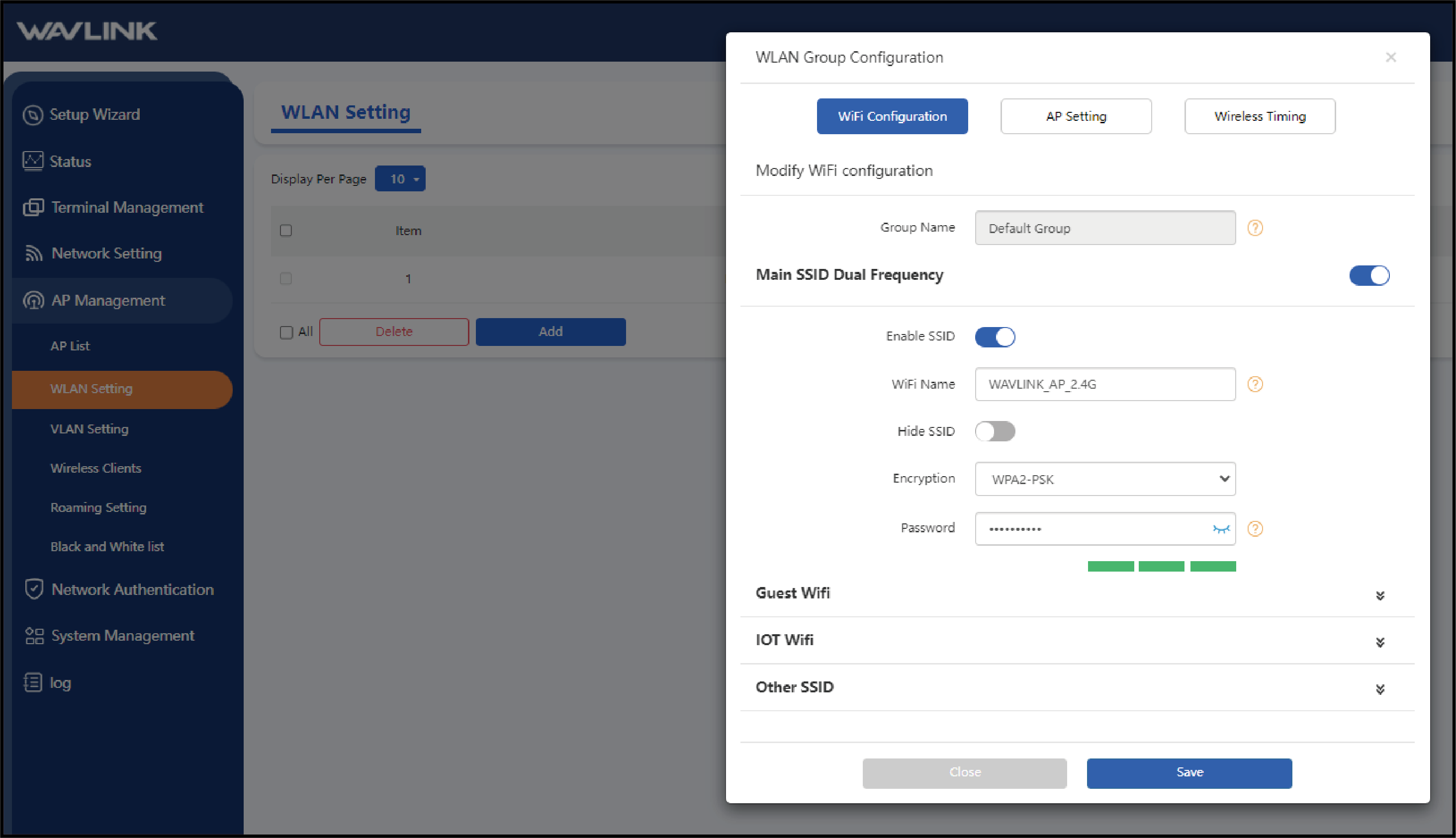
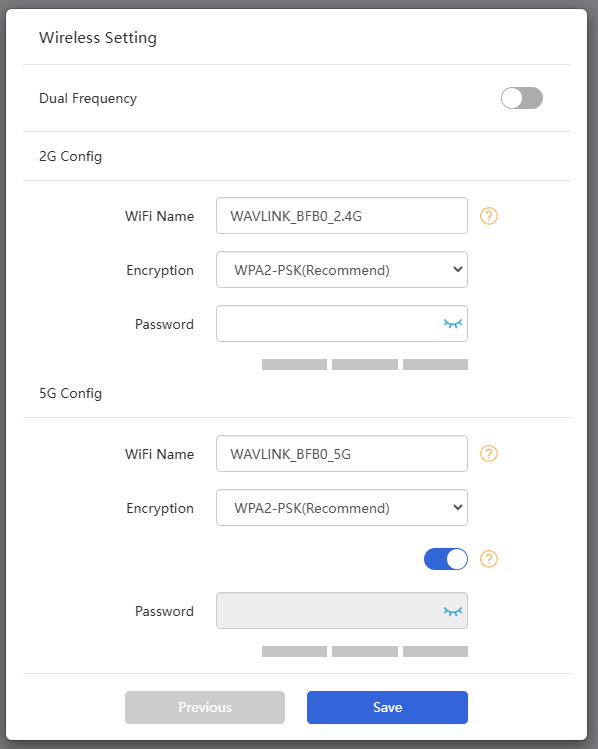
The WiFi Name is defaulted by WAVLINK_XXXX, and the WPA2-PSK Encryption type is recommended, after that, create a new Password for the device.
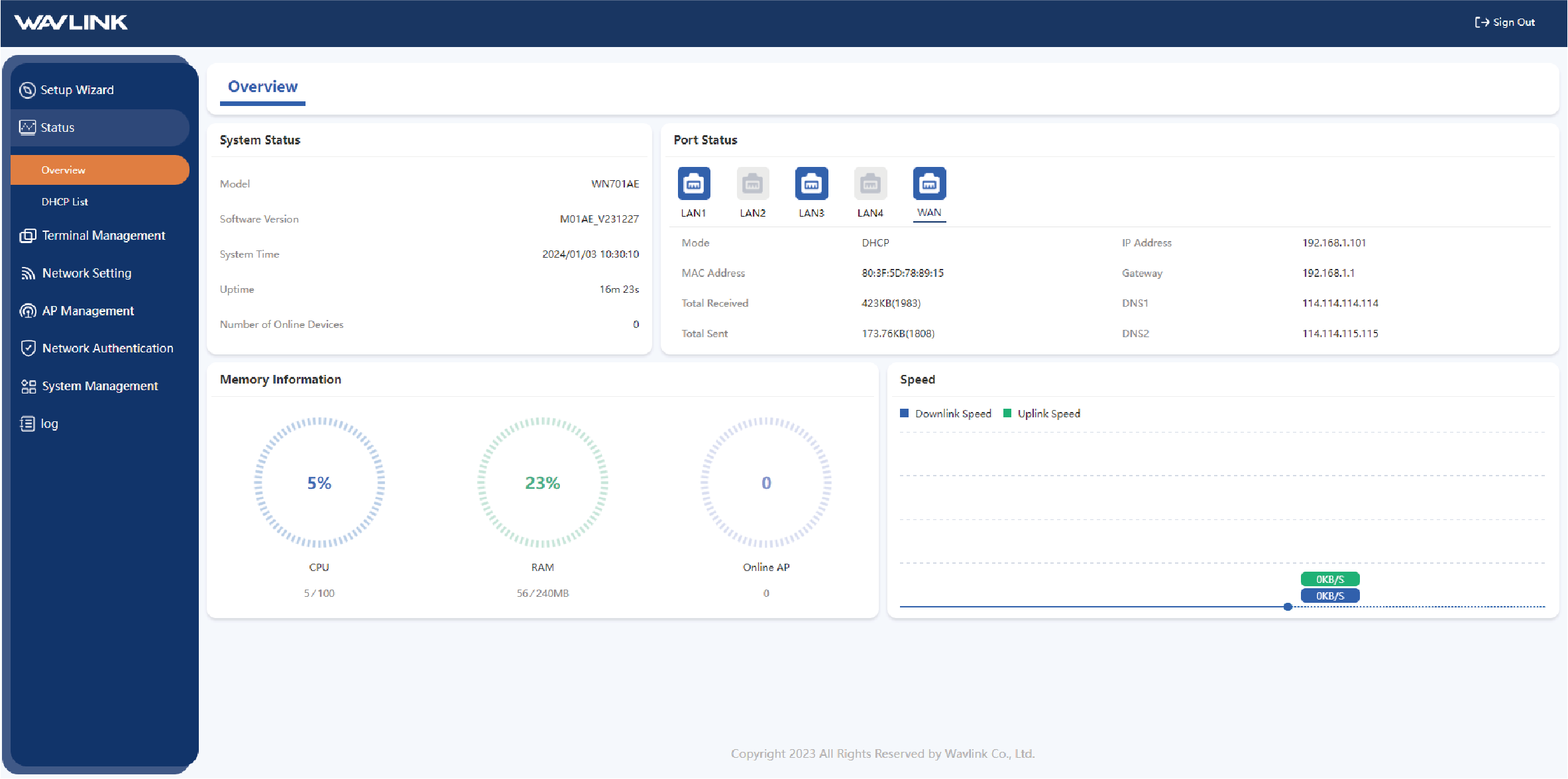
Click on Status and select Overview, This screen allows you to view the device status and the connection status of each port.
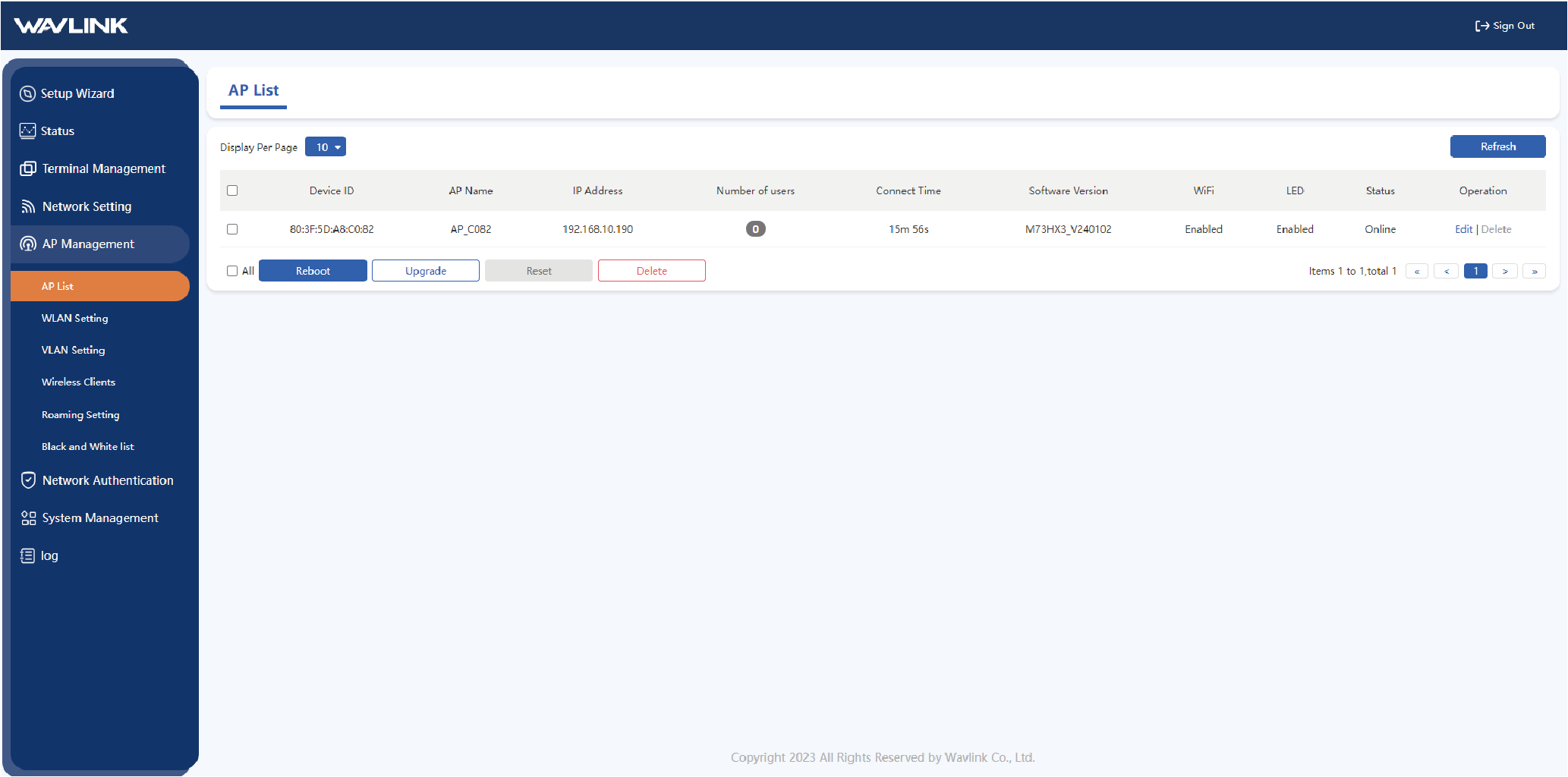
AP Management
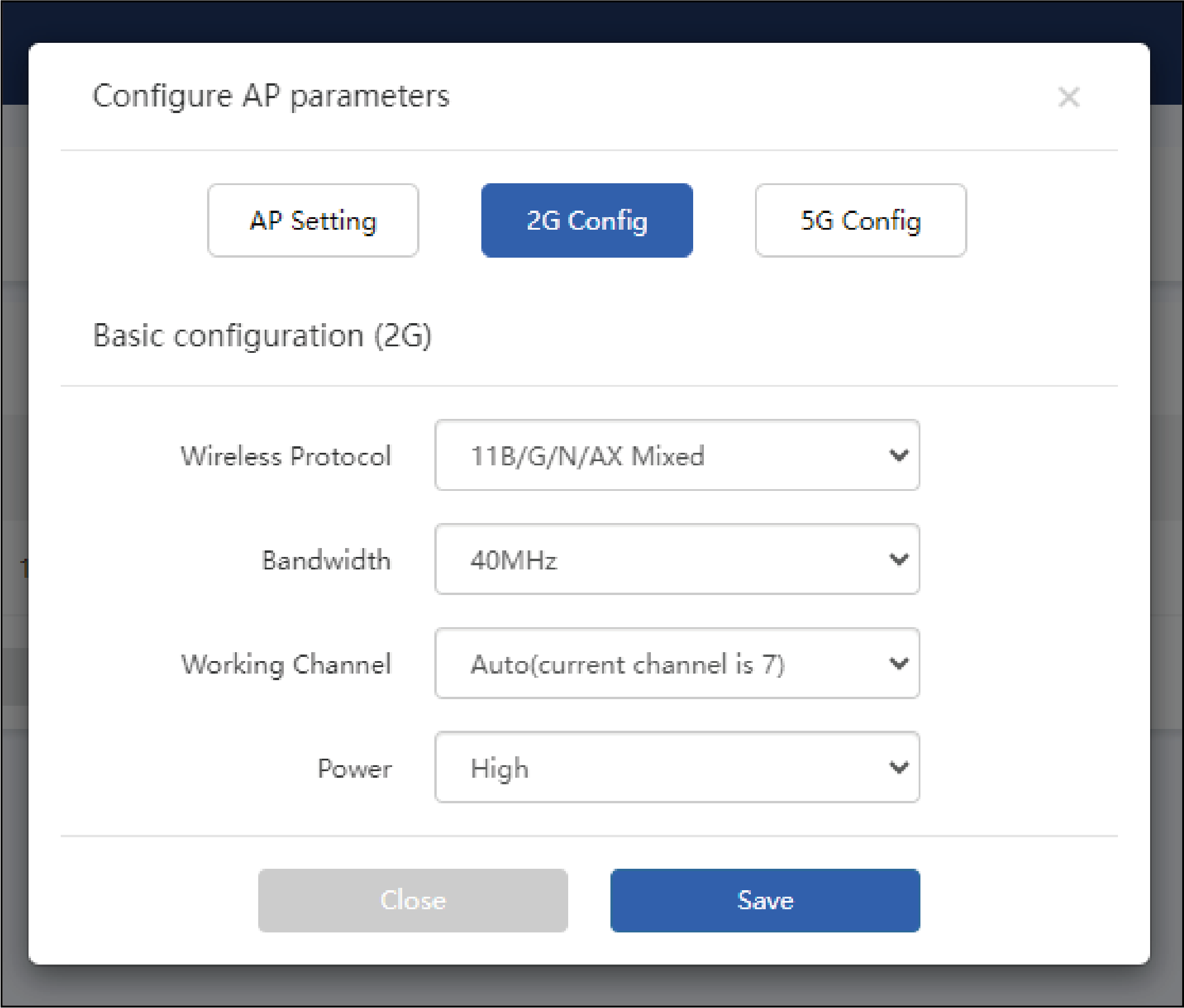
1.Select AP List, this interface allows you to Reboot, Upgrade, Reset, Delete offline AP. You can also click Edit to view or modify the configuration information of an AP.
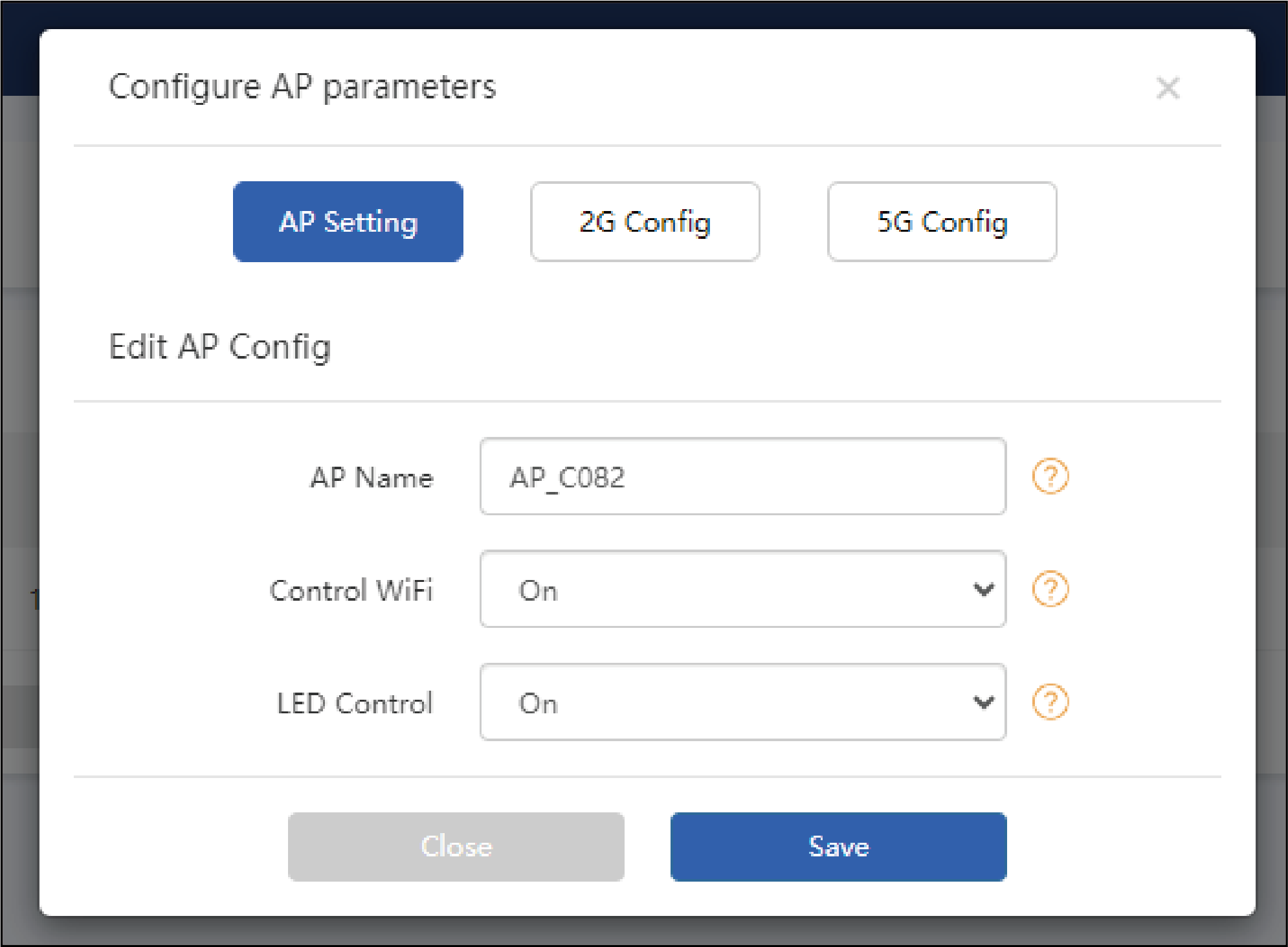
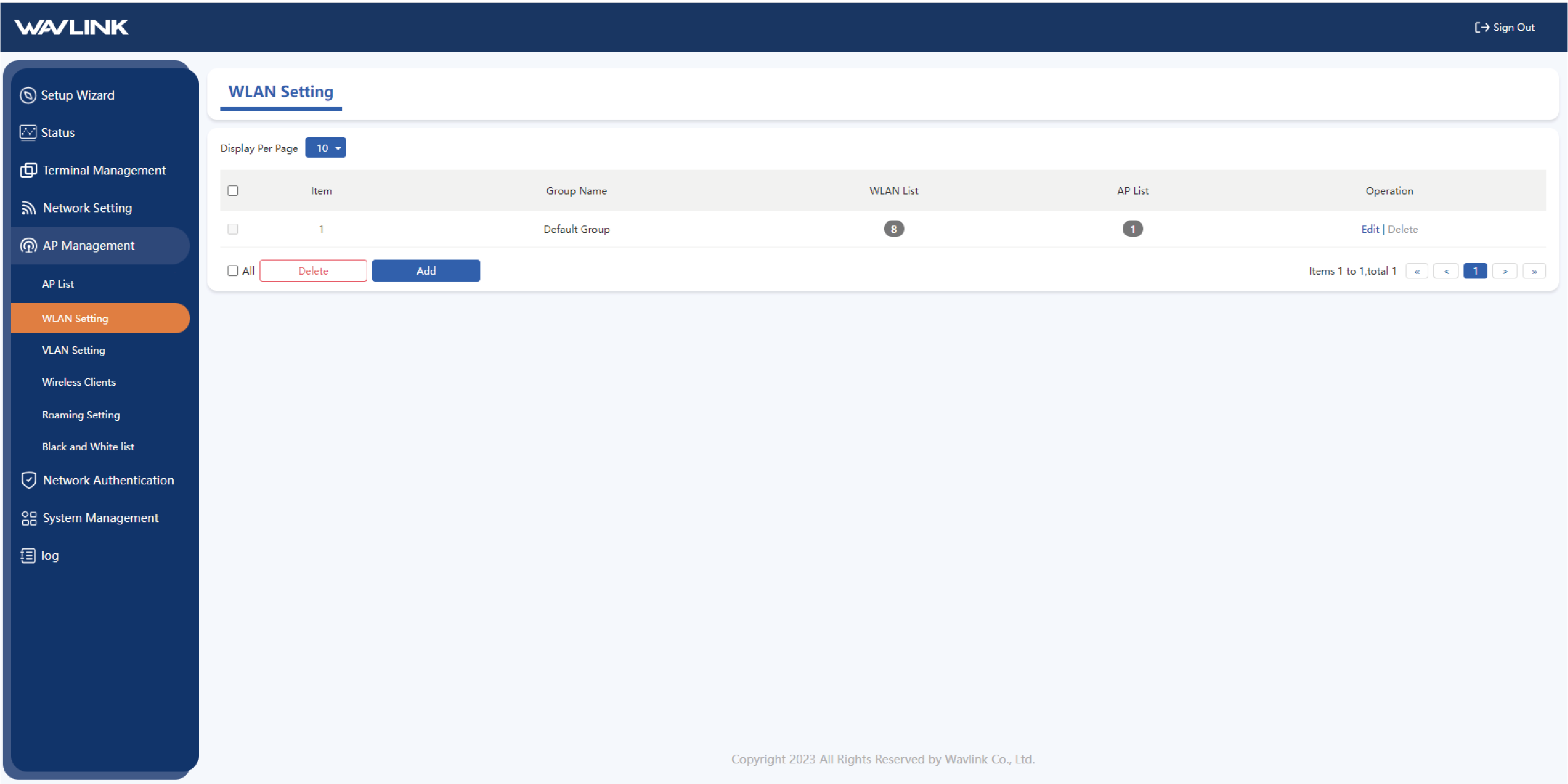
- The WLAN setting interface allows you to Add, Delete and modify the current wireless network. Click Edit to modify the network name, encryption method password and other configurations of WiFi.