Chapter 3 Network Configuration
Network Configuration
1.Connect to the PC
1.1 Via Wireless
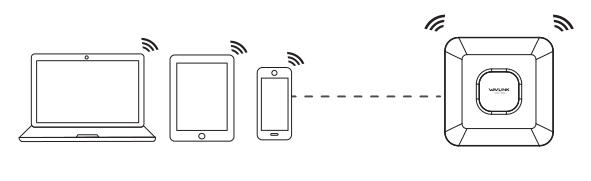
① Disconnect the Ethernet cable from your computer (if you have one).
② Turn on your WiFi, find the SSID of this product on your wireless devices(smartphone, tablet computer, laptop, et.) and place a connection.
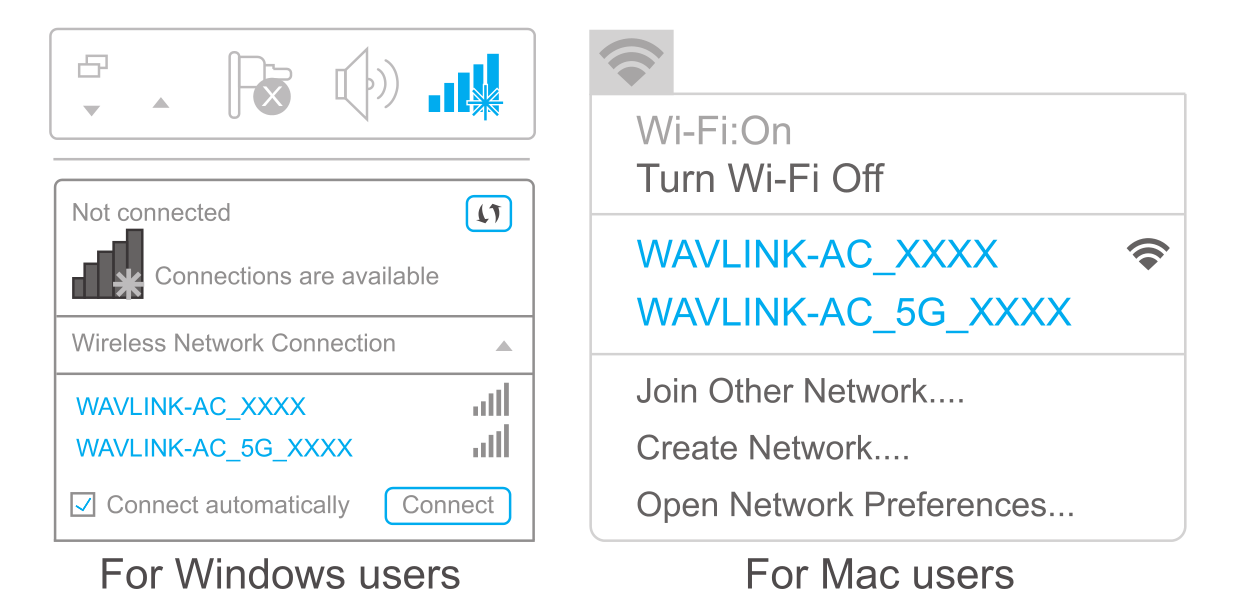
1.2 Via Cable
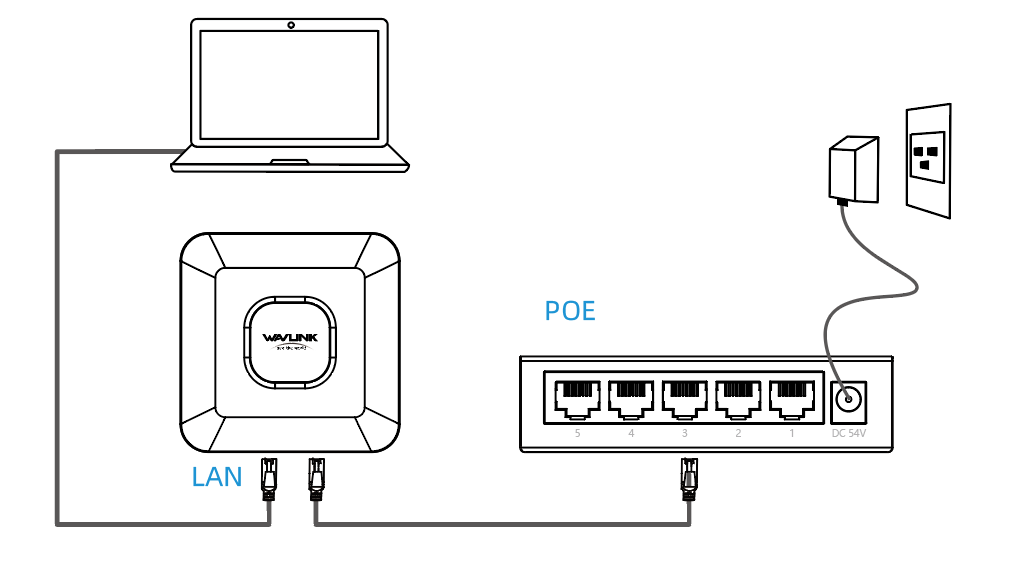
①First, connect the PoE switch to a power supply. Next, connect the PoE switch to the router’s WAN port by using an Ethernet cable. Finally, connect the router to your laptop with a network cable.Then you can start the configuration of the device.
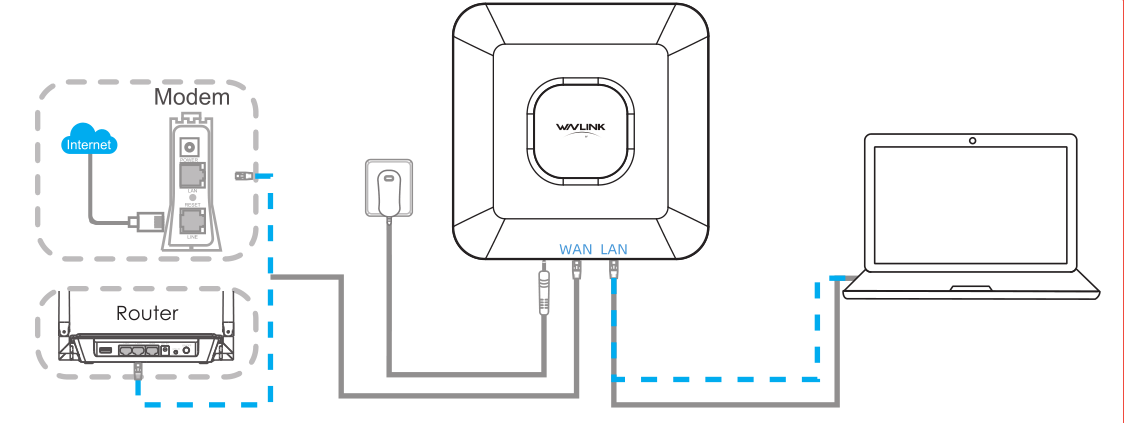
② If you are using this device's AP/Router function, before mode configuration(Step 4.1 and 4.3), please connect this device's WAN port with the upper router/modem's LAN port. Then, your laptop/PC/phone can connect network wired or wirelessly.
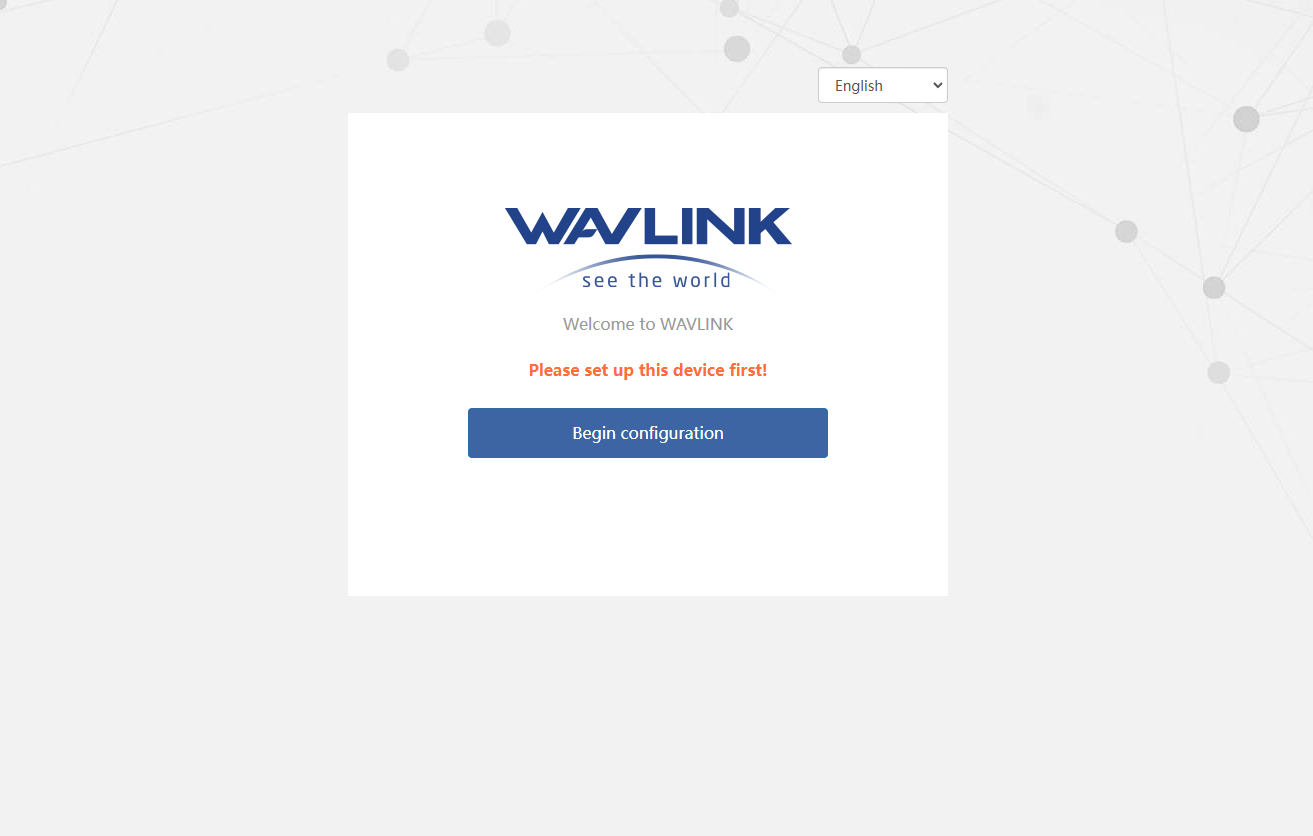
2.Normally the product web UI will guide you to the "login" page once you have connected to the device successfully in your first time, but if it doesn't, please manually input 192.168.30.1 or http://waplogin.link in the address bar of your browser on PC/laptop or phone.
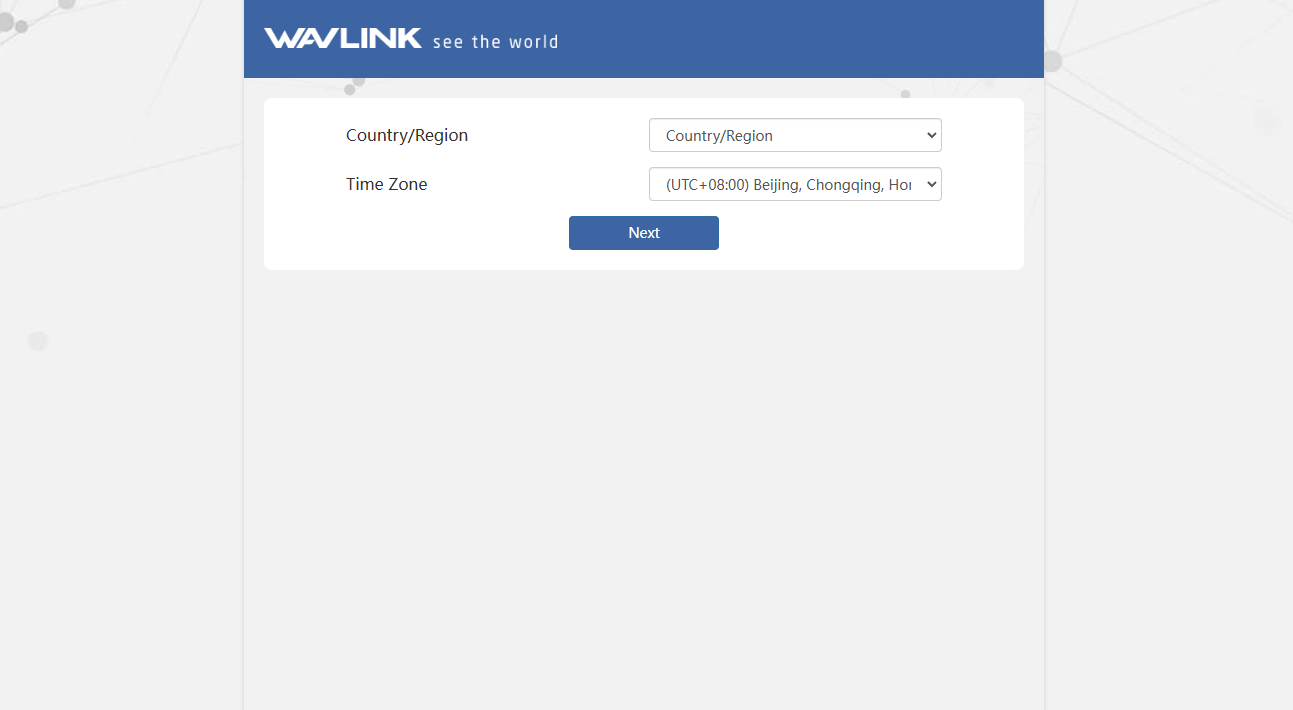
3.Select your Country/Region and Time Zone.
4.Mode Selection
This product has 4 modes: FAT AP mode(AP/Router/Repeater mode) and FIT AP mode. Please be noted that there is no need for network configuration in FIT AP mode.
4.1 AP Mode
1.The system selects AP(FAT AP) mode by default, so there is no need to select the AP mode manually. Click on "Next".
2.Connect the WAN/LAN port of this product with the host router's LAN port via Ethernet cable. Then you can change the SSID or use the default one, the encryption mode recommend is WPA2-PSK. For your network security. Please create a new password according to the rule. Then click on "Save" and wait for the setting process to complete.

4.2 Repeater Mode
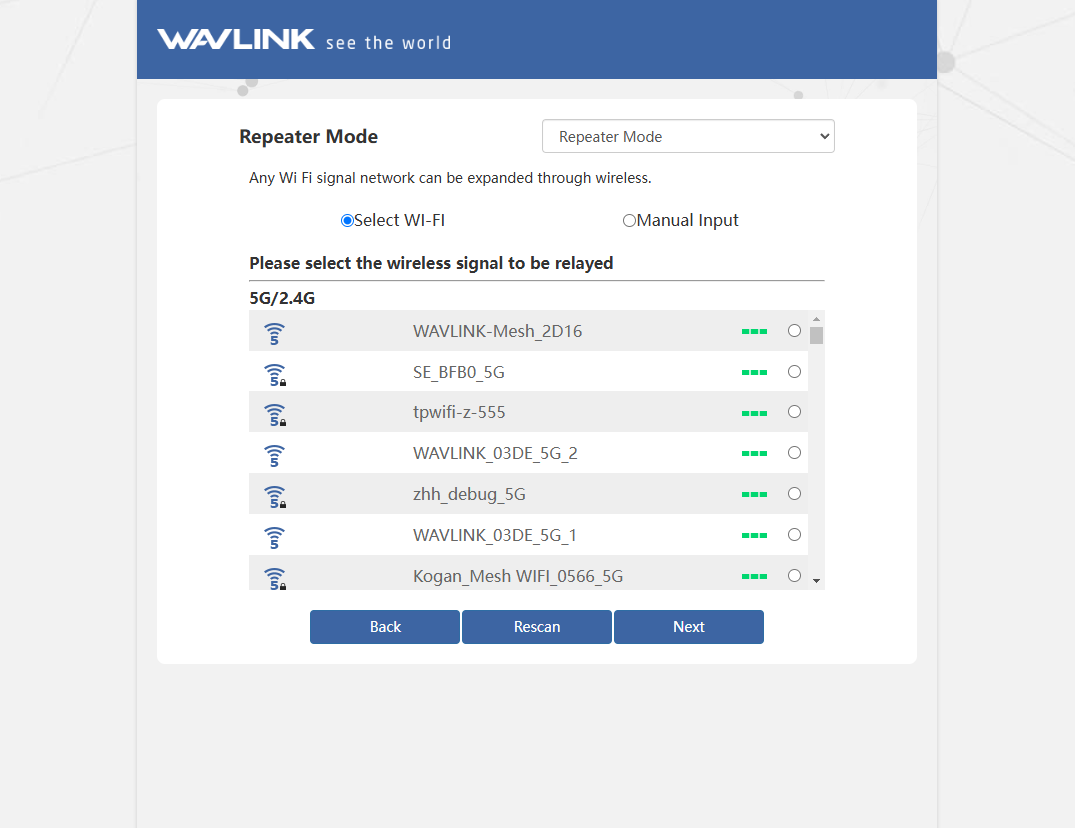
Click "Switch Mode" and select Repeater Mode.
1.After scanning, please make sure the Wi-Fi you want to select is listed, and click "Next", if it isn't, please click "Rescan".
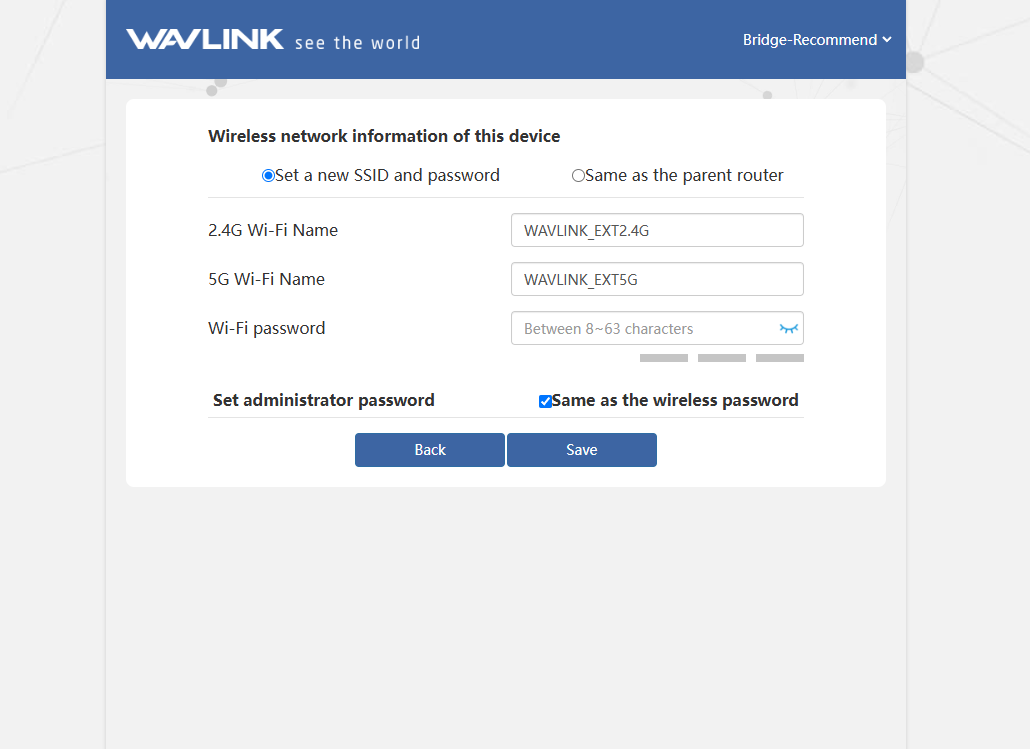
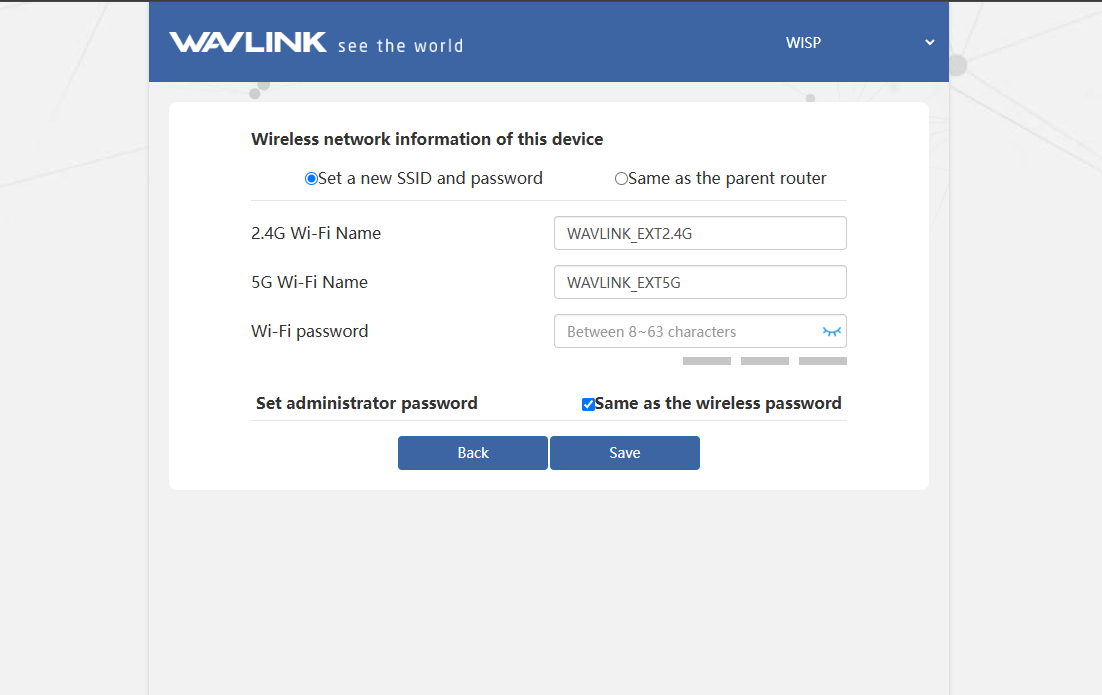
2.1 Set the WiFi name and password of this device, then click on Next.
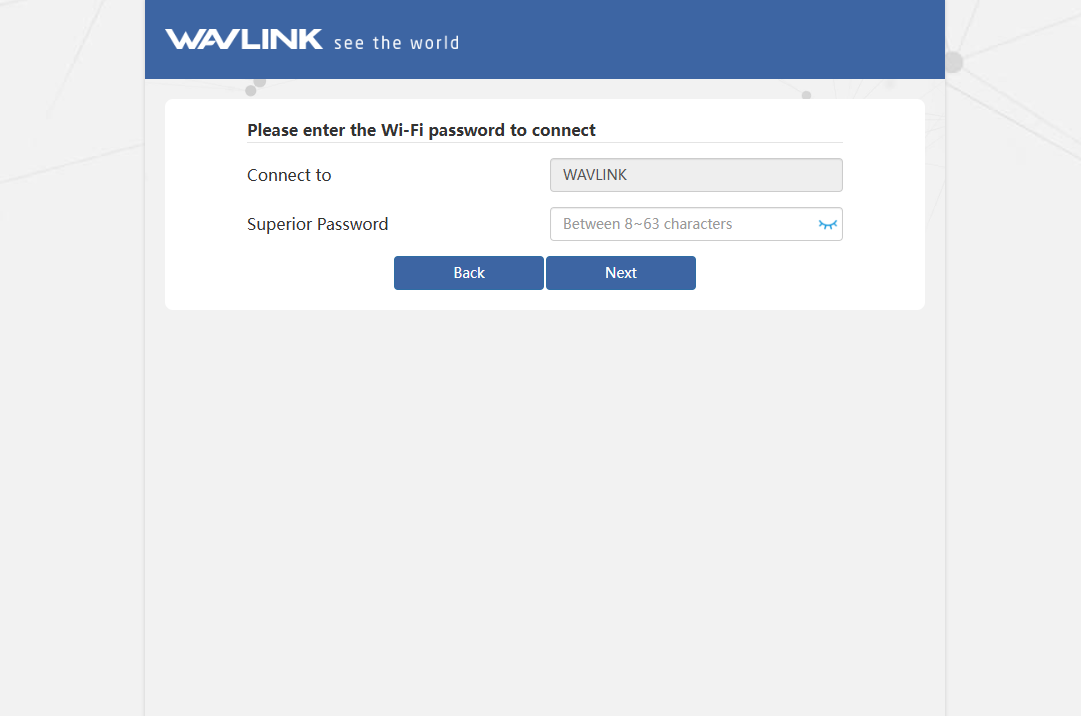
Connection type: Bridge
Connection type: WISP
4.3 Router Mode
1.Click on "Switch mode", then choose "Router Mode"
2.Before configuring. please make sure your upper router has connected to the WAN/LAN port of this product. The system will guide you to select the WAN Type. As for the Encryption Mode, we recommend you to select WPA2-PSK. For you network security, we suggest you create a Password.
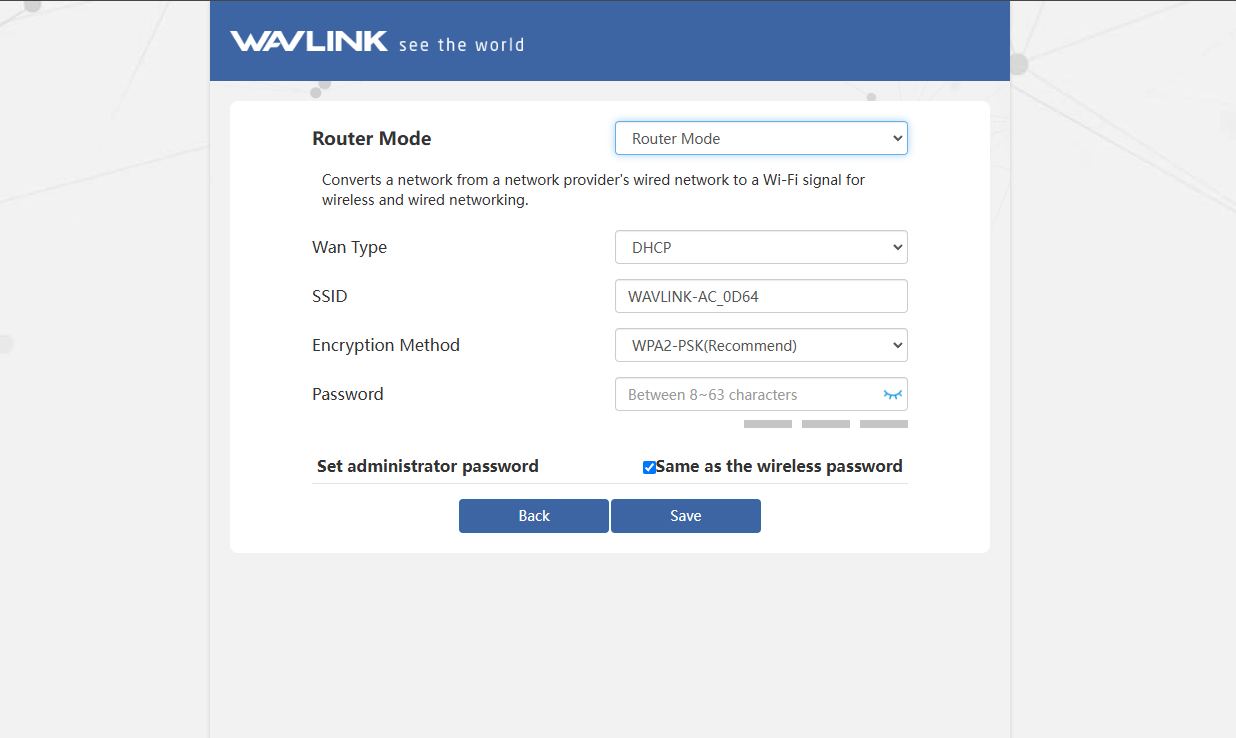
Which WAN Type am I supposed to choose?
If you use DSL line and you are only provided an account name and a password by your ISP, choose PPPoE. If you use cable TV or fiber cable, choose DHCP(Dynamic IP). If you are provided information such as IP address, Subnet Mask and Default Gateway, choose Static IP.