Chapter 4 FAQ
This chapter introduces firmware upgrade, FAQ, and aftersale service.
It contains the following sections :
• FAQ
• GNU General Public License Notice
Firmware Update
Firmware Upgrade can fix bugs of the router. However, we don't recommend you to upgrade the firmware, if the router works properly.
1.Launch a browser from your laptop/PC or smart phone and enter http://waplogin.link or 192.168.30.1 in the address field.
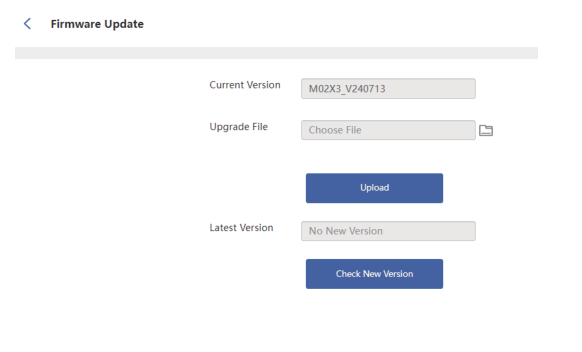
2.Download the latest firmware file from our website http://www.wavlink.com -Support - Firmware.
3.Click Advanced - Firmware Update, choose File and upload it, then check new version.
FAQ
Q1. Why doesn't the login page appear after entering http://waplogin.link?
-
Please make sure your computer is set to obtain an IP address automatically.
-
Verify if http://waplogin.link is correctly entered in the web browser.
-
Alternatively, enter http://192.168.30.1 in the web browser.
-
Use another web browser and try it again.
-
Reboot your router and try it again.
Q2. What can I do if I cannot access the Internet?
1.Power off your modem for about 5 minutes, then power it on and check the internet. If your modem has more than one Ethernet port, keep other ports unconnected.
2. Test by connecting a computer directly to the modem. If issues persist, contact your ISP.
3. Check the router’s web management page:
- Verify internet IP validity on the Network Map.
- If valid, set DNS1 to 8.8.8.8 and DNS2 to 8.8.4.4 under More> Network > Internet>Custom DNS.
- If invalid, check hardware or contact ISP.
4. For cable modems, clone the MAC address in More > Network > Internet > MAC Clone>Custom MAC, then reboot modem and router.
Q3. How can I restore the router to its factory default settings?
- While the router is powered on, press and hold the Reset button of the back for more than 6 seconds.
Q4. What can I do if I forget my Administration Management password?
- Refer to FAQ > Q3 to reset the router.
Q5. What can I do if I forget my wireless network password?
- Log in the router's web management page at http://waplogin.link and go to Wireless, you can find your Wi-Fi password here.
Q6. How to deploy the router to get the best Wi-Fi signal?
- Keep the router in the most central spot in your home and away from anything that might block its signal.
GNU General Public License Notice
This product includes software codes developed by the third parties. These software codes are subject to either the GNU General Public License (GPL), Version 2, June 1991 or the GNU Lesser General Public License (LGPL), Version 2.1, February 1999. You can copy, distribute, and/or modify in accordance with the terms and conditions of GPL or LGPL.
The source code should be complete, if you want us to provide any additional source code files under GNU General Public License (GPL),please contact us in these matters. We are committed to meeting the requirements of the GNU General Public License (GPL). You are welcome to contact our local office to get the corresponding software and licenses. Please inform us of your contact details (full address) and the product code. We will send you a software package with the software and license for free.
The respective programs are distributed WITHOUT ANY WARRANTY; without even the implied warranty of MERCHANTABILITY or FITNESS FOR A PARTICULAR PURPOSE.
Please refer to the GNU General Public License website for further information.
http://www.gnu.org/licenses/old-licenses/lgpl-2.0.html
http://www.gnu.org/licenses/gpl/html
Aftersale Service