Chapter 3 Configuration
This chapter introduces steps for setup guide:
Step 1: Connecting the Router
1.1 Via Wireless
Turn on your Wi-Fi, search SSID of this product on your devices (smartphone, tablet computer, laptop, etc.), and connect it, then you can start configuring.

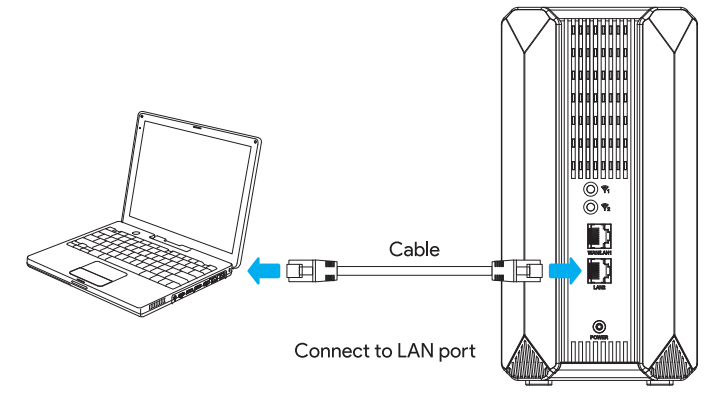
1.2 Via Cable
Connect the Ethernet cable to your PC/laptop and LAN port of the product, then you can start configuring.
Step 2: Logging in to Management Page
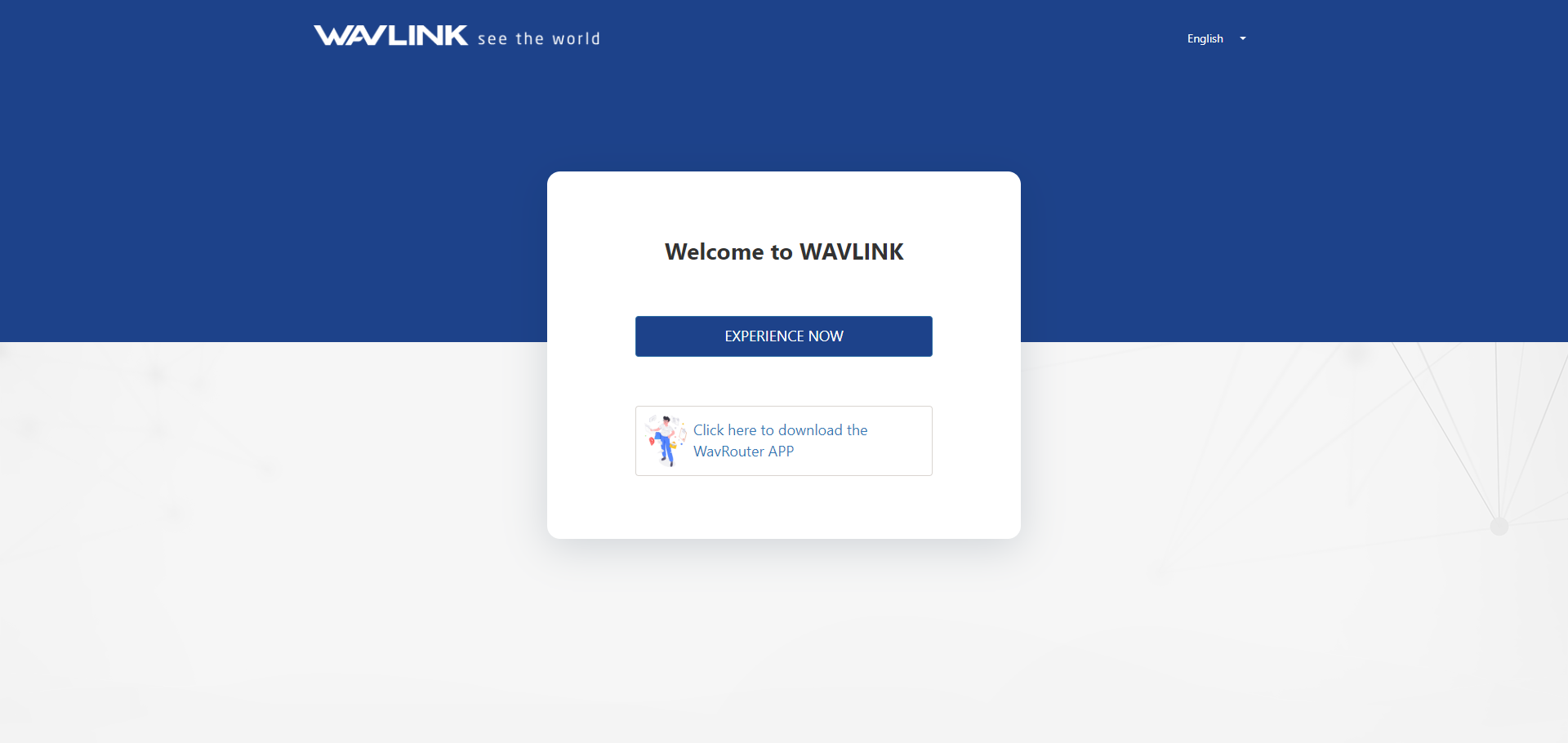
Launch a web browser and enter http://wavlogin.link in the address field.
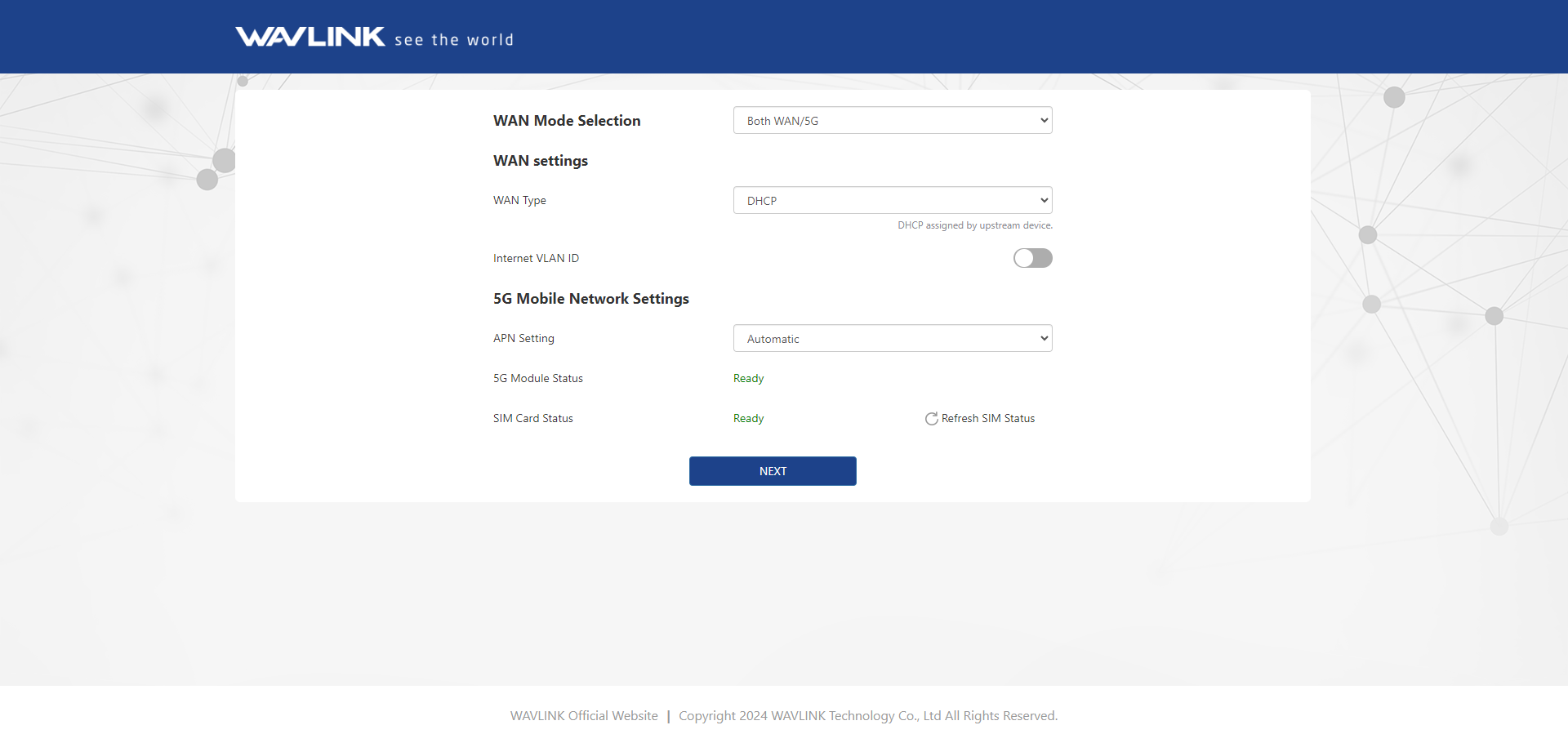
Step 3: Selecting WAN Mode
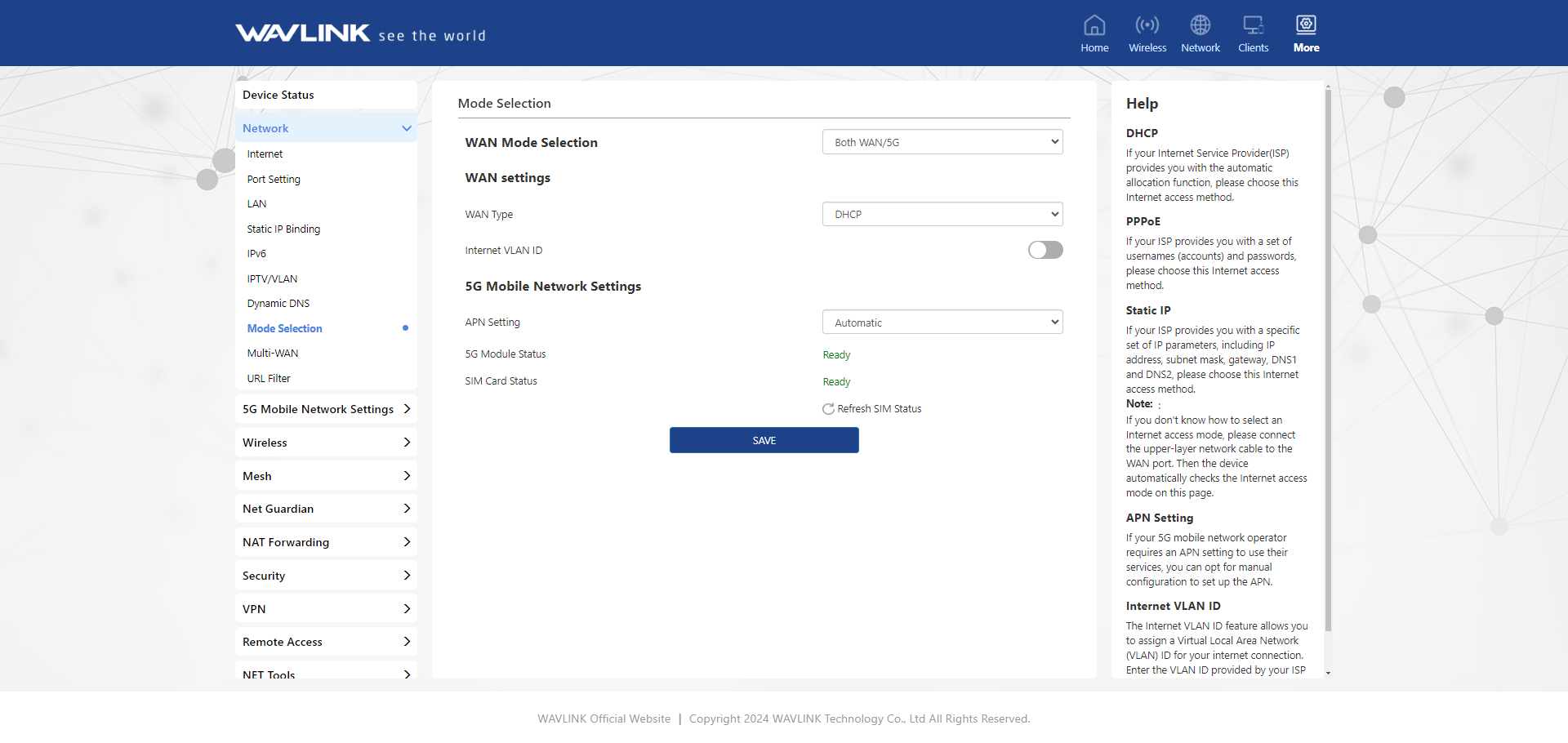
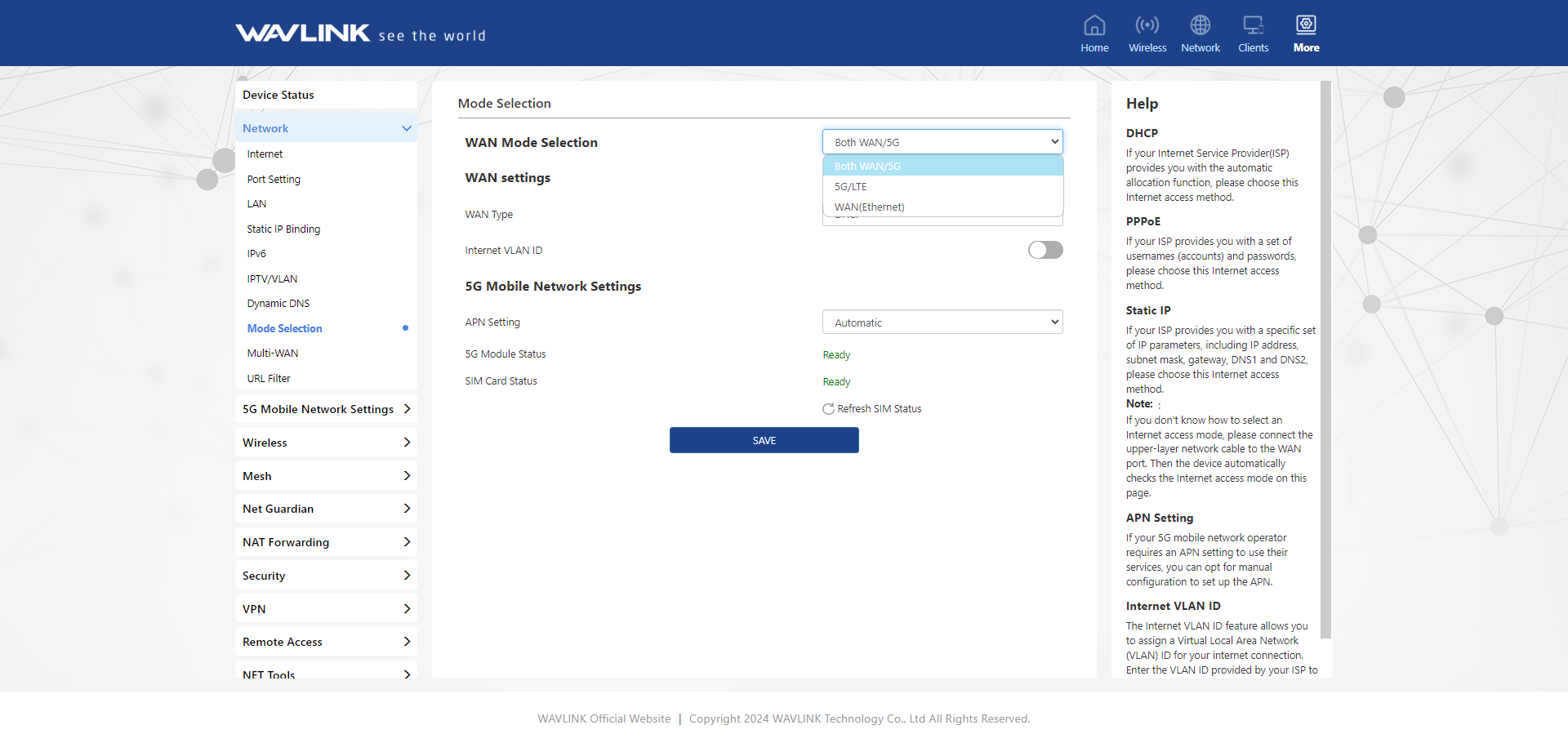
Select “Both WAN/5G” for "WAN Mode Selection", then click “NEXT”.
Note: If you choose Option I, please ensure the SIM Card is inserted and refresh SIM status.
Step 4: Basic Settings
Select your Country/Region, and Time Zone; for your network security, we suggest that you set a new login password following the rules accordingly.
Note: The Dual-band convergence switch is on by default. 2.4G WiFi and 5G WiFi use the same SSID and password. Turning off the Dual-Band convergence switch allows you to set the SSID and password for 2.4G WiFi and 5G WiFi separately.

Step 5: Done
Log in again, then you can see 2.4G&5G Wi-Fi in Home.

Step 6: Switching to Other Modes
Click “More”, enter Network and click “Mode Selection”. You can switch modes; the default is Both WAN/5G.