Chapter 5 Wireless
This chapter contains the following sections:
• Wireless
Wireless
Configure the SSID, encryption method, password, and other wireless parameters for both the 2.4G and 5G networks.
- Navigate to Wireless or go to More > Wireless > Wireless.
Configuring Wireless Network
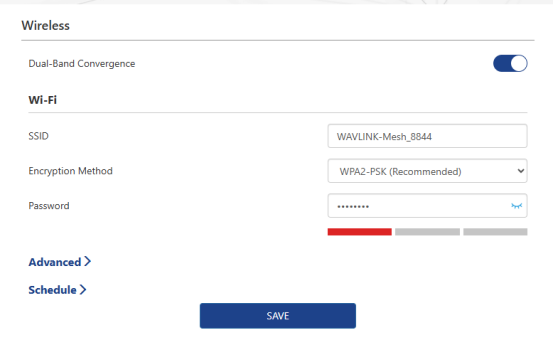
1) Dual-Band Convergence Enabling Dual-Band Convergence combines the 2.4GHz and 5GHz Wi-Fi bands into the same Wi-Fi Name(SSID), when the terminal connect to the Wi-Fi, the router will automatically select network band for the terminal according to the internet status. Disabling it to configure the 2.4G and 5G band separately.
2) Change Wi-Fi Name and Password Create a new Wi-Fi name in SSID and customize Wi-Fi password in Password.
Advanced Settings
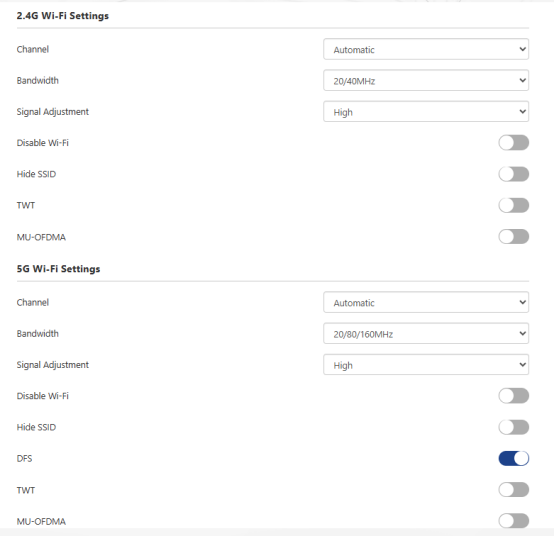
1)Channel
Changing the wireless network channel as you need. If you are unsure which one to select, it is recommended to choose Automatic. The device will automatically select the optimal channel based on the surrounding environment for the best experience.
2)Bandwidth
The bandwidth indicates the frequency range of the wireless data transmission from the router.
3)Signal Adjustment
This feature is designed to adjust Wi-Fi signal coverage and transmit power.
4)Disable Wi-Fi
The Wi-Fi signal will be off after disabling the Wi-Fi.
5)Hide SSID
Enable this feature, the Wi-Fi signal will be hidden, which means SSID(Wi-Fi Name) will not be broadcasted or visible to devices searching for available networks. The user must manually input SSID(Wi-Fi Name) and Password.
6)DFS
It block interference from radar systems by automatically selecting and switching to the workable channel that has not used by the radar system. It is recommended to turn on this switch to ensure compliance with local regulations and to maintain a stable and uninterrupted wireless network.
7)TWT
TWT is a power-saving mechanism. Once enabled, the router will automatically optimize resource scheduling between devices, negotiate wake-up schedules, reduce unnecessary contention, and extend device sleep time, thereby prolonging the lifespan of connected devices.
Note: Some of the terminals may occurs compatibility on TWT function.
8)MU-OFDMA
Once enabled, the router will use multiplexing technology to improve transmision efficiency and reduce network latency. The multiplexing technology make several users share available bandwidth, and cut them into smaller channel and time slots. This enables simultaneous data transmission for different devices, enhancing network performance and ensuring smoother communication for all users.
Schedule (Wireless Timer Switch)
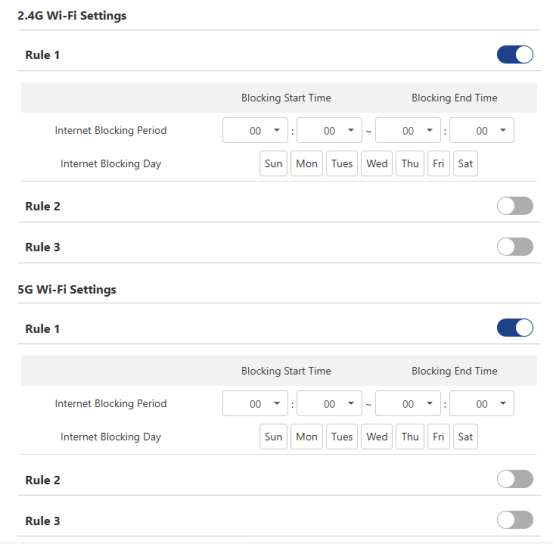
The schedule function allows you to customize event rules to control the wireless network switch, with up to three rules definable. This feature only takes effect after obtaining the network time and only affects the main network. For the guest network, you need to manually enable or disable this feature or define separate rules within the guest network settings.
-
Navigate to Wireless > Schedule or go to More > Wireless > Wireless > Schedule.
-
Click on Rule 1/2/3 under either the 2.4G Wi-Fi Settings or 5G Wi-Fi Settings to set the timing rules.
-
Click SAVE to complete the settings.
Note:
- The schedule is based on the router's time. You can modify the time by going to More > System > Time Zone.
- The wireless network will automatically turn on after the set time period.
Guest Wi-Fi
This feature allows you to provide Wi-Fi to guests without exposing your main network. When you have visitors at your home, apartment, or workplace, you can create a guest Wi-Fi for them. Additionally, you can customize guest Wi-Fi settings to ensure security and privacy.
-
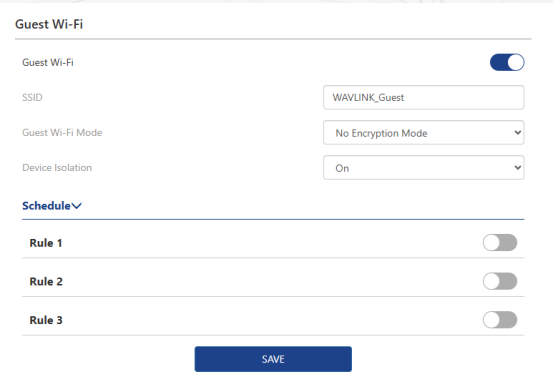
Navigate to More > Wireless > Guest Wi-Fi.
-
Click to enable Guest Wi-Fi.
-
Set the SSID.
-
In the Guest Wi-Fi Mode, set the encryption method: Encryption Mode, No Encryption Mode, and WPA/WPA2. If you select WPA/WPA2, you will need to set the RADIUS server IP, RADIUS port, and RADIUS password.
-
Set the Device Isolation. Once on, this feature will isolate devices connected to the same LAN from each other, enhancing network security and privacy protection.
-
Click SAVE to complete the settings.
Parental Wi-Fi
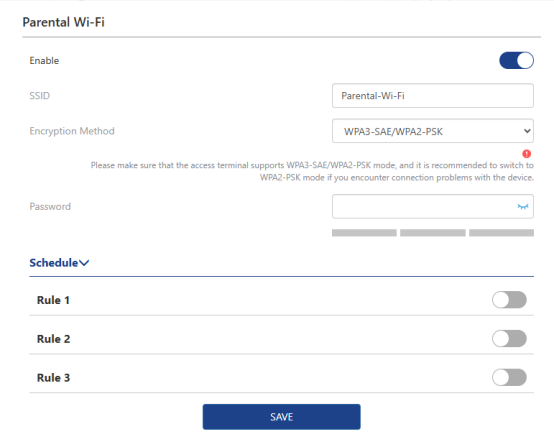
Parental Wi-Fi allows you to set up a wireless network with separate SSID(Wi-Fi name) and separate password for family members. You can configure its SSID, encryption method, and rules as you need.
-
Navigate to More > Wireless > Parental Wi-Fi.
-
Click to enable Parental Wi-Fi.
-
Set SSID(WiFi name), Password, and Encryption Method.
-
Set the Internet Blocking Period and Internet Blocking Day in Rule 1/2/3 to control your child's internet access time.
-
Click SAVE to complete the settings.