Chapter 2 Resolution and Driver Installation
Resolution
Single Display
| Video Port | DP | HDMI | VGA |
|---|---|---|---|
| Windows 10 & Later | 3840x2160@30Hz | 3840x2160@30Hz | 1920x1080@60Hz |
| Mac | 3840x2160@30Hz | 3840x2160@30Hz | 1920x1080@60Hz |
Dual Display
| Windows 10 or later | Mac | |
|---|---|---|
| DP+HDMI | 1920x1080@60Hzx2 | 3840x2160@30Hz |
| DP+VGA | 1920x1080@60Hzx2 | 1920x1080@60Hzx2 |
| HDMI+VGA | 1920x1080@60Hzx2 | 1920x1080@60Hzx2 |
Note: When connecting 2 or 3 monitors to mac via wavlink device,all external monitors will show same content.
Triple Display
| Video Port | DP+HDMI+VGA |
|---|---|
| Windows 10 & Later | 1600x900@60Hz x 3 |
| Mac | 1920x1080@60Hz x 3 |
Note: When connecting 2 or 3 monitors to mac via wavlink device,all external monitors will show same content.
Installation
Before using this dock, the device should be plug and play, please make sure that the latest PC/laptop drivers are installed (including USB, graphics card etc). For Windows 10,you don’t need to install the driver. If the network port can’t perform properly, please install the driver manually. Visit www.wavlink.com > Support > Driver > Search UMD03 or visit www.wavlink.com > Search UMD03 > Click Driver to find the corresponding driver. (A/-B/-C/-D/-E means the version of the product; you can find it on the label of the product. For example: REV.A means WL-UMD04-A)
- Connect the USB-C connector of the dock to your host Laptop/PC, the LED light on the dock will turn blue.
- Connect your monitor(s) to video ports of the dock then you can proceed to confgure the display modes.
Remarks for Mac based PC/laptops:
The docking could help you extend one display only, if you connect more than one monitors to the docking, all the external monitors will show the same content.
Display Mode Setting
For Windows Users
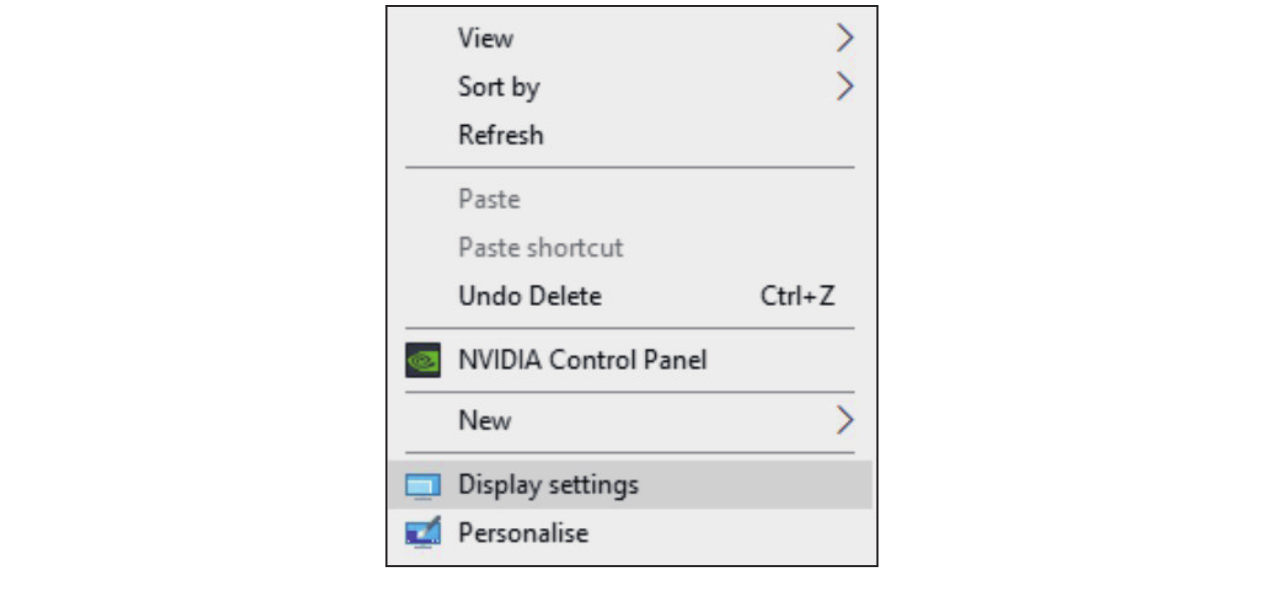
- Right-click at any spot on your desktop and select "Display settings".
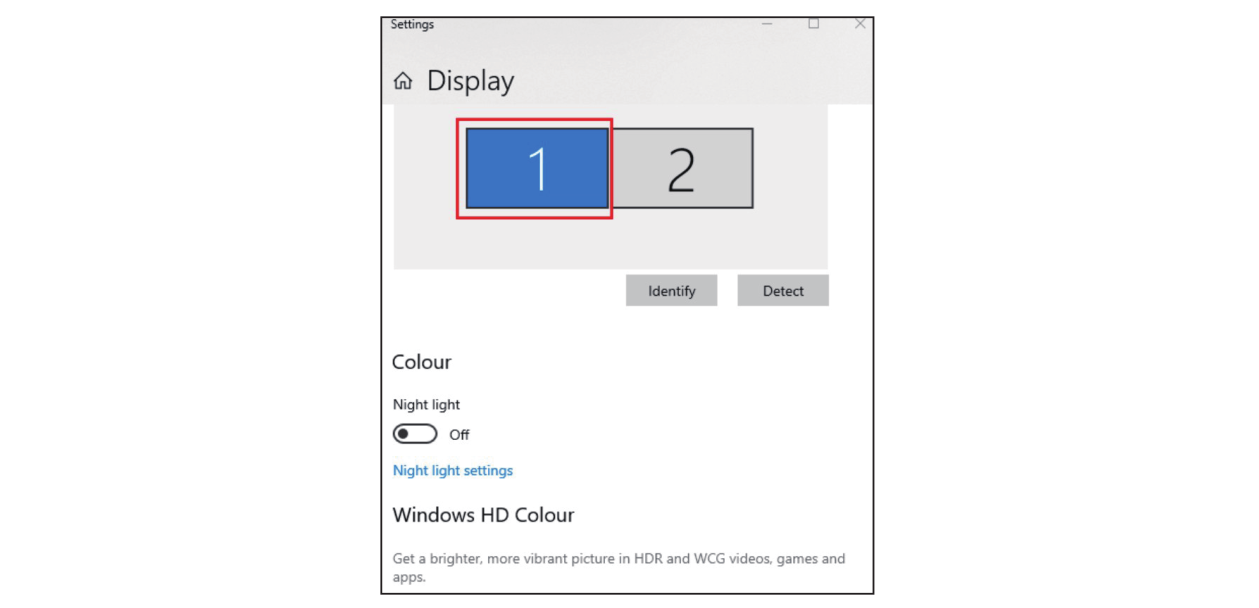
- In "Display", please select either monitor 1 or monitor 2.
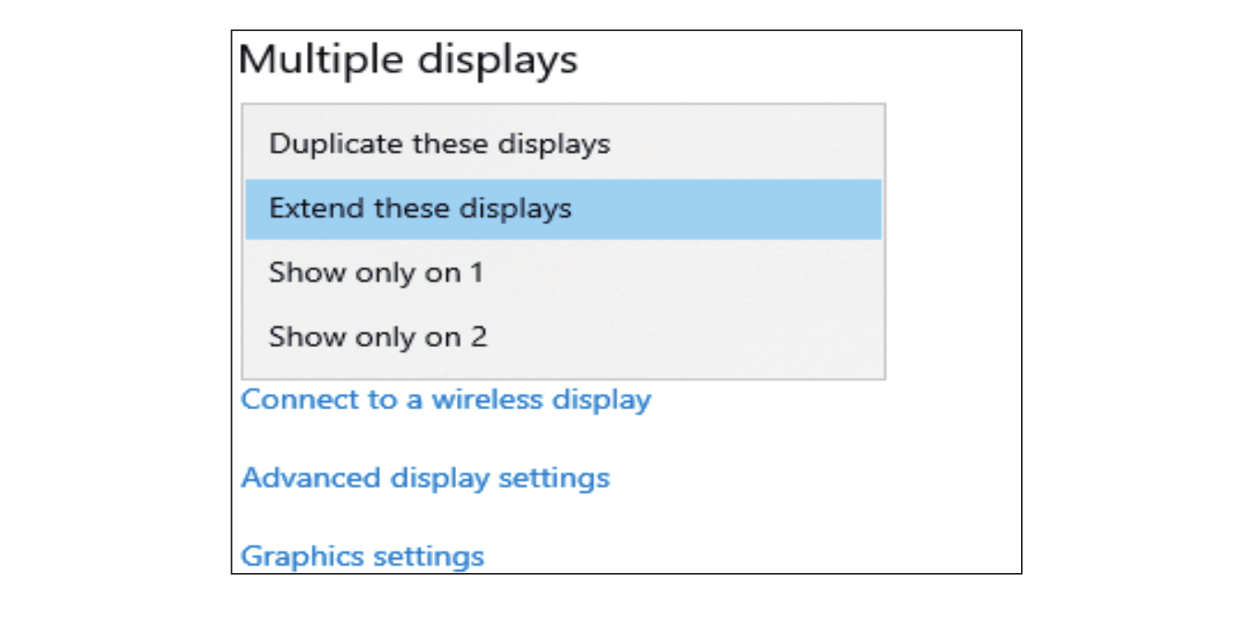
- Scroll down to the "Multiple displays", and select the mode in the drop-down list that fits your need.
For MacOS Users
- Select "System Preference" and choose "Displays".
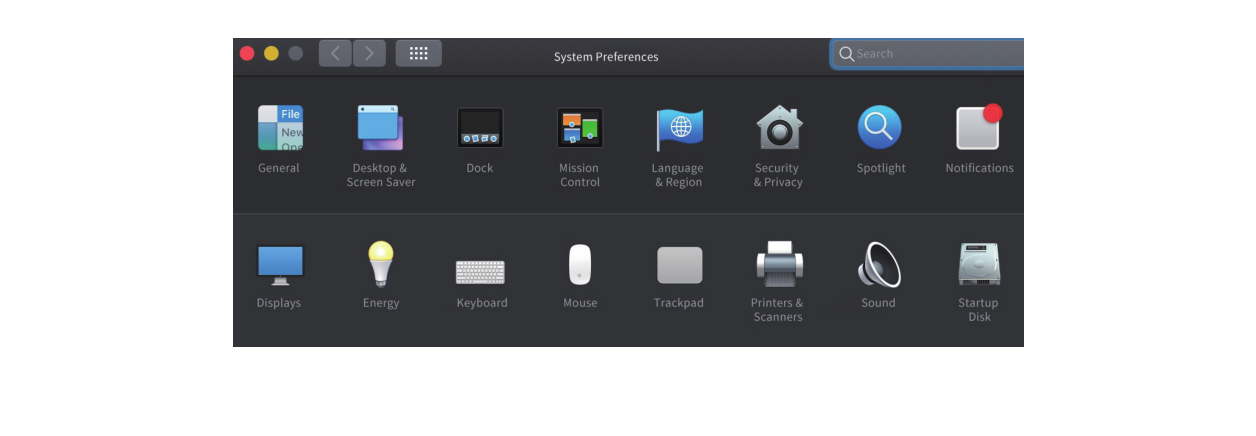
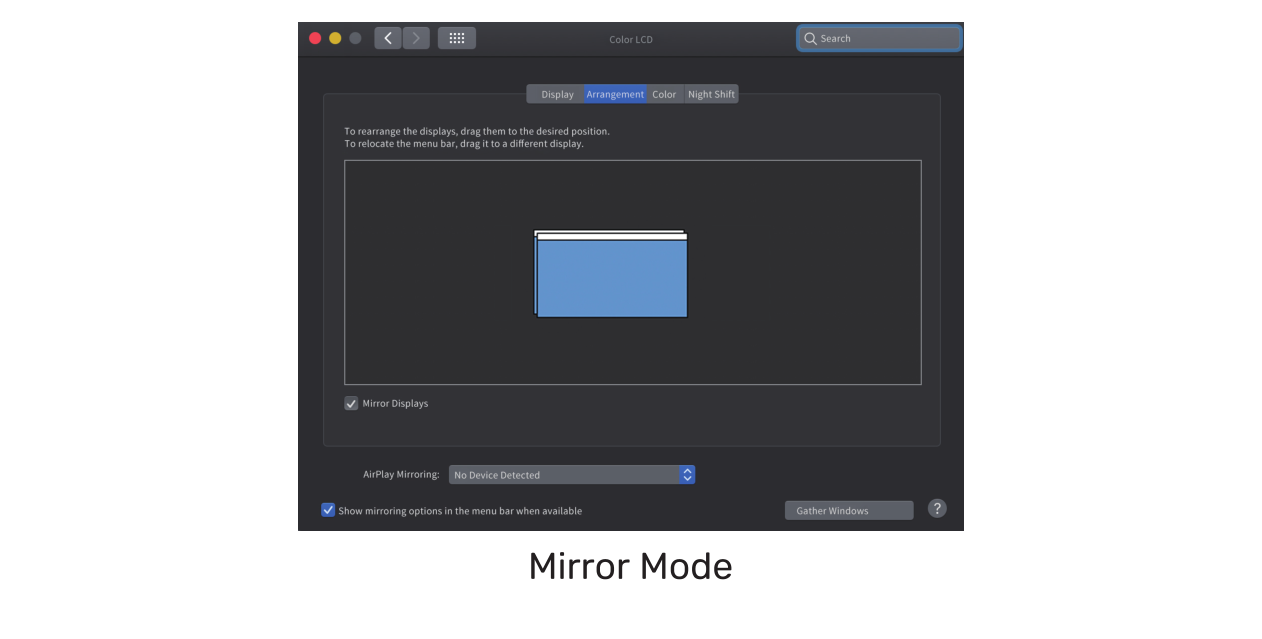
- Click on "Arrangement" to change the position of displays currently connected.
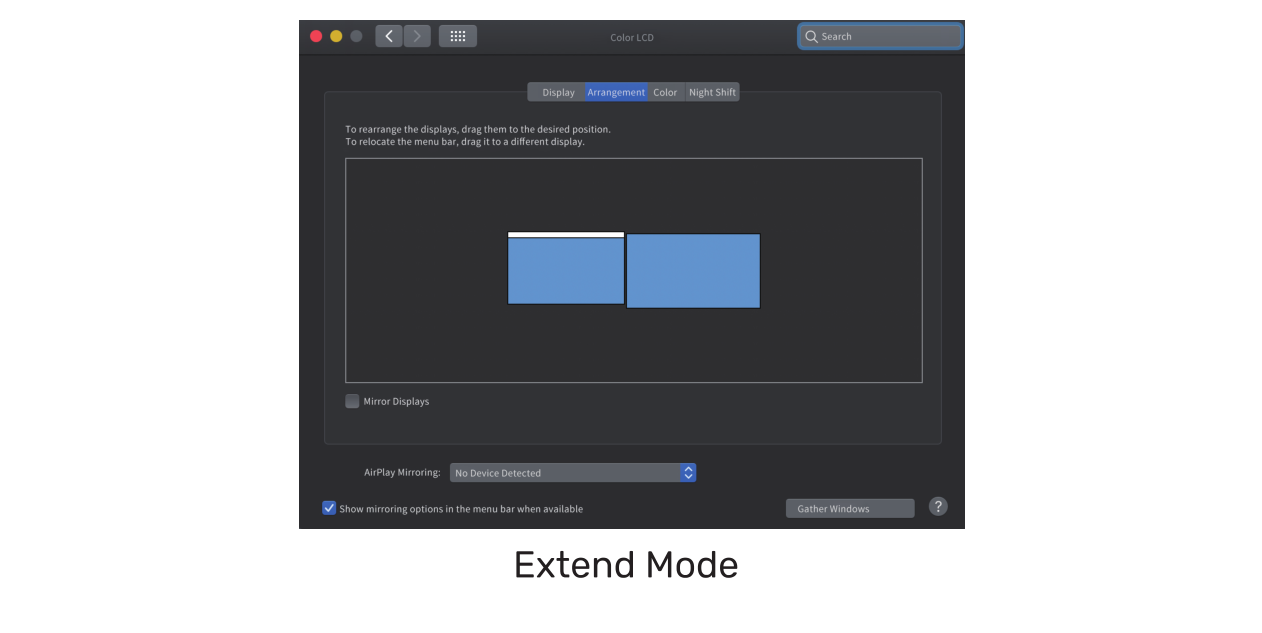
- Select either extend or mirror mode on your demand.