WiFi Docking APP
For Windows, during the process of installing the WiFi Docking APP, the required driver was also successfully installed.
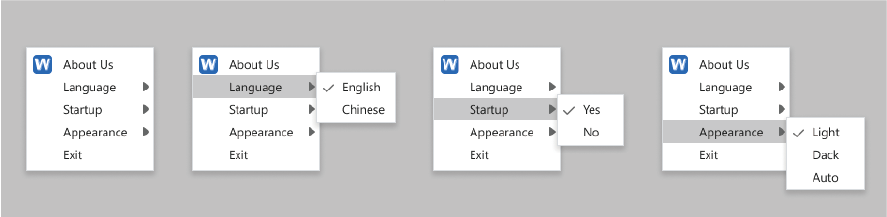
Step 1: Right-click the WiFiDock icon on the taskbar to change the Language, Startup, Appearance setting.
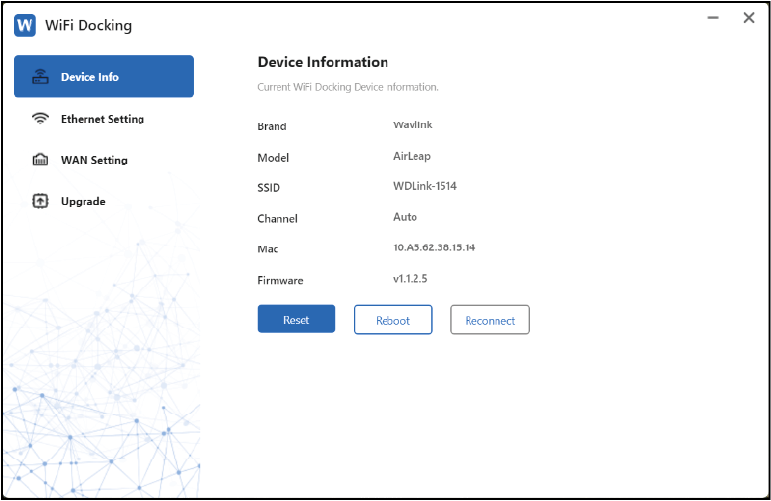
Step 2: Get detailed information from the Device Info, as needed, you can click Reset to reconfigure the settings, and click Reboot to restart the APP, Mac shows the Mac address of the docking station.
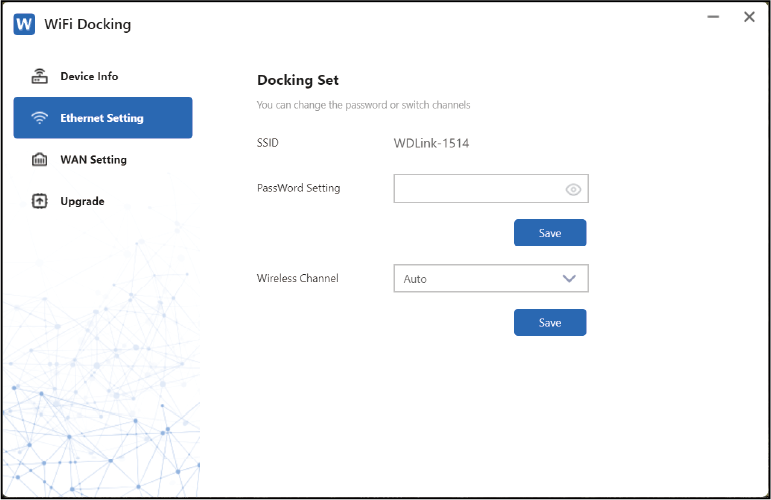
Step 3: Select your Wireless Channel and set Password in Ethernet Setting. You also can choose different wireless channels to reduce wireless signal interference. After that, click Save.
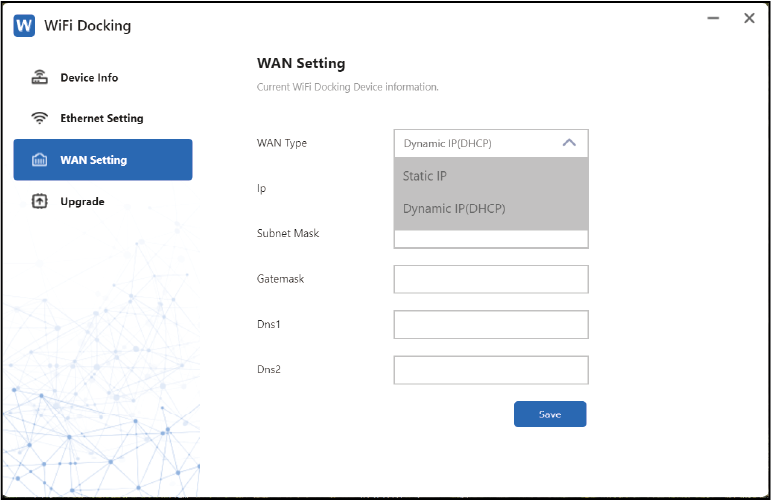
Step 4: Select WAN Setting; the default is Dynamic IP(DHCP). If you select Static IP, please enter content in the following blanks. It assigns fixed IP address for the computer automatically. It is designed for network connections, servers, remote access, etc., which require long-term stability to ensure the stability of network connections. If the ISP has provided a specified IP parameters including IP address, Subnet Mask, Gateway, DNS1 and DNS2, select Static IP from the list and enter the information provided by the ISP. After that, click Save.
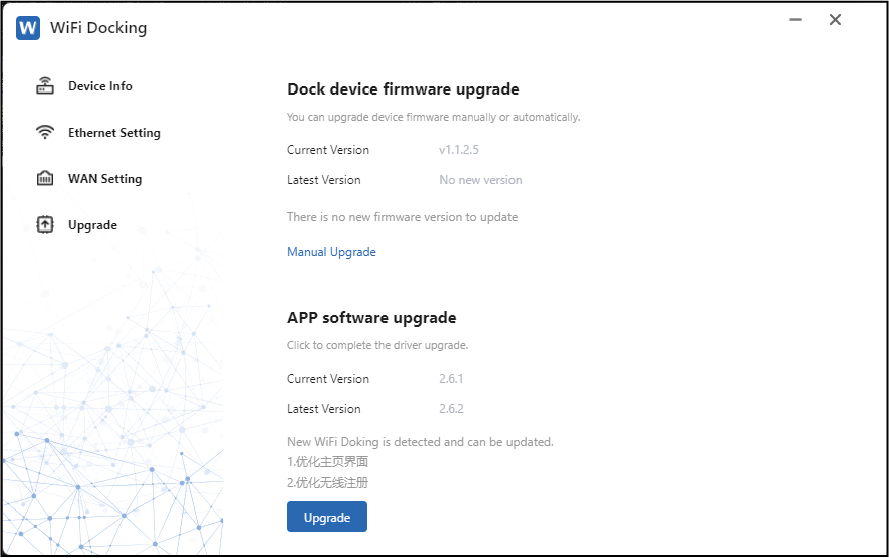
Step 5: If necessary, select Upgrade to check if the APP is up to date. If not, please manually upgrade according to the steps in the Upgrade of Quick Start Guide.