Chapter 2 Configuration
This chapter introduces the repeater's working modes and how to configure it.
Configuration
1.Plug the extender in a power outlet.
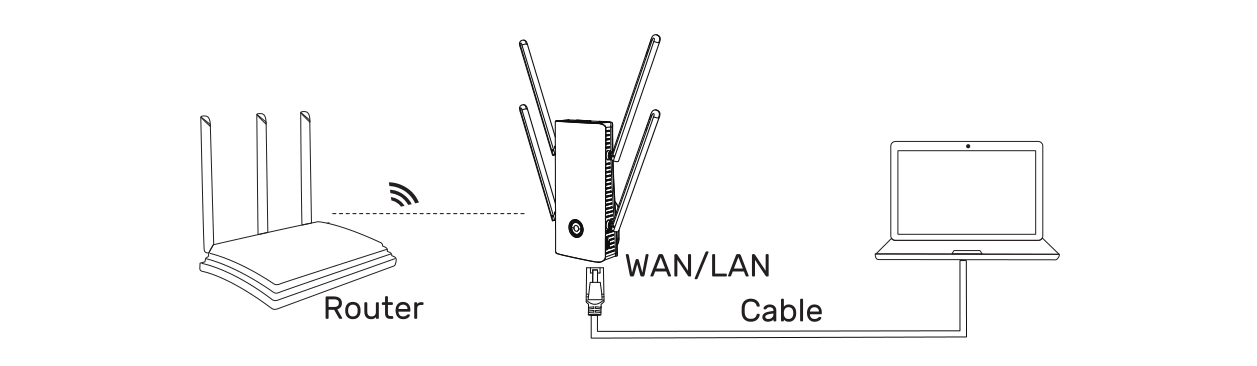
2.Turn on the power button, then you can either configure the device wireless or via cable by connecting the device to your laptop.
2.1 Cable Connection
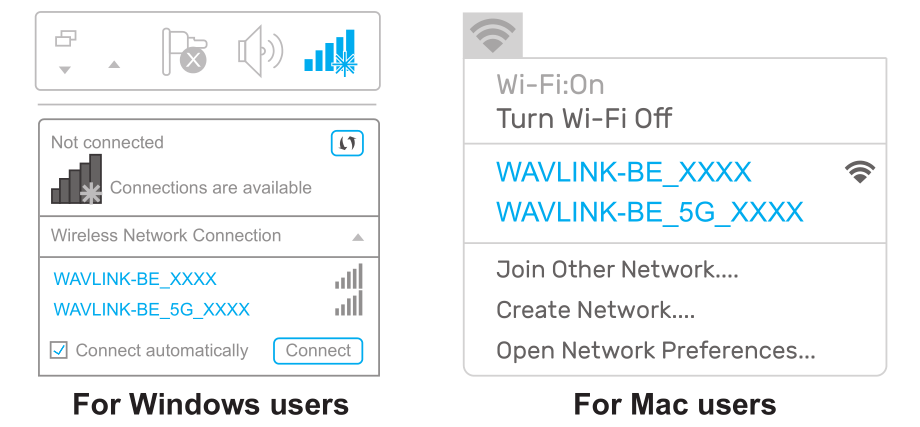
2.2 Wireless Connection
Power up the product and search SSID of this product on your wireless devices (smart phone, tablet PC, laptop, etc.) then connect to it.
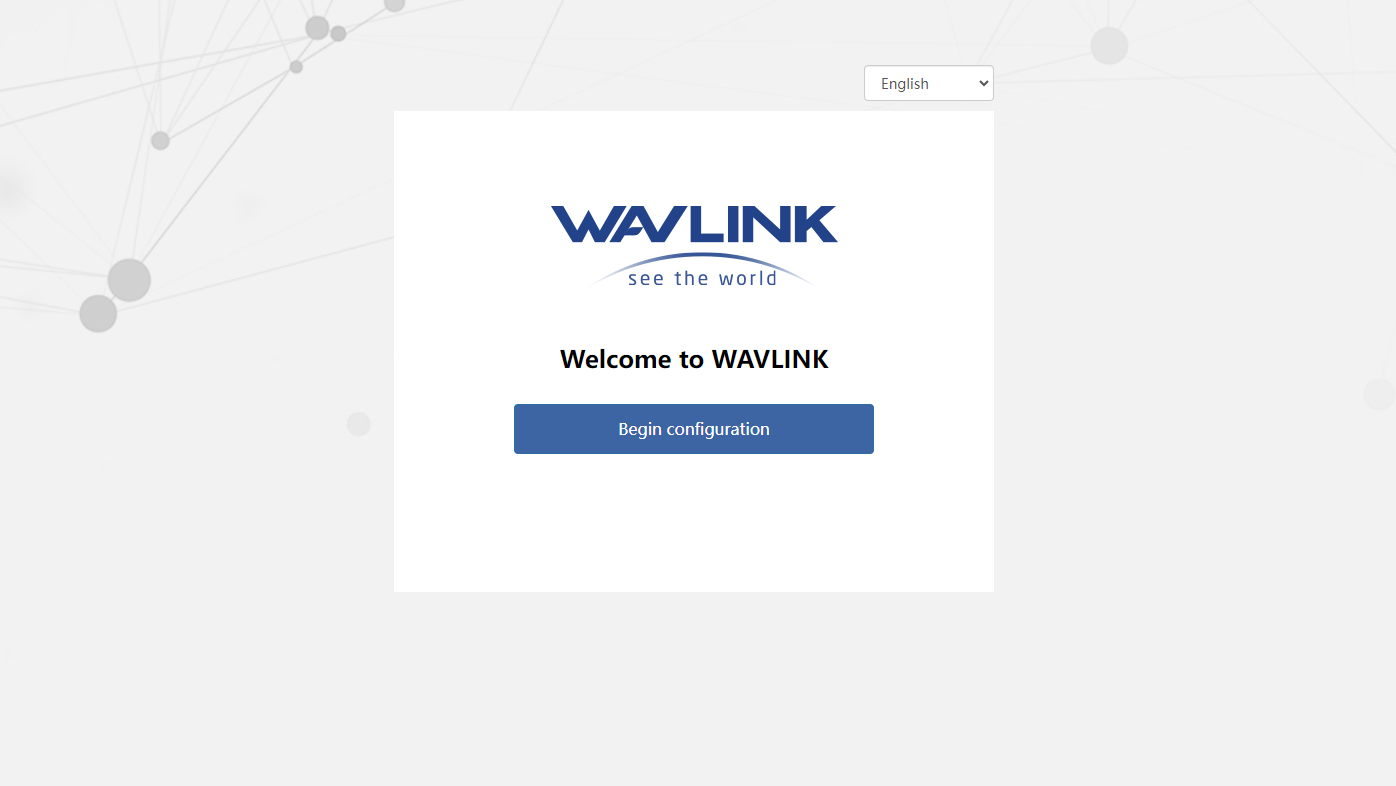
3 . Technically speaking, the product web UI will guide you to the login page once you have connected to the device successfully in your first time, but if it doesn't, please manually input 192.168.30.1 or http://waplogin.link in the address bar of your browser on PC/laptop or phone.
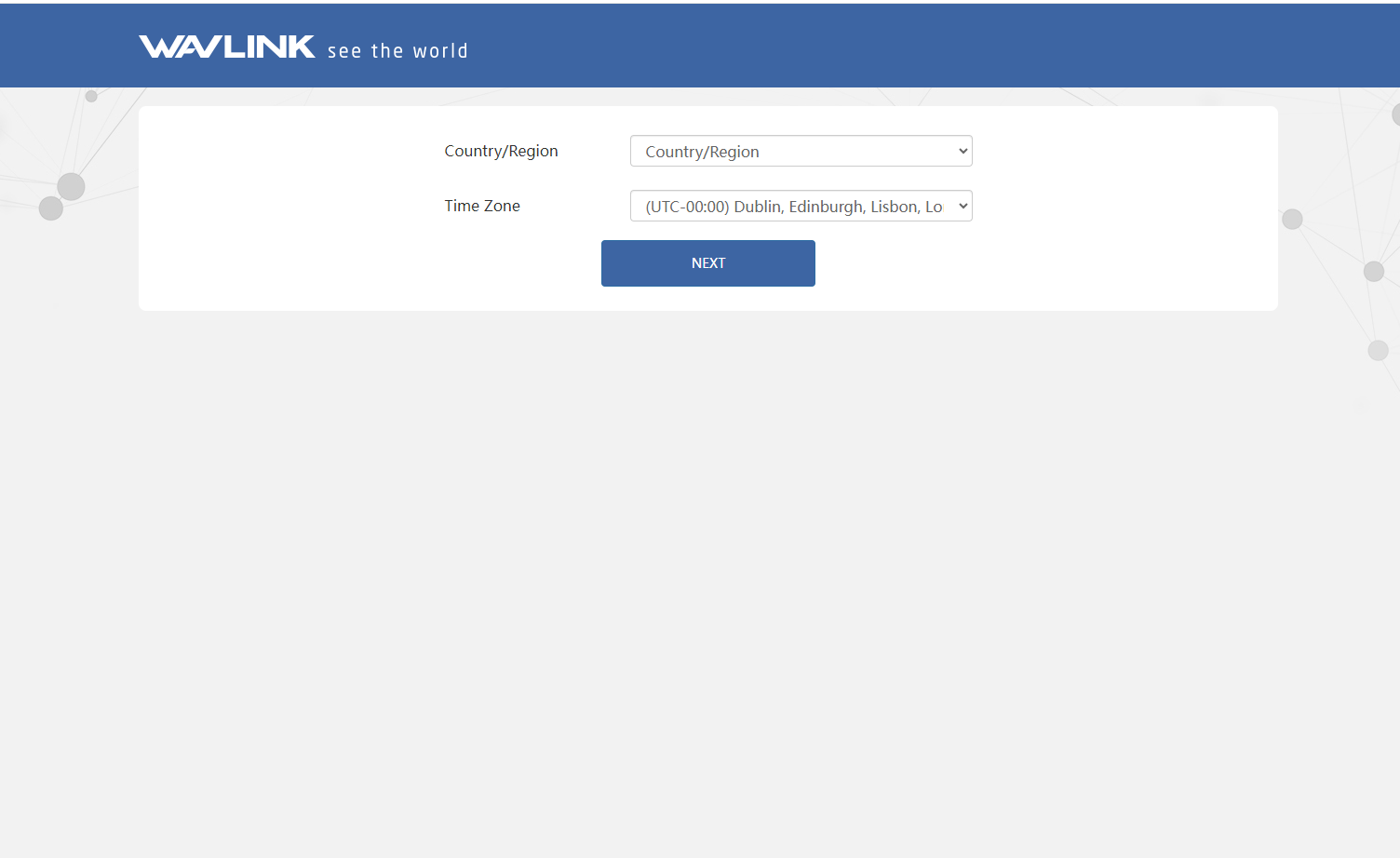
4 . Select your Country/Region and Time Zone, Then click on NEXT.
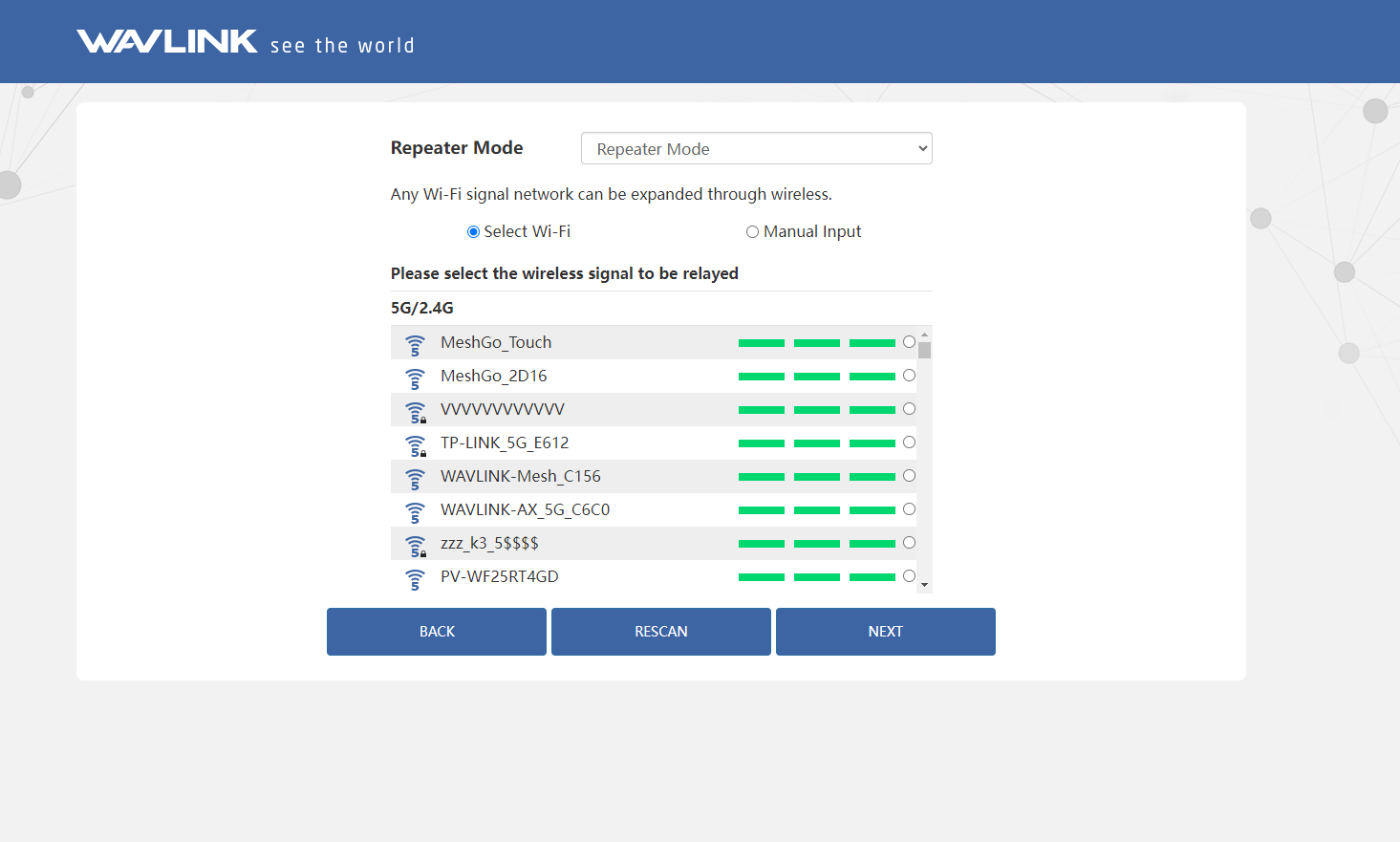
5 . The system selects repeater mode by default.
5.1 Repeater Mode
5.1.1 Select Wi-Fi
5.1.1.1 After scanning, please make sure the Wi-Fi you want to select is listed, and click NEXT, if it isn't, please click RESCAN.
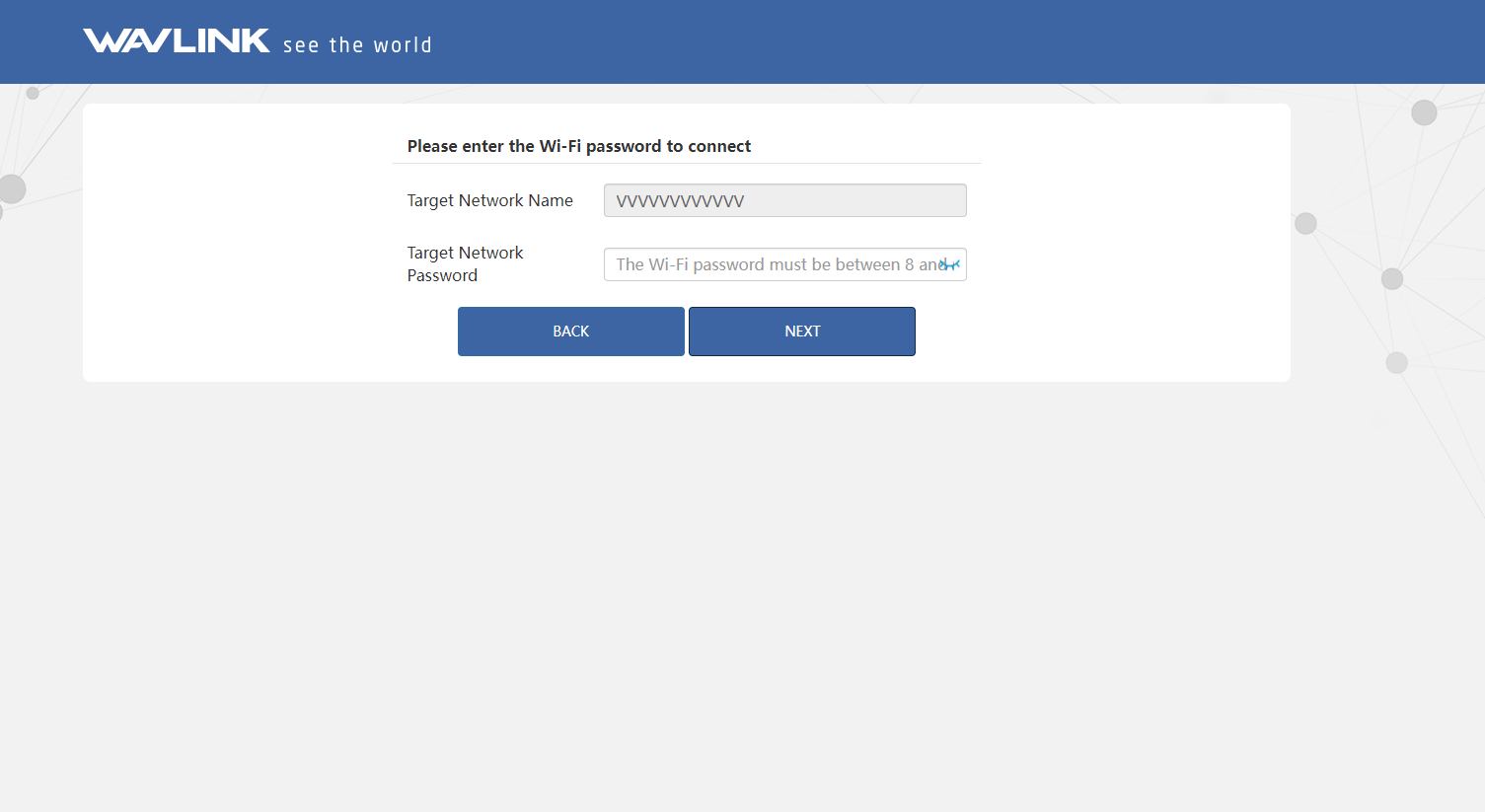
5.1.1.2 Enter the password for the wireless network of your selected. Click on NEXT.
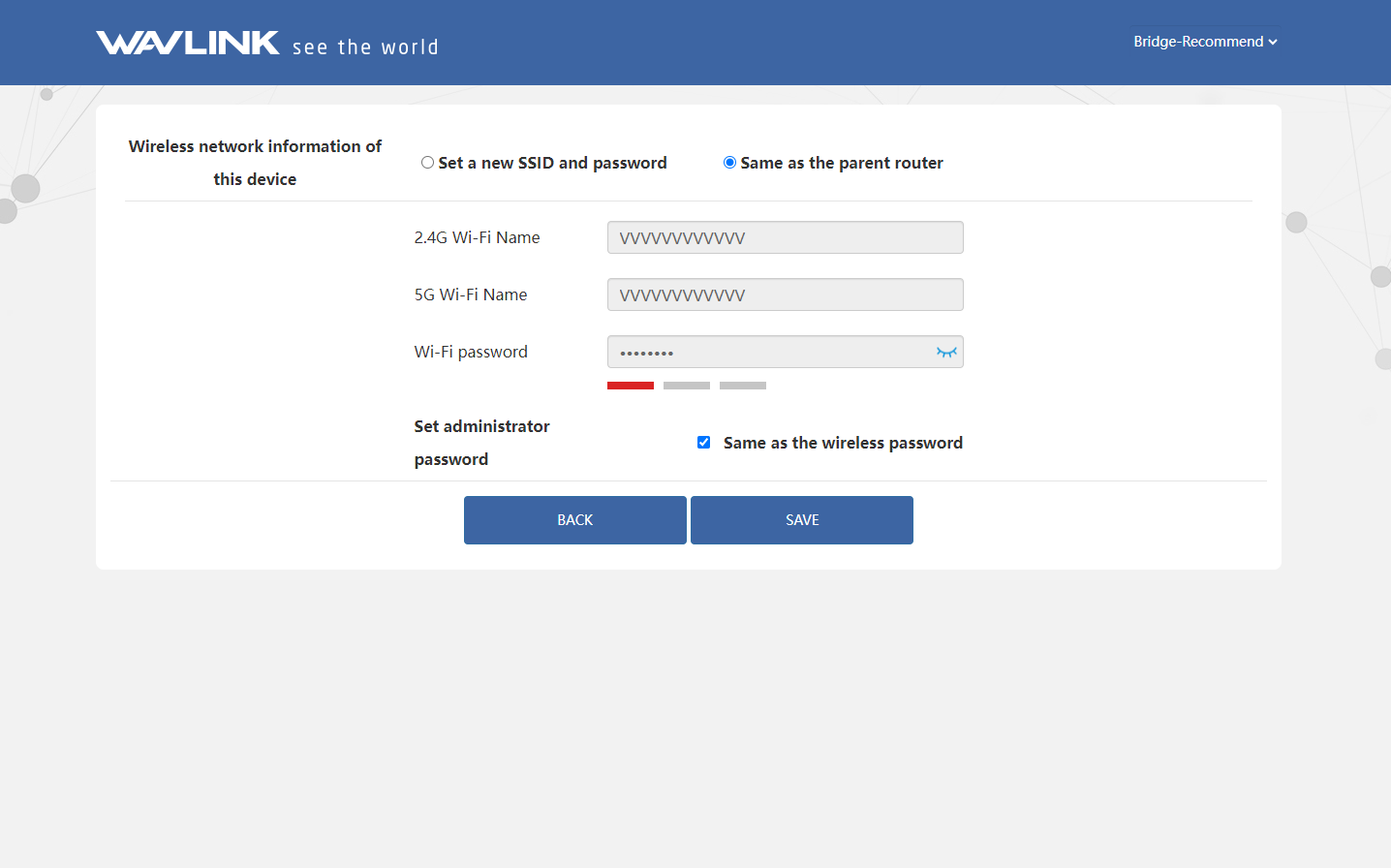
5.1.1.3 Set a new password and SSID (WiFi name) for this device. Then click on SAVE.
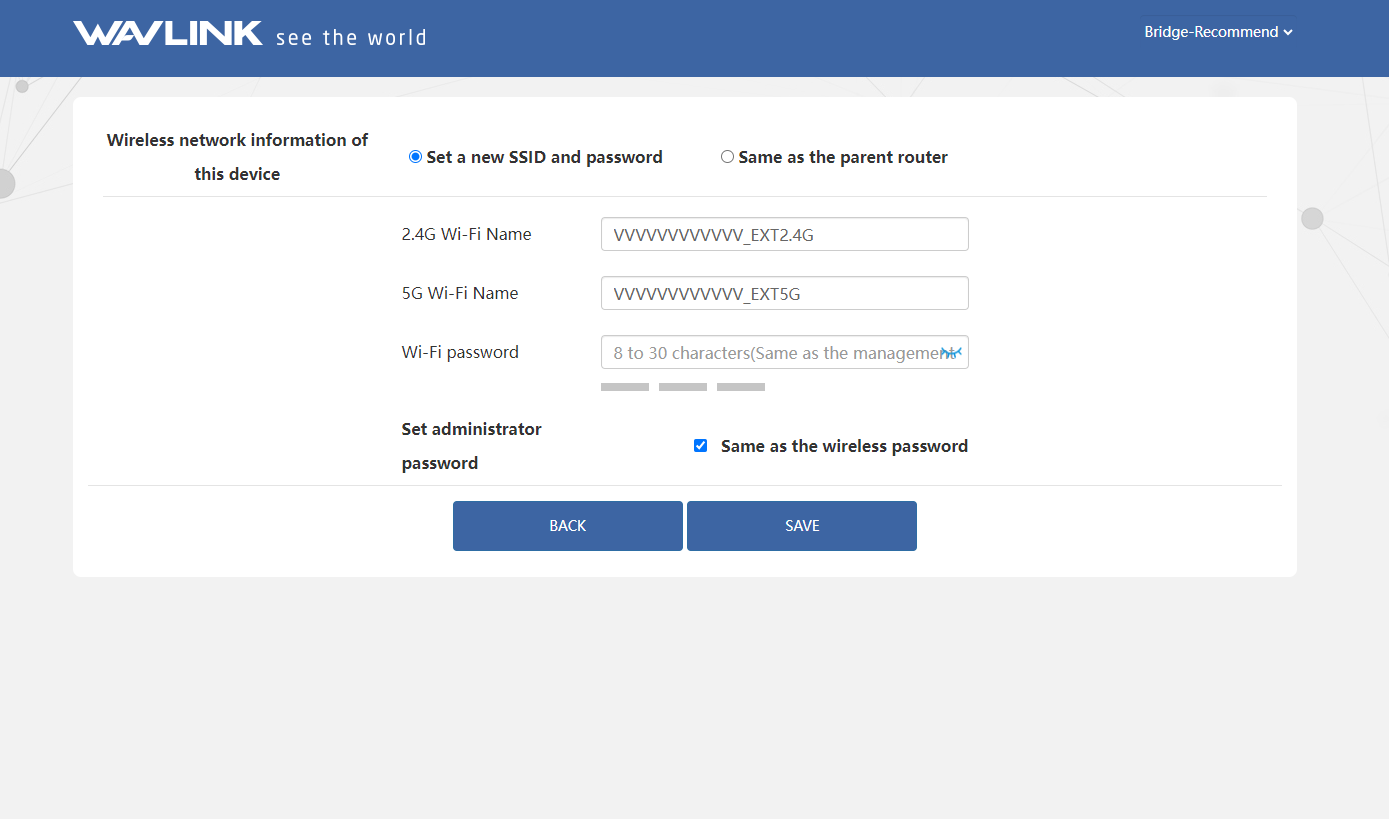
You can also choose Same as the parent router, which means this device has the same 2.4G, 5G WiFi name and password as the upper router. If you choose Same as the wireless password, the Wavlink management page's administrator password is the same as this device's WiFi password.
5.1.2 Manual input
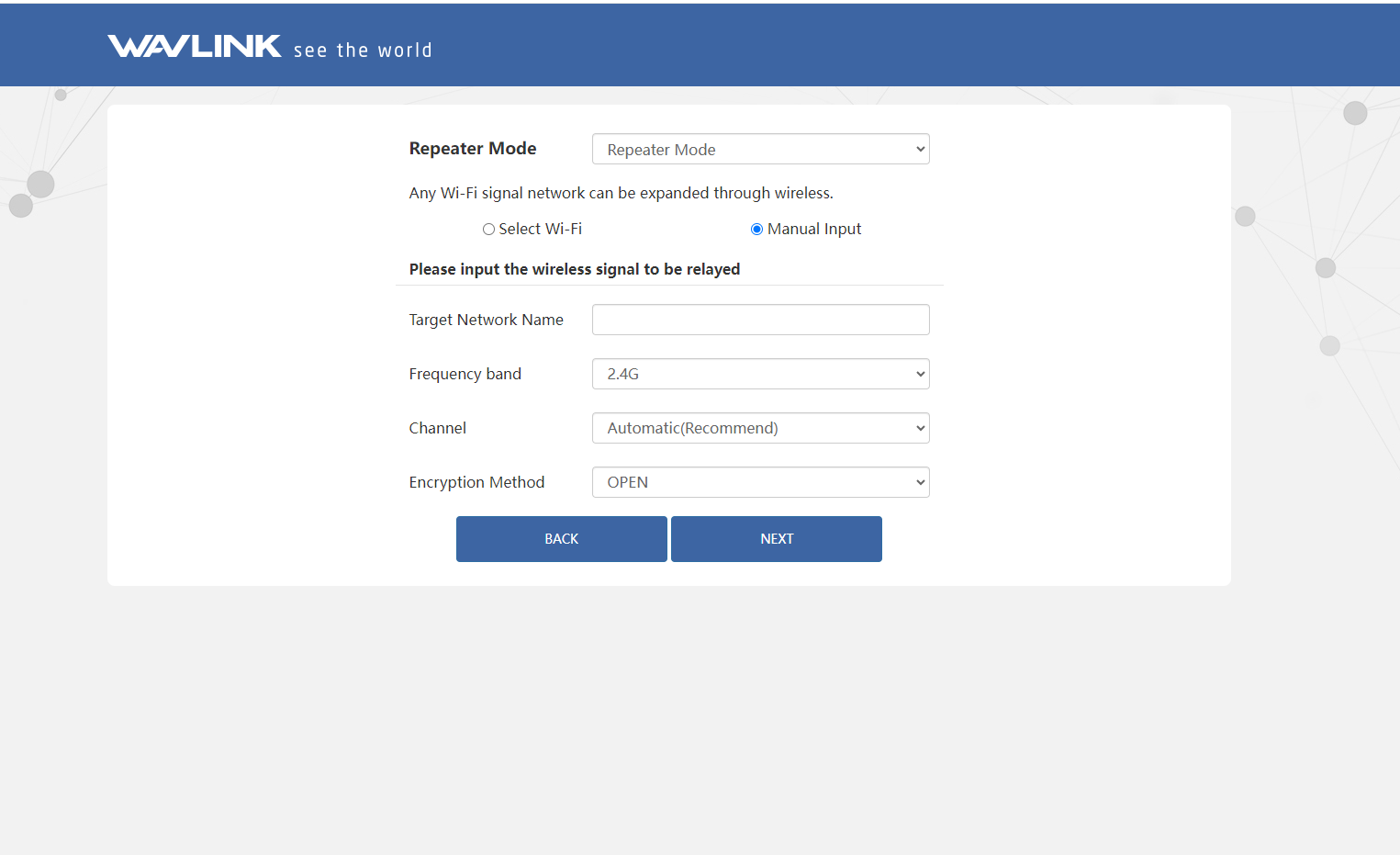
5.1.2.1 Manually add the wireless network you want to connect. Choose band freguency, Channel, and Encryption Method. Then click on NEXT.
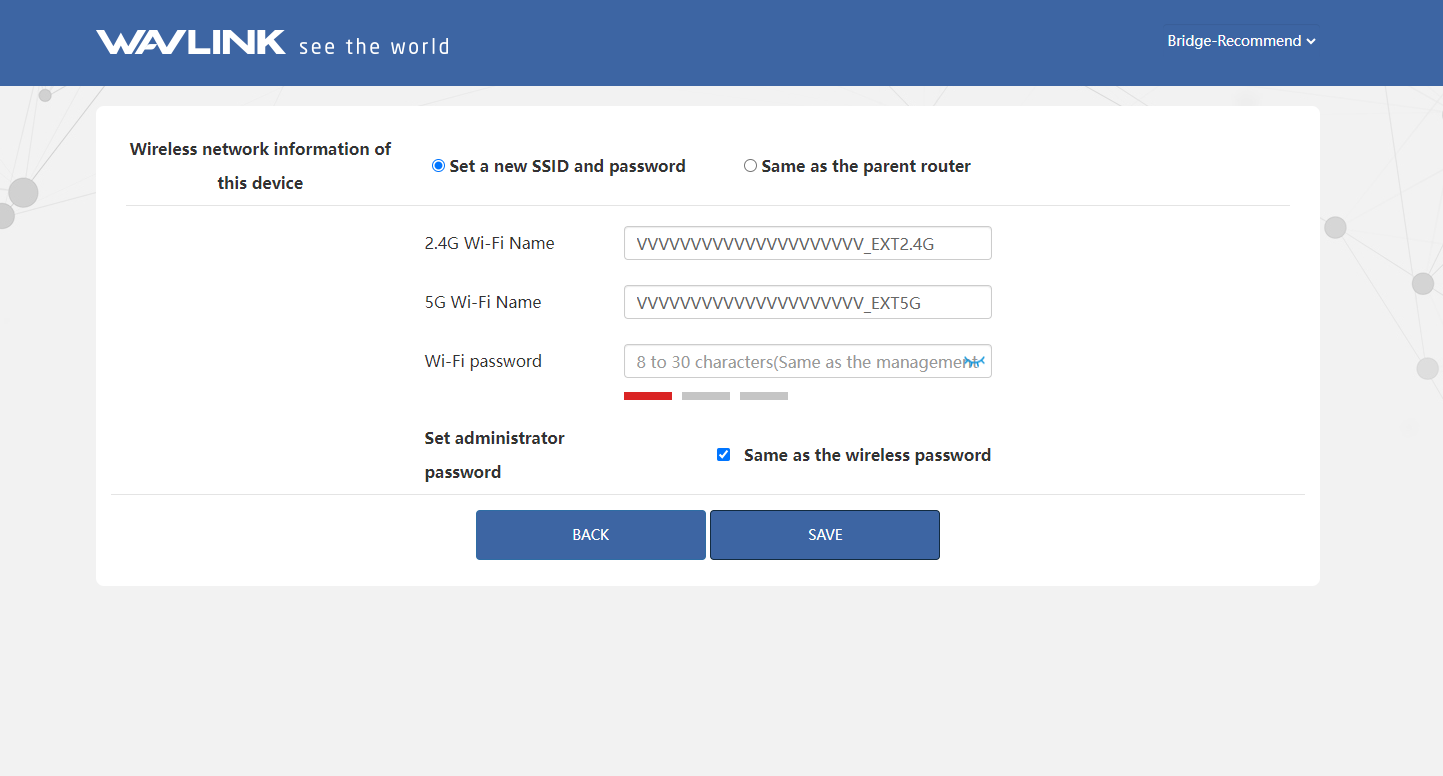
5.1.2.2 For your security, Please set a password. By default the device management password is the same as the Wi-Fi password. If you want to set it separately, do not turn on the Same as the wireless password switch.
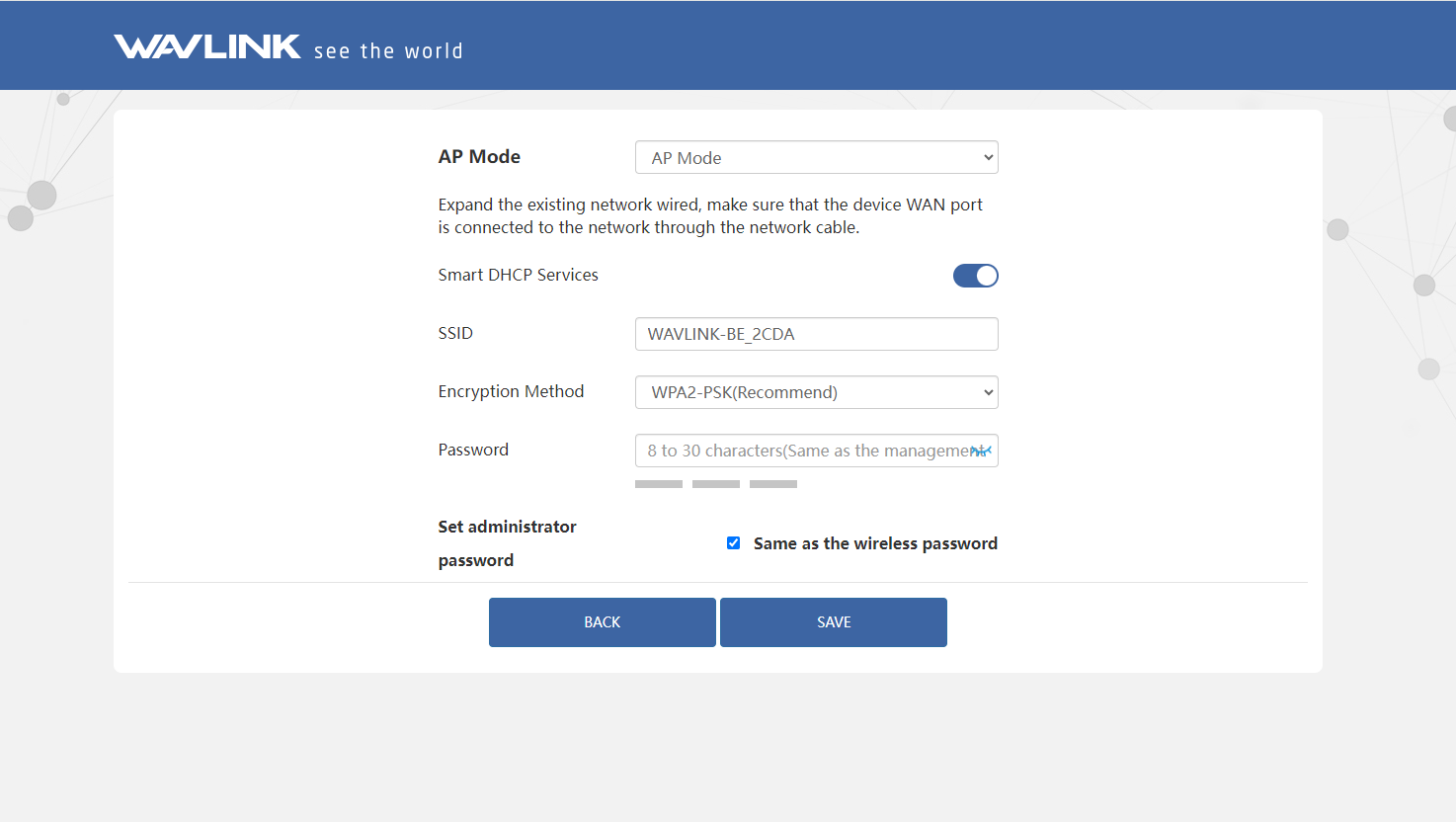
5.2 AP Mode
5.2.1 Please choose AP Mode.
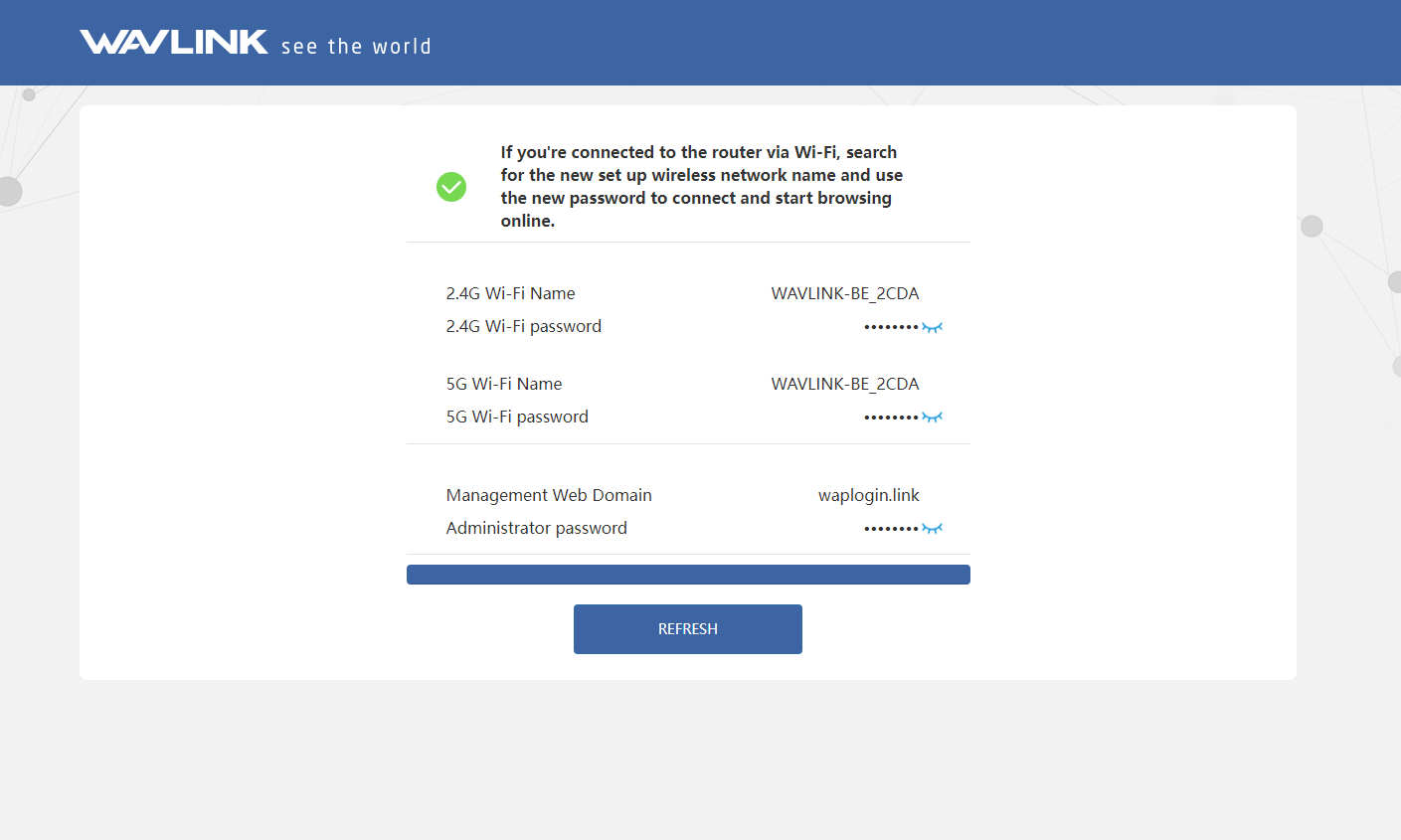
5.2.2 Connect the device's WAN/LAN port to the upper router's LAN port via cable. Then you can change the device's SSID or use the default one. About the encryption mode, we recommend you to choose WPA3-SAE/WPA2-PSK. For your network security, we suggest you set a new password. Then click on SAVE and waiting for the setting process to complete.
5.3 Mesh Extender Mode
5.3.1 Please choose Mesh Extender Mode, then click on START PAIRING.
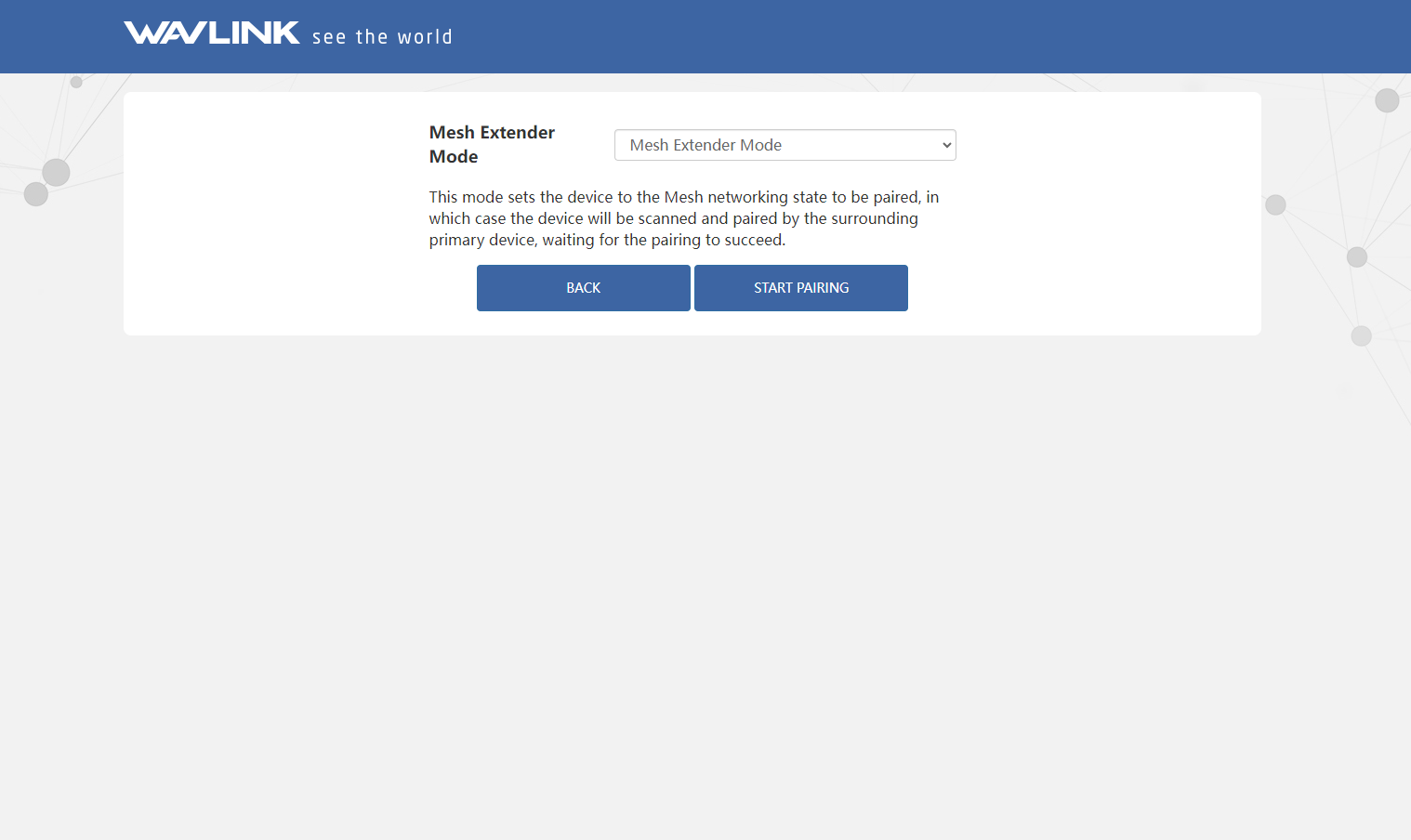
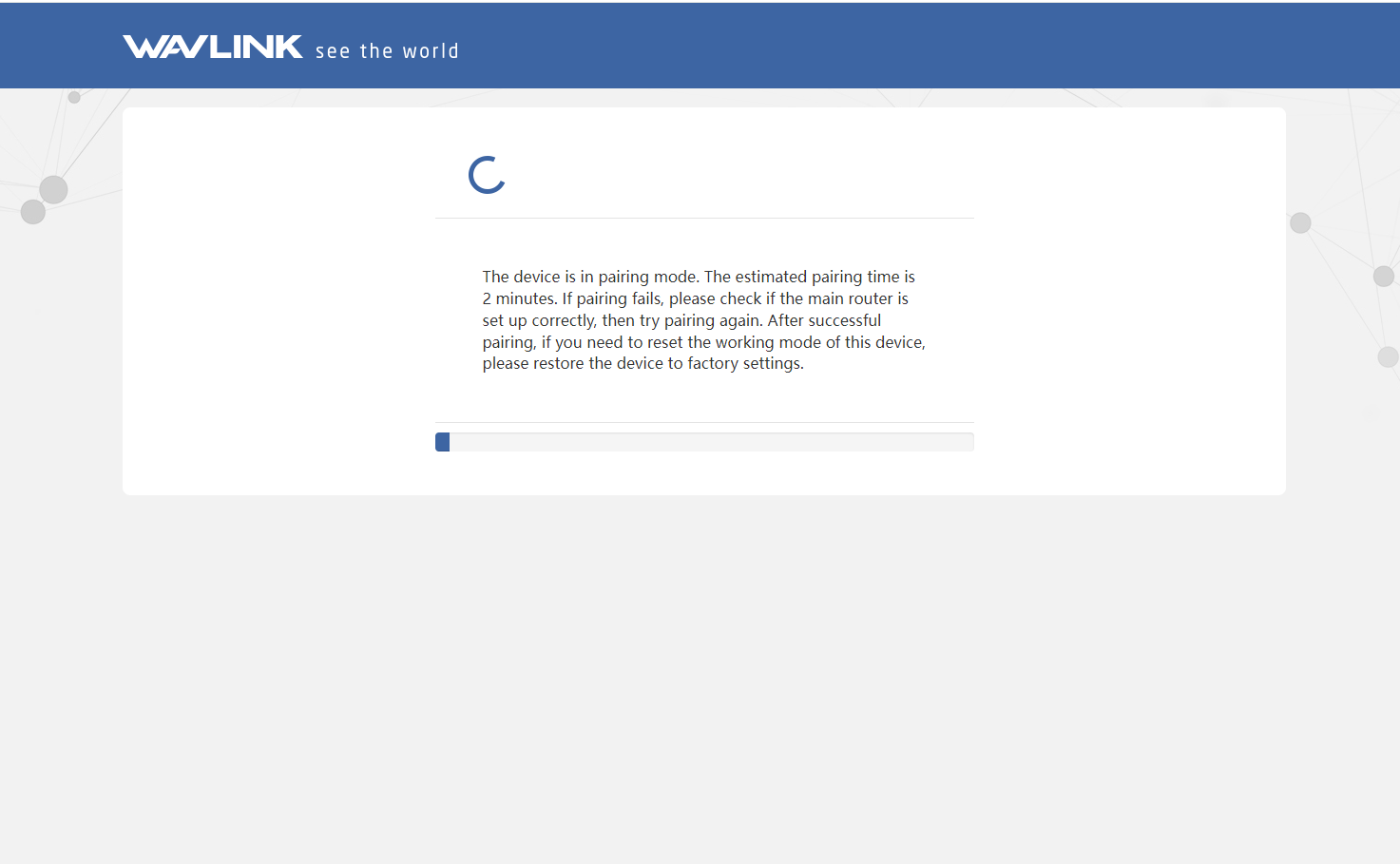
The device enters the pairing state, while please press the Pair button 2 seconds of the primary router or add the mesh device in the primary router configuration page, the pairing time is expected to be 2 minutes. If the pairing fails, check whether the primary router is set correctly, and then enable re-pairing via the pairing button or re-enter this device page. If you want to switch to another mode when you have successfully configured Mesh Extender Mode, please reset this device.