Chapter 12 NET Tools
This chapter introduces how to test network connection, and enable Wake-on-LAN function.
It contains the following sections:
Diagnostics
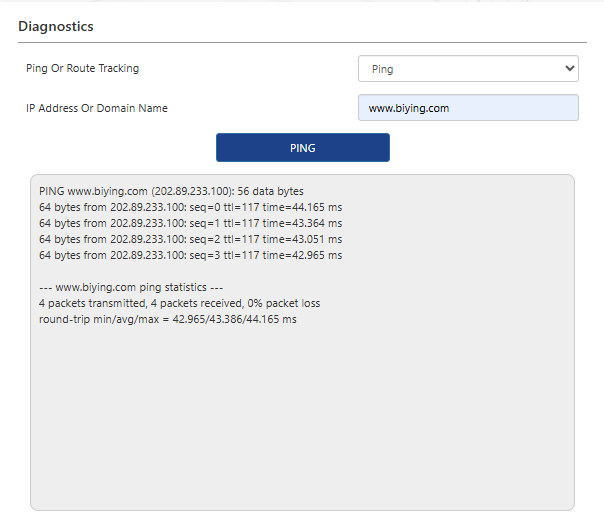
-
Access to More>NET Tools>Diagnostics.
-
In the dropdown list Ping Or Route Tracking, choose Ping or Traceroute.
- Ping : used for checking the connection between the router and the target device whether normal or not.
- Traceroute: used for checking the node information between the router and the target device.
-
Input the IP Address Or Dormain Name that you want to test.
-
Click on PING or TRACETOUTE button for testing.
Wake On LAN
Wake-On-LAN (WOL) is a technology where the network interface card (NIC), along with other software and hardware, sends a specific data frame to the NIC that is in standby mode, enabling the computer to start up from a powered-off state.
- Access to More>NET Tools>Remote Wakeup.

- Click on Add to start Wake-On-LAN setting.

-
Add the Discribe of the configuration.
-
Input the Mac Address of the device that you want to remotely wake up.
-
Set Time Setting and Reboot Time.
-
Click on SAVE, complete the configuration.