Chapter 3 Display Mode Settings and FAQ
•FAQ
Display Mode Setting
Before configuring the settings, please make sure this docking station has been connected to your laptop and monitors correctly.
For Windows
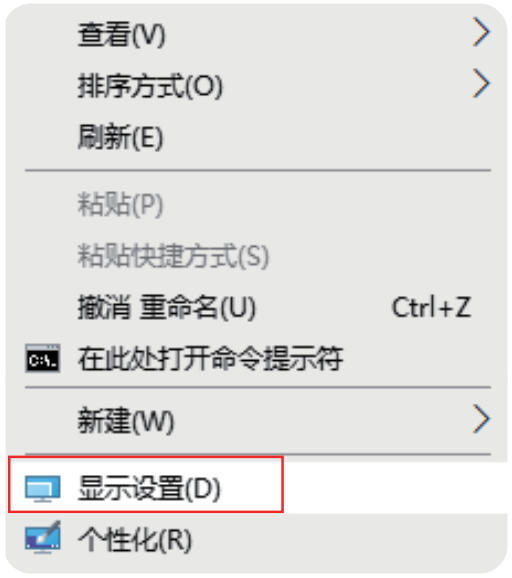
- Right-click→ Display settings.

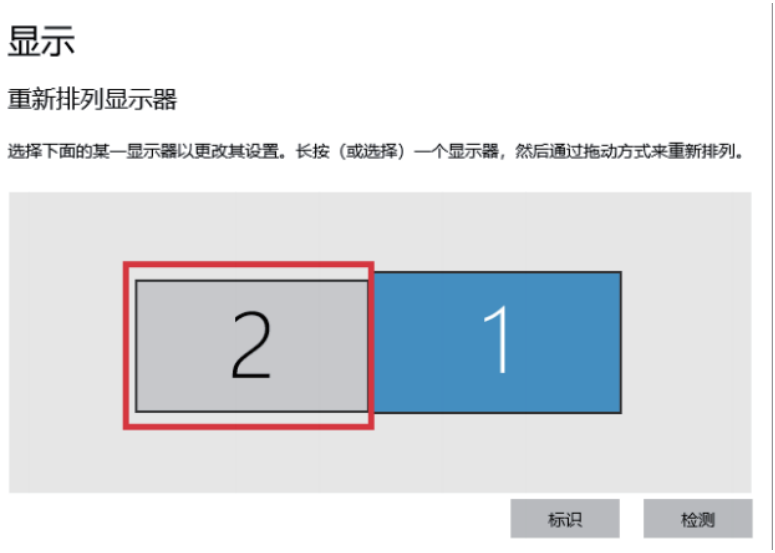
- In Display, you can enjoy different operations of duplicating, extending and rotating on your monitors.

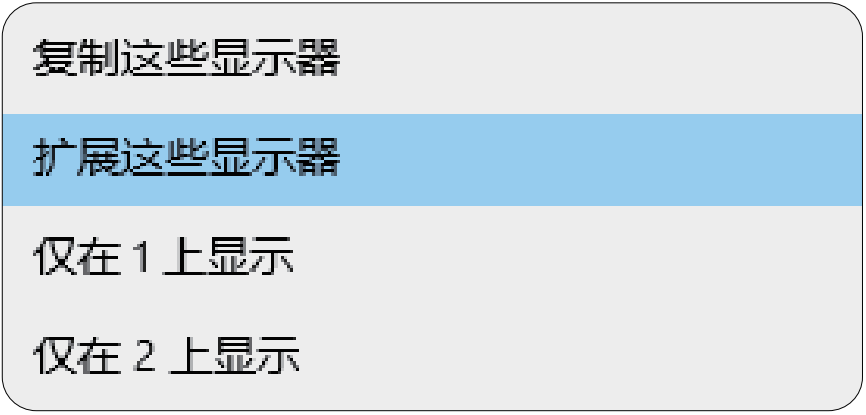
- Scroll down to the Multiple displays, and select the mode in the drop-down list that is fit for your need.

For Mac OS
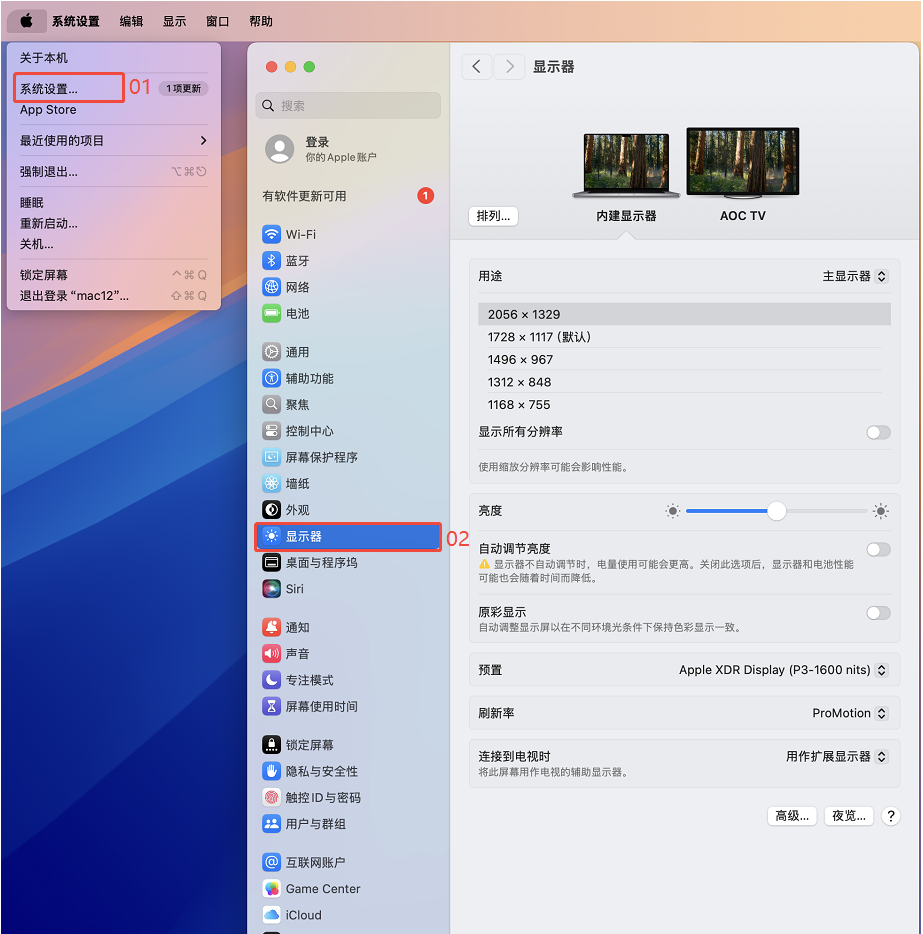
- Click Apple icon→ About This Mac.

- Click Displays → Displays Preferences.

- Select Display from the list, then you can enjoy different operations of mirroring, expanding and rotating on your monitors.

- Or click Gather Windows to gather all connected displays and make separate settings.

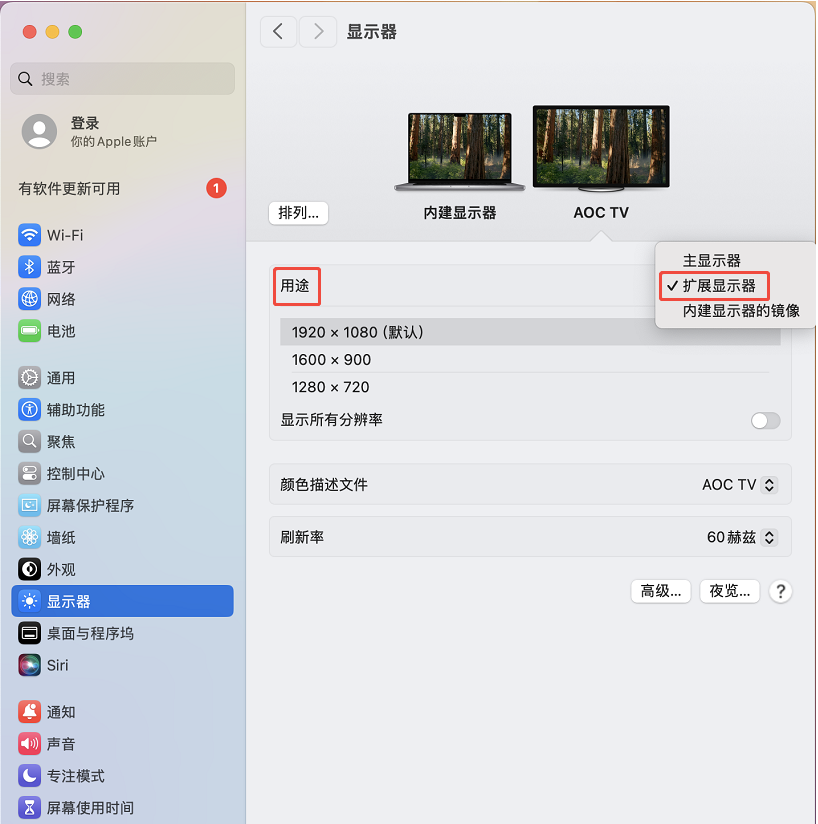
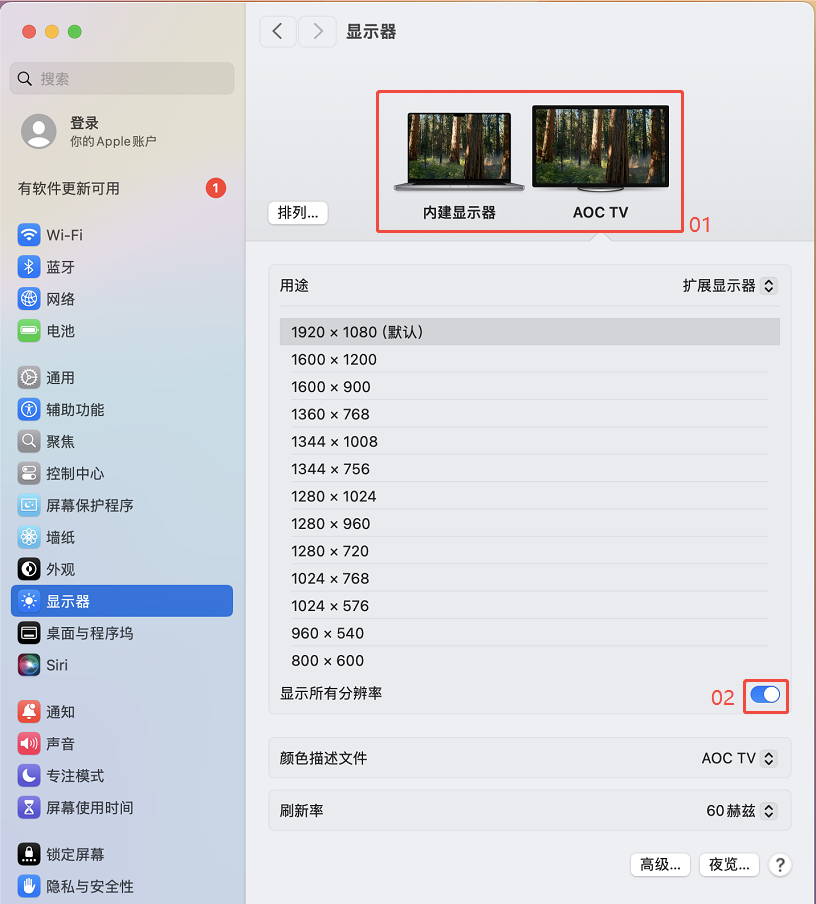
For Mac OS X13
- Click Apple icon→ About This Mac.

-
Click More Info....
-
Select Displays from the list, then you can enjoy different operations of mirroring, expanding and rotating on your monitors.

FAQ
Q1. Why does the App want to record my screen when I install the App for my Macbook?
A1. Mac OS requires users to permit “Screen Recording” for the Silicon Motion driver to work properly. But the Silicon Motion will not send any information to the Wavlink and the Silicon Motion. Please do not worry about that.
Q2. Why can't the Apple TV, Hulu, and Netflix play when the docking station is connected?
A2. The docking could not support HDCP, so protected content such as Apple TV, Hulu, and Netflix can't play when the docking station is connected. Please disconnect it when you are playing these videos. Or you could also try to use the Chrome browser to watch these videos and disable the Hardware Acceleration.
After Sales