Chapter 3 Display
This chapter contains the following sections:
DISPLAY RESOLUTION
| Scenarios | System | Connected with USB3.0 port on computer |
|---|---|---|
| Single Display | Extend & Mirror | HDMI:3840x2160@30Hz DVI:1920x1080@60Hz |
| Dual Display | Extend & Mirror | HDMI+DVI:3840x2160@30Hz+1920x1080@60Hz |
DRIVER INSTALLATION
The docking station is based on Silicon Motion technology, which manages the graphics function. It requires downloading and installing the Silicon Motion driver to make it work, found here:
Way 1: Visit www.wavlink.com/en_us/WL-UG49DK4
Way 2: Enter www.wavlink.com > SUPPORT > Driver and search WL-UG49DK4
Way 3: Visit https://www.siliconmotion.com/downloads/
For Windows
-
Download the Silicon Motion Driver. You can visit www.wavlink.com/en_us/WL-UG49DK4 or enter www.wavlink.com and click SUPPORT>Driver>USB Display>WL-UG49DK4 to find and install the driver.
-
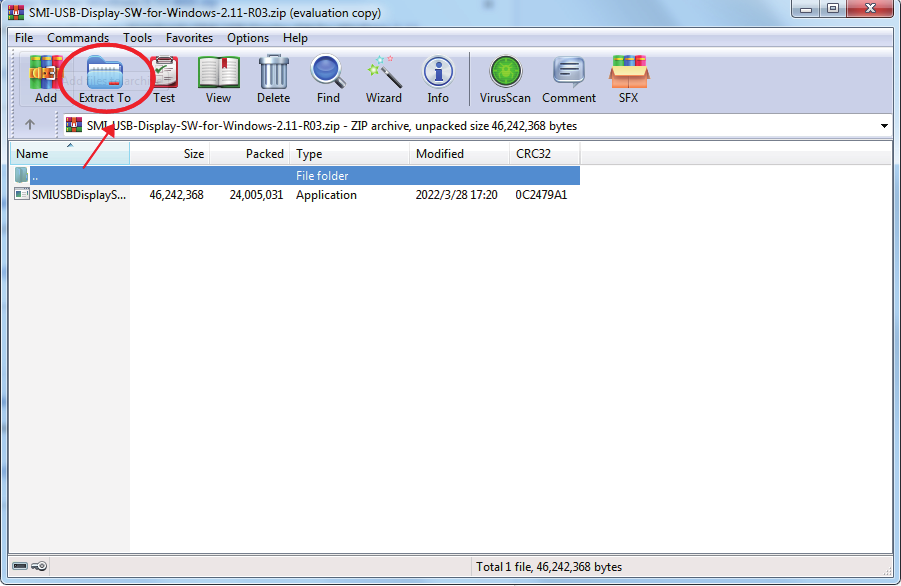
Extract the driver installation package to the desktop.
-
Double-click on the Silicon Motion executable, e.g. "SMIUSBDisplaySW" (.exe)

-
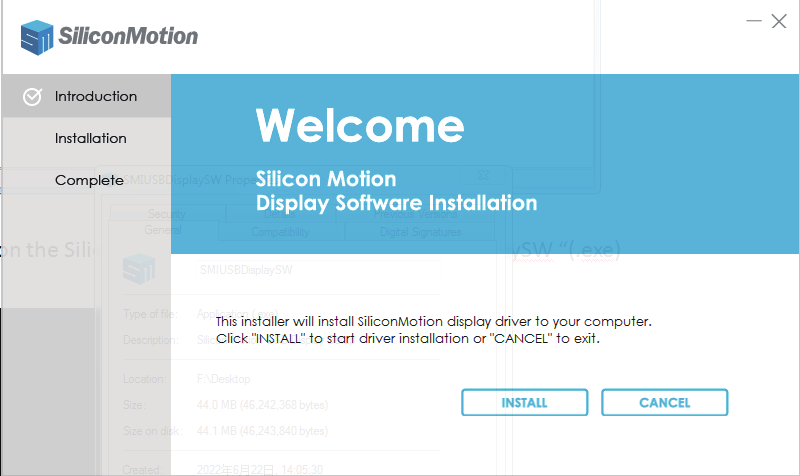
Click "INSTALL".
-
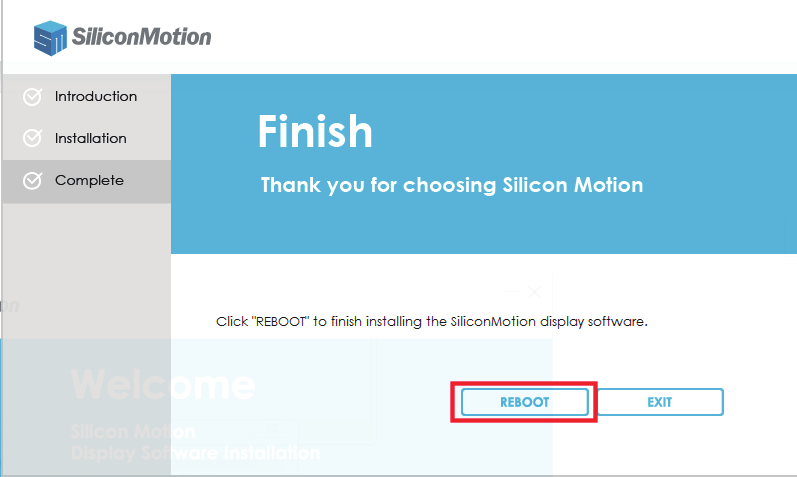
Click "REBOOT" to complete installing the Silicon Motion display software.
For macOS
-
Download the Silicon Motion InstantView application for macOS. Please visit www.wavlink.com/en_us/WL-UG49DK4 or enter www.wavlink.com and click SUPPORT>Driver>USB Display>WL-UG49DK4 to find and install the driver.
-
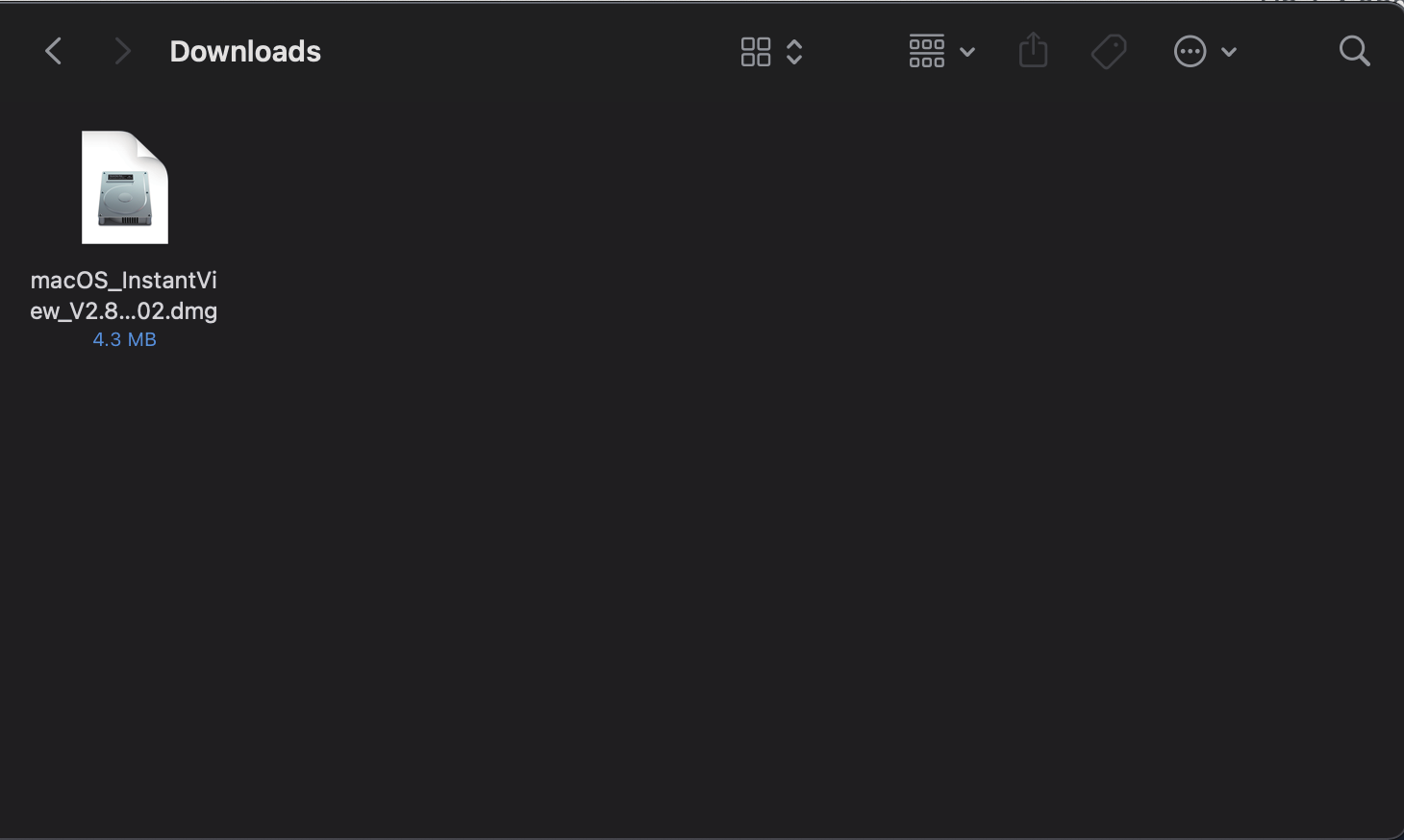
Double-click on the file you downloaded to start the application installer.
-
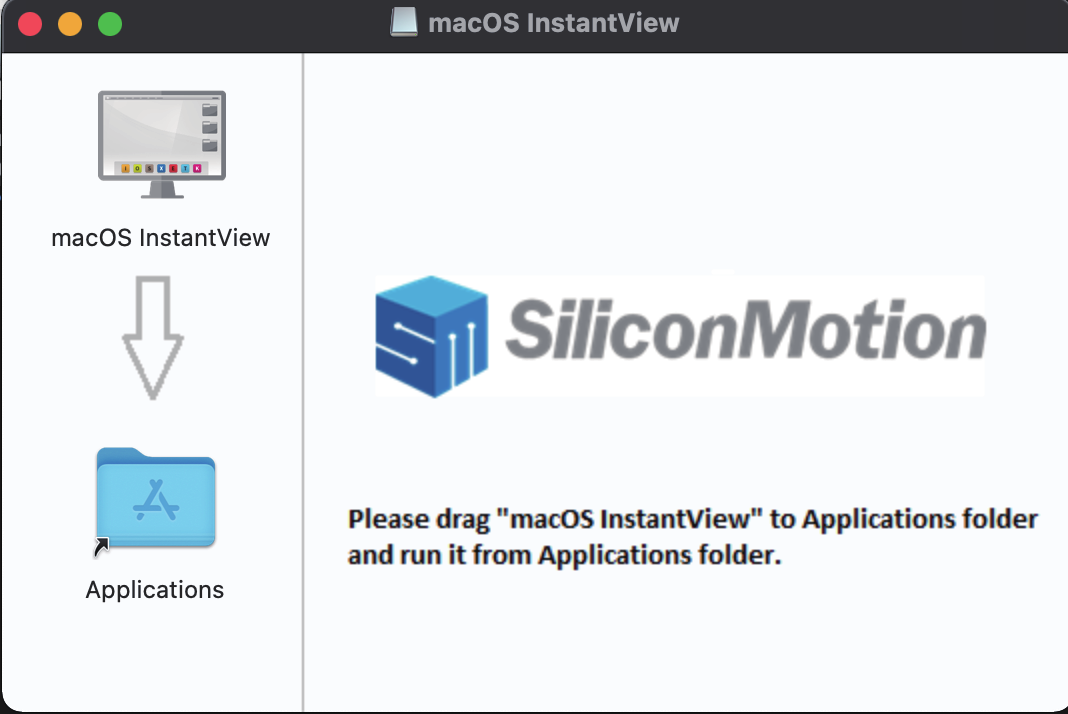
Drag the macOS InstantView application icon into the Applications folder in the open window.
-
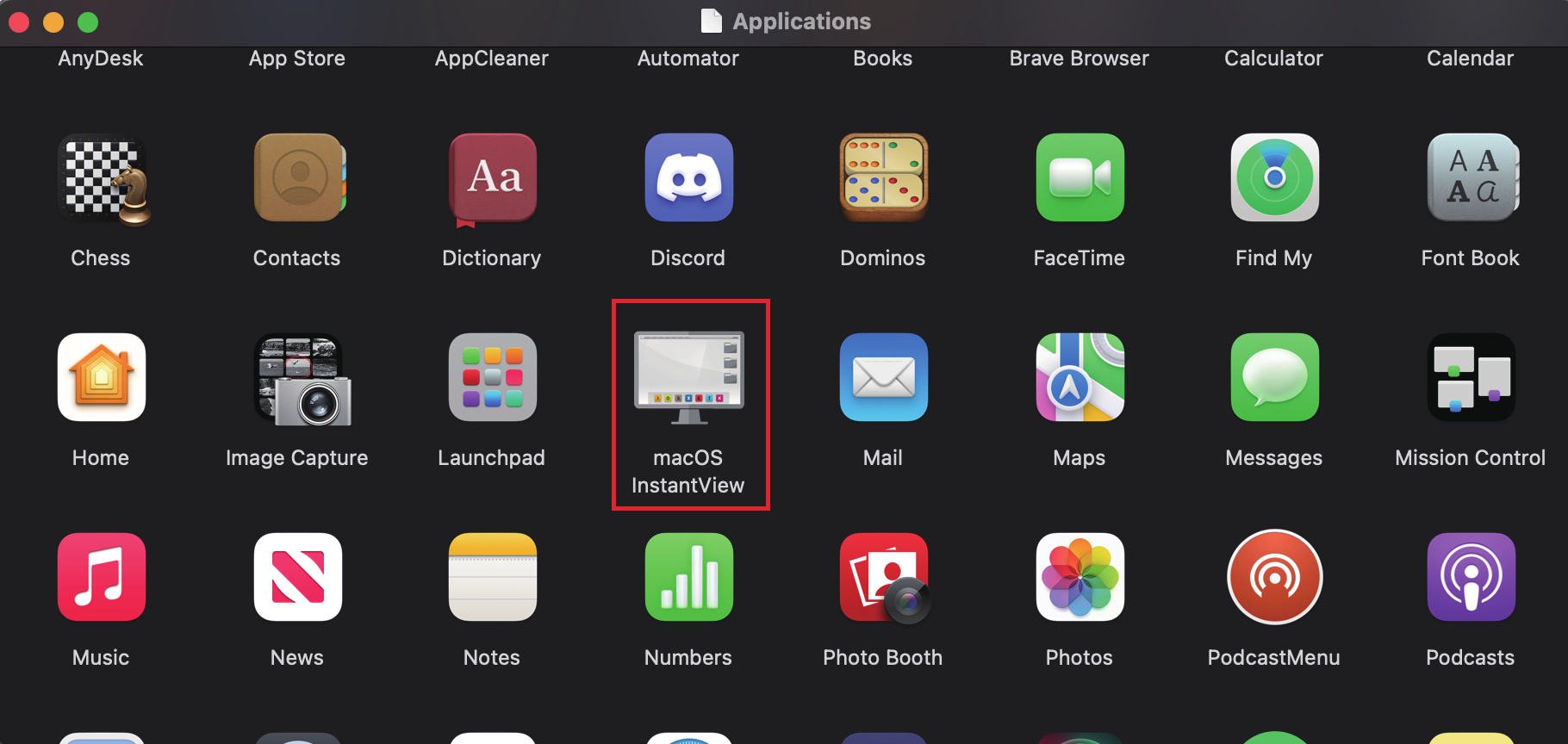
Navigate to your Launchpad or Applications folder to find the InstantView application and double-click to launch it.
-
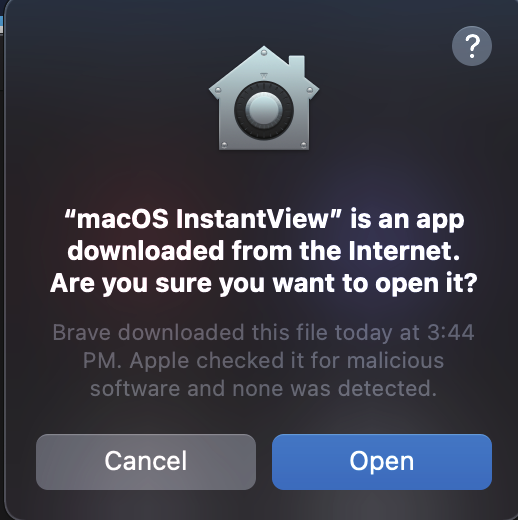
Click "Open".
-
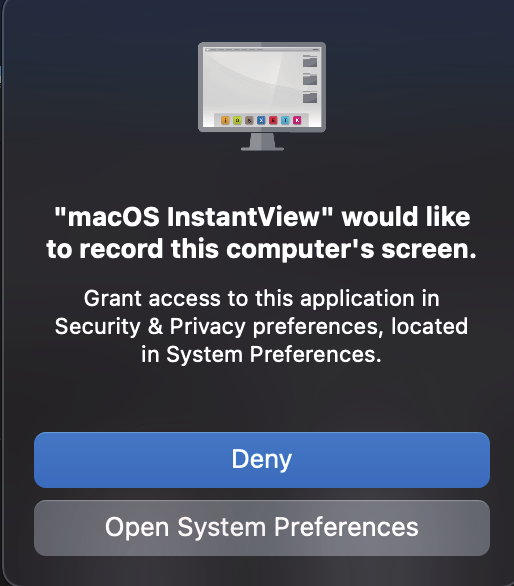
Click Open System Preference.
Note: this should automatically open the Security and Privacy section, but if it does not you can manually open the Security and Privacy settings.
-
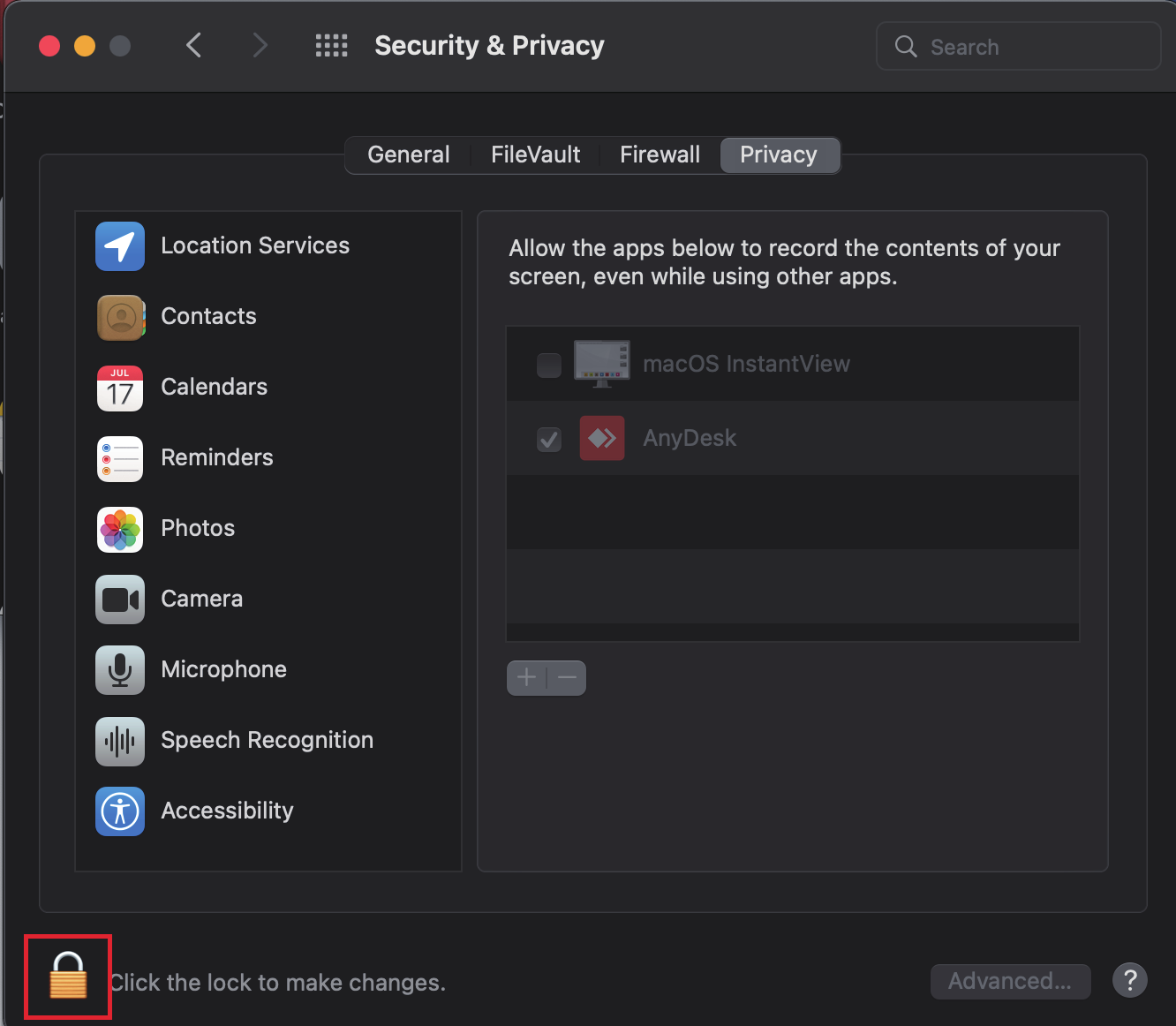
Click on the gold padlock at the bottom of the application window to enable changes.
-
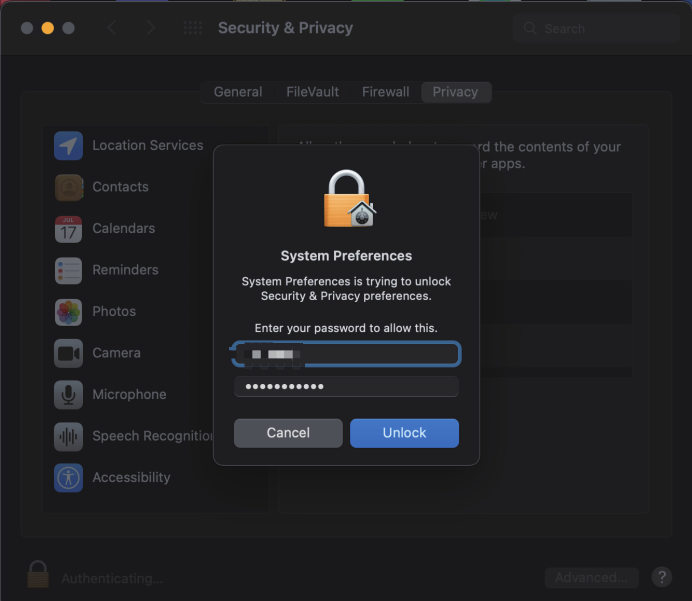
If promoted, enter your password and click the "Unlock" button.
-
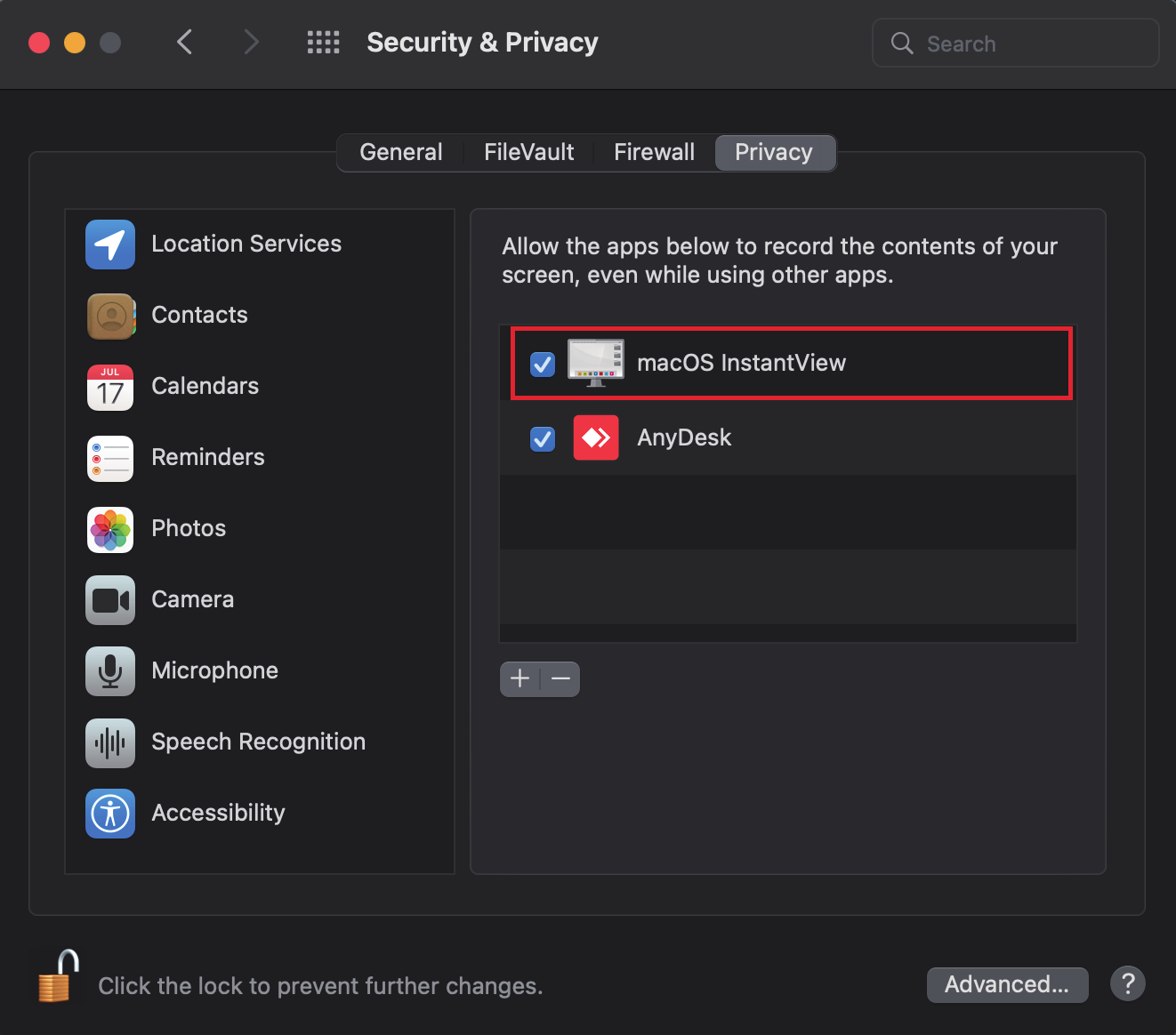
Click to place a checkmark next to the macOS InstantView entry.
-
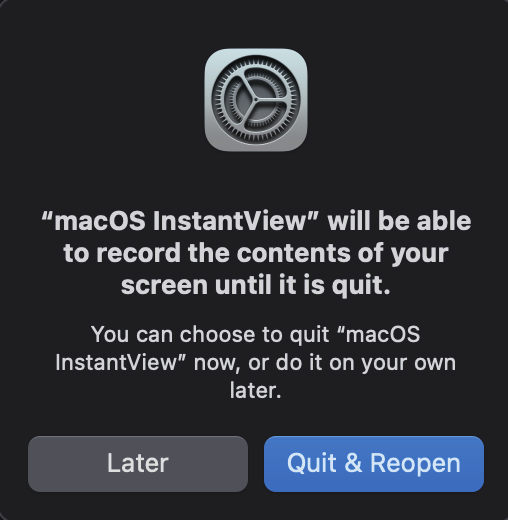
You will be promoted to Quit and Reopen the InstantView application in order for the change to take effect. Please do so:
-
The software has now been installed and you may connect your graphics adapter or docking station.
DISPLAY SETTING
For Windows User
-
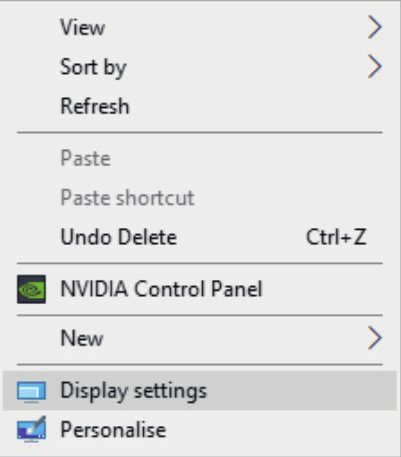
Right-click at any spot on your desktop and select "Display settings".
-
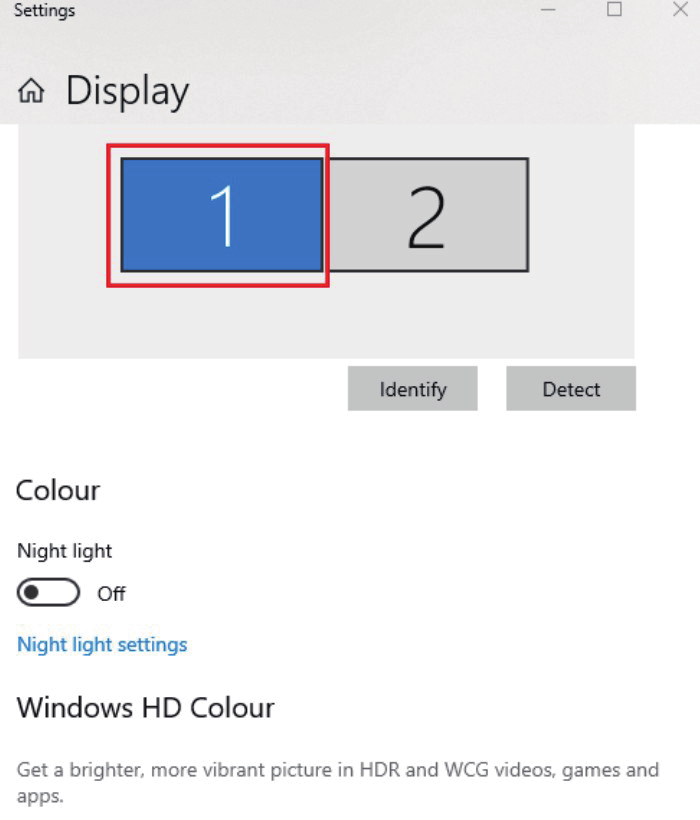
In "Display", please select either monitor 1 or monitor 2.
-
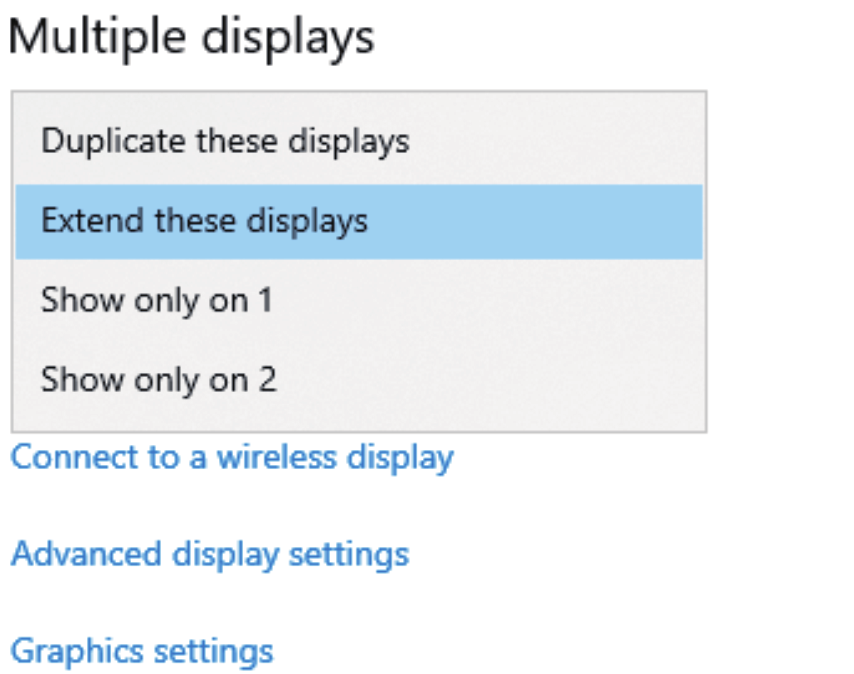
Scroll down to the "Multiple displays", and select the mode in the drop-down list that is fit for your needs.
For macOS User
-
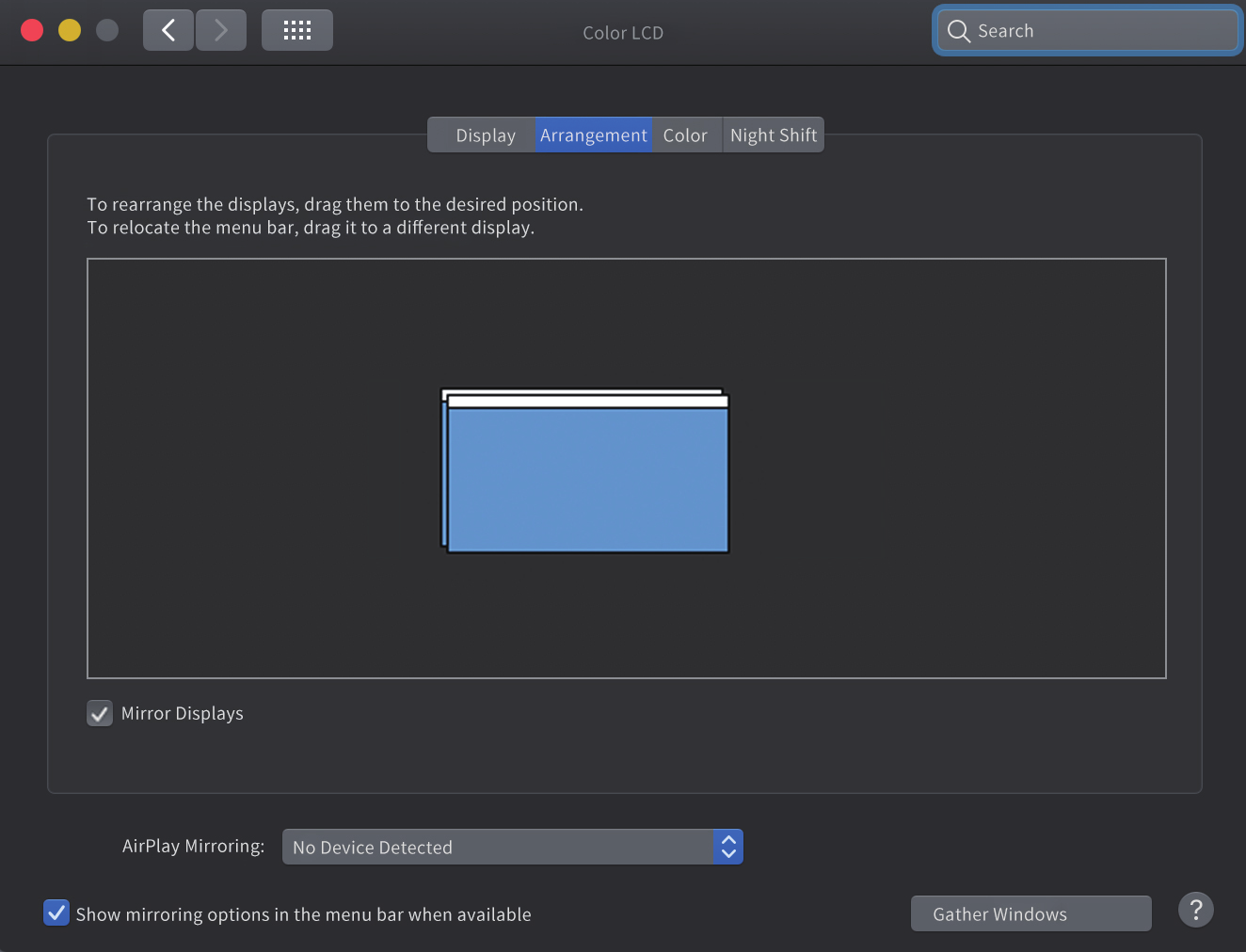
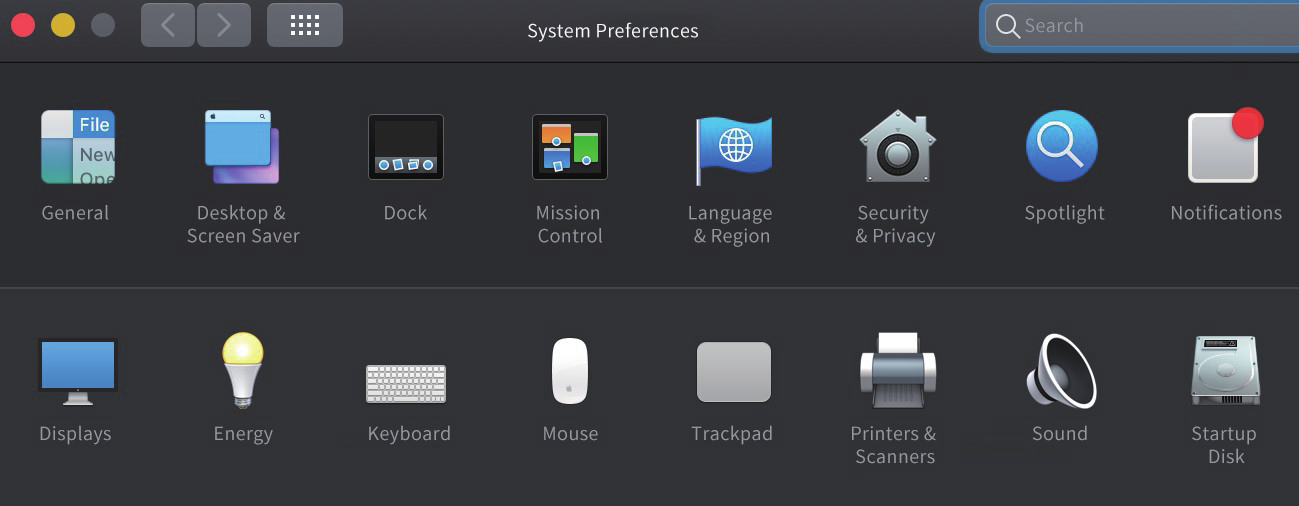
Select "System Preferences" and choose "Displays".
-
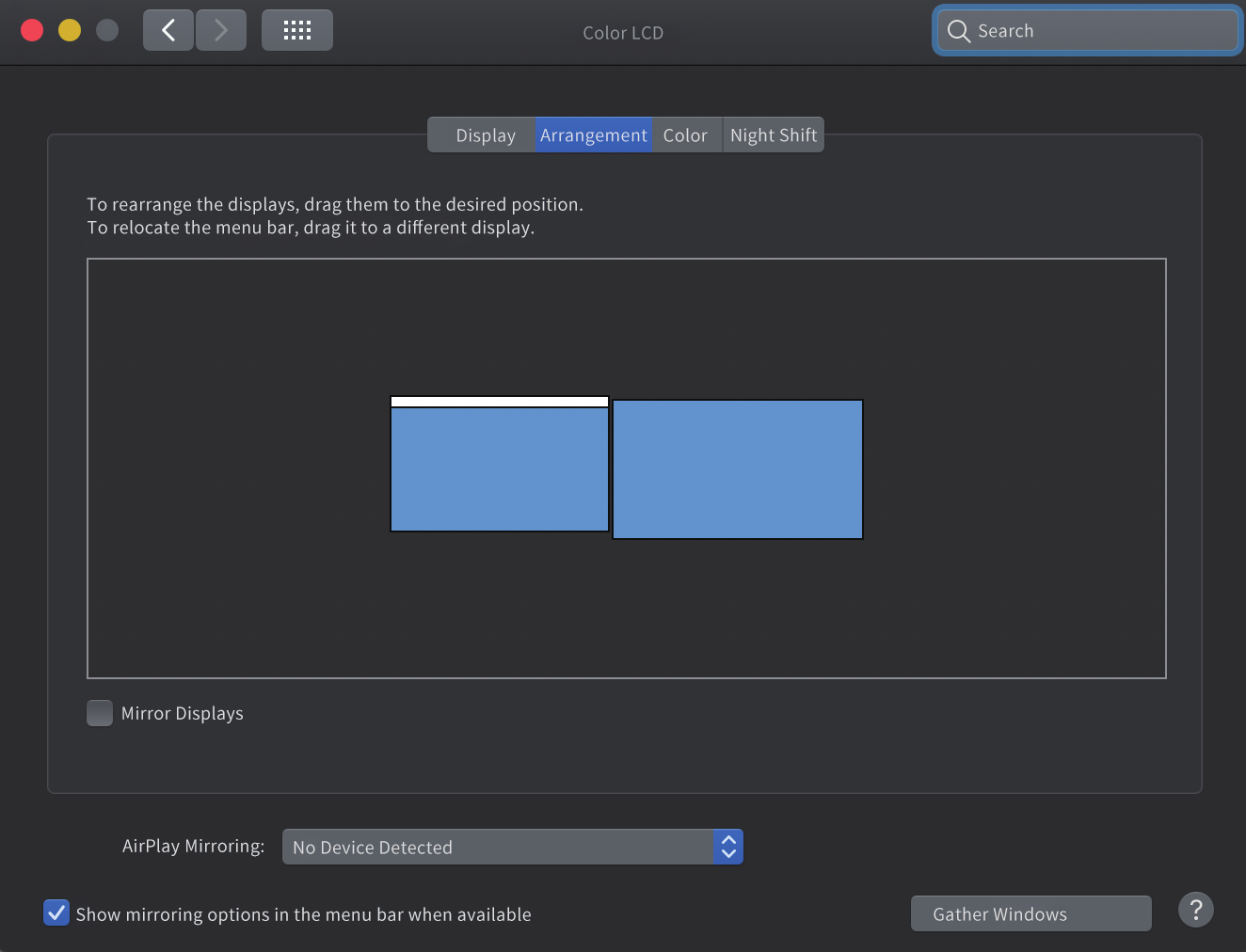
Click on "Arrangement" to change the position of displays currently connected.
-
To use the mirror mode, you have to mark the "Mirror Displays" box below the central icon.