Chapter 4 Managing Wireless Network
This chapter contains the following sections:
• Wireless
Wireless
Configure the SSID, encryption method, password, and other wireless parameters for 2.4G, 5.2G and 5.8G networks.
- Navigate to Wireless.
Configuring Wireless Network
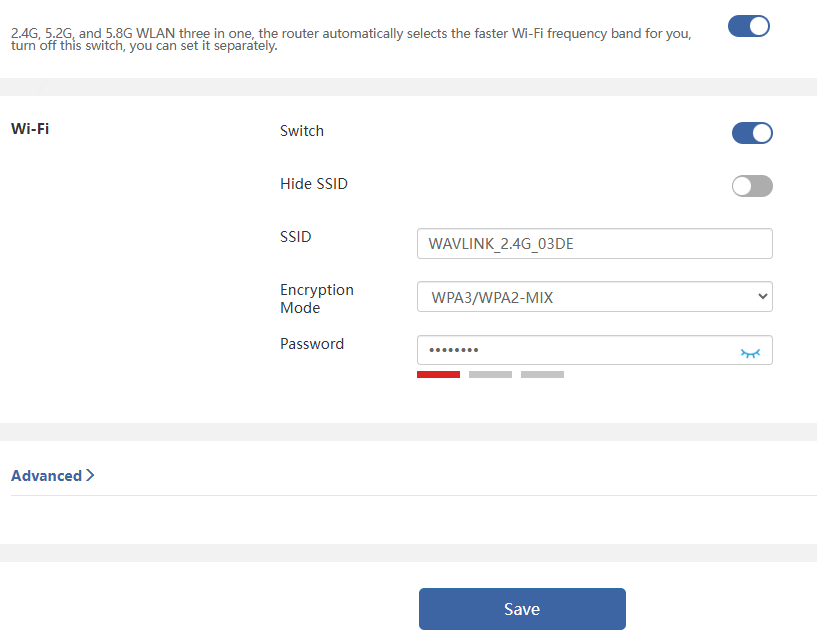
1) Triple Frequency Selection
Enabling Triple Frequency Selection combines the 2.4GHz, 5.2GHz and 5.8GHz Wi-Fi bands into the same Wi-Fi Name(SSID), when the terminal connect to the Wi-Fi, the router will automatically select network band for the terminal according to the internet status. Disabling it to configure the 2.4G, 5.2G and 5.8G band separately.
2)Change Wi-Fi Name and Password
Create a new Wi-Fi name in SSID and customize Wi-Fi password in Password.
Advanced Settings
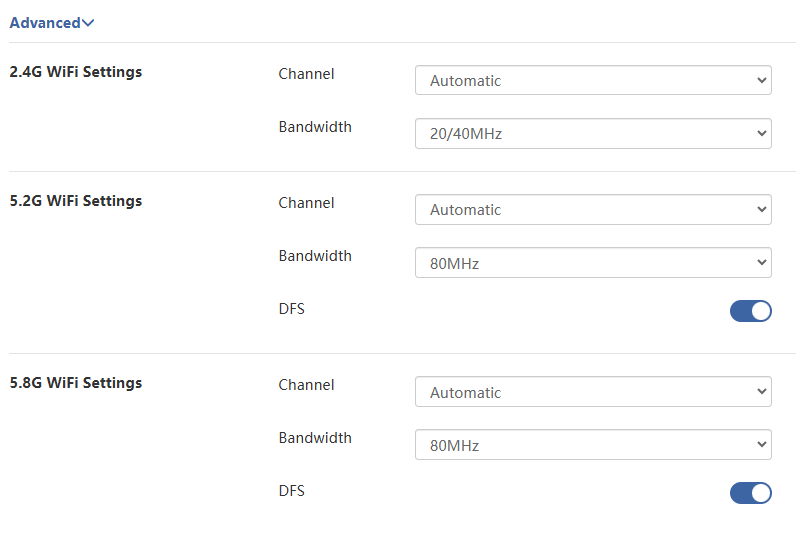
1)Channel
Changing the wireless network channel as you need. If you are unsure which one to select, it is recommended to choose Automatic. The device will automatically select the optimal channel based on the surrounding environment for the best experience.
2)Bandwidth
The bandwidth indicates the frequency range of the wireless data transmission from the router.
3)DFS
It block interference from radar systems by automatically selecting and switching to the workable channel that has not used by the radar system. It is recommended to turn on this switch to ensure compliance with local regulations and to maintain a stable and uninterrupted wireless network.
Guest Wi-Fi
The guest Wi-Fi provides guests(visitor, client or temporary device) with a independent and secure network environment isolated from the main network. Network administrators offer convenient access while protecting the security and resources of the primary network.
-
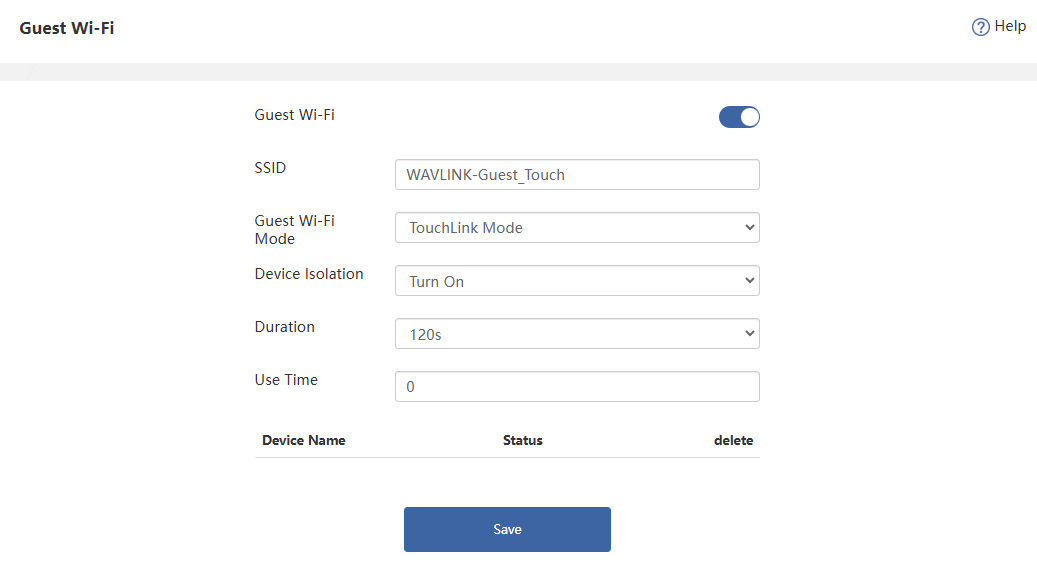
Navigate to Advanced > Guest Wi-Fi.
-
Click to enable Guest Wi-Fi.
-
Set the SSID.
-
In the Guest Wi-Fi Mode, set the encryption method: Encryption Mode, No Encryption Mode, and TouchLink Mode. When you select TouchLink Mode, the sensing pad at the top of the device will blink blue upon touch, indicating that TouchLink is active; you can then connect to “WAVLINK-Guest_Touch” without a password.
-
Set the Device Isolation. Once on, this feature will isolate devices connected to the same LAN from each other, enhancing network security and privacy protection.
-
Click SAVE to complete the settings.
Parental Wi-Fi
Parental Wi-Fi allows you to set up a wireless network with separate SSID(Wi-Fi name) and separate password for family members. You can configure its SSID, encryption method, and rules as you need.
-
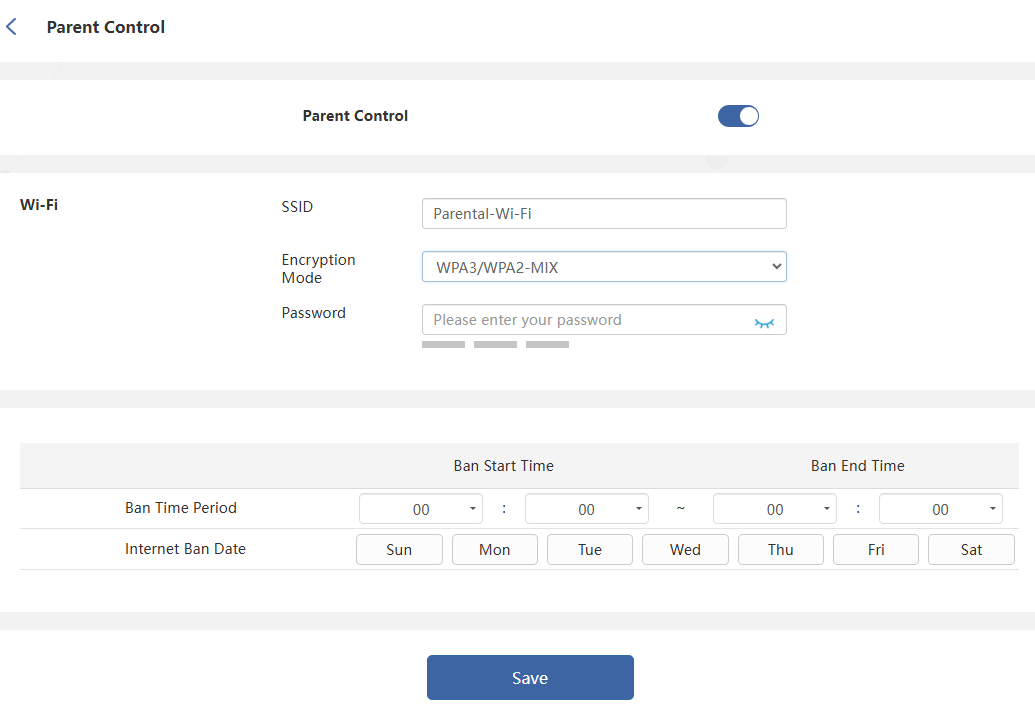
Navigate to Advanced > Parent Control.
-
Click to enable Parent Control.
-
Set the SSID, Encryption Method, and Password.
-
Set the Ban Time Period and Internet Ban Date in to control your child's internet access time.
-
Click SAVE to complete the settings.