Chapter 3 FAQ
•FAQ
FAQ
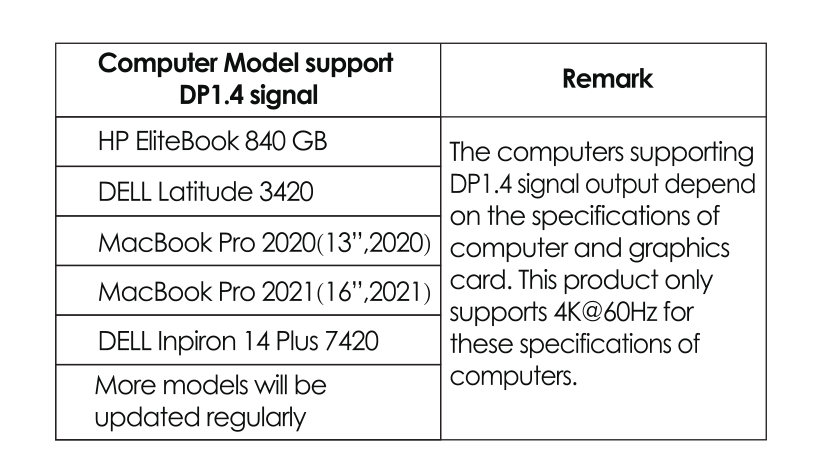
Q1. How to figure out the maximum resolution (DP1.2/DP1.4) my laptop supports?
A1. 1. Firstly check the Graphics card version of your laptop; *Find "display adapter" in "Device Manager".
- Check the information of lntel processors for details from https://www.intel.com/content/www/us/en/support/products80939/graphics-drivers.html
Q2. Why doesn't my third monitor display when l set the triple display mode?
A2. Step 1: Choose the main display
-
Right-click to select "Display settings".
-
Choose a monitor display and scroll down to "Multiple displays".
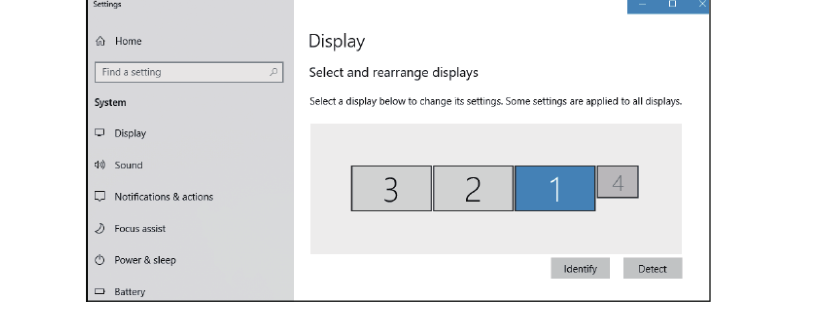
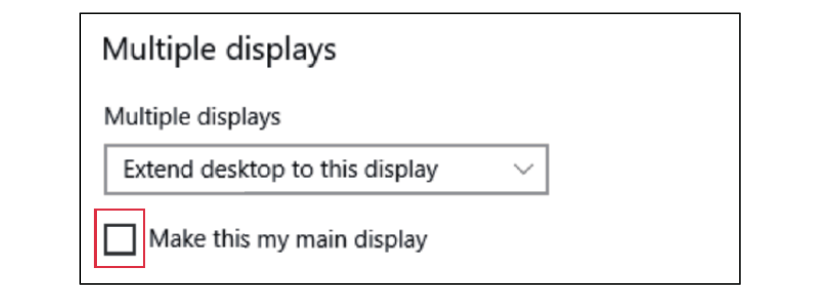
- Mark "Make this my main display".
Step 2: Disconnect laptop display
-
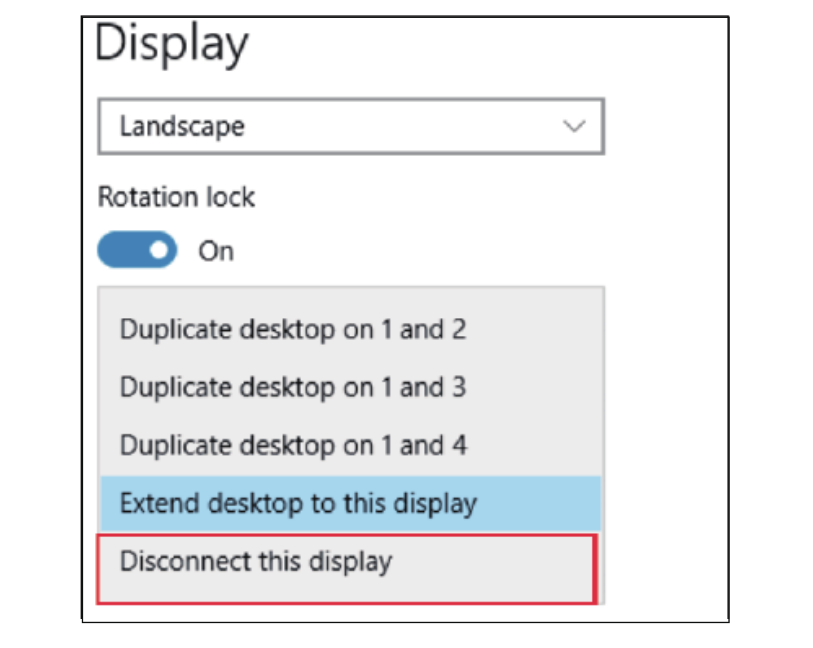
Select the laptop display ("1" is the default display for laptop) and scroll down to "Multiple displays".
-
Select "Disconnect this display", then laptop display panel wil become disconnected.
Step 3: Tum on the third monitor display
-
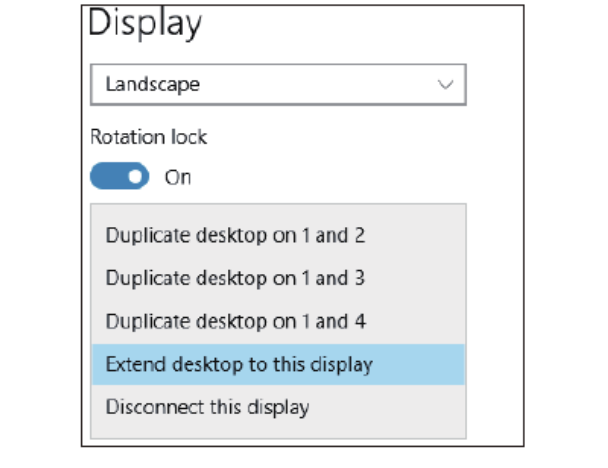
Choose the remaining monitor display then scroll down to "Multiple displays".
-
Select "Extend desktop to this display" to enable this display.
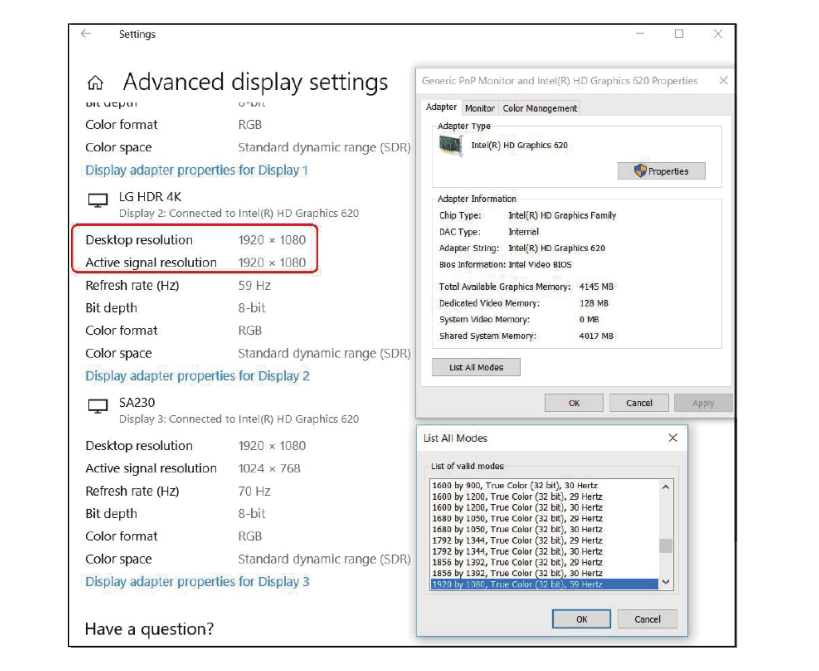
- Check if resolution values of each monitor on "Desktop resolution" and "Active signal resolution" are the same.
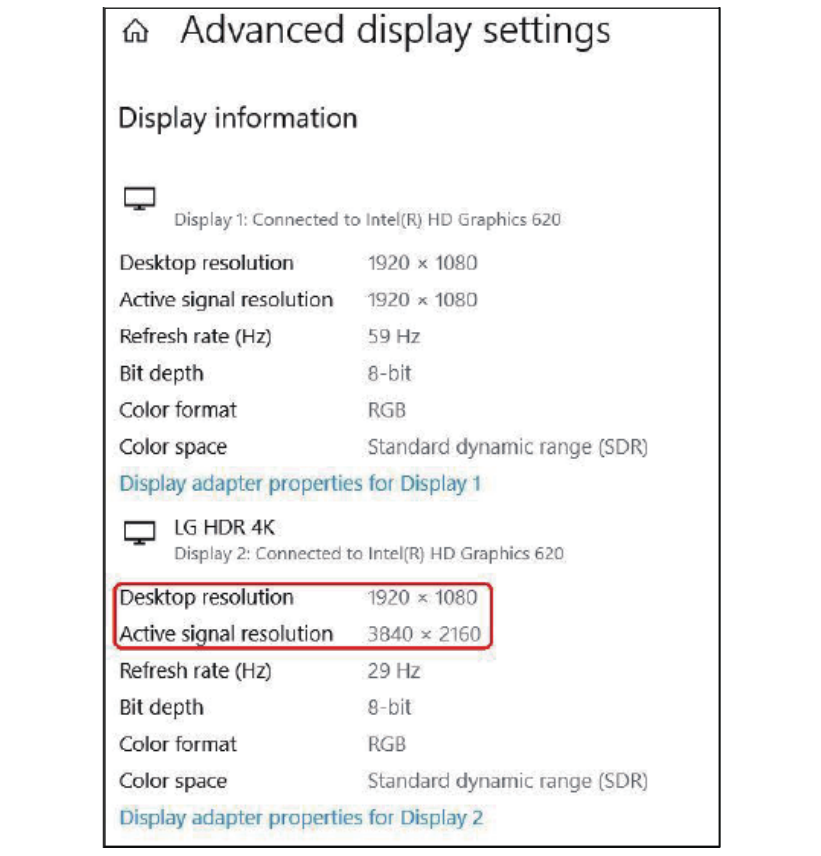
- Click on "Display adapter properties for Display2" and lower the resolution to the right value if two values are different.
Q4: Why does this Docking power off after connecting the Hard Disk to it?
A4: That's because this port is USB 2.0 for data transmission, the power for this Docking is supplied from the Laptop/PC. When connected to some devices with high instantaneous current, there may be a problem of power-off protection due to the Standard USB 2.0(2.5 watt) Protection Point. If the working current of the equipment you connect returns to within the specified value, it will be powered on again.