Chapter 2 Display
•Tips
Display Resolution
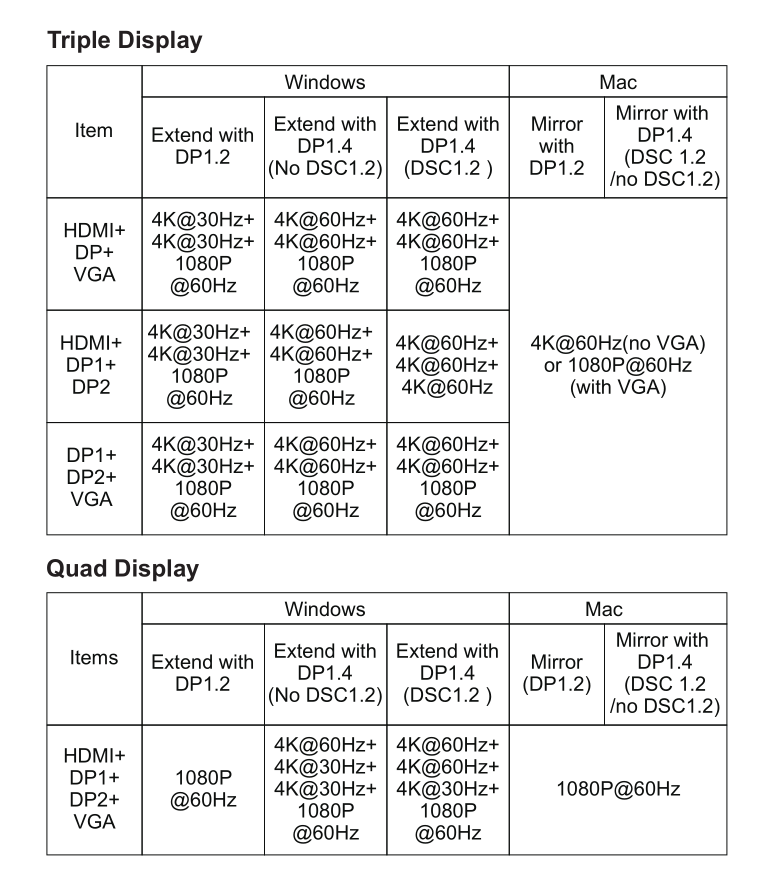
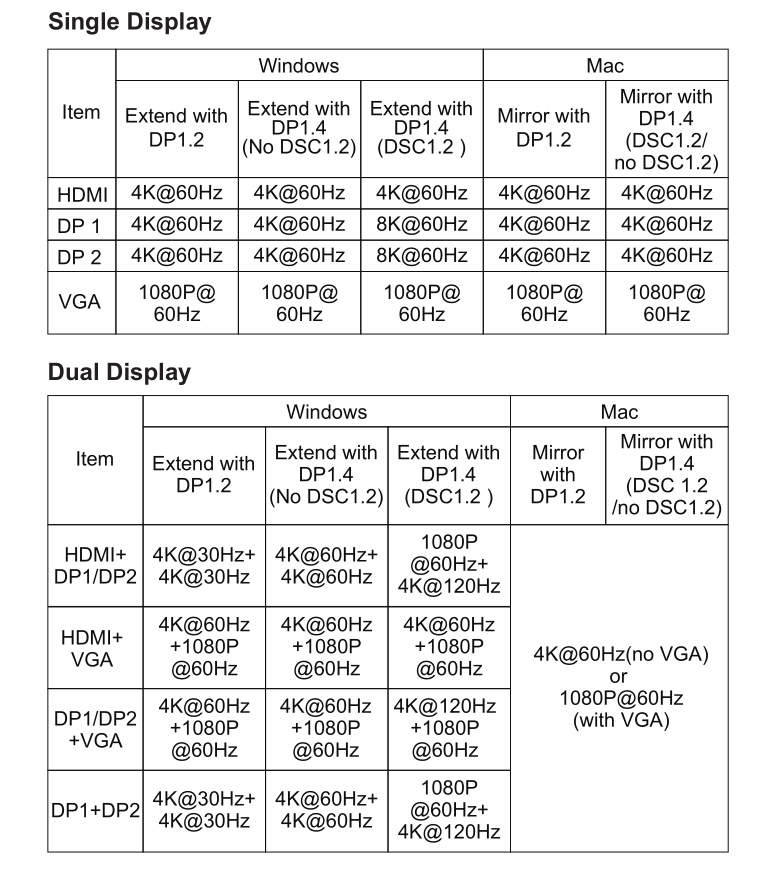
Display Setting
For Windows Users
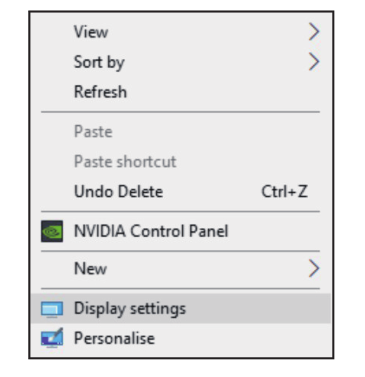
- Right-click at any spot on your desktop and select “Display Settings".
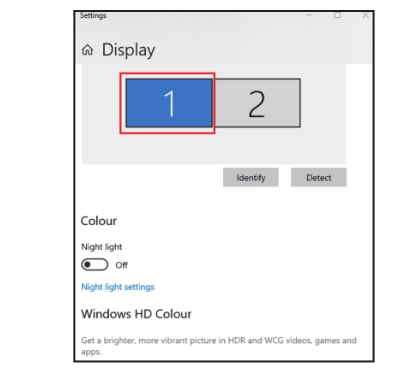
- In"Display", please select either monitor 1 or monitor 2.
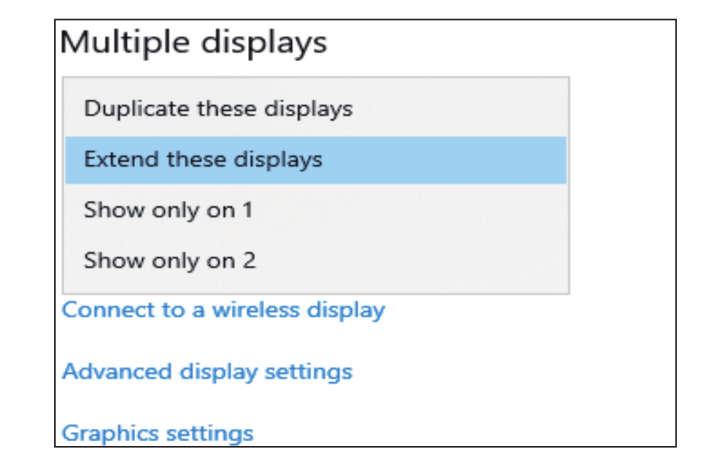
- Scroll down to the "Multiple display", and select the mode in the drop-down list that is fit for your need.
For macOS
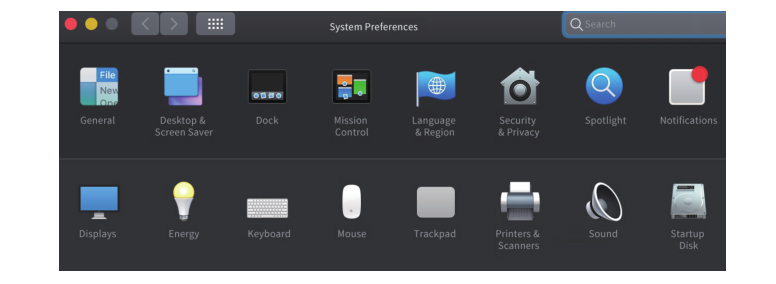
- Select "System Preference" and choose "Displays".
- Click on "Arrangement" to change the position of displays currently connected.
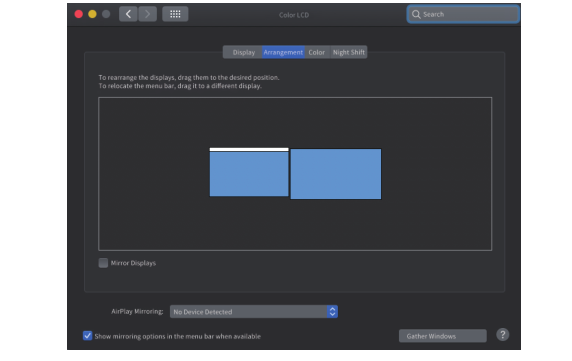
Extend Mode
- Selcet either extend or mirror mode on your demand.
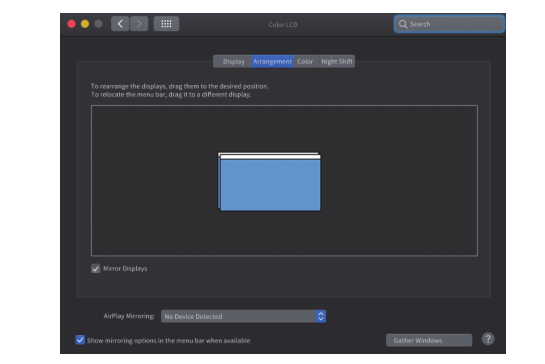
Mirror Mode
Operation Steps
-
Make sure that the resolution of your screen meets the corresponding requirements.
-
Connect the dock to a compatible laptop or smartphone via USB-C/M.
-
Connect the HDMI screen to the dock with an HDMI cable.
-
Connect the VGA screen to the dock with a VGA cable.
-
Connect the DP screen to the dock with a DP cable.
-
Now you can see the user interface in the screens.
-
Insert the USB-disk into USB 2.0 ports to transfer data.
Notice
-
Make sure the pin in the port does not sag or curve, so as not to affect its pluggable function.
-
Keep liquids away from the product to prevent mechanics damage.
-
Please keep the product in a dry, clean environment.
Tips
-
HDMI , DP and VGA ports only can be used when the USB-C port of your host device(laptop/smartphone/tablet) canoutput video.
-
USB-A port is not compatible with Apple SuperDrive/Nintendo and it is not recommended that you charge a tablet or iPad through it.
-
Some laptops may have a limitation on power output and it is recommended that you only connect an HDD/SSD external hard drive at a time.
-
For security, please use the adapter or cable that is original or owns a third-party certification to charge your laptop.
-
Only the laptop with VESA DisplayPort (DP) v1.4 (HBR3) can output 4K@60Hz videos with this dock.