Chapter 4 Connection and Resolution
This chapter contains the following sections :
How to Connect
For Windows 10/11/Later and MAC OS, it is Plug and Play, so no Driver installation is needed.
Note:
Some computers might not install the Realtek network driver, it is required for the RJ45 Ethernet port, visit www.wavlink.com > Support > Driver > WL-UMD23M-Pro to download and manually install the Driver.
- The Dock requires the Laptop/PC to support DP ALT MODE, so you should ensure the USB-C port of the Laptop/PC supports DP ALT MODE, check Q&A:Q6 for details.
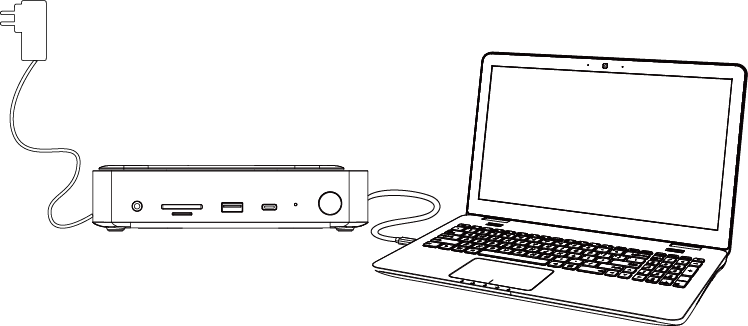
- Connect the included power adapter to the Dock, then press the dock's Power Button to turn it on.
- Connect the USB-C port(Host) to the Laptop, the LED indicator will turn blue if the connection is successful.
Display Resolution
Single Display
| Items | HDMI 1 | HDMI 2 | DP |
|---|---|---|---|
| Windows MST DP1.4(DSC) | 7628×4320@30Hz or 3840×2160@144Hz | 7628×4320@30Hz or 3840×2160@144Hz | 7628×4320@30Hz or 3840×2160@144Hz |
| Windows MST DP1.4 | 3840×2160@60Hz | 3840×2160@60Hz | 3840×2160@60Hz |
| Windows MST DP1.2 | 3840×2160@30Hz | 3840×2160@30Hz | 3840×2160@30Hz |
| Mac SST DP1.4 | 3840×2160@60Hz | 3840×2160@60Hz | 7628×4320@30Hz or 3840×2160@144Hz |
| Mac SST DP1.2 | 3840×2160@30Hz | 3840×2160@30Hz | 7628×4320@30Hz |
Dual Display
| Items | Dual HDMI | HDMI + DP |
|---|---|---|
| Windows MST DP1.4(DSC) | Dual 3840×2160@60Hz | Dual 3840×2160@60Hz |
| Windows MST DP1.4 | 3840×2160@60Hz + 1920×1080@60Hz | 3840×2160@60Hz + 1920×1080@60Hz |
| Windows MST DP1.2 | Dual 1920×1080@60Hz | Dual 1920×1080@60Hz |
| Mac SST DP1.4 | Dual 3840×2160@60Hz | Dual 3840×2160@60Hz |
| Mac SST DP1.2 | Dual 3840×2160@30Hz | Dual 3840×2160@30Hz |
Triple Display
| Items | HDMI 1+HDMI 2+DP |
|---|---|
| Windows MST DP1.4(DSC) | Dual 3840×2160@30Hz + Single 3840×2160@60Hz |
| Windows MST DP1.4 | Triple 1920×1080@60Hz |
| Windows MST DP1.2 | Single 1920×1080@60Hz + Dual 1920×1080@30Hz |
| Mac SST DP1.4 | Triple 3840×2160@60Hz |
| Mac SST DP1.4 | Triple 3840×2160@30Hz |
note
- The above resolutions are factory test results; The resolution may be different depending on the actual situation of the computer and monitor.
- To use all 3 displays simultaneously with your PC/laptop via USB-C, ensure the graphics card driving the USB-C port supports at least four DisplayPort Alternate Mode (DP Alt Mode) displays. This requirement includes your PC's built-in display.
- Verify this specification with your PC manufacturer. If your graphics card does not support four displays, refer to Q&A: Q2 for troubleshooting steps.
- Remarks for Windows based PC/Laptops:
- Before you connect two or three monitors, we suggest you lower monitor resolution, please check Q&A: Q3 for details.
- Before you connect three monitors, we suggest you disconnect PC/laptop first, please check Q&A: Q2 for details.
- Before you connect two or three monitors, we suggest you lower monitor resolution, please check Q&A: Q3 for details.
- Remarks for Mac based PC/Laptops:
- Mac OS is Single-Stream Transport mode, so only one video source can be output such as ABB or ABBB(A is the primary display).

- Mac OS is Single-Stream Transport mode, so only one video source can be output such as ABB or ABBB(A is the primary display).