Chapter 2 Connection and Resolution
Connection
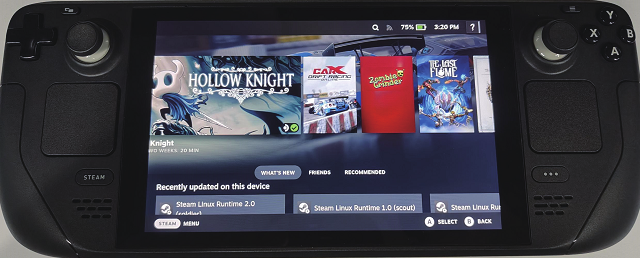
- Click "Steam" or click the button "Steam" on the game console.
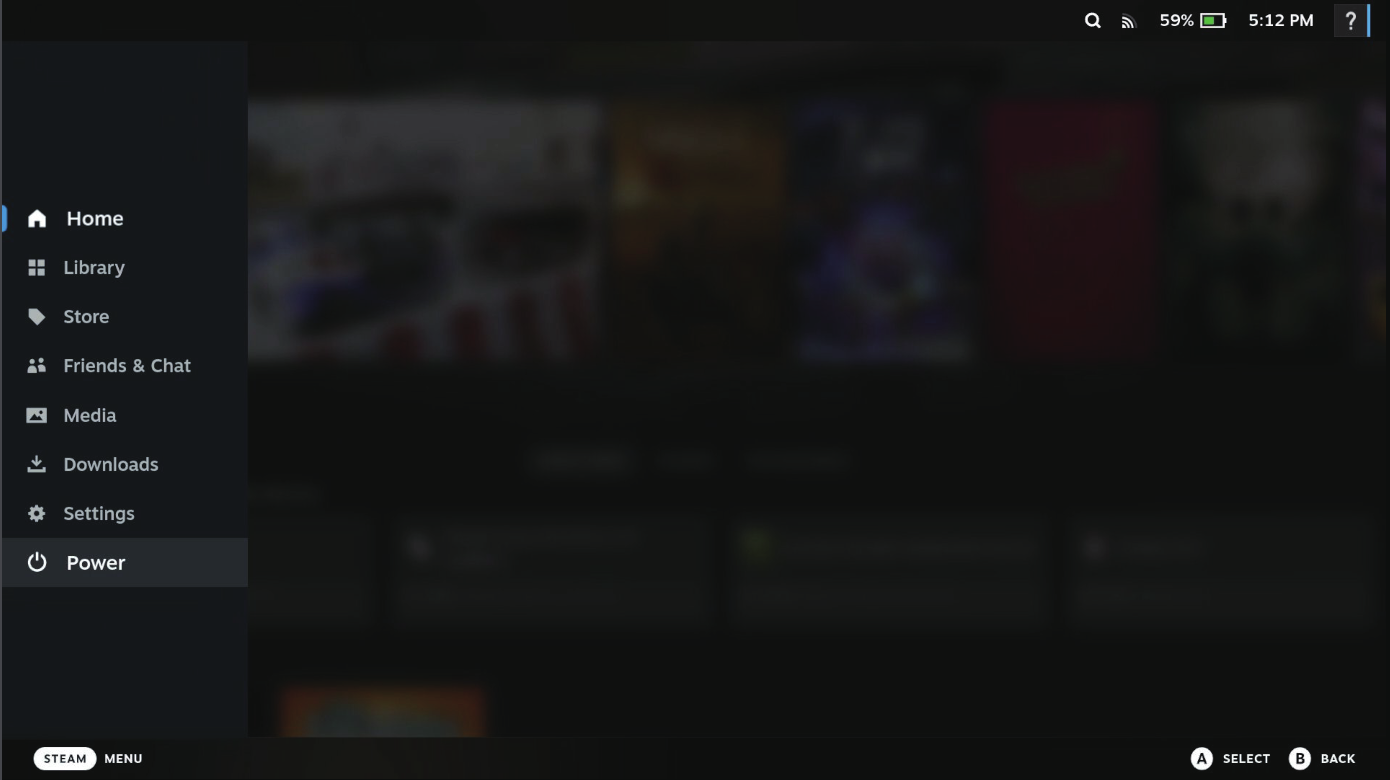
- Through the remote sensing via mouse and game console, choose "Power" in the pop-up menu bar.
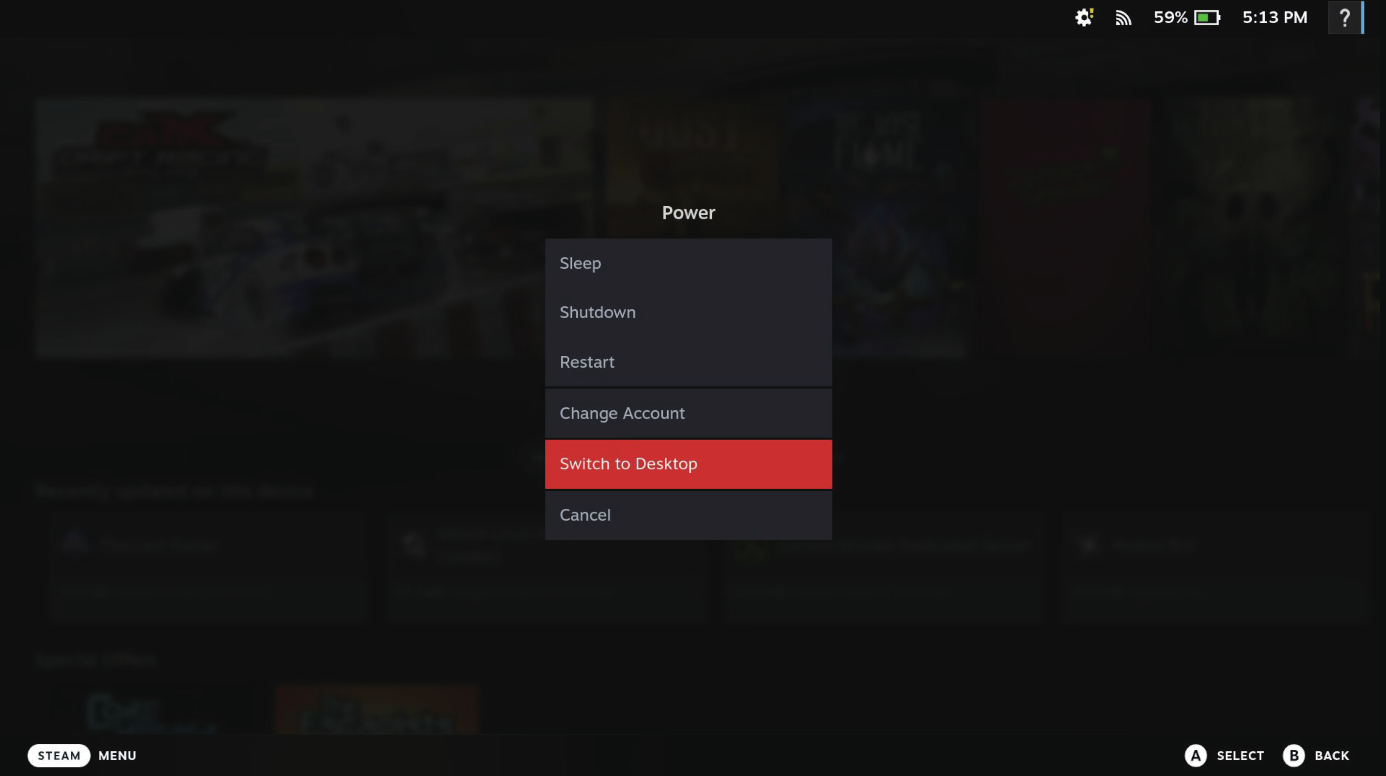
- Then choose "Switch to Desktop". Open the Desktop mode, then click "OK".
Note: The default is the extend mode, and the TV is the extended screen. If you want to adjust the display mode, you need to set it.
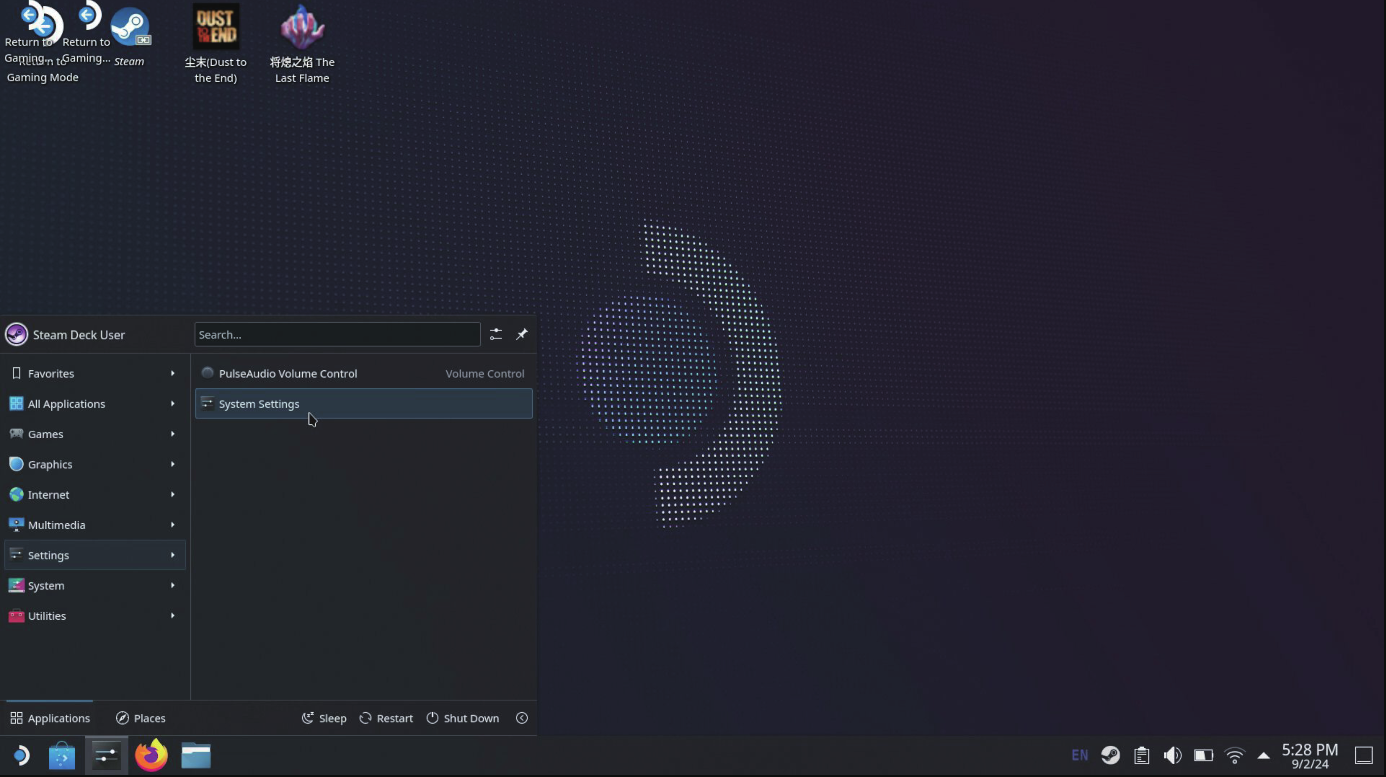
- Please click the menu icon on the left buttom of screen, choose "Settings", then choose "System Settings".
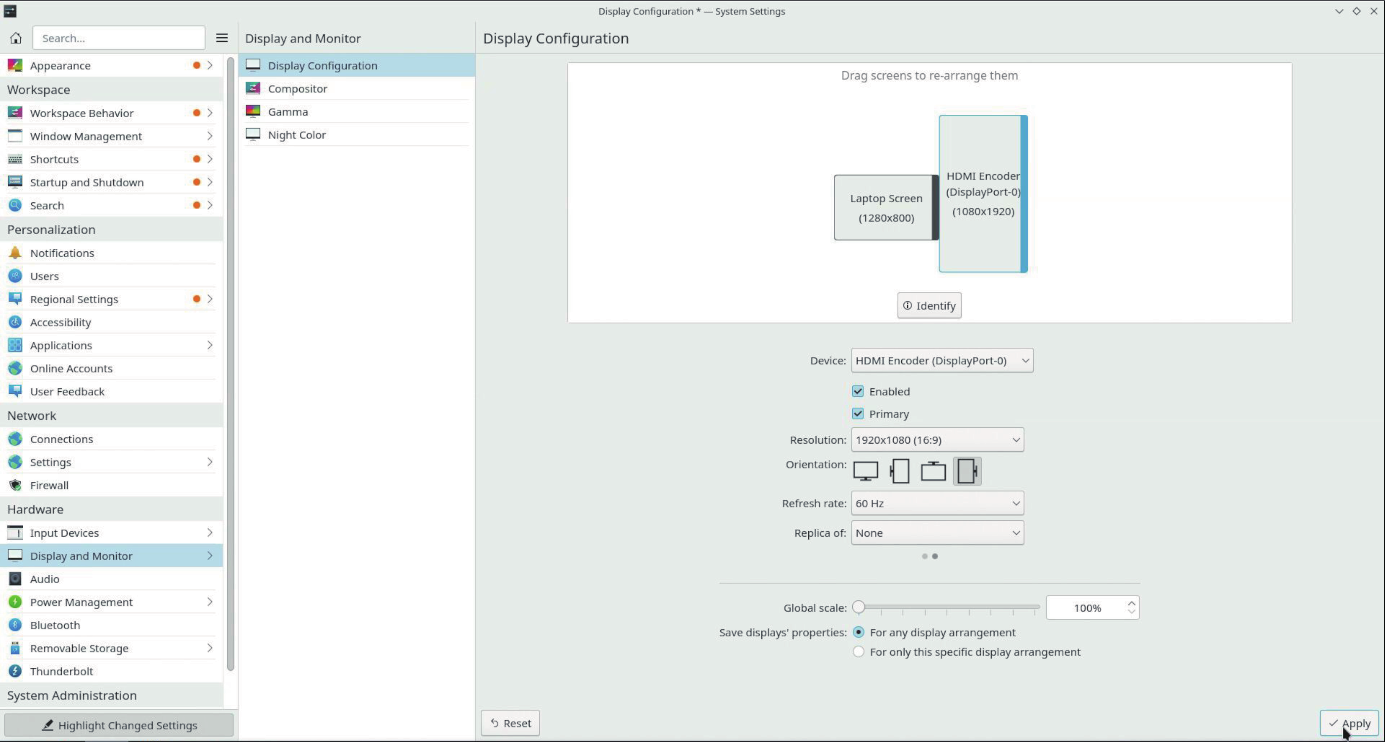
- Please choose "Display and Monitor" in the pop-up drops-down bar. Here you can choose "Display Configuration" and adjust the Resolution and Refresh rate for external TV.
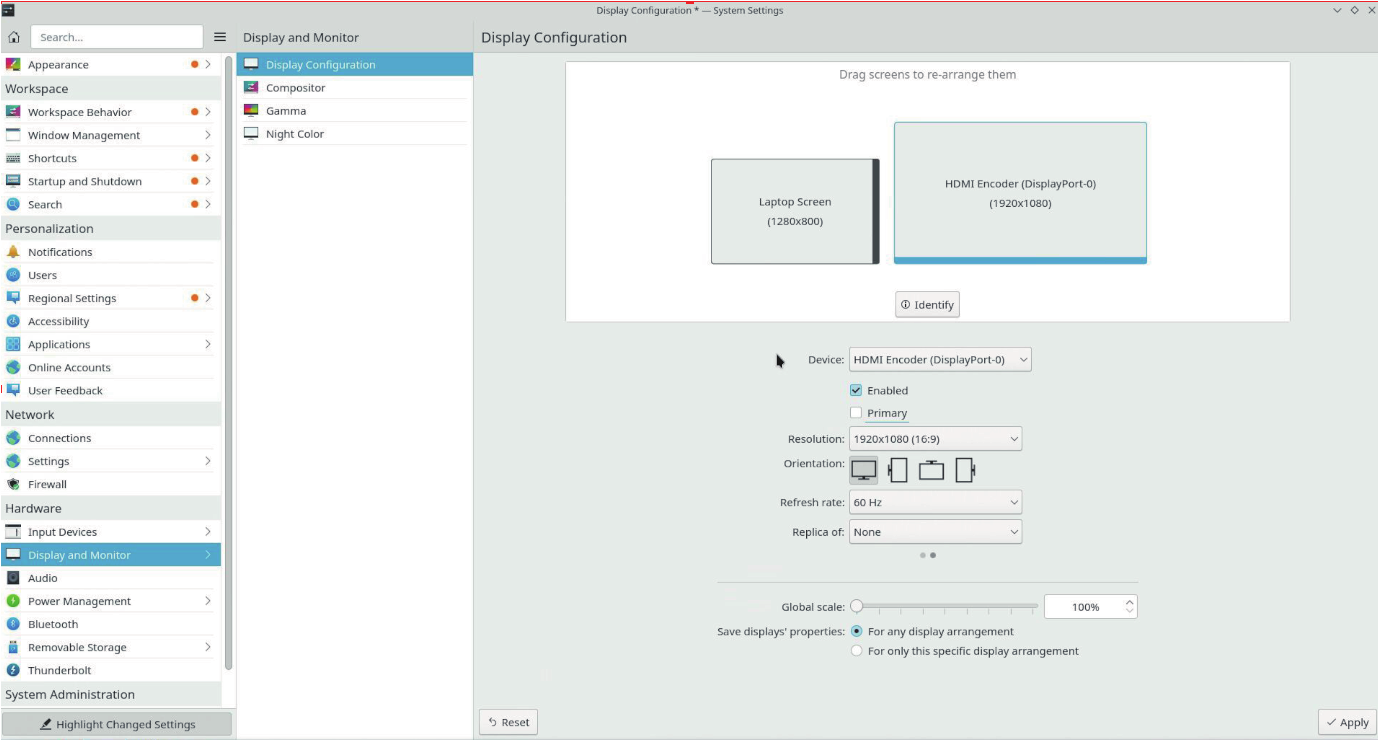
- Click "Apply".
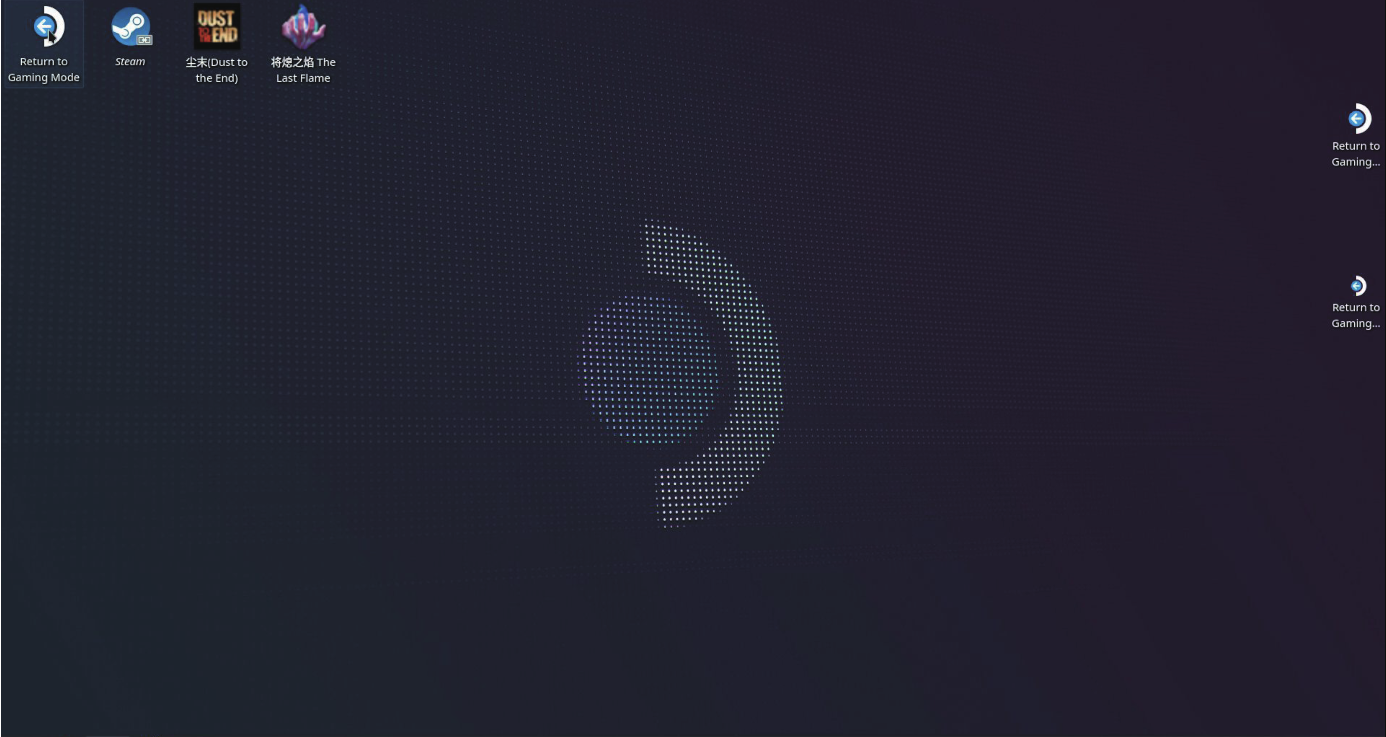
- If you want to exit Desktop Mode, please click "Return to Gaming Mode" on the screen.
Resolution
| Scenarios | Items | Connected with DP1.4 & DSC 1.2 Computer | Connected with DP1.4(no DSC 1.2) Computer | Connect with DP1.2 Computer |
|---|---|---|---|---|
| Single Display | Windows | Extend: 3840 x2160@144Hz | Extend: 3840 x2160@60Hz | Extend: 3840 x2160@30Hz |
| Single Display | Steam | Extend: 3840 x2160@144Hz | Extend: 3840 x2160@60Hz | Extend: 3840 x2160@30Hz |