Chapter 4 Driver Installation
This chapter introduces the steps of driver installation.
• For Mac
The docking station is based on MacroSilicon USB graphics technology which manages the graphics function. It requires downloading and installing MacroSilicon graphics driver to make it work, found here: www.wavlink.com/en_us/WL-UG9101H or www.wavlink.com > Support > Driver > WL-UG9101H. Please follow below steps to finish driver installation.
For Windows
- Insert the device’s USB-A/USB-C host plug into your computer. Once connected, a drive partition designated USBDISPLAY will appear in the file manager.
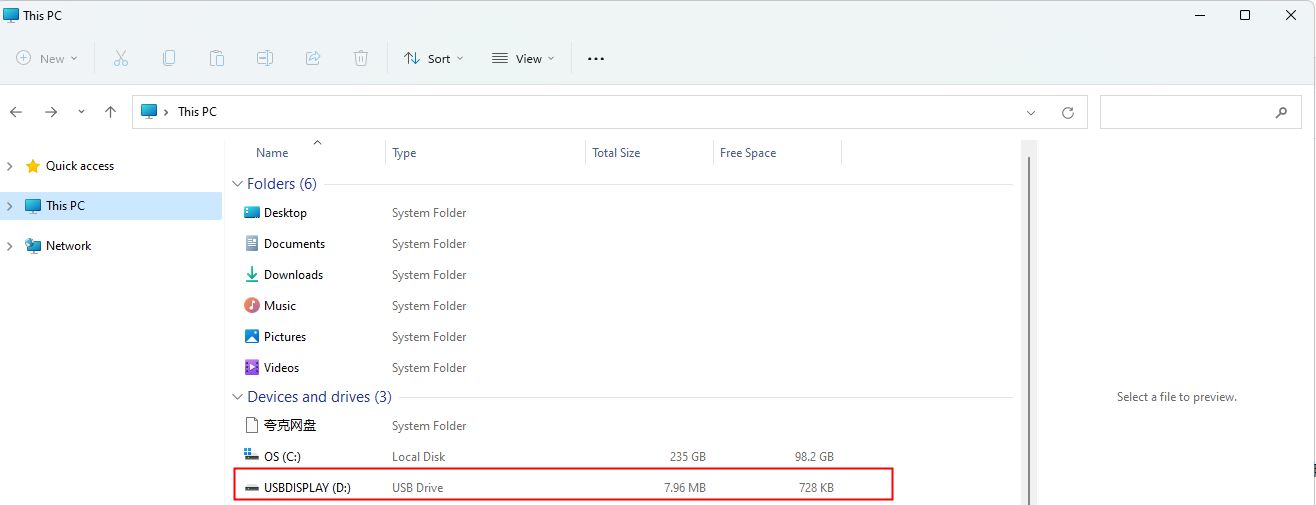
- Double-click to open this drive, and you'll see the following files:
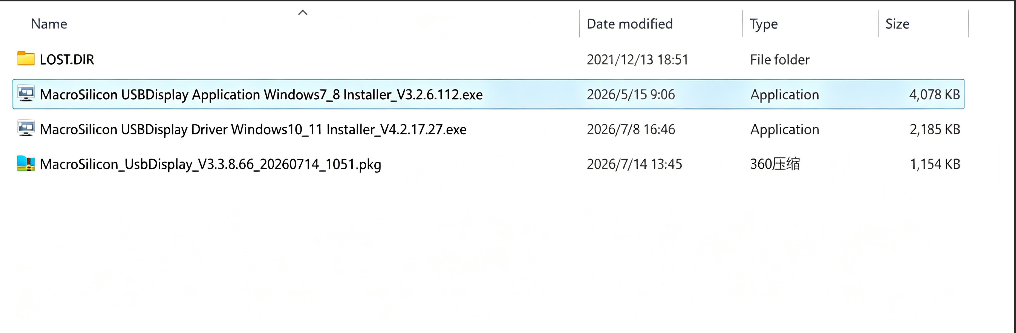
- Select the appropriate file based on your Windows system. If you're using Windows 7 or 8, select ❶; if you're using Windows 10 or 11, select ❷.
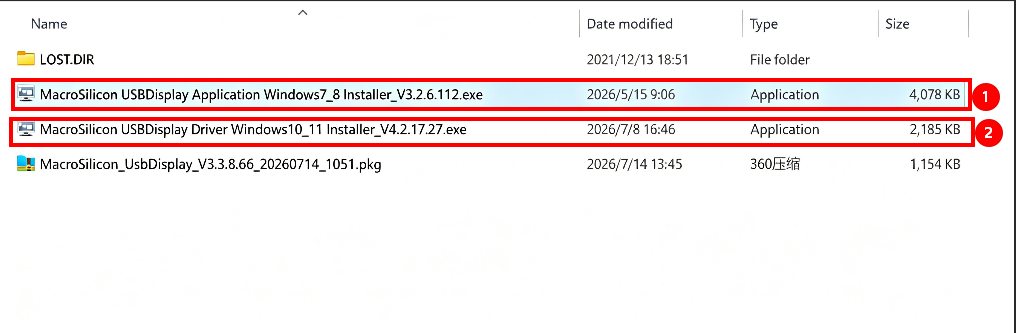
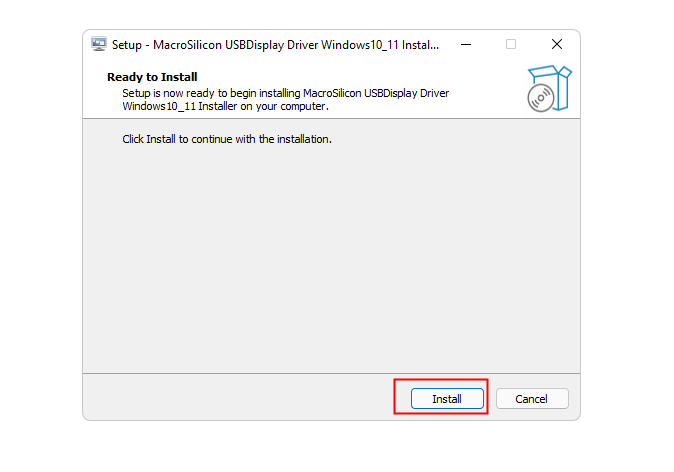
- Click the Install to install the driver.
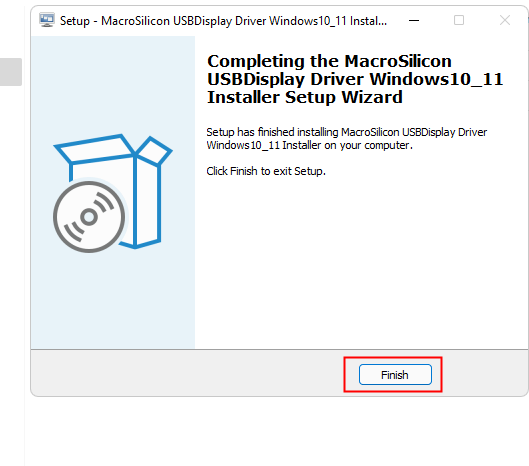
- Once the installation is complete, click Finish.
For Mac
- Insert the device’s USB-A/USB-C host plug into your computer. Once connected, a drive partition designated USBDISPLAY will appear in the file manager.
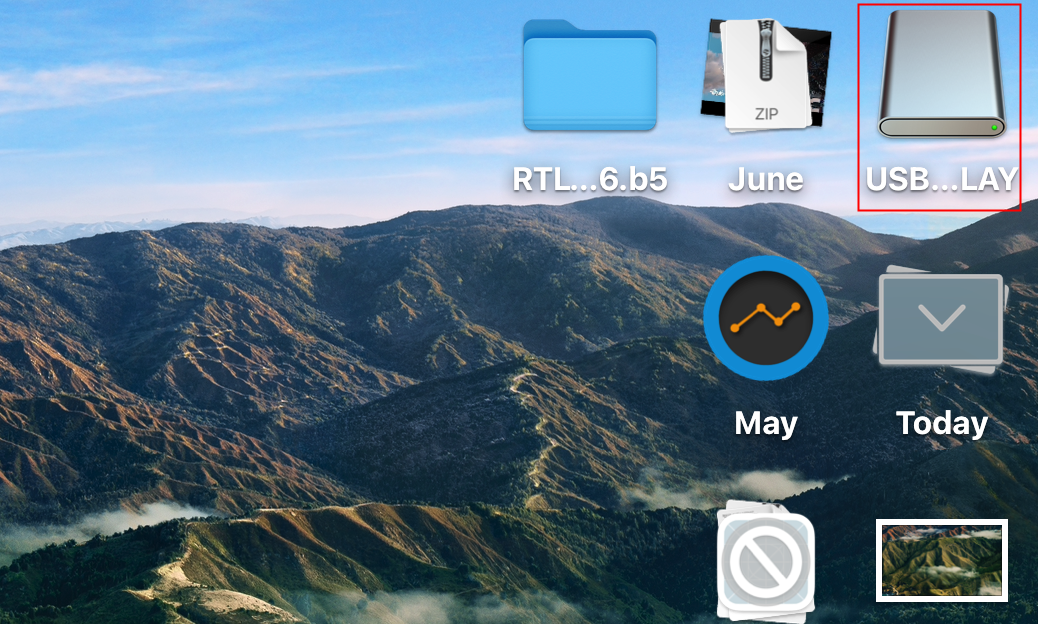
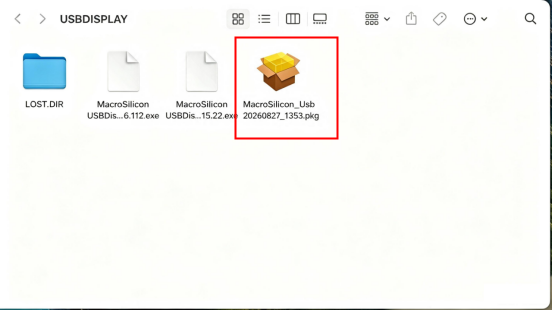
- Double-click to open this drive, and you'll see the following files:
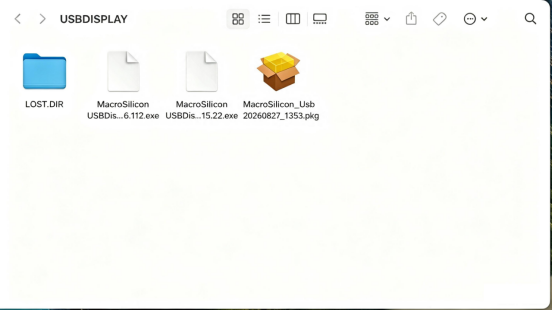
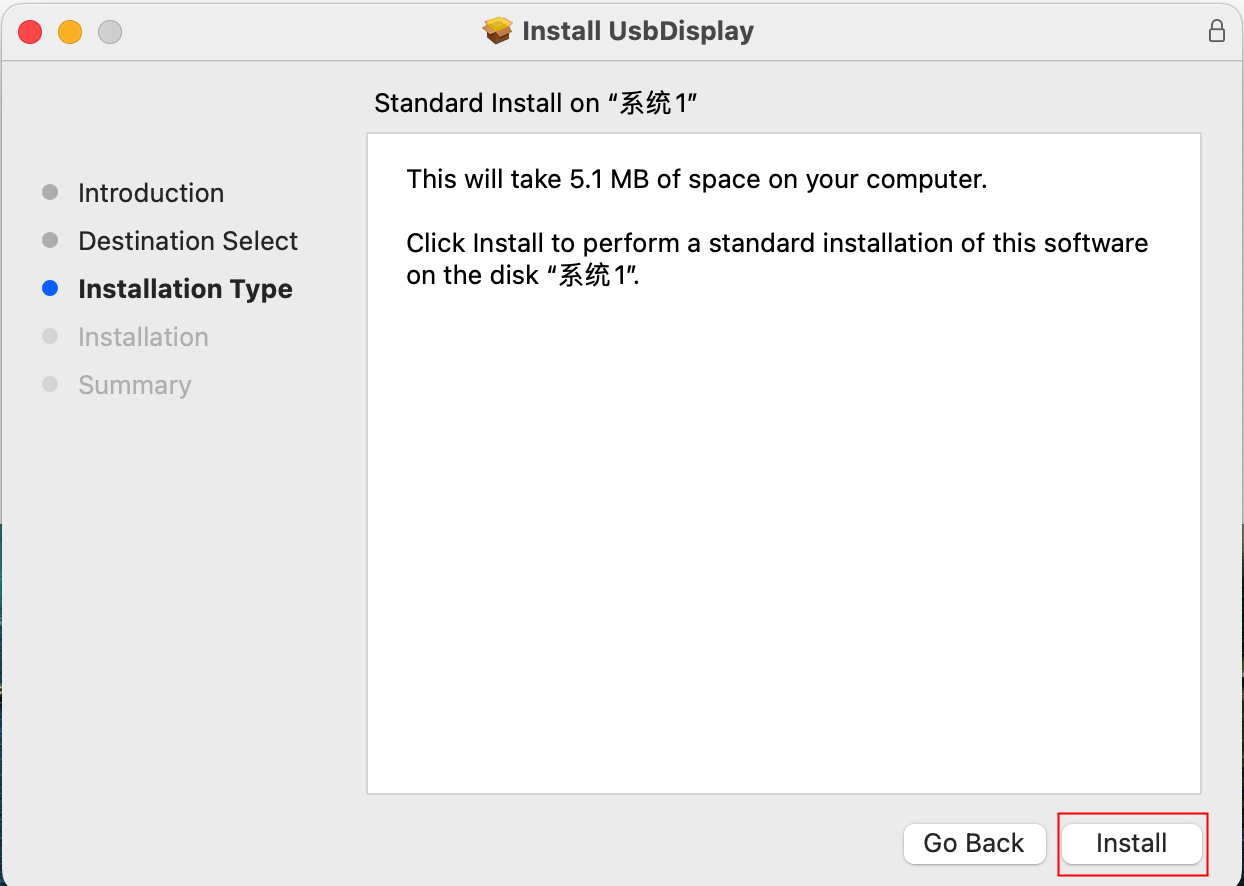
- Select files with the “.pkg” extension,then click the Install to install the driver.
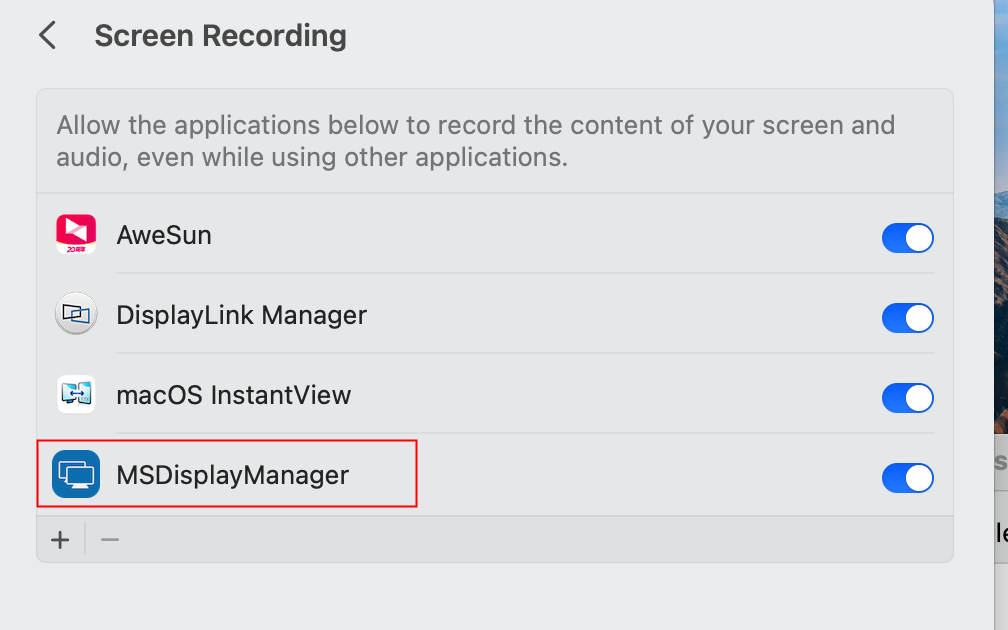
- Please locate MSDisplayManager in Screen Recording and enable permissions.
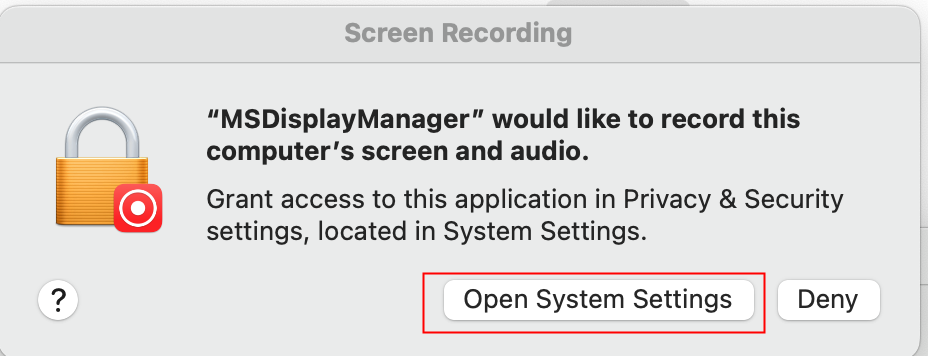
- Click Open System Settings
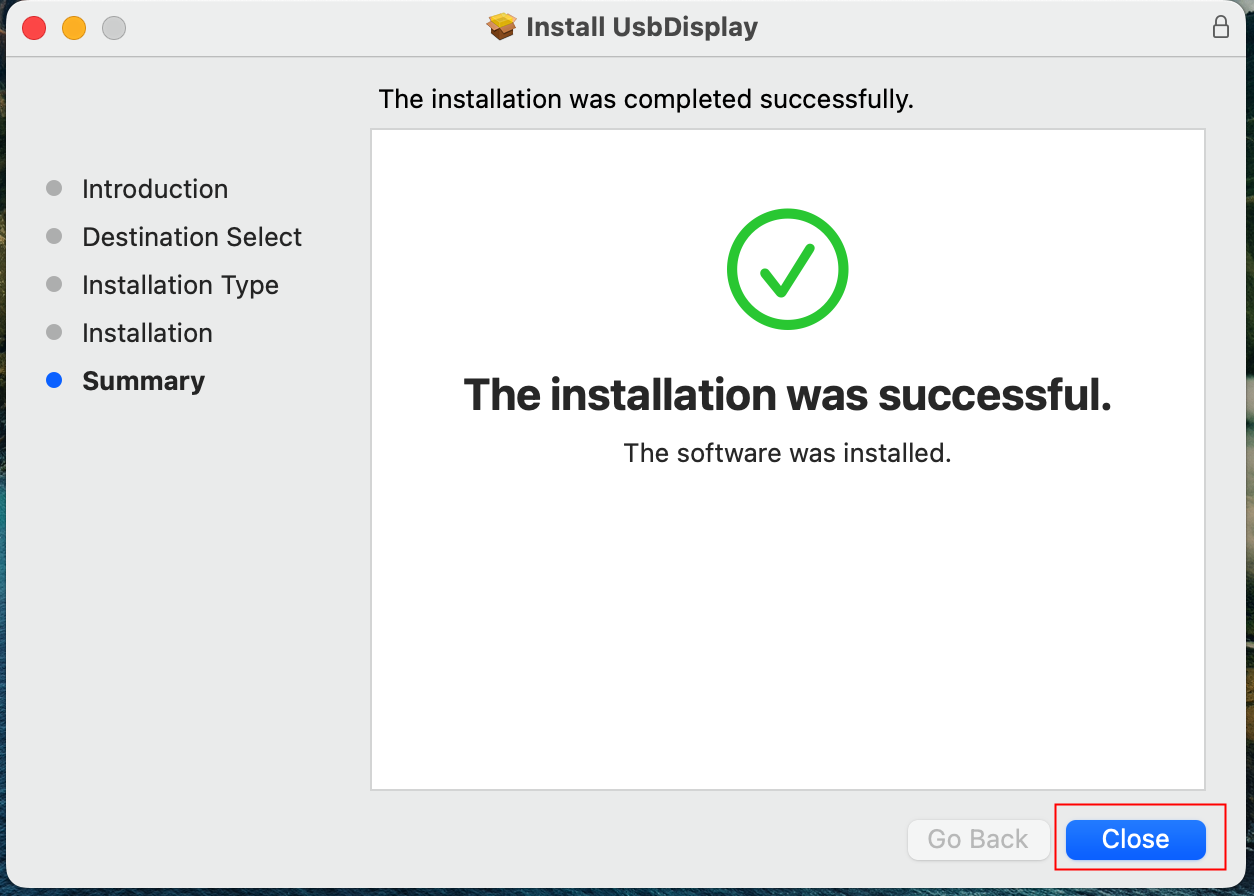
- Please wait patiently for the installation to complete, then click Close.