Chapter 3 How to Connect
This chapter introduces the steps of connecting the docking station.
Ensuring the driver has been installed before using this Dock.
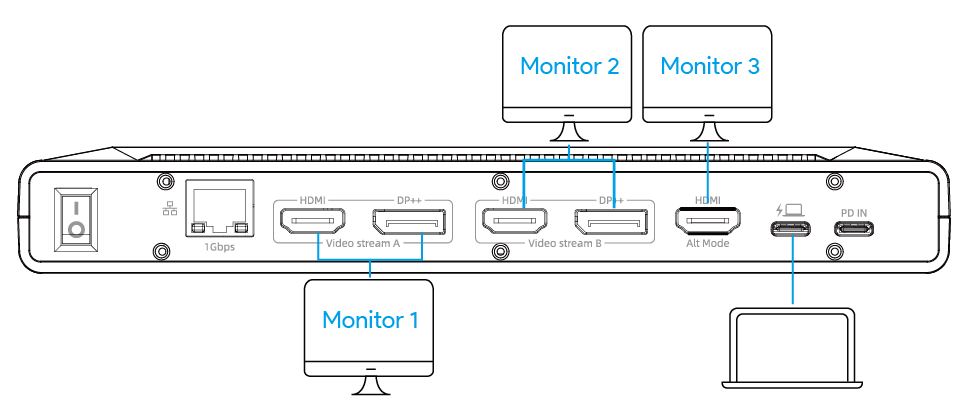
Step 1: Connect the computer to the USB-C Host port which is marked with laptop.
Step 2: Connect the External Monitor to the Video Output A/Video Output B/4K HDMI (Alt Mode) Port.
Step 3: Connect the docking station to the power via PD IN port.
Note: Please make sure the Power Button is on.
note
- The HDMI and DP in each group can not be used simultaneously. So you need to select DP and HDMI ports from different groups.
- The docking could be powered by the type-C port of the laptop. If the type-C port could support 5V 1.5A at most, the docking might not work as expected when many USB peripherals are connected due to the insufficient power. Please refer to the Step 3 to connect the power adapter to the docking.
- Please equip this product with a PD 100W or above power adapter to connect the PD IN port, then the product can provide 80W upstream charging to your laptop and keep its function working well.
- When the docking station is used with tablets or mobile phones, we recommend connecting to a power outlet for a stable connection.
- Currently, DisplayLink does not support iOS ans iPadOS systems. When the docking station is used with iPad and iPhone devices, the display function will not work normally.