Chapter 2 Driver Installation
This chapter introduces the steps of driver installation.
For Windows, it is Plug and Play. Driver auto-installation is allowed. If the Network port of this Dock can't be recognized, please visit www.wavlink.com/en_us/WL-NWU343G or www.wavlink.com > SUPPORT > Driver > PC Peripherals > WL-NWU343G to download the driver file and manually install it.
For Windows
- Locate the downloaded folder and unzip the file to the desktop, please select Yes if your computer asks your permission, then double-click the Driver icon on the desktop.
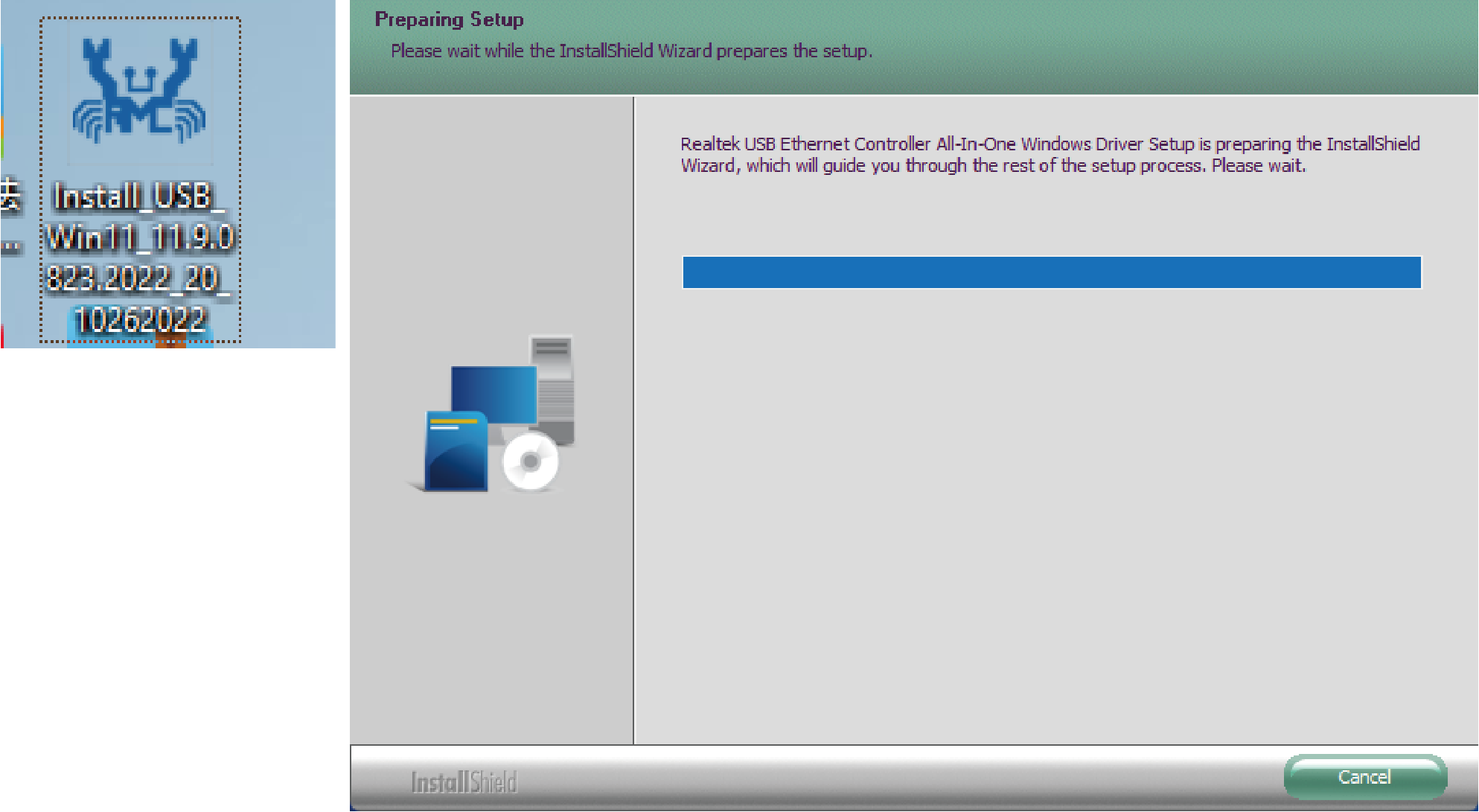
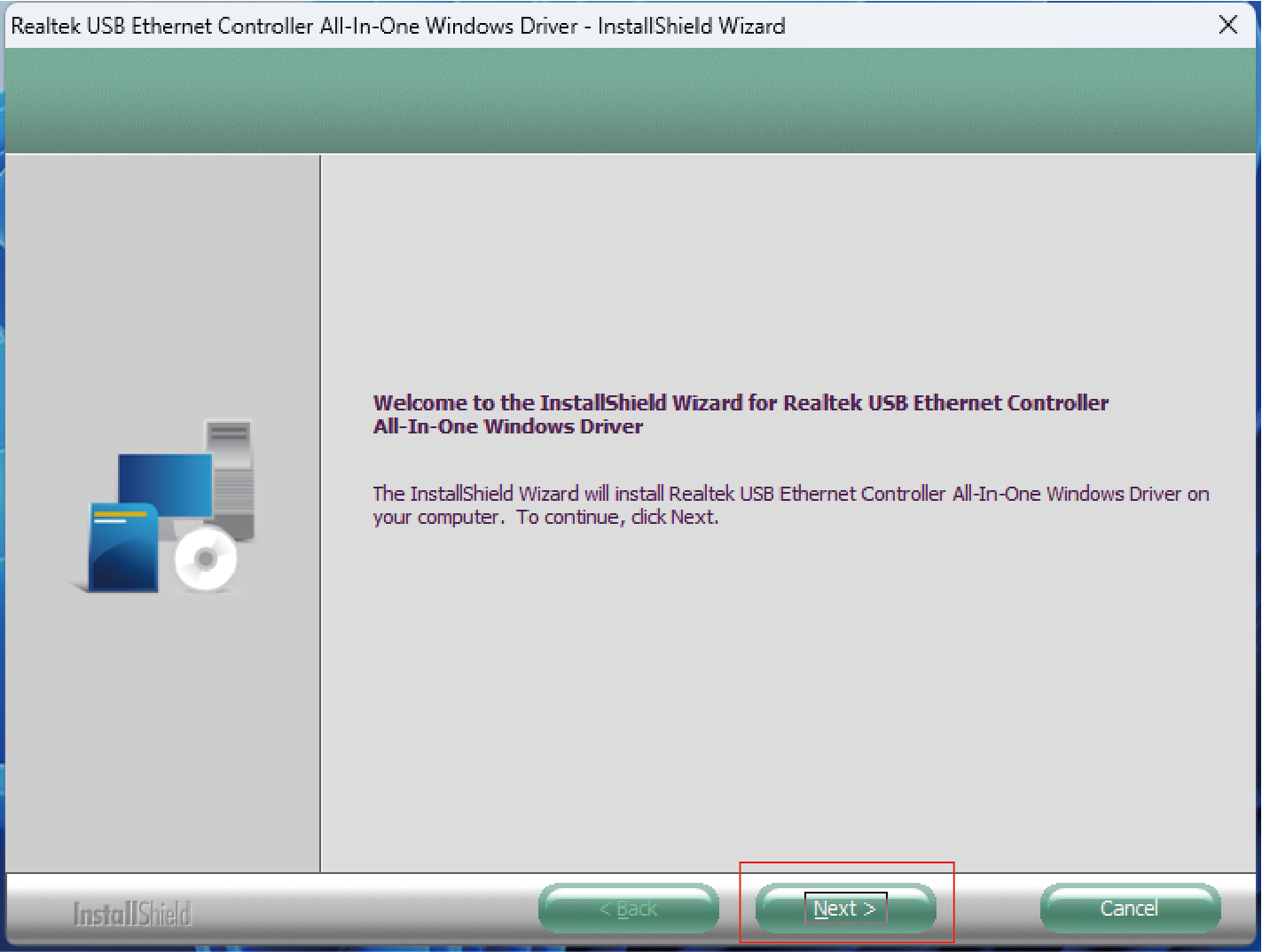
- Click Next to continue the installation process.
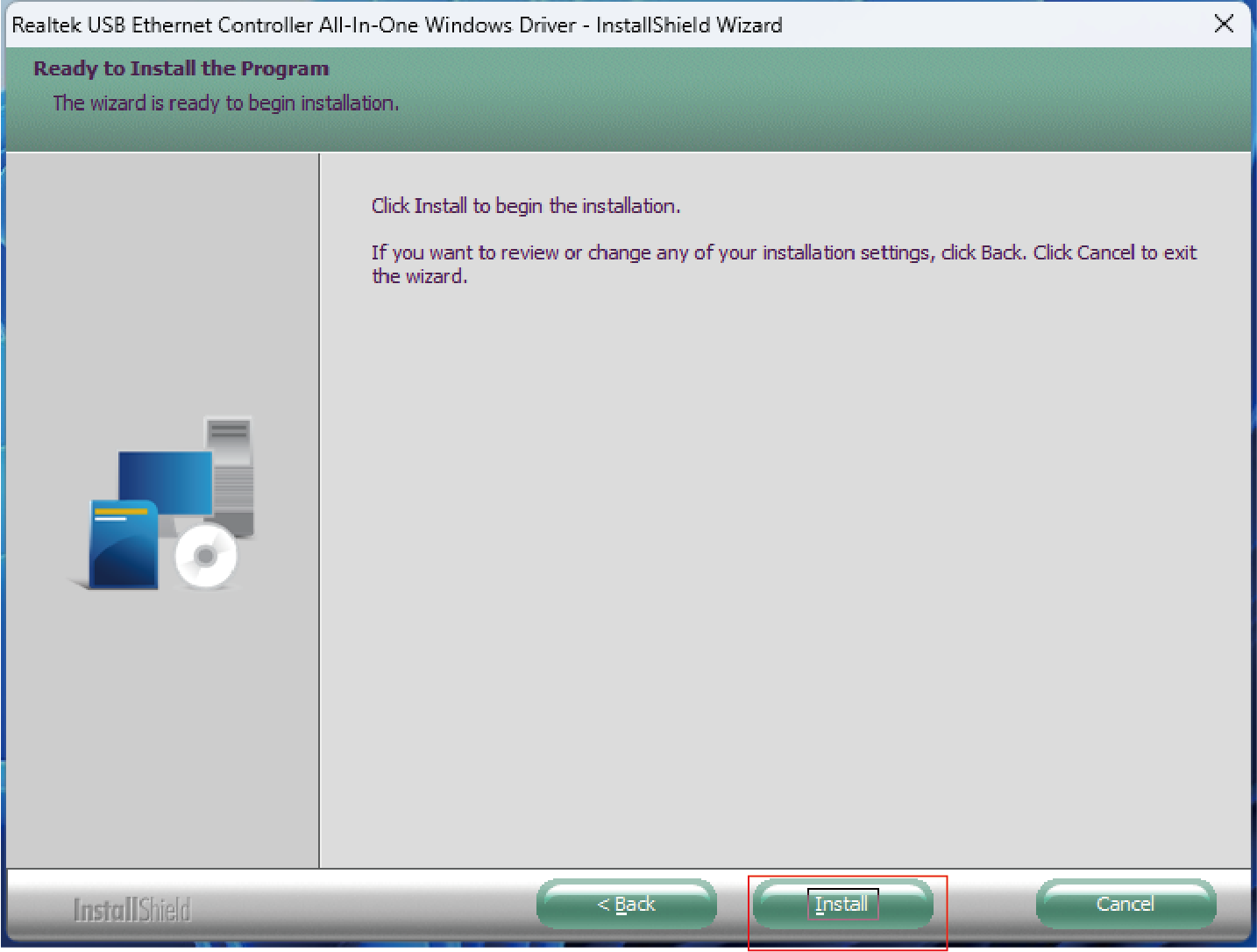
- Select Install to begin the installation. If you want to review or change any of your installation settings, click Back or Cancel to exit the wizard.
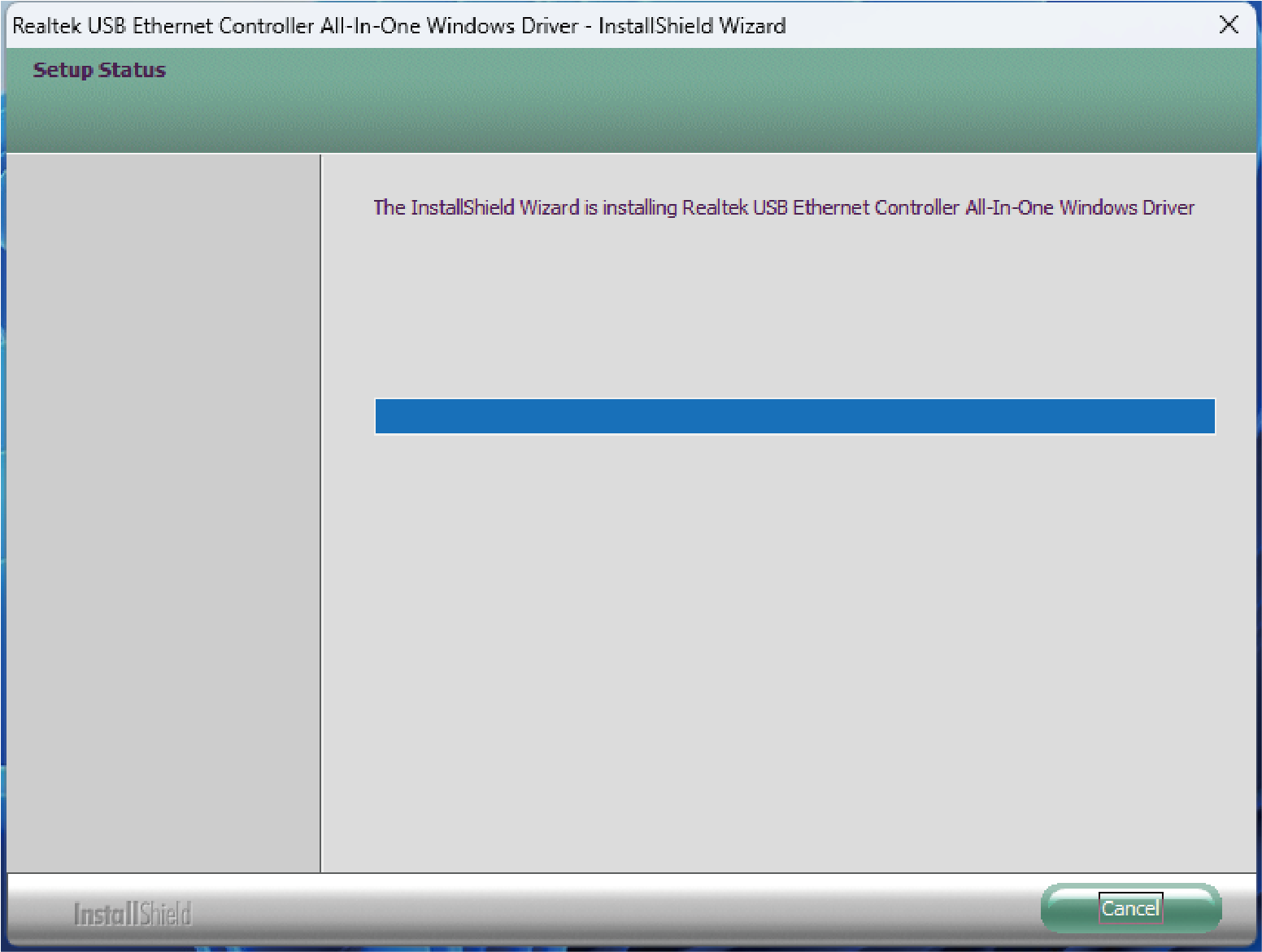
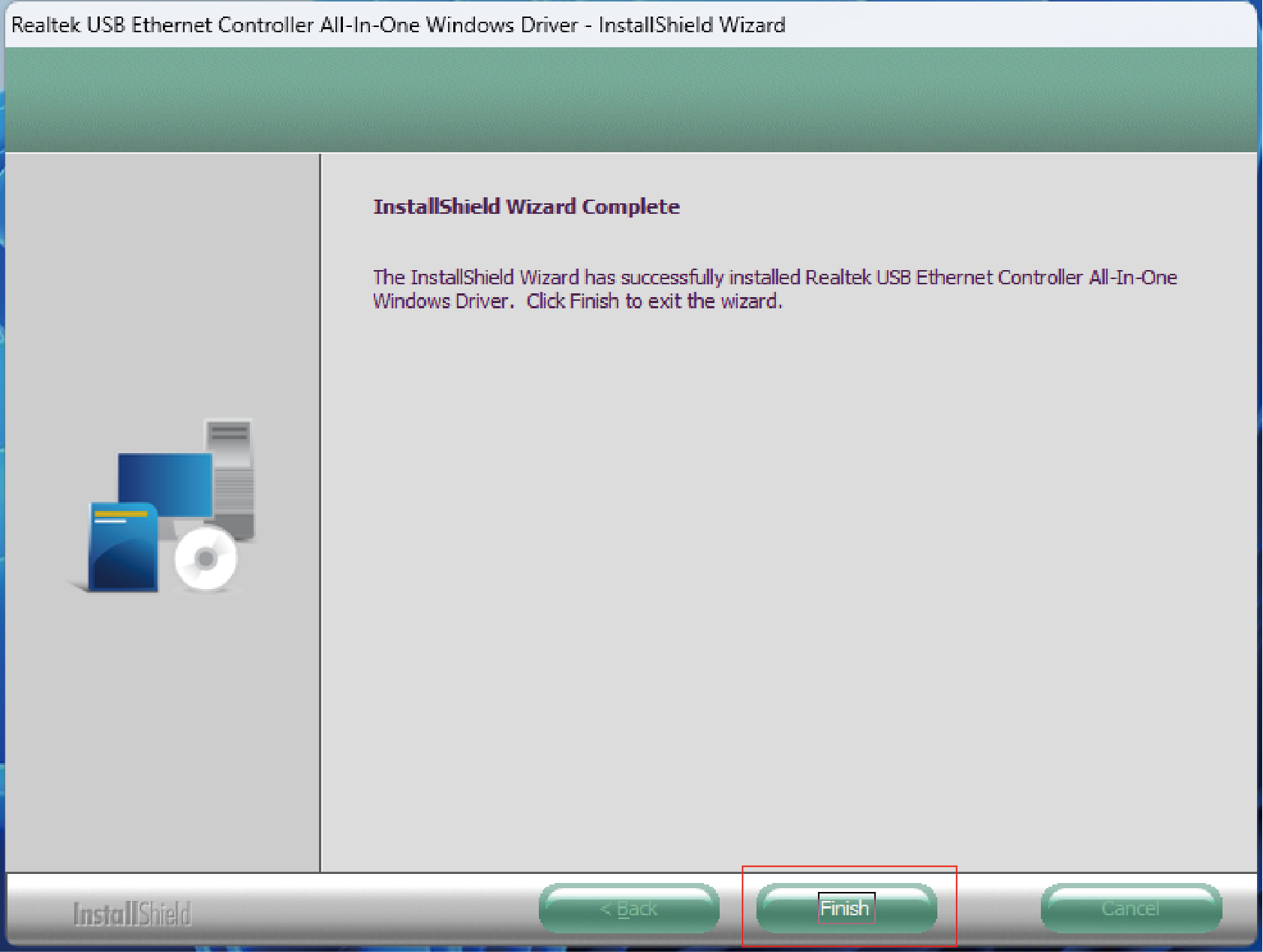
- After the Driver is successfully installed, select Finish to exit the wizard.
Jumbo Frames Configuration
To achieve the performance of the 2.5G/5G/10G network card, you need to enable and configure the Jumbo Frames for the 2.5G/5G/10G network card.
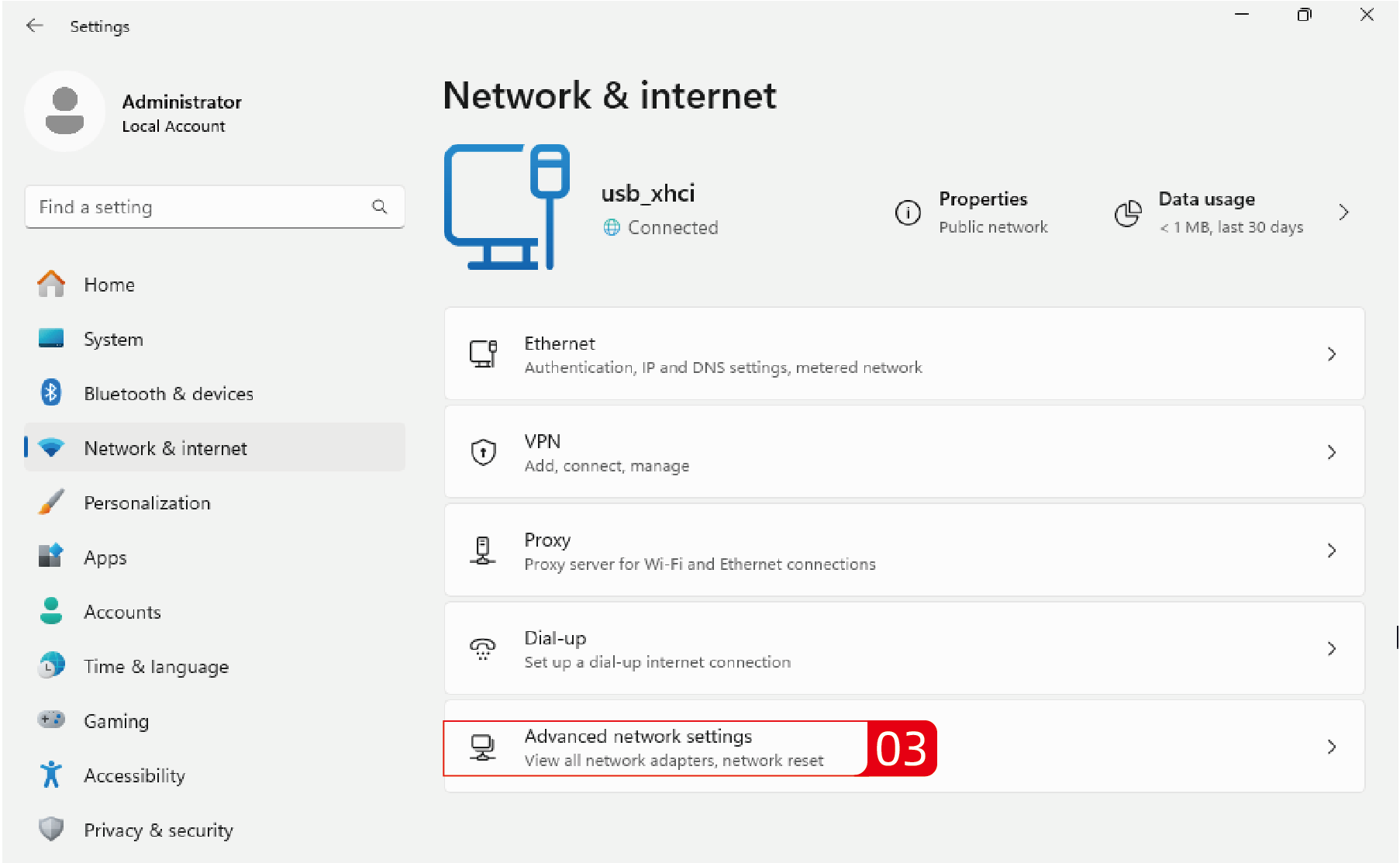
- In Windows, open Settings.
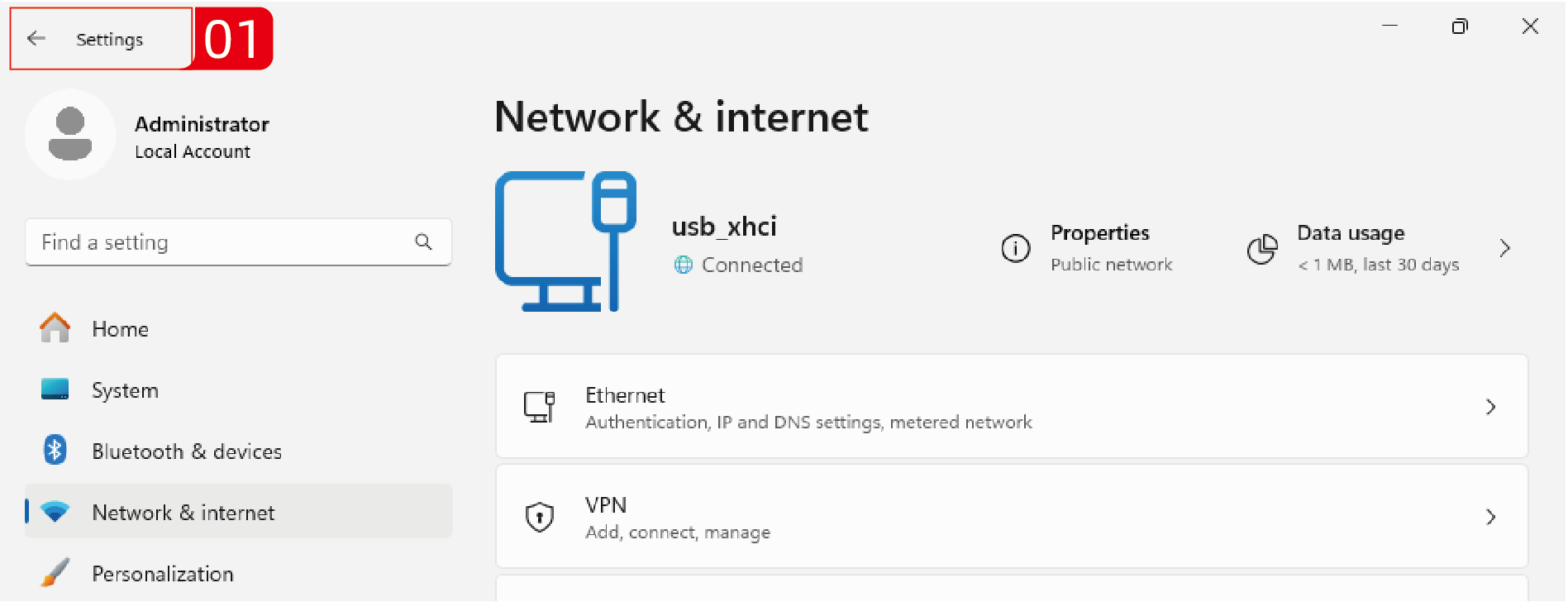
- Click on Network & internet.
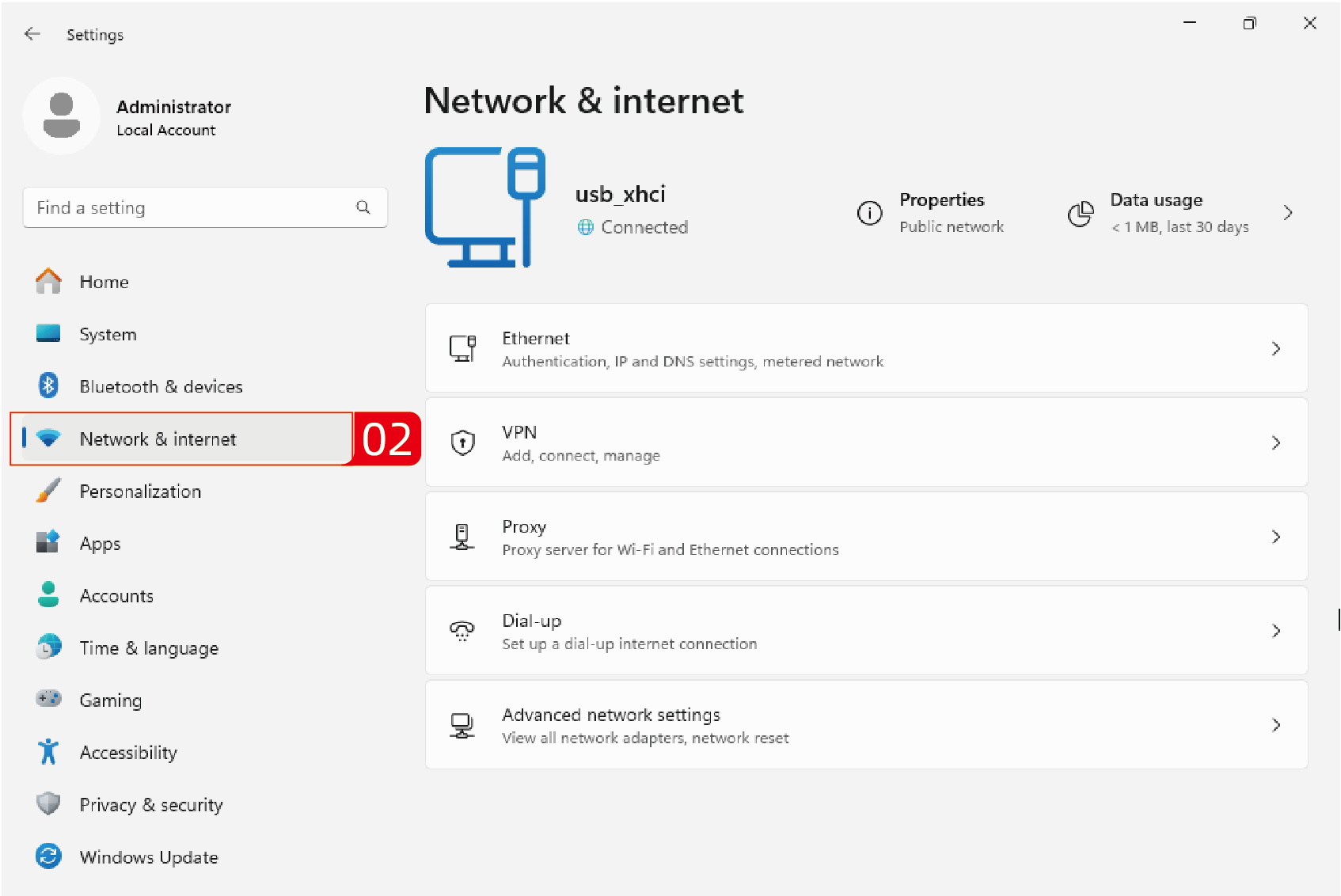
- Click on Advanced network settings.
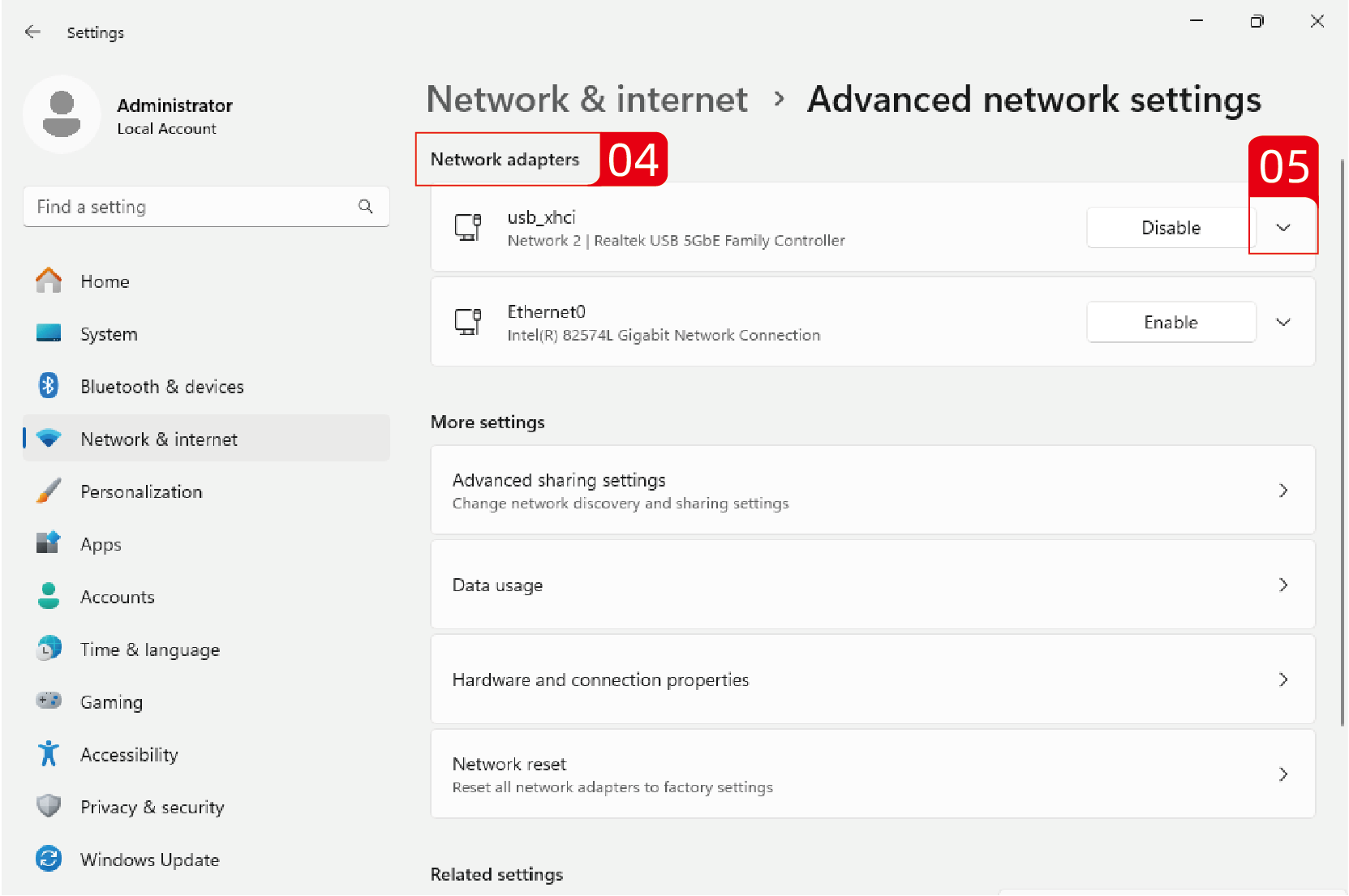
- Locate the Network adapters and find the 10G network card, then click the drop-down arrow icon on the right.
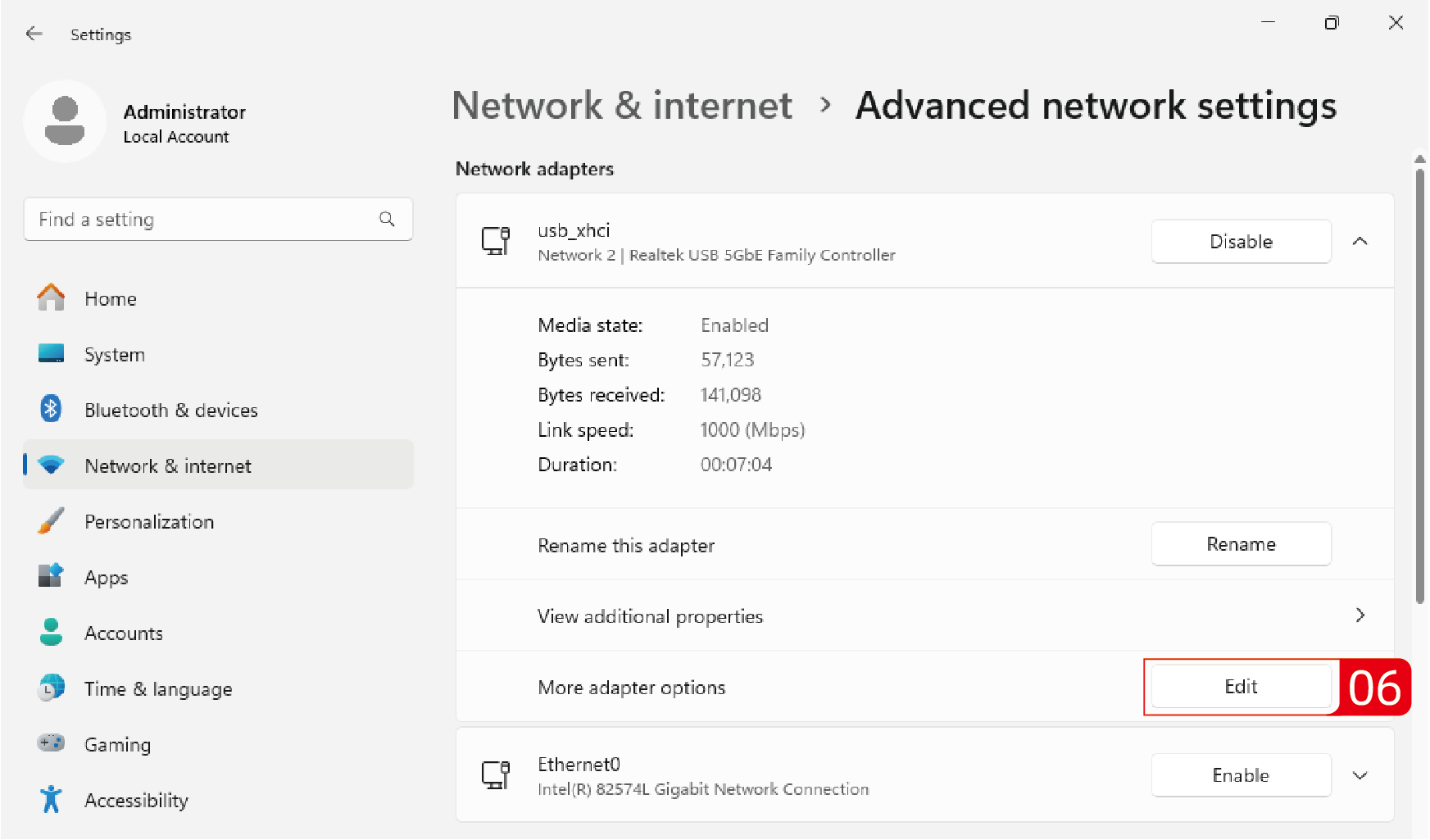
- Locate More adapter options, and click on Edit to configure the properties of the network adapter.
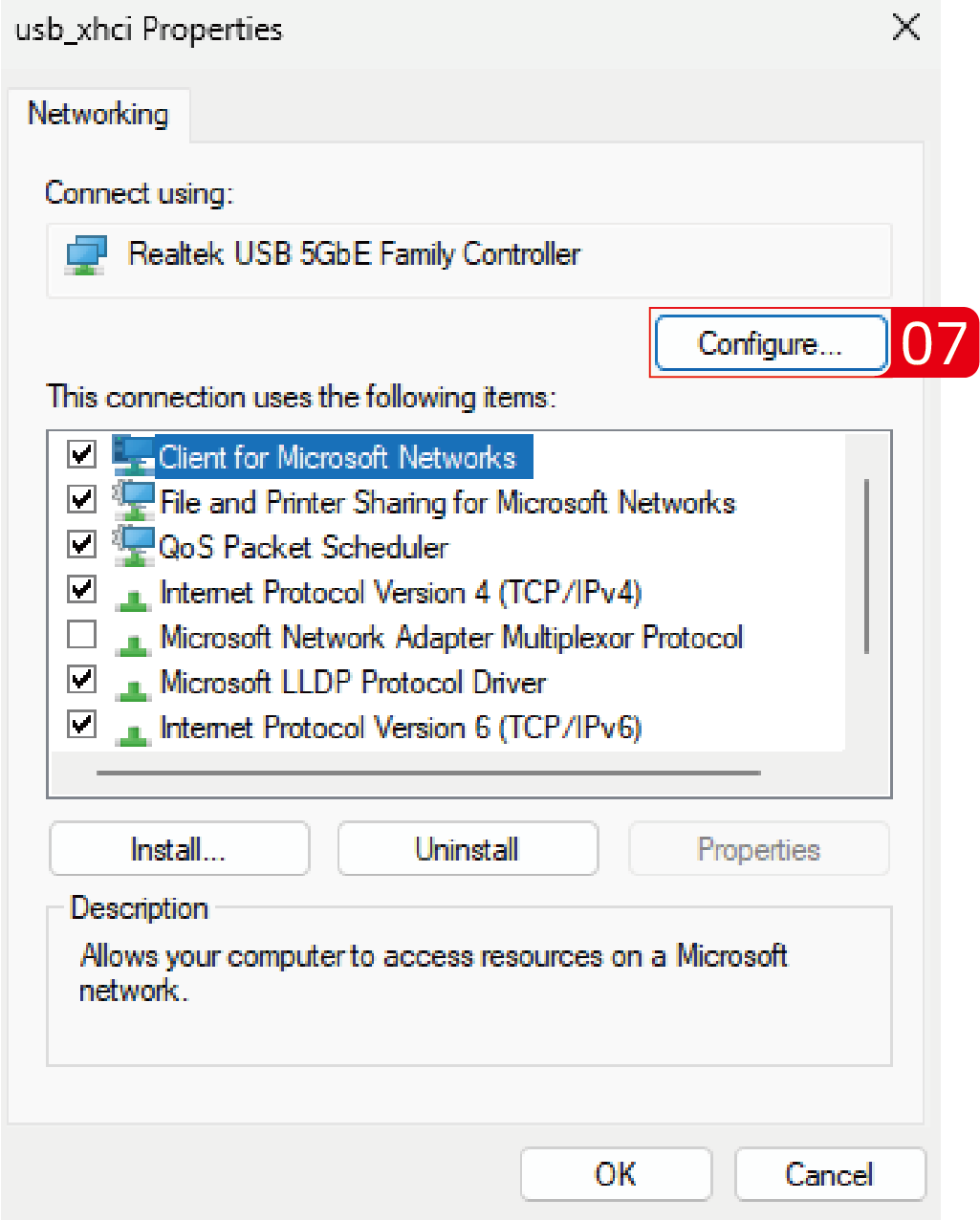
- Click on Configure..., then choose Advanced.
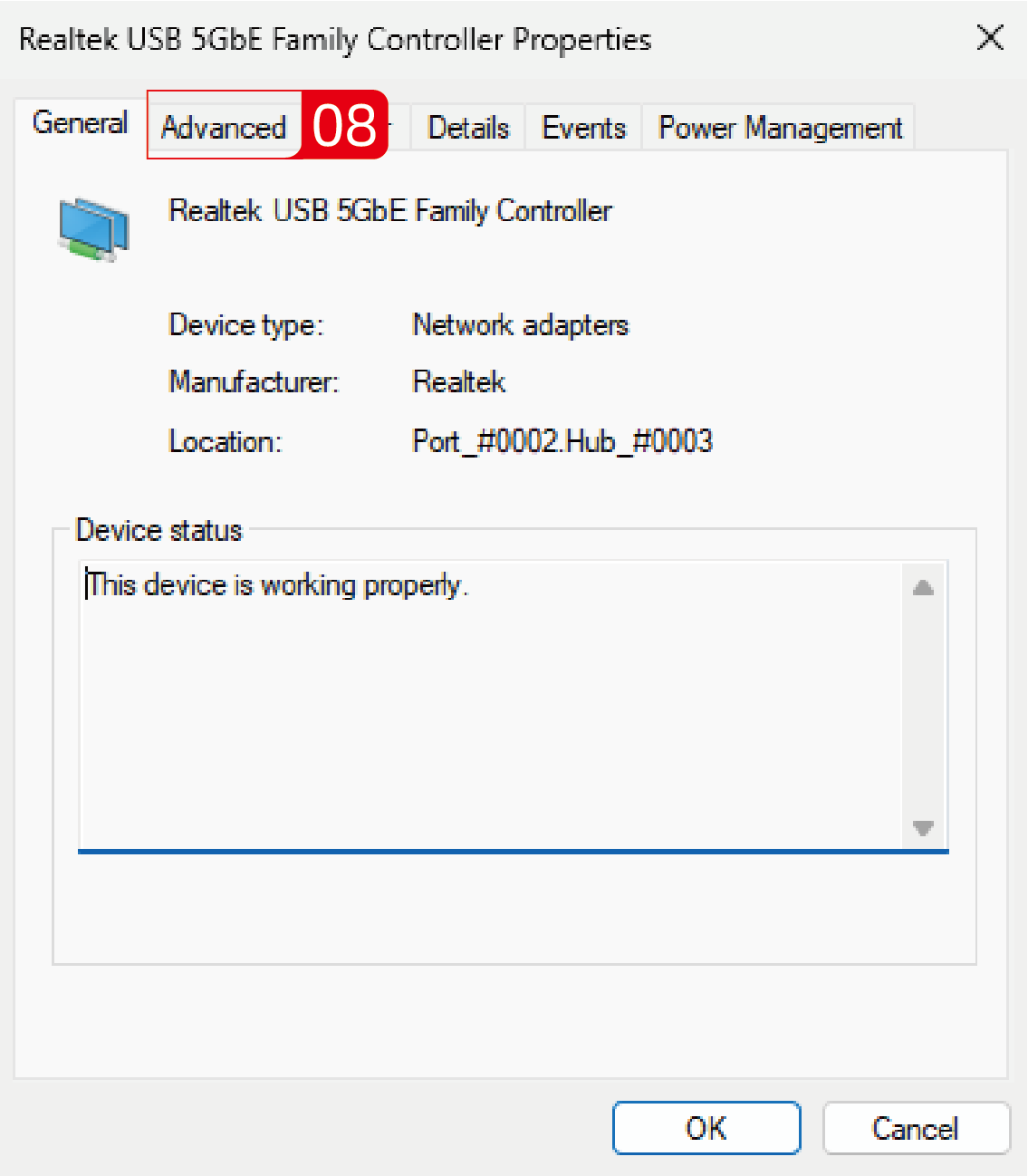
- Disable the Idle Power Saving mode in Property.
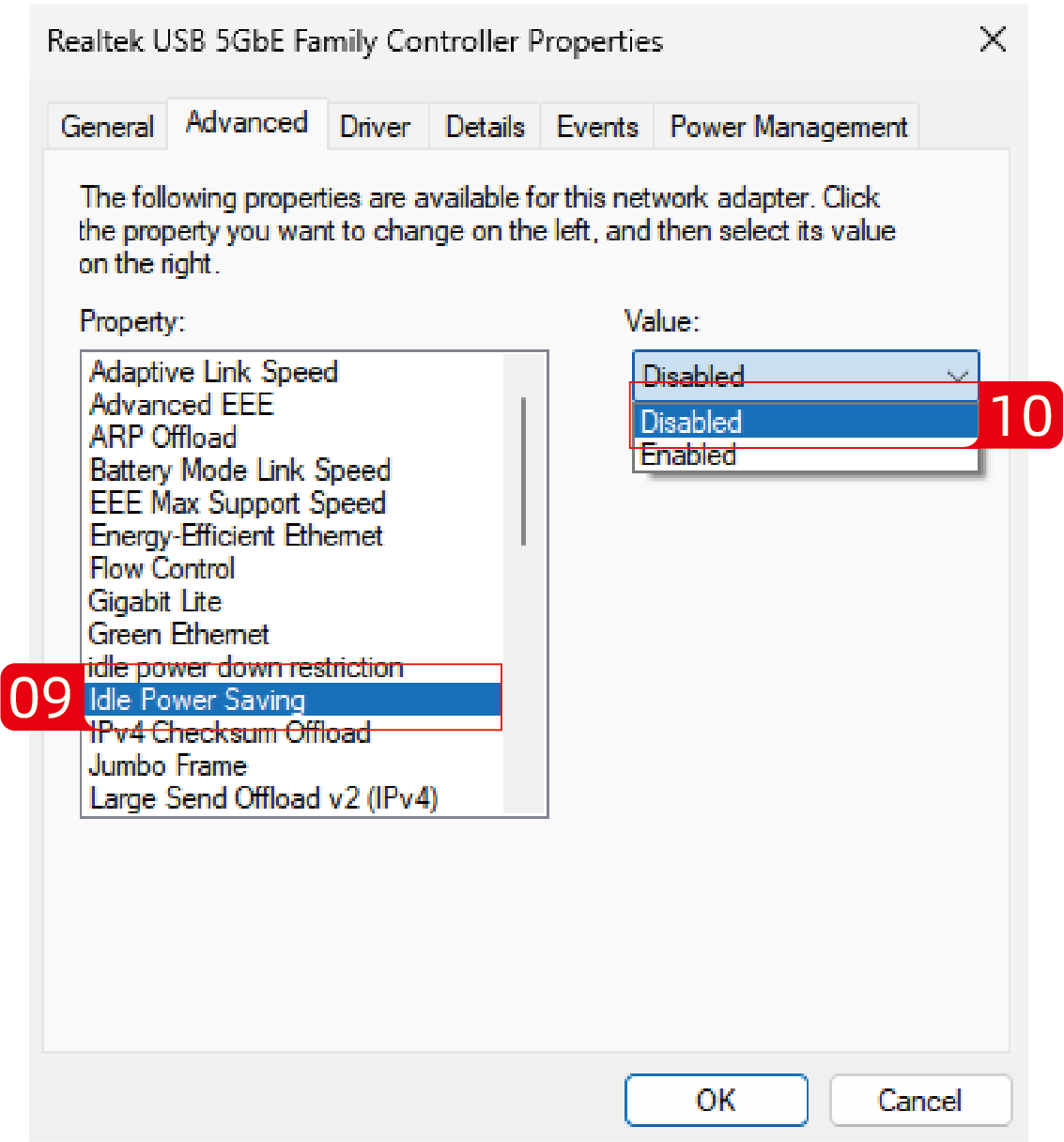
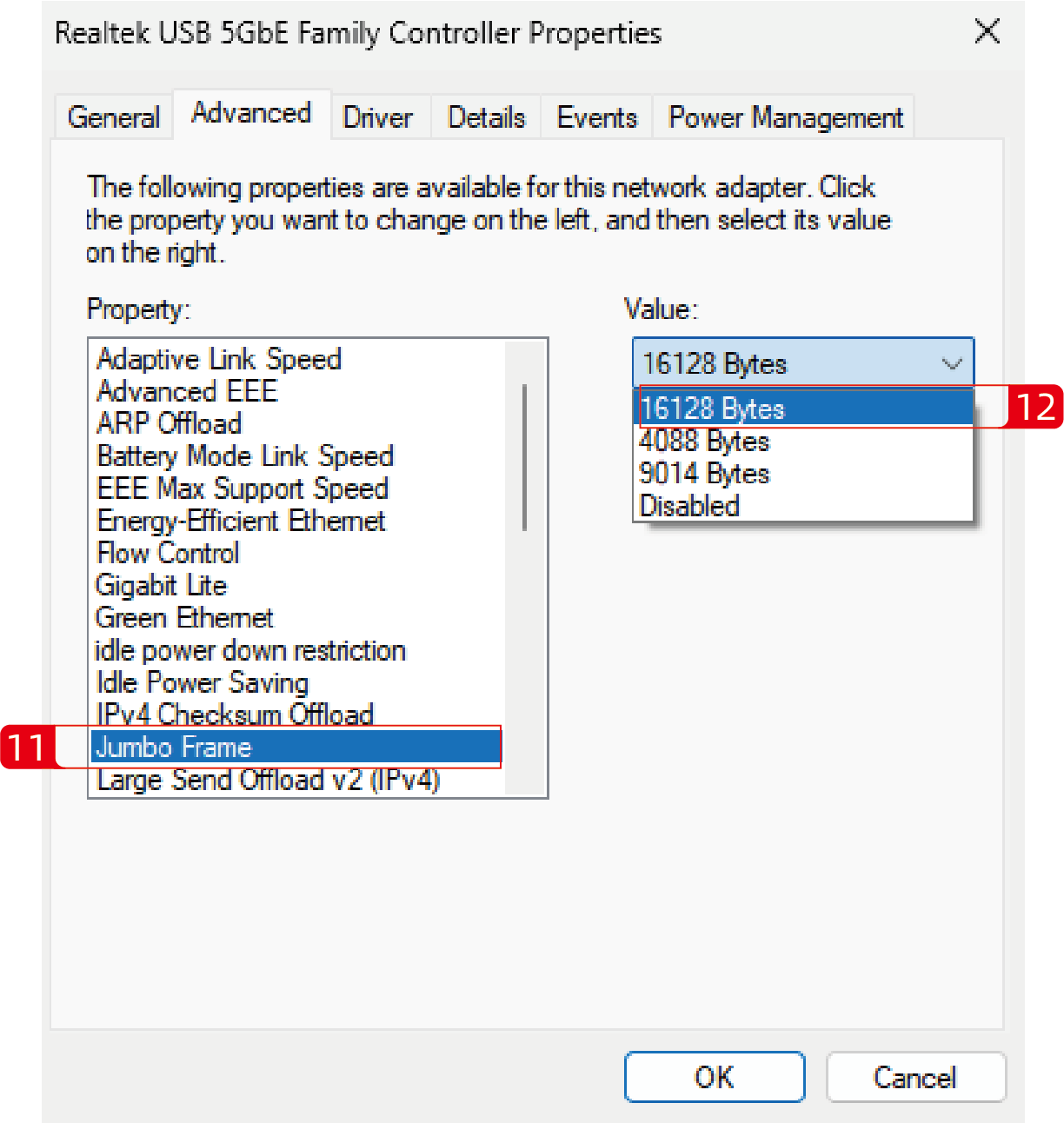
- Set the value of Jumbo Frame to 16128 Bytes.