Chapter 11 Diagnostics
This chapter introduces how to check network status, test network connection, and enable Wake-on-LAN function.
It contains the following sections:
Network Check
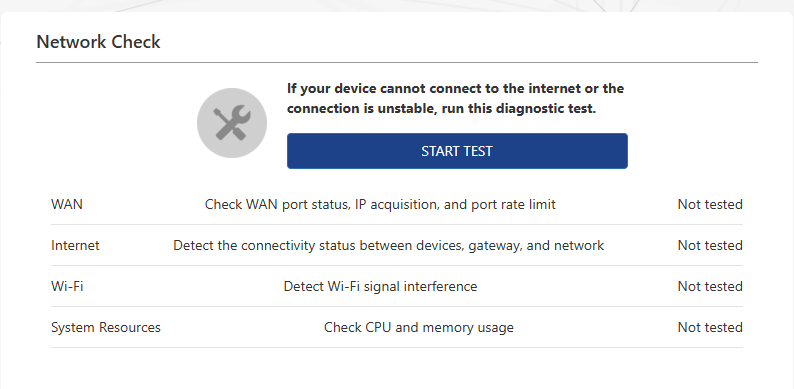
You can scan the entire network to analyze and optimize network status via network check.
-
Access to Advanced>Diagnostics>Network Check.
-
Click on START TEST.
-
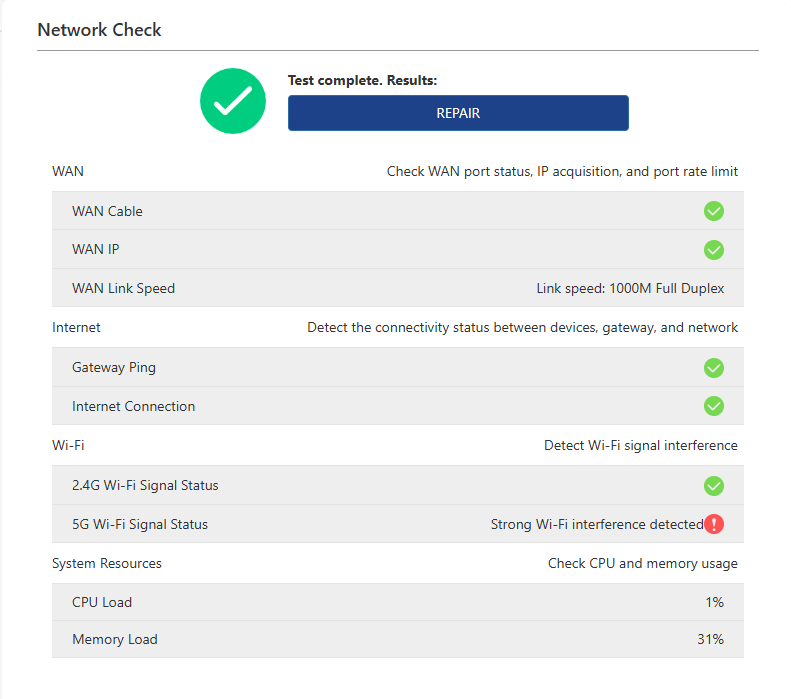
Click on "REPAIR" or manually optimize your network with prompts.
Network Diagnostics
-
Access to Advanced>Diagnostics>Network Diagnostics.
-
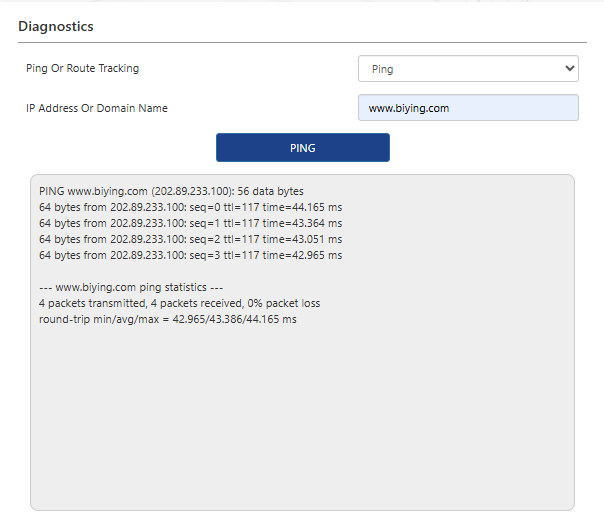
In the dropdown list Ping Or Route Tracking, choose Ping or Traceroute.
- Ping : used for checking the connection between the router and the target device whether normal or not.
- Traceroute : used for checking the node information between the router and the target device.
-
Input the IP Address Or Dormain Name that you want to test.
-
Click on PING or Traceroute button for testing.
Wake On LAN
Wake-On-LAN (WOL) is a technology where the network interface card (NIC), along with other software and hardware, sends a specific data frame to the NIC that is in standby mode, enabling the computer to start up from a powered-off state.
- Access to Advanced>Diagnostics>Wake On LAN.

- Click on ADD to start Wake On LAN setting.

-
Add the Description of the configuration.
-
Input the Mac Address of the device that you want to remotely wake up.
-
Set Time setting and Reboot Time.
-
Click on SAVE, complete the configuration.