Chapter 2 Installion, Configuraion & Update
This chapter introduces the hardware installation, network configuration, and software update.
It contains the following sections :
Setup Guide
1 . Connect to the Internet
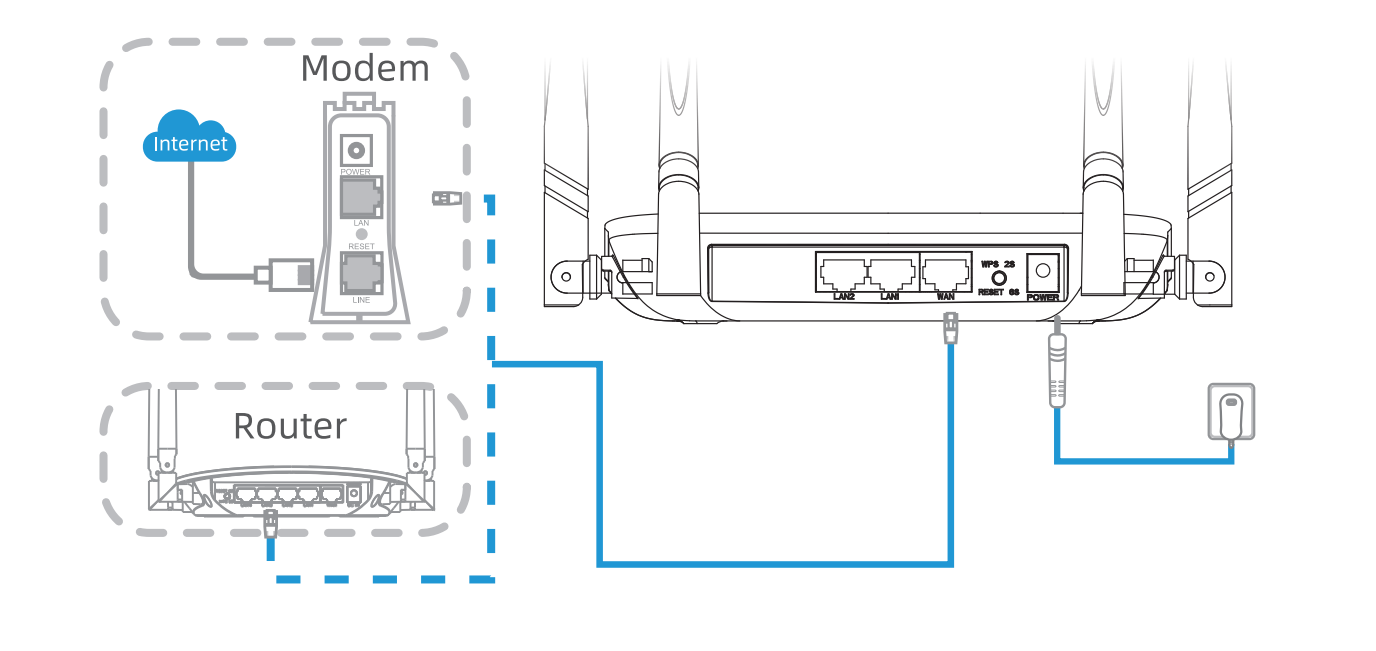
Connect your modem to the Internet, connect router's WAN port to the Modem's or other routers' LAN port , then plug it in a power outlet.
2 . Connecting the Router
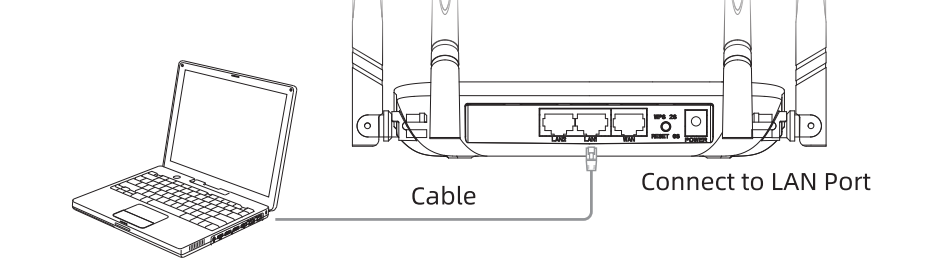
2.1 Via Cable
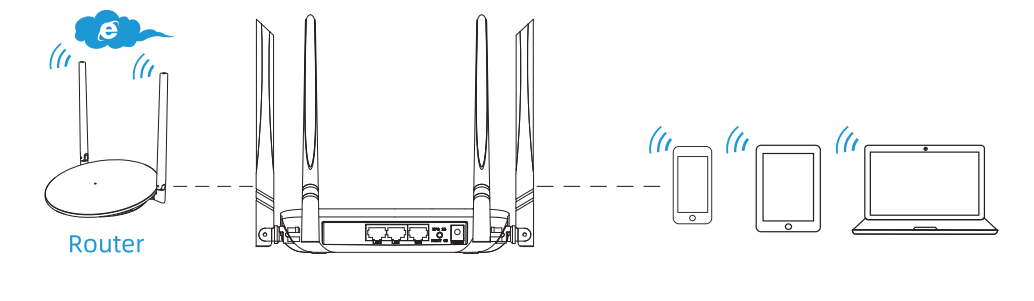
2.2 Via Wireless
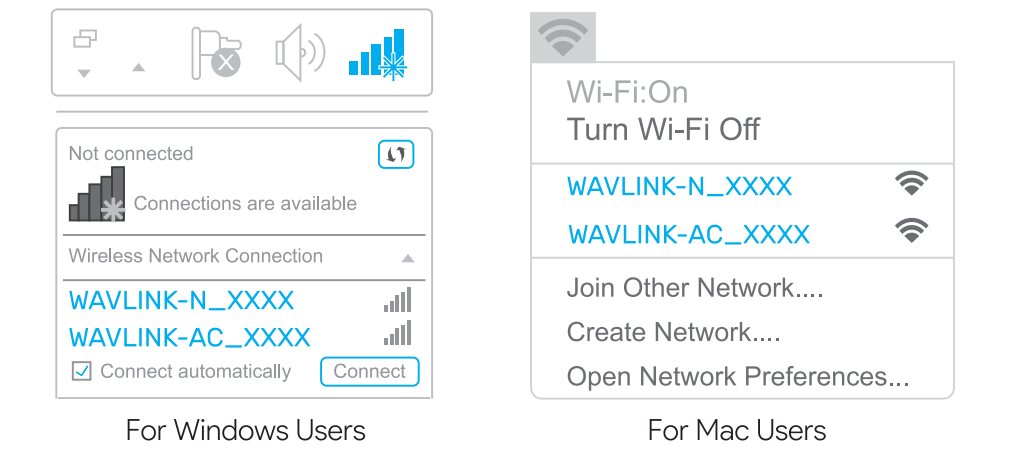
Turn on your Wi-Fi and search SSID of your device, then connect to it, after that you can start configuring.
3 . Start Configuration
1 . Launch a browser from your laptop/PC or smart phone and enter http://wavlogin.link or http://192.168.20.1 in the address field not search bar.
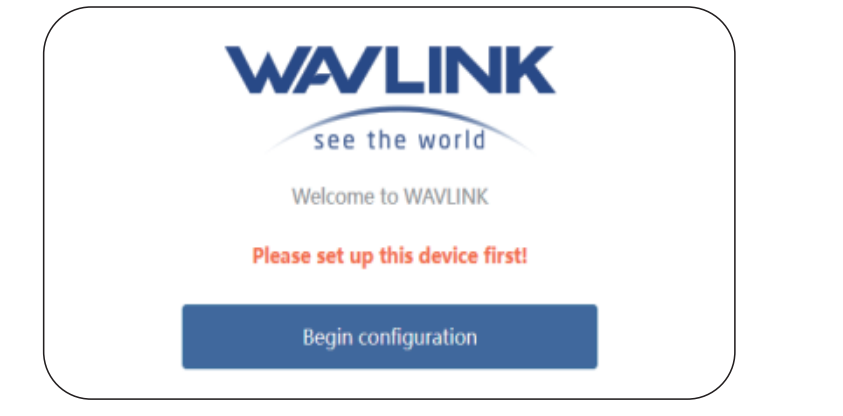
Note: If you're unable to access the web-based setup page, please refer to the FAQ:Q1.
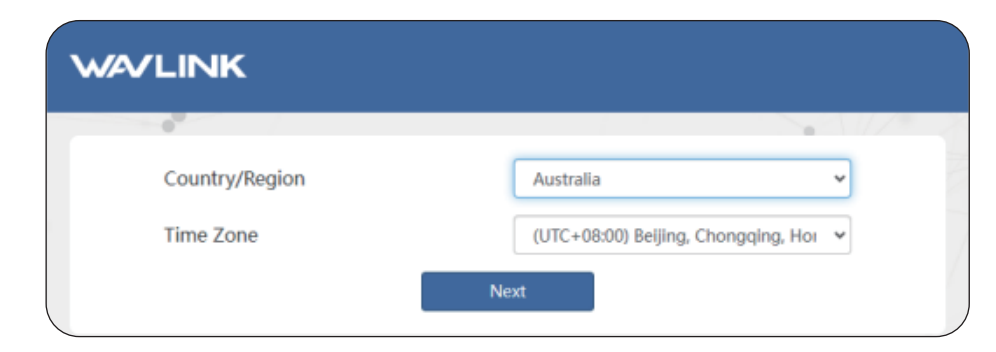
2 . After login in, please choose Country/Region and Time Zone. Then click Next.
4. Mode Selection
4.1 Router Mode Wizard
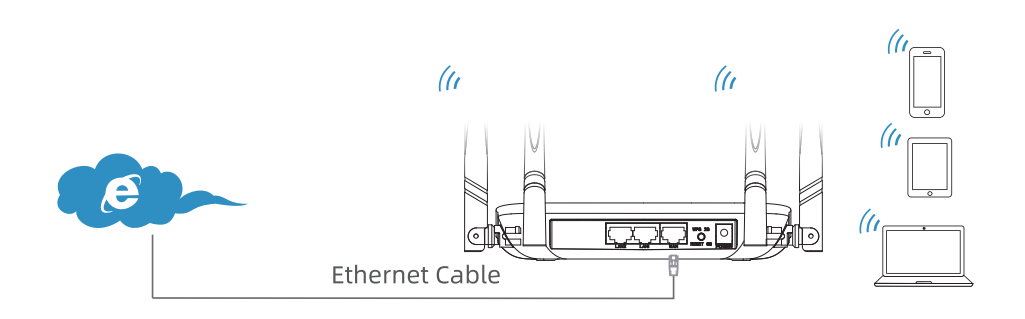
1 . Connect the Ethernet cable to the WAN port of the device.
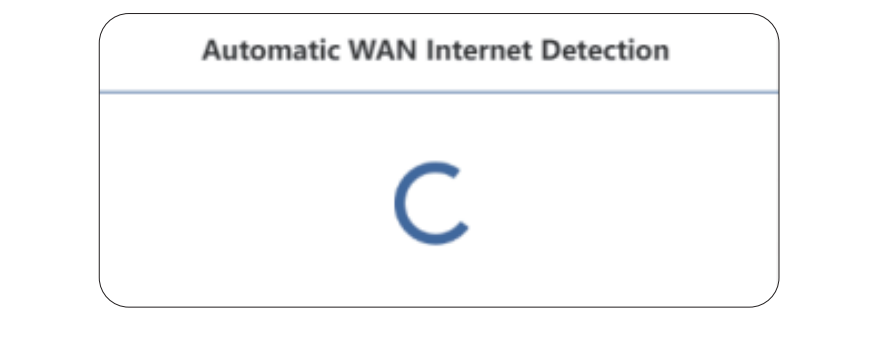
2 . Start Router Mode Configuration
3 . Choose Router Mode, WAN Type, Encryption Method and create new password.We recommend you to choose WPA2-PSK encryption method and create your new WiFi password.
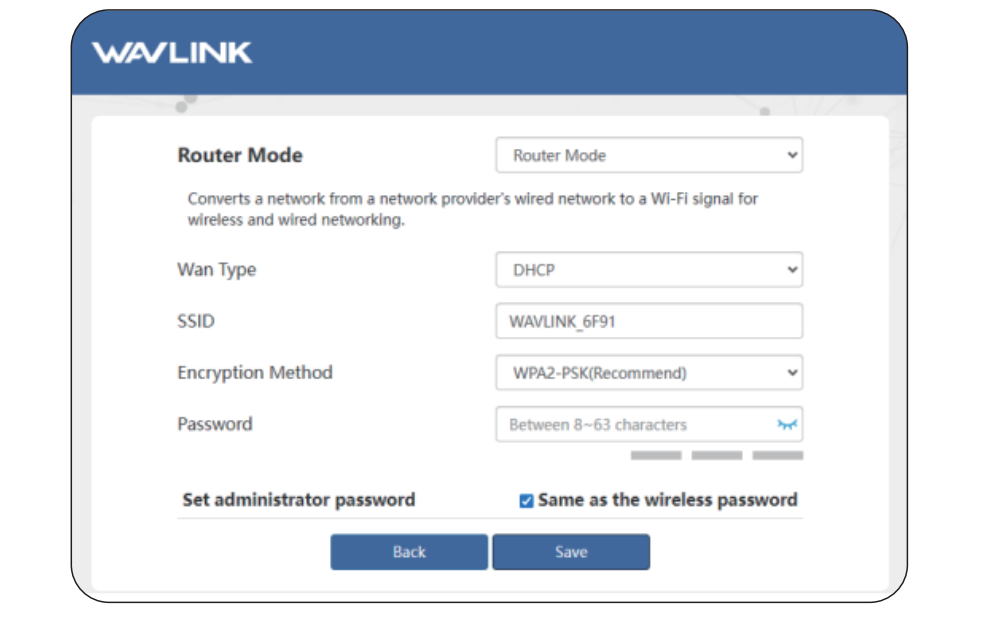
4 . Then click Save. Wait for the configuration completed.
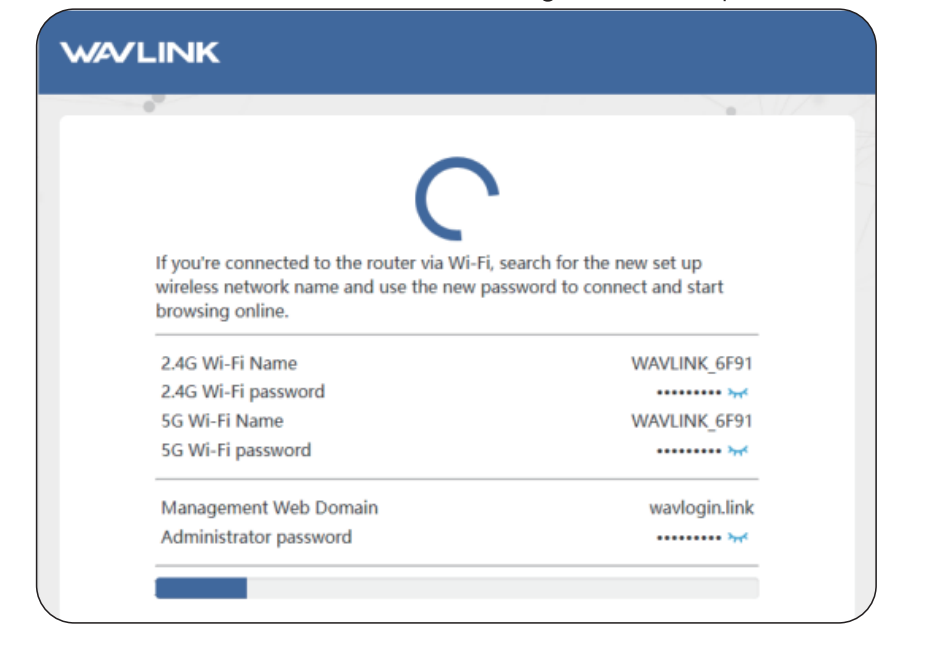
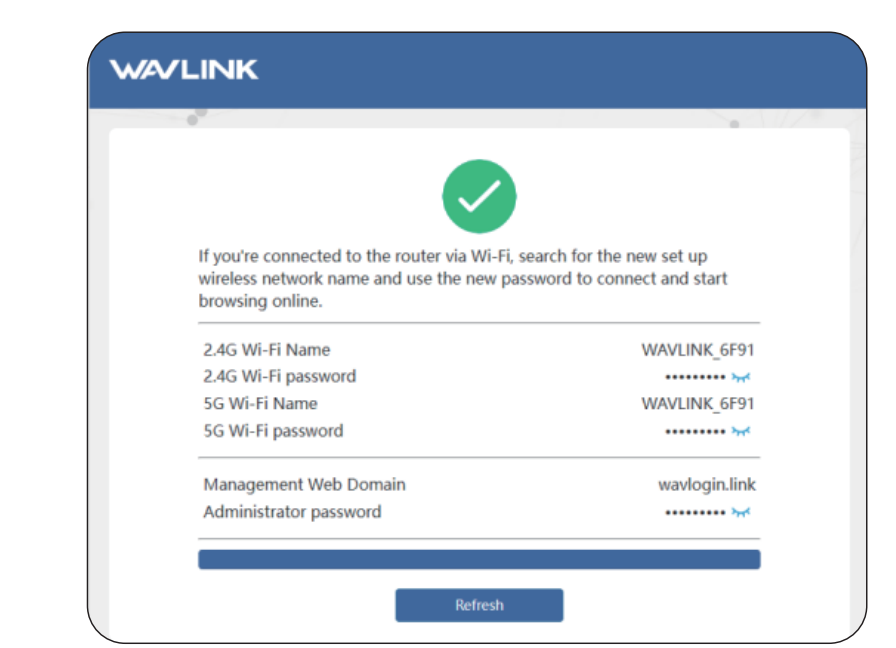
If you use DSL line and you are only provided an account name and a password by your ISP, choose PPPoE. lf you use cable TV or fiber cable, choose DHCP (Dynamic IP). If you are provided information such as IP address, Subnet Mask and Default Gateway, choose Static IP.
5 . After completing configuration, you can enjoy the network by reconnecting the WiFi.
4.2 AP Mode Wizard
1 . Connect the device's WAN port to your primary Router's LAN port.
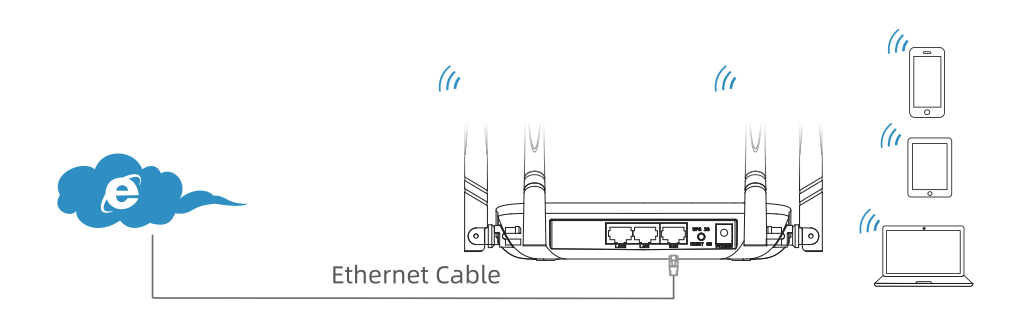
2 . Please choose AP Mode, set the name of SSID,choose Encryption Method and create a new password.
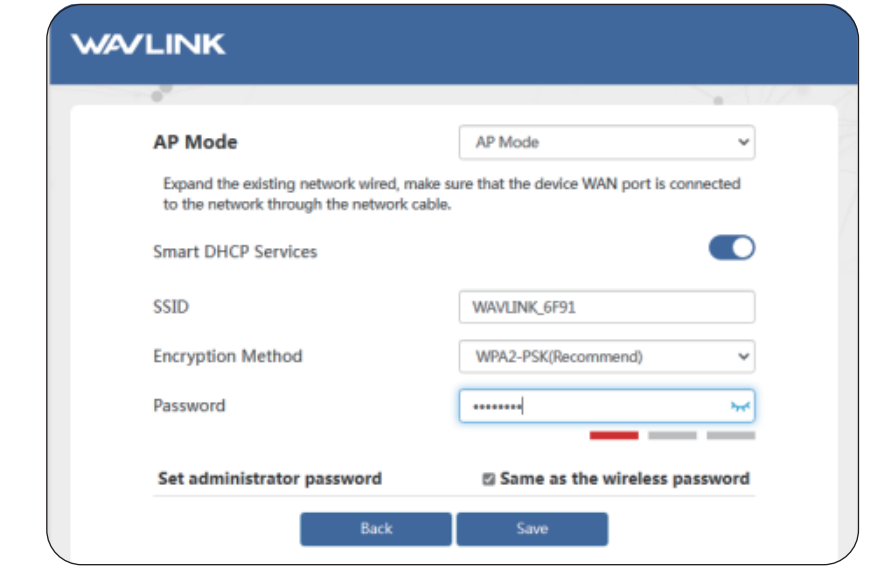
3 . After completing this process, you can enjoy the network by reconnecting the WiFi.
4.3 Repeater Mode Wizard
1 . Please put the device in the range of the existing Wi-Fi network.
2 . Please choose Repeater Mode, you can select the wireless signal. If you prefer to connect or input the wireless signal manually, then click Next.
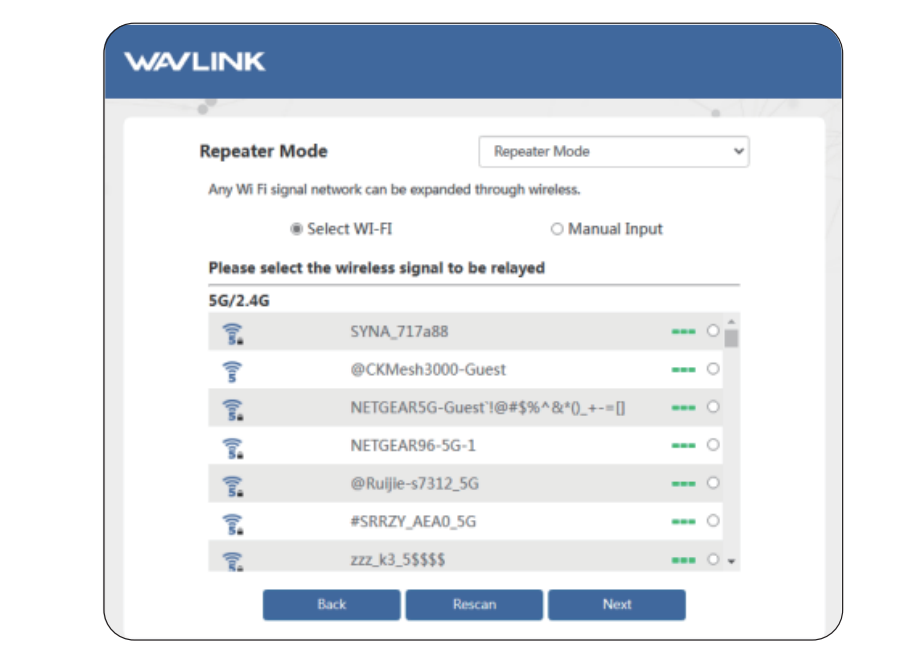
3 . Then according to the guide, please input password and other parameter info.
4 . After completing this process, you can enjoy the network by reconnecting the WiFi.
Firmware Update
Firmware Upgrade can fix bugs of the router. However, we don't recommend you to upgrade the firmware, if the router works properly.
1 . Launch a browser from your laptop/PC or smart phone and enter http://wavlogin.link or http://192.168.20.1 in the address field.
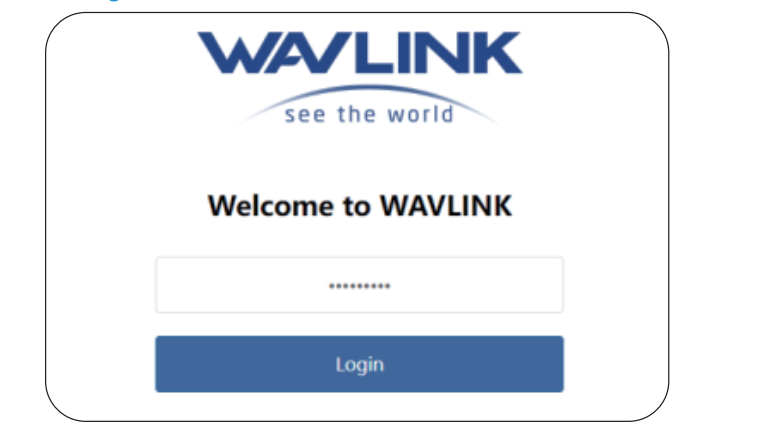
2 . Download the latest firmware file from our website www.wavlink.com -> Support -> Firmware. 3 . Click Advanced -> Firmware Update, choose File and upload it, then check new version.