Chapter 2 How to Use
This chapter contains the following sections :
Installation
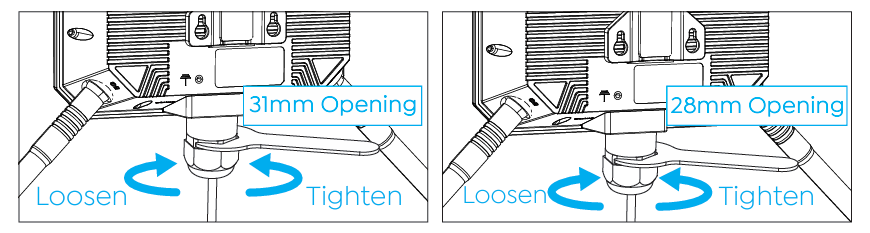
Assembly
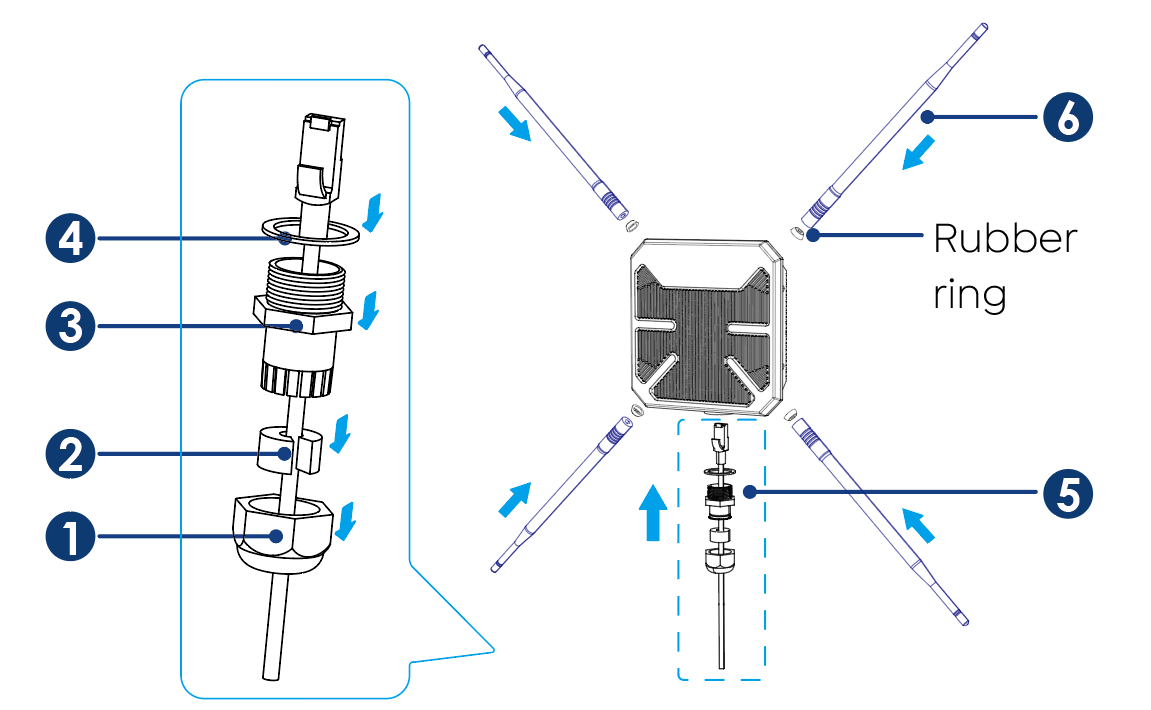
① Pass the Ethernet cable through the hex cap.
② Open the cut part of the sealing plug, and then pass the Ethernet cable through it.
③ Pass the Ethernet cable through the hex stud.
④ Pass the Ethernet cable through the sealing ring.
⑤ Connect the Ethernet cable to the WAN/LAN Port.
⑥ Screw the omni antennas into the 2.4G and 5G antenna connectors.
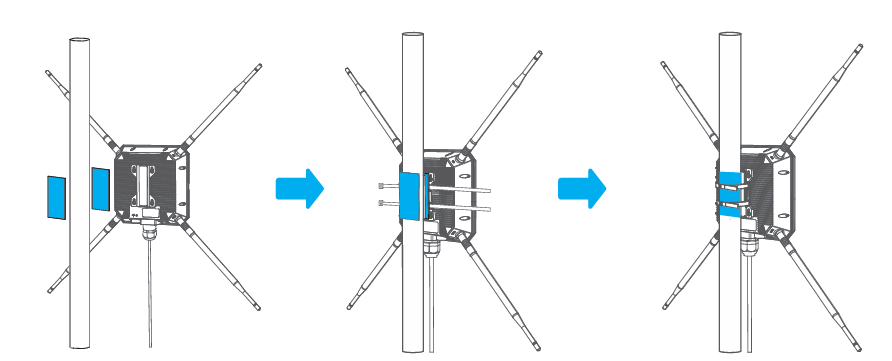
Outdoor Installation
Fix the device to the post with plastic cable ties, or fix the device to the wall with screws.
-
Step 1: Stick two silicone pads.
-
Step 2: Thread the plastic cable ties.
-
Step 3: Tighten the plastic cable ties.
-
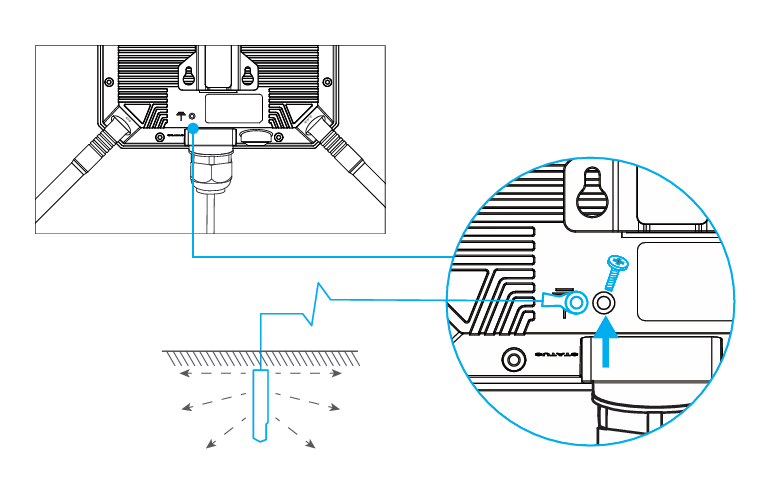
Suggestion: grounding wire's copper core: ≥ 6mm²; grounding pin's burial depth: ≥ 0.8m.
Connection
Passive PoE
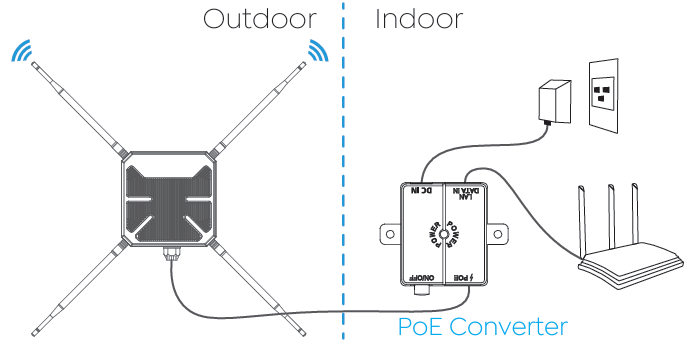
(1) Wired (For AP/Mesh Router Mode)
(2) Wireless (For Repeater/Mesh Extender Mode)
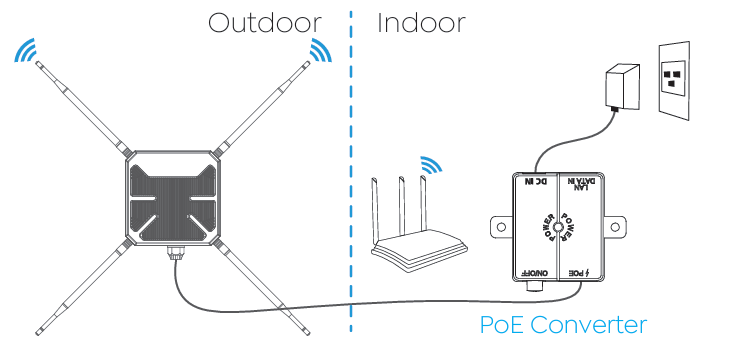
① Connect the “PoE” port of the PoE converter with an Ethernet cable to the “WAN/LAN” port of the device.
② Connect the PoE converter to power source.
③ Connect the indoor router to the PoE converter via an Ethernet cable for AP/Mesh Router Mode. In Repeater/Mesh Extender Mode, this Ethernet cable is not required.
The PoE converter is not waterproof. Please place the “PoE” port facing downwards to avoid water from flowing into the converter.
Active PoE (For AP/Mesh Router Mode)
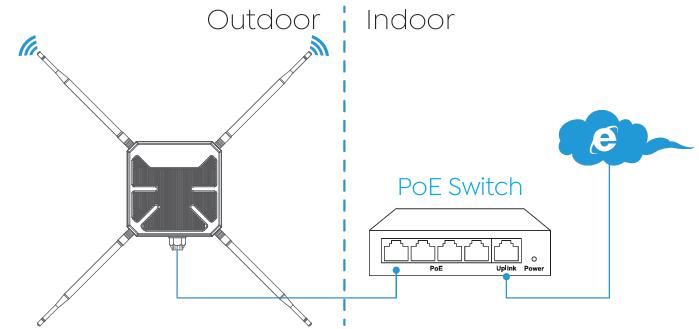
- Make sure you use a certified CAT6 or higher standard Ethernet cable with RJ45 connectors.
- Make sure the Ethernet cable length is less than 100 meters (328 feet).
Configuration
Connecting to the Network
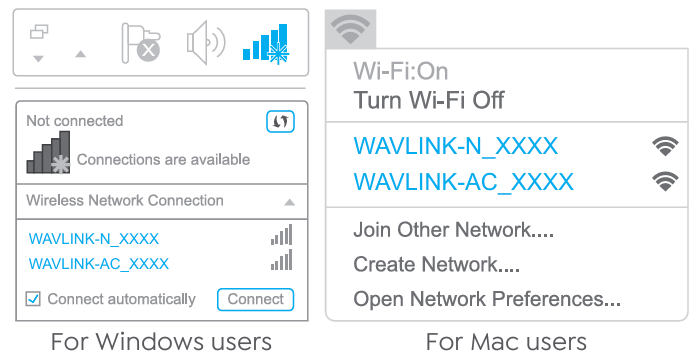
(1) Via Wireless
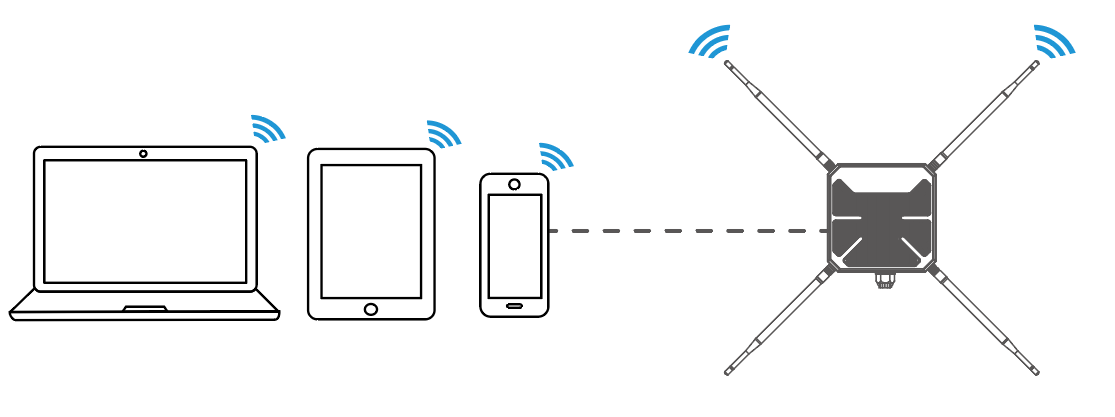
① Disconnect the Ethernet cable from your computer(if you have one).
② Turn on your WiFi, find the SSID of this product on your wireless devices(smartphone, tablet computer, laptop, etc.) and place a connection.
(2) Via Cable
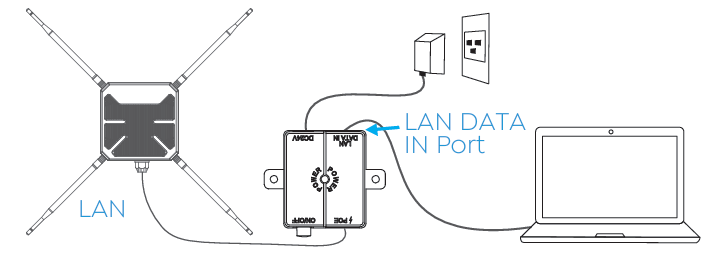
Connect the Ethernet cable to your PC/laptop and the LAN DATA IN port of your PoE converter, and then you can start configuring the device.
If you want to use this device's AP/Mesh Router Mode function, please finish the configuration of AP/Mesh Router Mode, and then connect the LAN DATA IN of the PoE converter port to the LAN port of the upstream router.
Setting up the Device
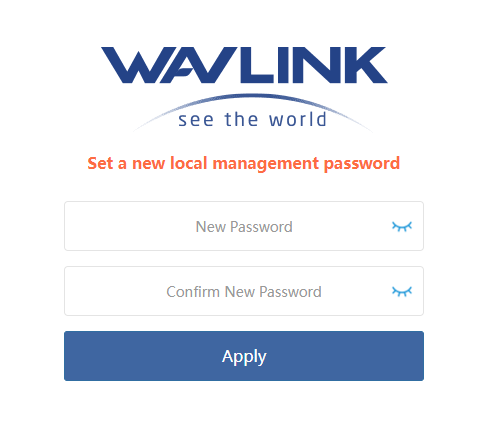
- The login page will pop up when the router is connected to your devices for the first time. You can also launch a browser from your computer or smartphone and enter http://waplogin.link into the address bar. Please set a new local management password.
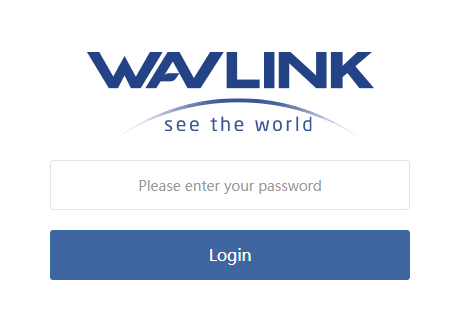
- Enter the password you set to log in.
-
Select your Mode selection, Country/Region and Time Zone.
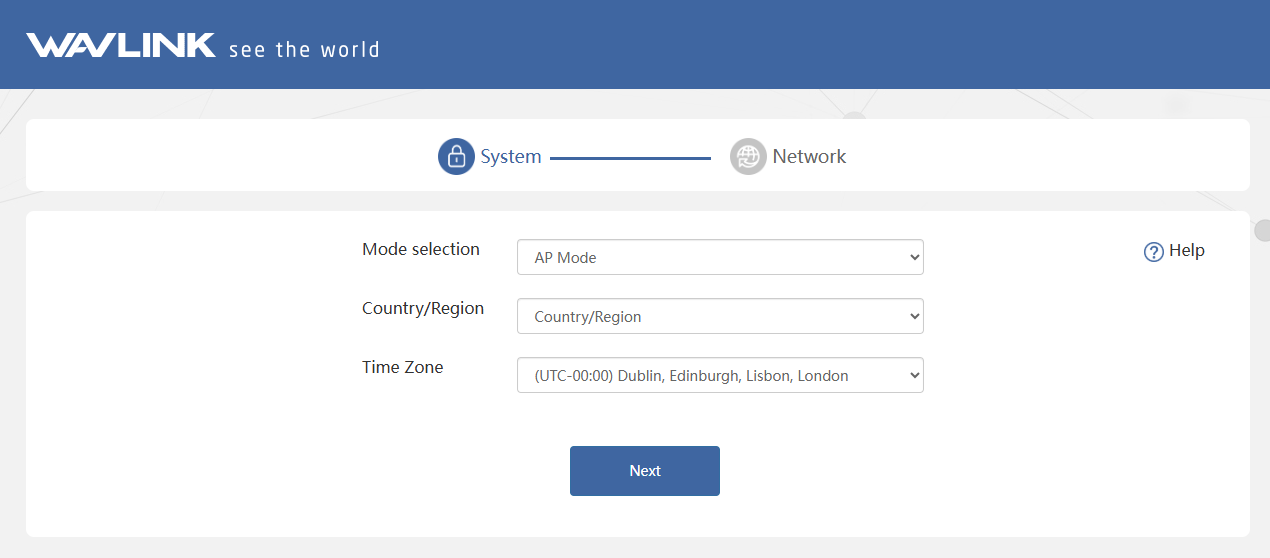
Mode Selection
This product supports 4 modes.
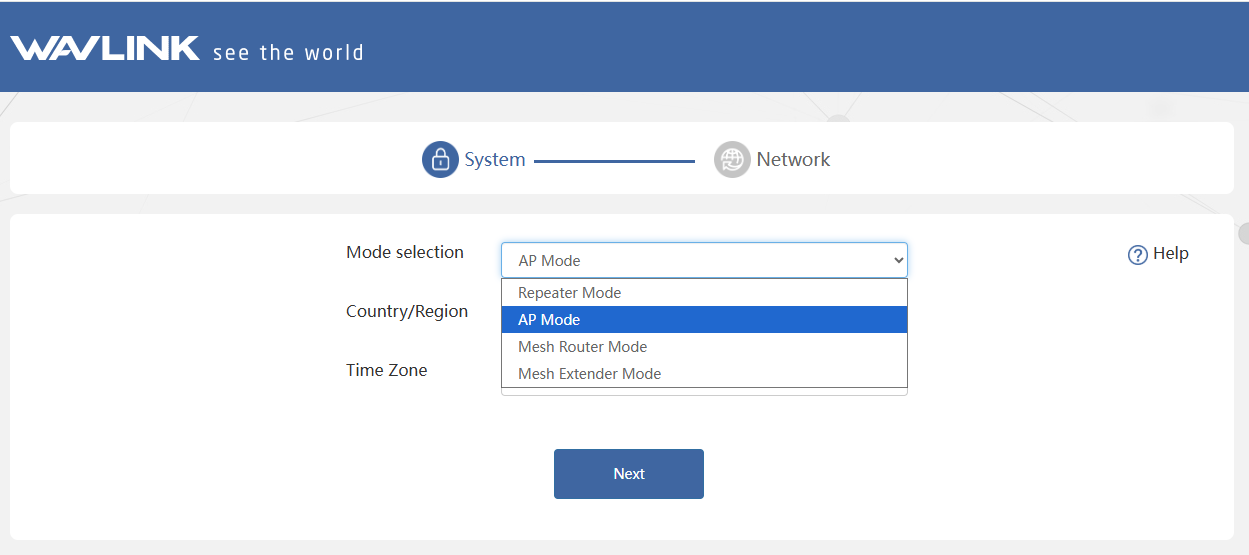
AP Mode
The purpose of AP mode: AP mode can help you convert existing wired signals into wireless signals.
- The system selects AP mode by default, there is no need to select the AP mode manually. Click on Next.
- Connect the WAN/LAN port of this product to the PoE and connect the LAN DATA IN port of the PoE box to the host router via Ethernet cable.
- Then you can change the SSlD or use the default one, the encryption mode recommend is WPA2-PSK. For your network security, please create a new Password according to the rule. Then click on Save and wait for the setting process to complete.
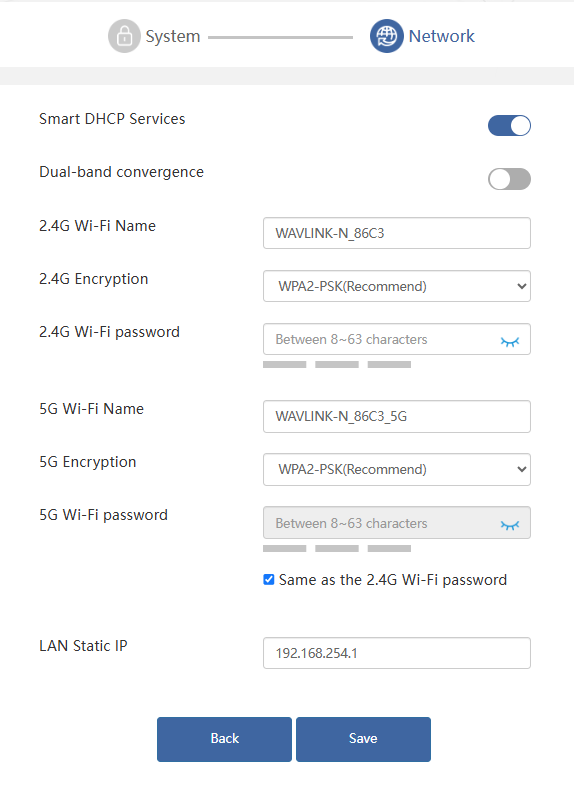
Note
- Smart DHCP Services: With smart DHCP services being enabled, if the upstream device is not been connected or the upstream device is unable to provide IP, the router will assign the IP automatically. If no automatical IP assignment is needed, it is recommended to disable it.
- Dual-band convergence: Turning on it will combine the 2.4G and 5G Wi-Fi dual-band into one, so as to adapt to a better network experience, and turn off it to set the 2.4G network and 5G network respectively.
Repeater Mode
The purpose of repeater mode: In repeater mode, the WAVLINK device can establish a wireless connection with the upstream router. And it will create one or two new WiFi signals to cover a larger area.
1.Select Repeater Mode.
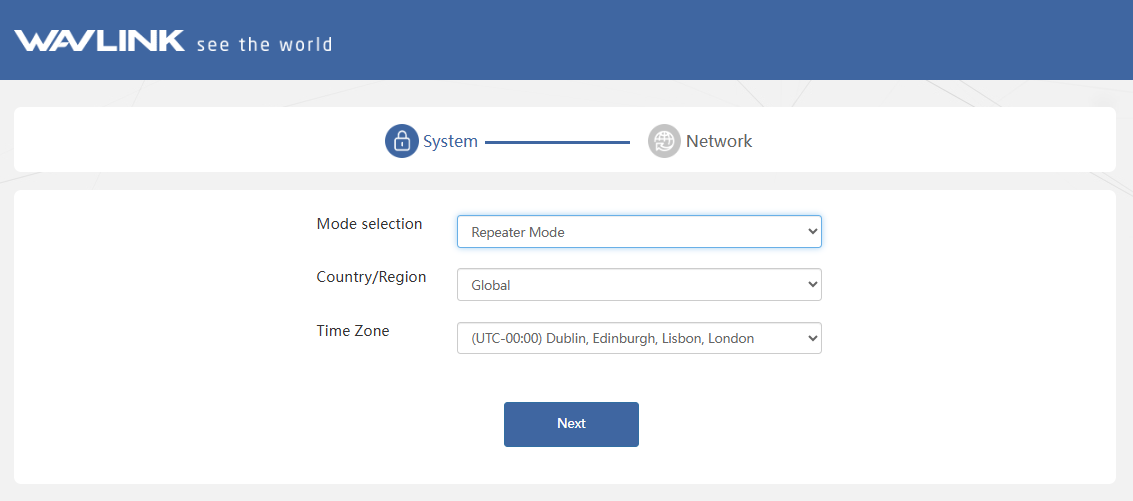
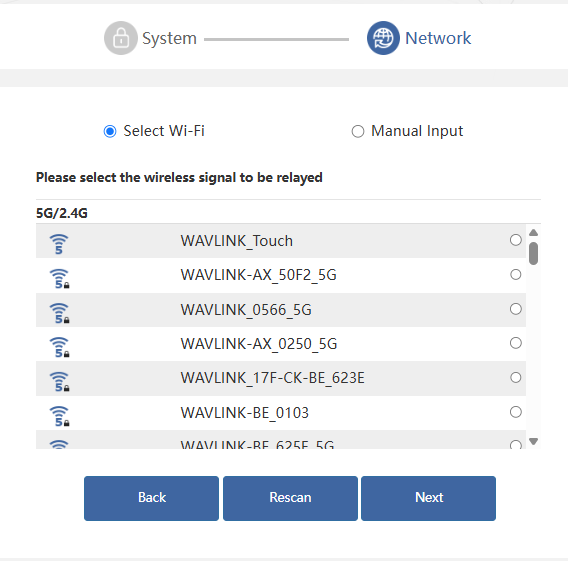
Select Wi-Fi
- After scanning, please make sure the Wi-Fi you want to select is listed, and click Next, if it isn't, please click Rescan.
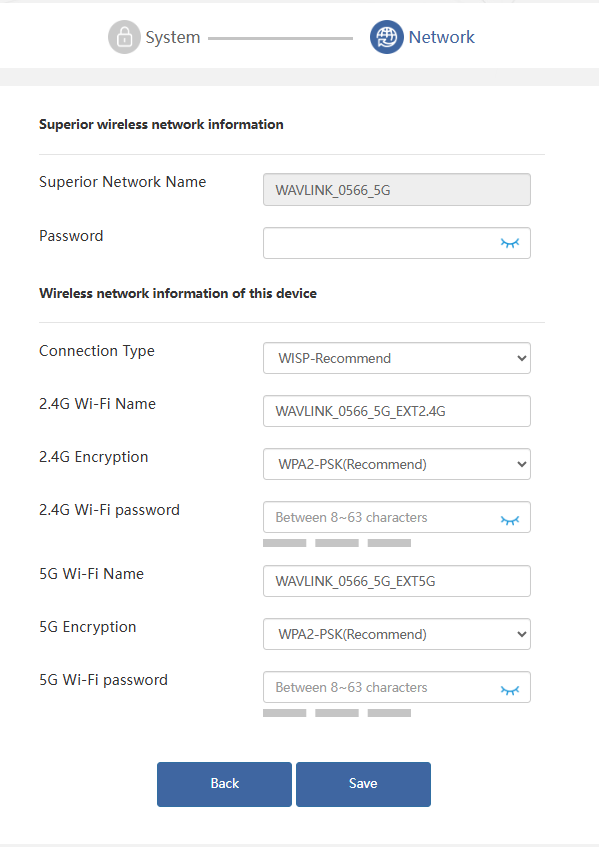
- Enter the WiFi password for the wireless network that you have selected. Set the wireless network encryption mode and password for this device. Click Save.
Manual Input
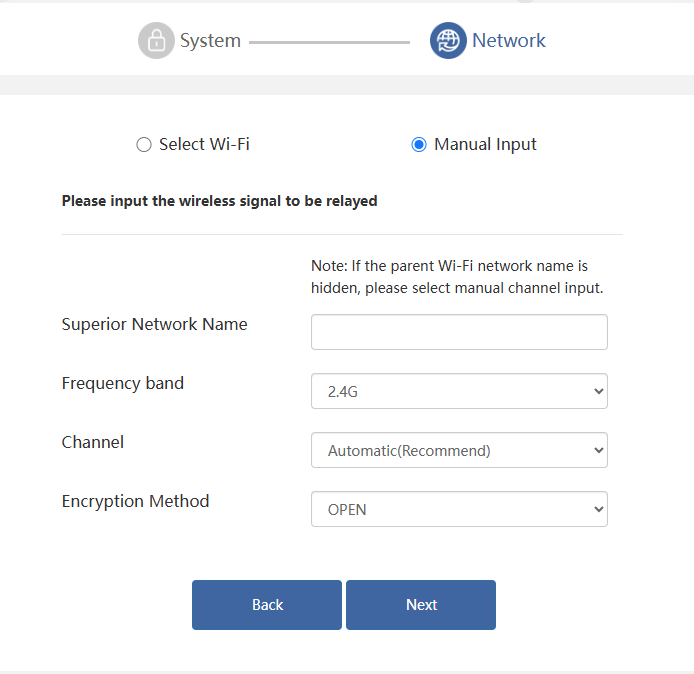
If the WiFi signal of the upstream router is hidden, you could enter its WiFi name manually.
- Manually add the wireless network you want to connect, enter the device information, and click Next.
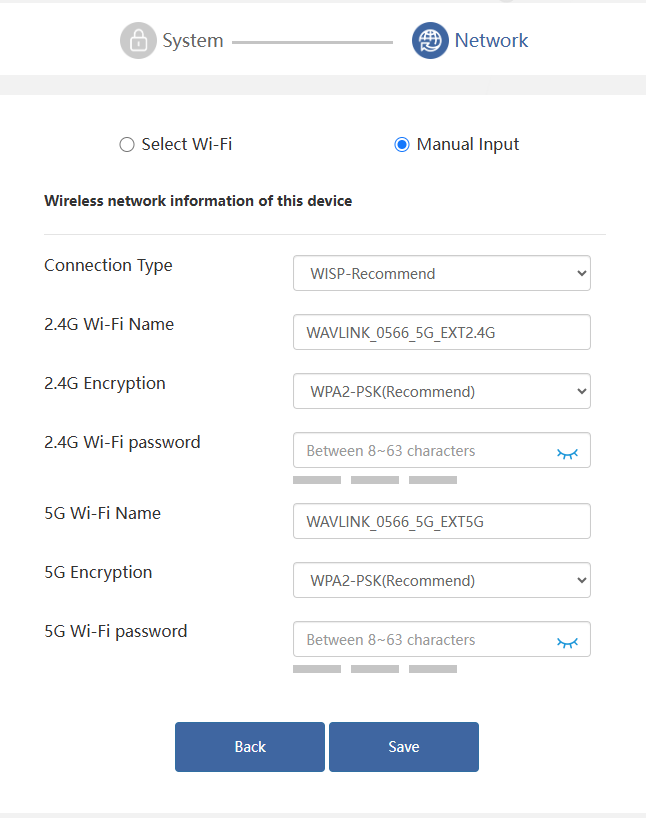
- Set the wireless network encryption mode and password for this device. Click Save.
Mesh Router Mode
The purpose of mesh router mode: Router mode can help you convert existing wired signals to wireless signals. And it could also form mesh system with the wavlink mesh extender which support everything mesh technology.
-
Before configuring. please make sure your upstream router has connected to the LAN DATA IN port of the PoE box.
-
Choose Mesh Router Mode. Selet Country/Region and Time Zone.
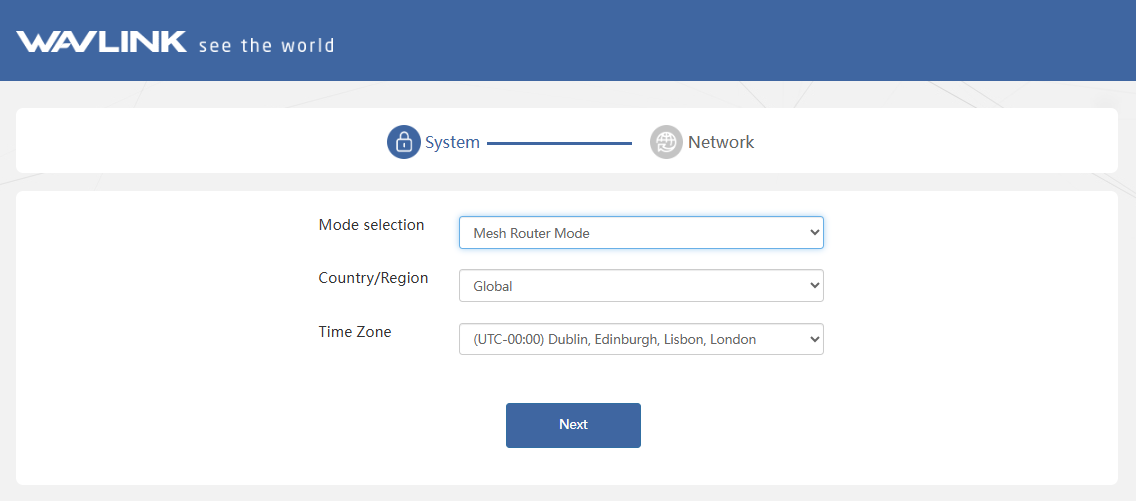
-
Configuring the corresponding WAN Type, SSID(Wi-Fi name), Encryption Method and Password, then click Save.
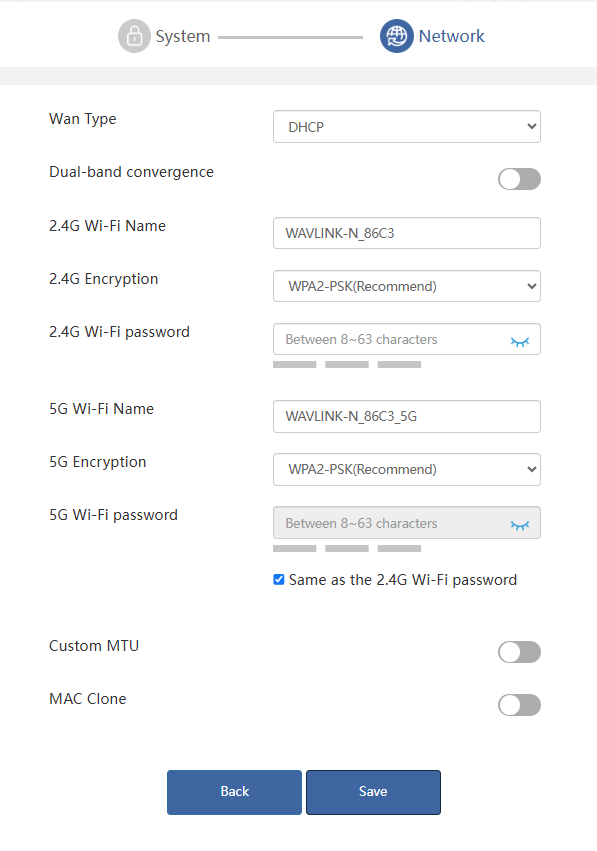
① If you choose DHCP, you will need to decide whether to enable the MAC clone. Some ISPs register the MAC address of your computer when you firstly access the Internet through their cable modem, we need to clone the MAC address of your computer to the router. The Custom MTU(Maximum Transmission Unit) is the largest size of a data packet that can be transmitted over the network. If your ISP requires you to adjust the MTU size, enable this option. Otherwise, we recommend you to keep it disabled for optimal network performance.
② If you choose PPPoE, enter the Username and Password provided by your ISP. PPPoE is usually designed for such as DSL or fiber optics.
③ If you choose Static IP, enter a specified IP parameters including IP address, Subnet Mask, Gateway, DNS1 and DNS2 provided by your ISP.
Mesh Extender Mode
In this mode, the device enters a Mesh networking pairing state, making it discoverable for scanning and pairing by proximate primary devices waiting to establish a connection. If you have a router that supports WAVLINK Everything Mesh function, then you can build a mesh system with this mode.
- Select Mesh Extender Mode. Select your Country/Region and Time Zone. Click Start Pairing.
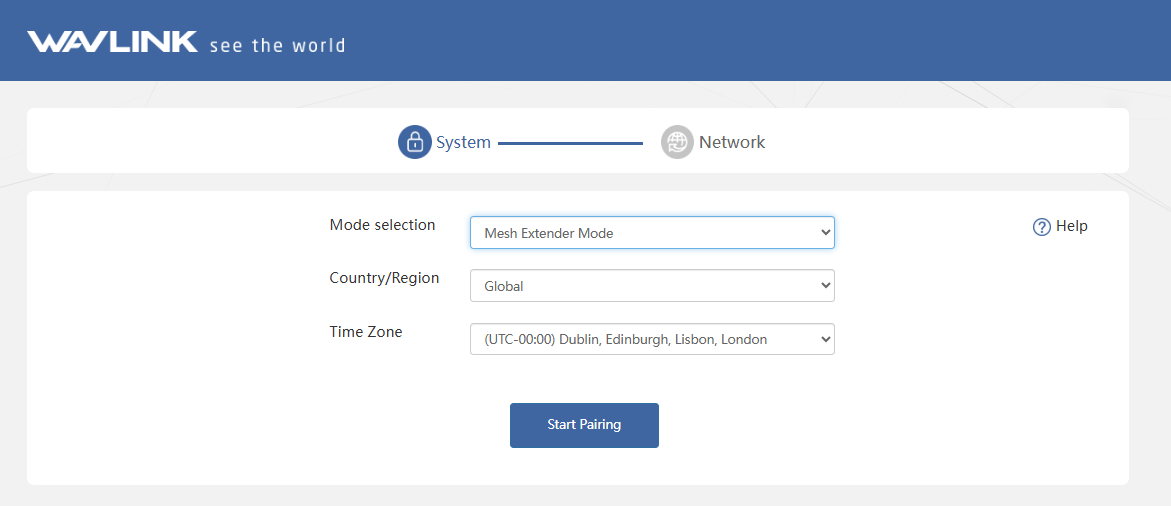
Note:
When the device enters the pairing state, please keep pressing the PAIR button 2s on the primary router or add the mesh device in the primary router configuration page, the pairing time is expected to be 2 minutes. If the pairing fails, check whether the primary router is set correctly, and then enable re-pairing via the pairing button or re-enter this device page. If you want to switch to another mode when you have successfully configured mesh extender mode, please reset this device. The configure the device again.