Chapter 3 Online Upgrade
Step 1. Long press the RX's pinhole using the ejector pin, there will have SSID and PSK(Password) showing on the monitor.
Step 2. Enable the WiFi configuration page on your phone and laptop. Then, enter the PSK and SSID to connect to the WiFi. After that, short press the PAIR/RESET button on TX to continue mirroring the screen.
Step 3. Launch a browser, enter http://192.168.203.1, then turn on the WiFi connection.
Step 4. Please ensure the WiFi from the Web interface is available before upgrading.
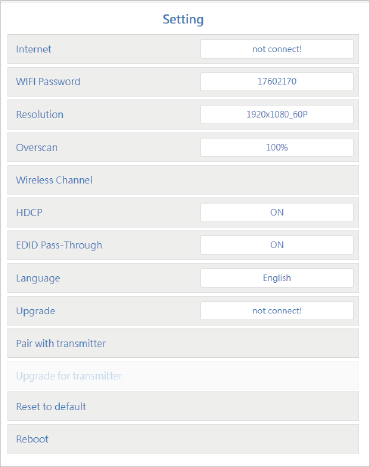 Step 5. If it prompts latest upgrading in configuration interface, follow the prompt to finish updating.
Note: Before changing other configurations on the web interface, ensure the laptop/phone is connected to the same WiFi as in the Step 2. One note is that TX and RX must be re-paired after changing the WiFi Password, as instructed in Chapter 2 How to Connect: Note.