Chapter 4 Display Settings
DISPLAY SETTINGS
For Windows 10
- Right-click at any spot on your desktop and select "Display settings". In section "Display", please select either monitor 1 or monitor 2.
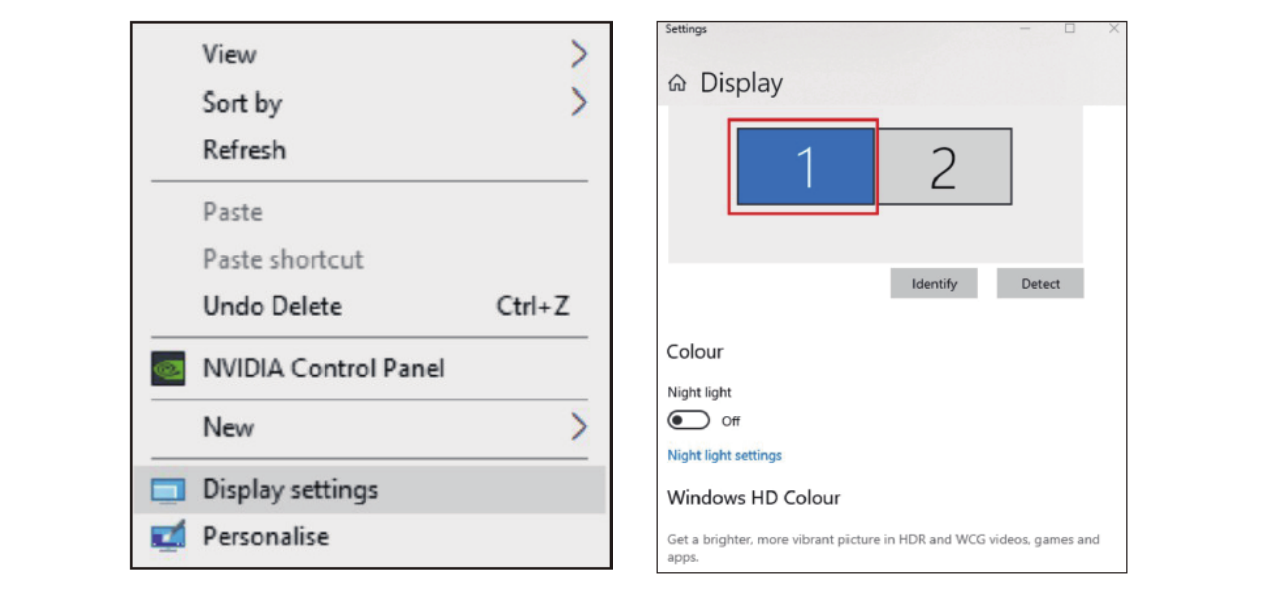
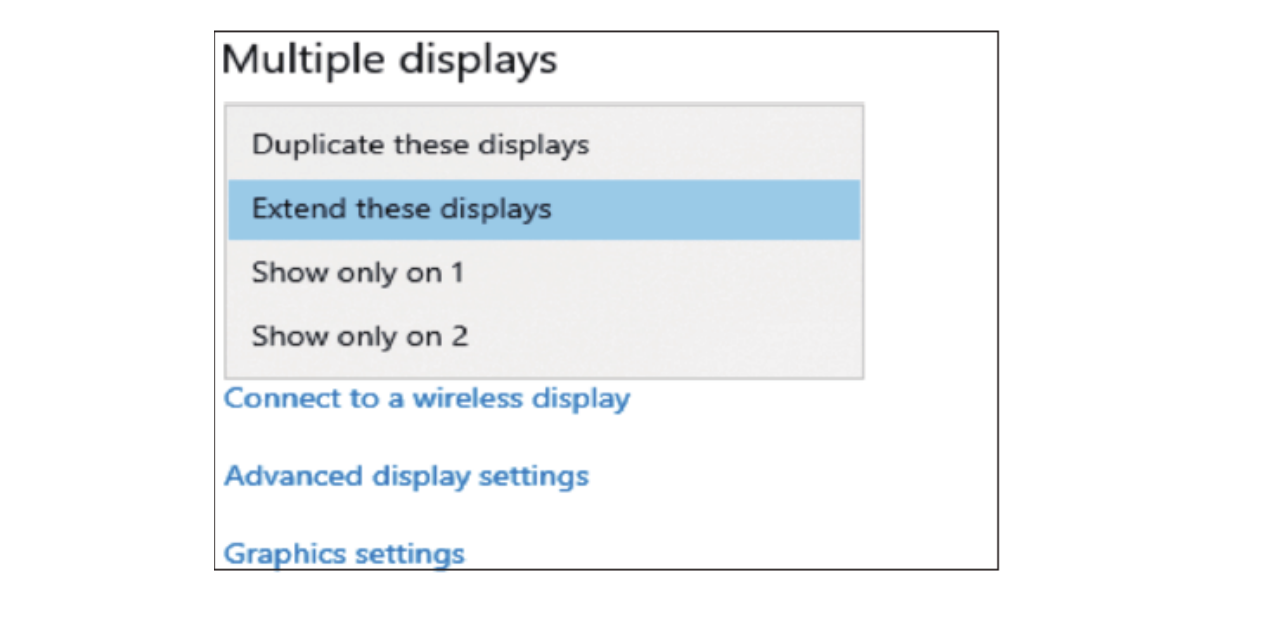
- Scroll down to the "Multiple displays", and select the mode in the drop-down list that is fit for your need.
For Mac OS
-
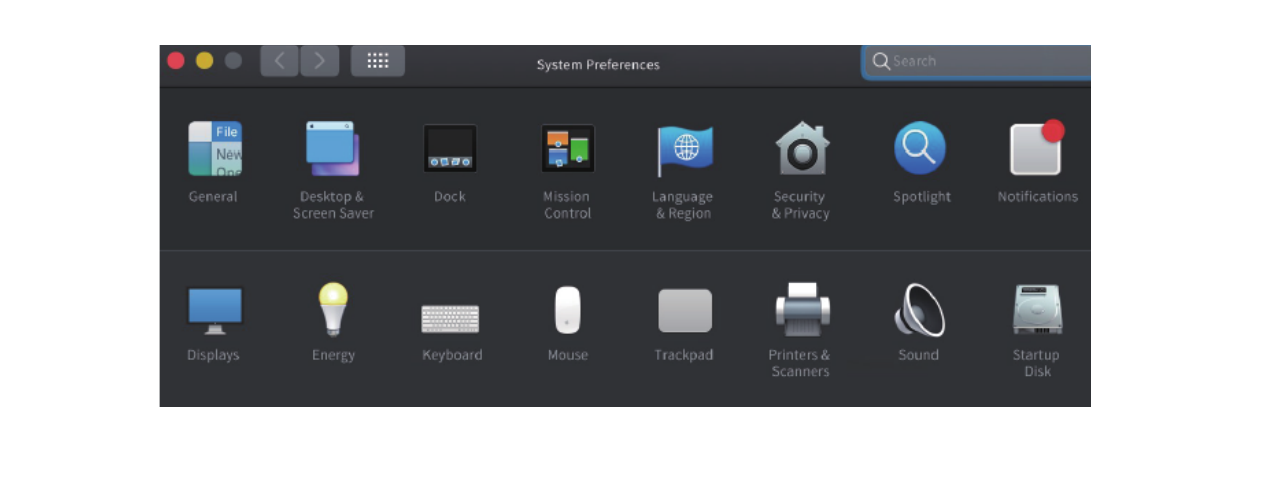
Select "System Preferences" and select "Displays".
-
Click on "Arrangement" to change the position of displays currently connected.
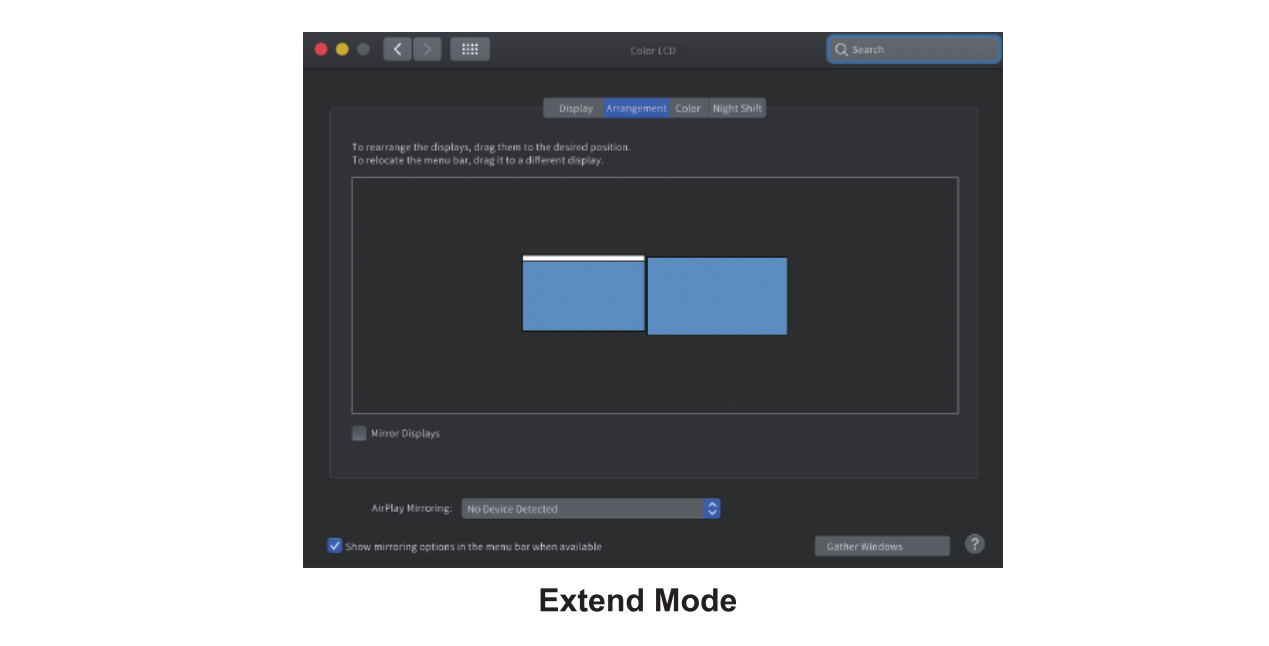
-
To use the mirror mode, you have to mark the "Mirror Displays" box below the central icon.
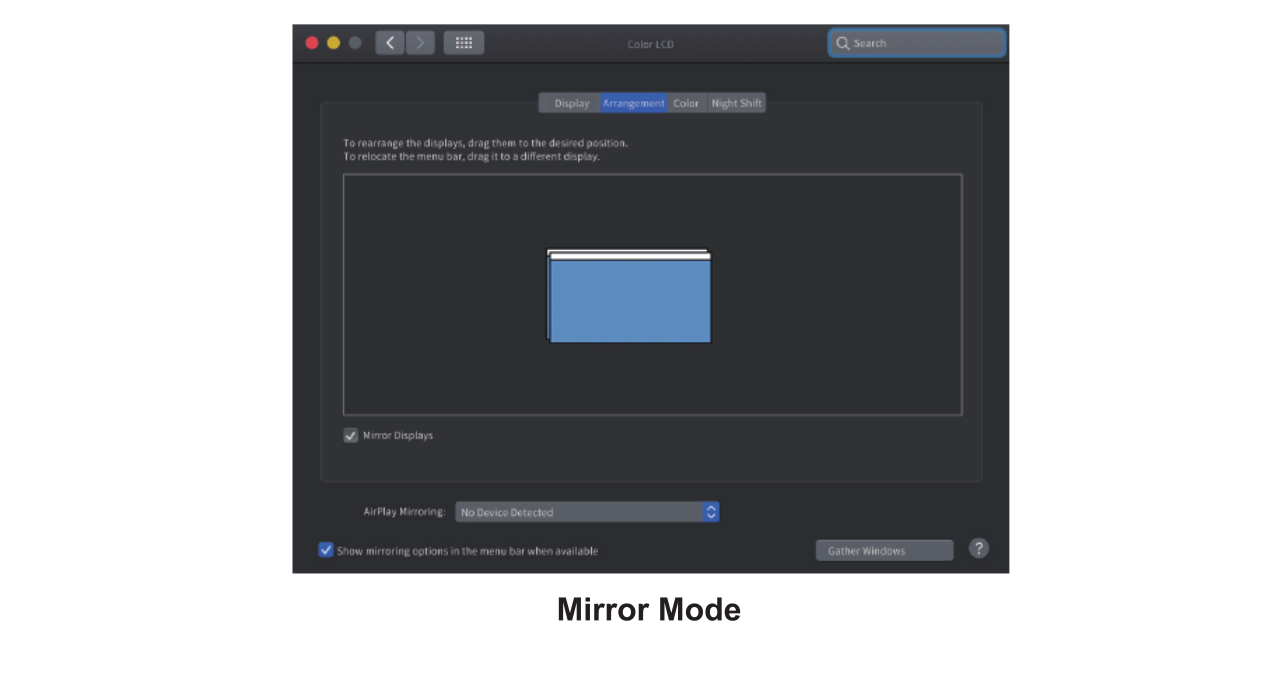
Notice:
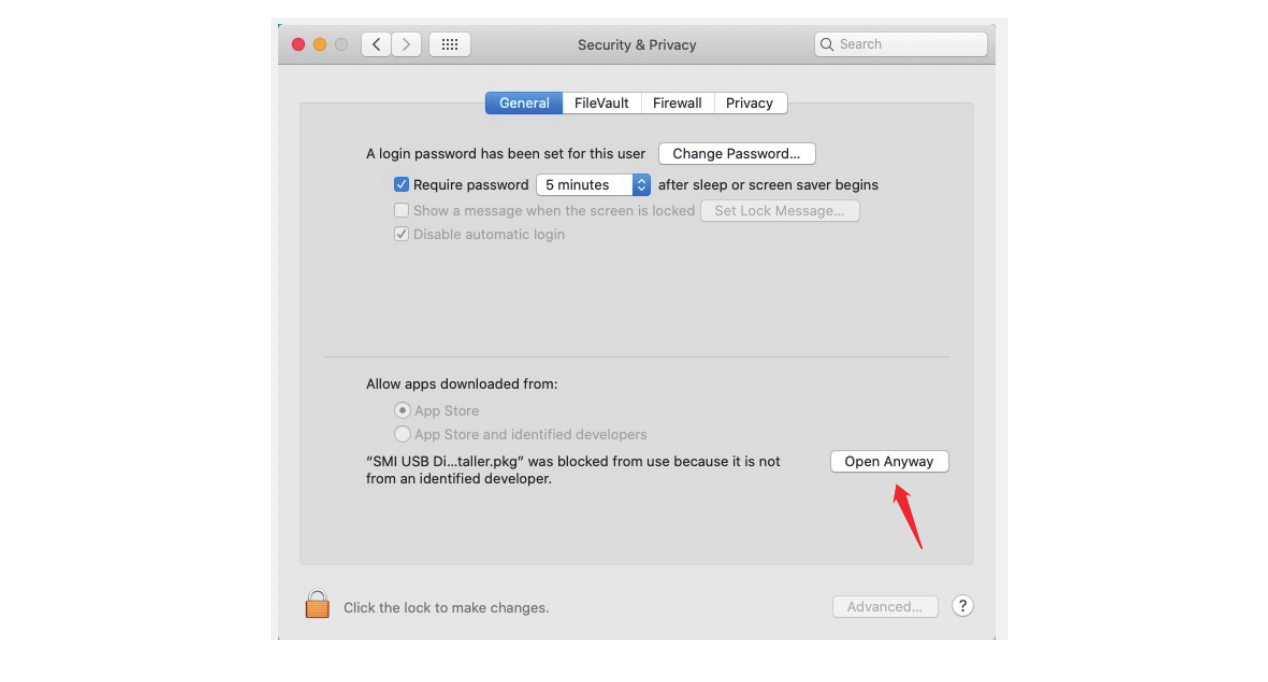
① Due to privacy policy applied in Mac, you may experience the following issue:
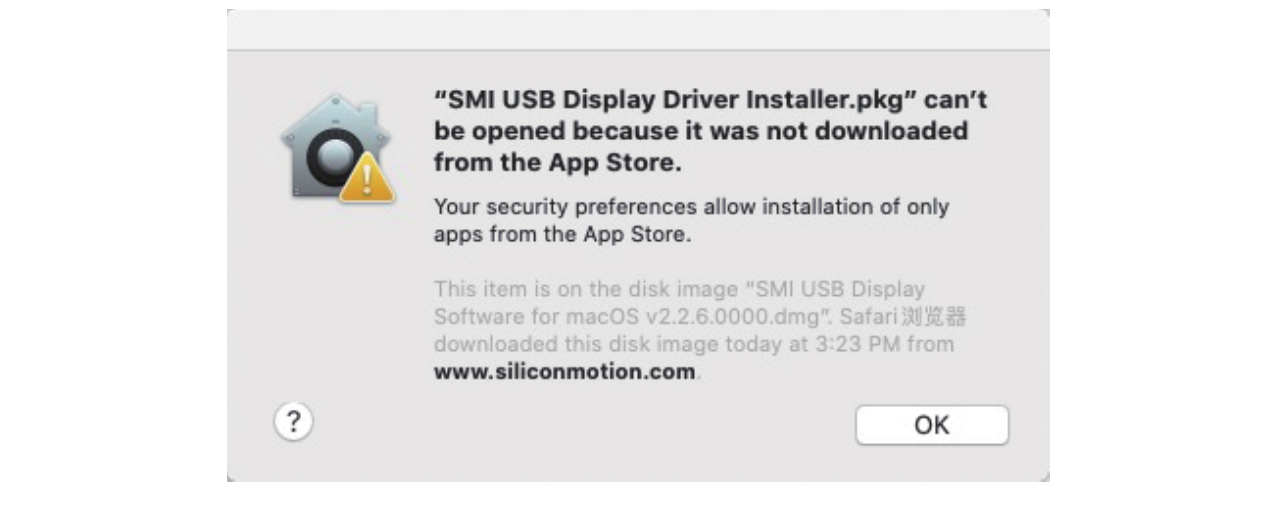
② Select "System Preferences" and choose "Security & Privacy". Click on "Open Anyway" to approve the driver installation.