Chapter 3 Connection and Resolution
This chapter contains the following sections :
Connection and Resolution
Connection
Before connecting to use, please ensure the host laptop has installed the corresponding drivers.
Power on Your Dock
-
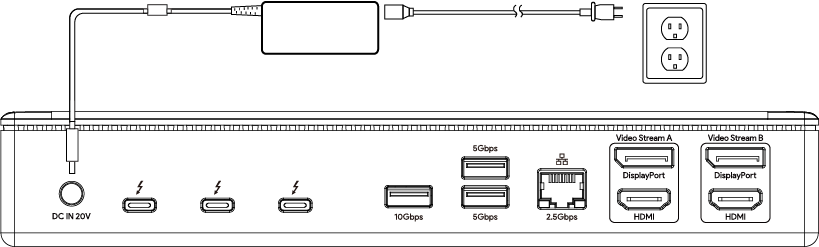
Plug one end of the included Power Adapter into this Thunderbolt™ 4 Dock's DC IN 20V port and the other end into the power outlet.
-
Press the Power Switch, then the Dock will automatically turns on after powering on.
Connecting to the Host
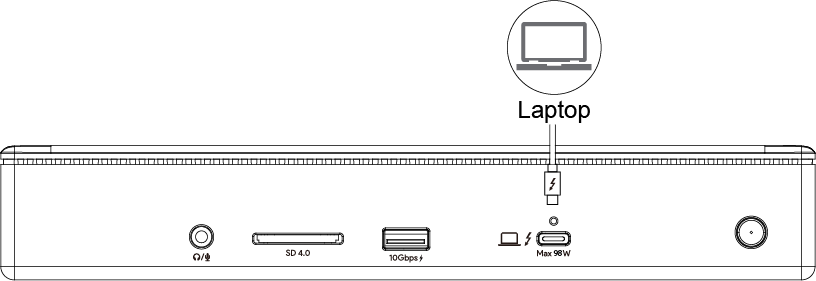
- Connect the Thunderbolt™ 4 upstream port via the provided Thunderbolt™ 4 cable to your laptop, this Thunderbolt™ 4 cable will charge your laptop at the maximum charging of 98W.
- Then press the Power Button to turn on the power of the Dock, the Power Indicator Light is green to indicate that the host is successfully connected, and the power indicator is red to indicate that the host is not connected.
Note for Smart Power: This product can intelligently adjust the charging power of the host according to the power of the connected devices.
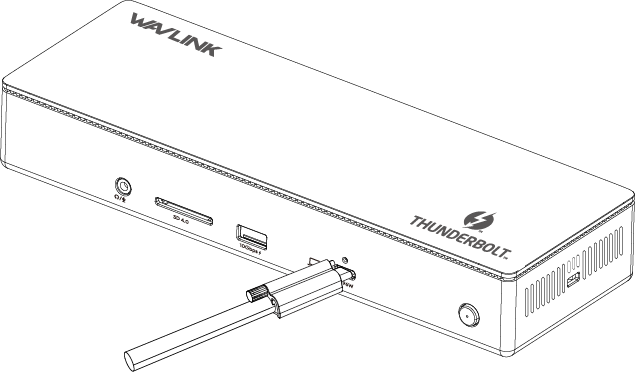
Note for Cable Holder Connection: The cable holder is designed to tighten the Thunderbolt™ 4 cable for the upstream Thunderbolt™ 4 port. If you are worried that the Thunderbolt™ 4 cable might loosen, please follow the following steps to install the cable holder to the dock.
-
Insert the cable into the cable holder according to the arrow direction.

-
Align the bolt with the fixing hole, then please connect it to the upstream Thunderbolt™ 4 port.
-
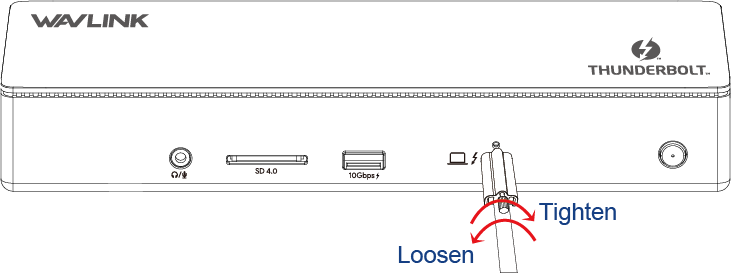
Fasten the bolt and fix the connectivity between the cable and the dock. Tighten the screw clockwise when you are assembling it. Please loosen the screw counterclockwise if you need to disassemble it.
-
After assembling it, please do not pull it hard to avoid damage to the interface. Please follow the above instructions if you need to disassemble it.
Connecting Monitor to the Dock
This Thunderbolt™ 4 dock can connect up to 4 displays.
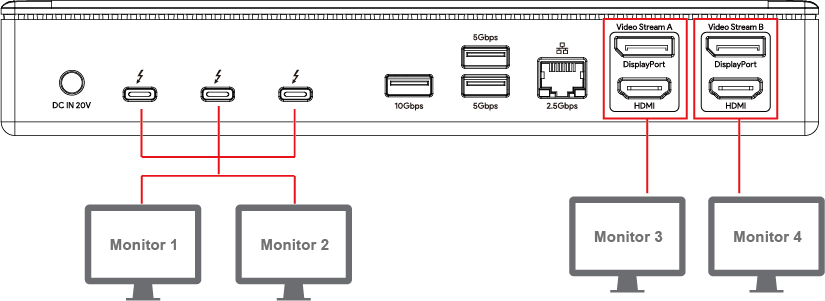
Resolution
Single Display
| Display Mode | TBT4 | HDMI | DisplayPort |
|---|---|---|---|
| Single Display | 7680×4320(8K)@30Hz | 7680×4320(8K)@30Hz | 7680×4320(8K)@30Hz |
Dual Display
| Display Mode | Dual TBT4 | Dual HDMI | HDMI +DisplayPort |
|---|---|---|---|
| Dual Display | 4096×2460(4K)@60Hz | 4096×2460(4K)@60Hz | 4096×2460(4K)@60Hz |
Triple Display
| Display Mode | Dual TBT4 + HDMI | Dual TBT4 + DisplayPort | TBT4 + HDMI + DisplayPort | TBT4 + Dual HDMI | TBT4 + Dual DisplayPort |
|---|---|---|---|---|---|
| Triple Display | 4096×2460(4K)@60Hz | 4096×2460(4K)@60Hz | 4096×2460(4K)@60Hz | 4096×2460(4K)@60Hz | 4096×2460(4K)@60Hz |
Quad Display
| Display Mode | Dual TBT4+Dual HDMI | Dual TBT4+Dual DisplayPort | Dual TBT4+HDMI+DisplayPort |
|---|---|---|---|
| Quad Display | 4096×2460(4K)@60Hz | 4096×2460(4K)@60Hz | 4096×2460(4K)@60Hz |
Note:
*Single 8K@60Hz is enabled for computers with DP 1.4 or higher and DSC.
*Those Three Thunderbolt™ 4 downstream ports can just expand up to 2 monitors
*In Video Stream A and Video Stream B, DisplayPort and HDMI port cannot be used simultaneously, thus, you can only use one port in each video stream group.
*For MAC using Apple M1 chip, three Thunderbolt™ 4 downstream ports will support single display, but the HDMI/DP will work properly.