Chapter 2 Driver Installation
RealTek Network Driver Installation
The docking station is plug-and-play, but in case the network card does not work, please download the latest Driver file, found here: www.wavlink.com > Support > Driver > WL-UTD43-Pro, www.wavlink.com/en_us/ThunderDock-Malle-Pro.
For Windows OS
-
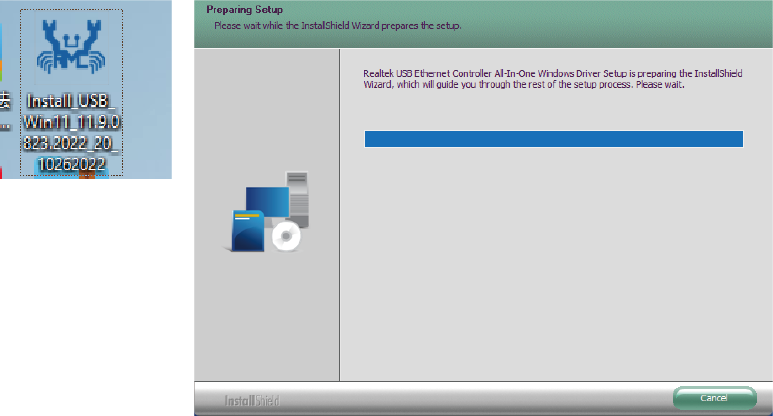
Locate the downloaded folder and unzip the file to the desktop, please select Yes if your computer asks your permission, then double-click the Driver icon on the desktop.
-
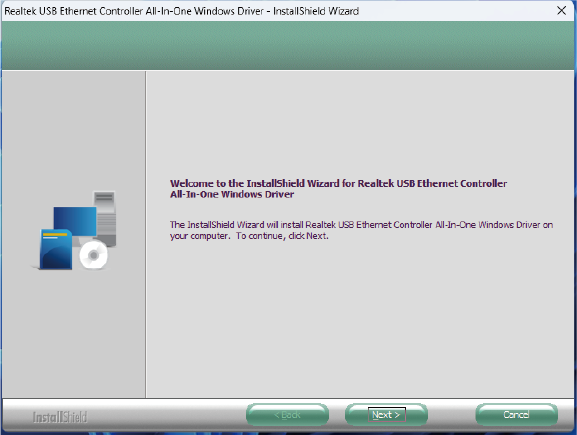
Click Next to continue the installation process.
-
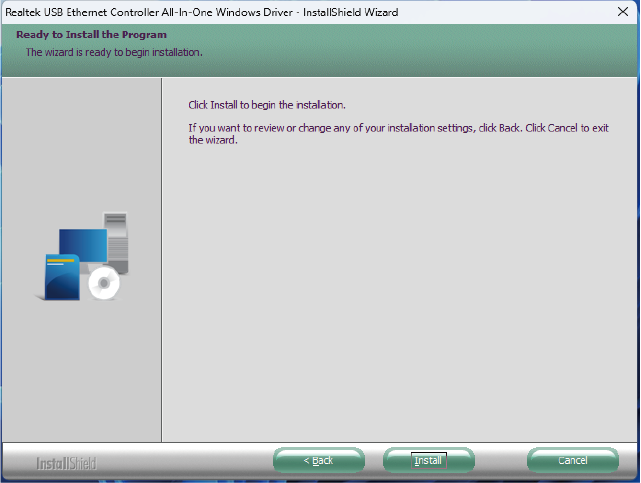
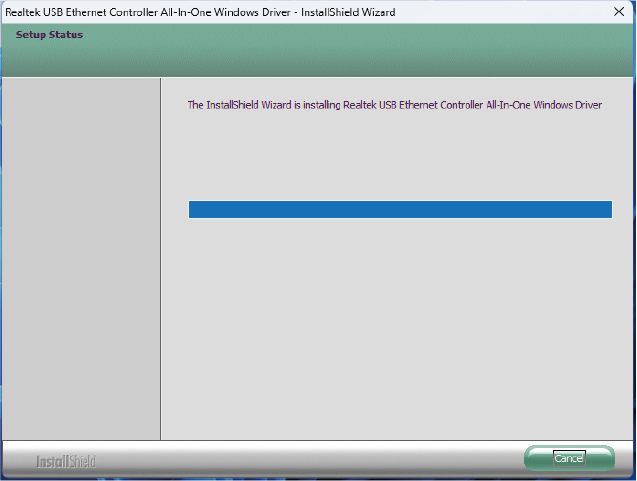
Select Install to begin the installation. If you want to review or change any of your installation settings, click Back or Cancel to exit the wizard.
-
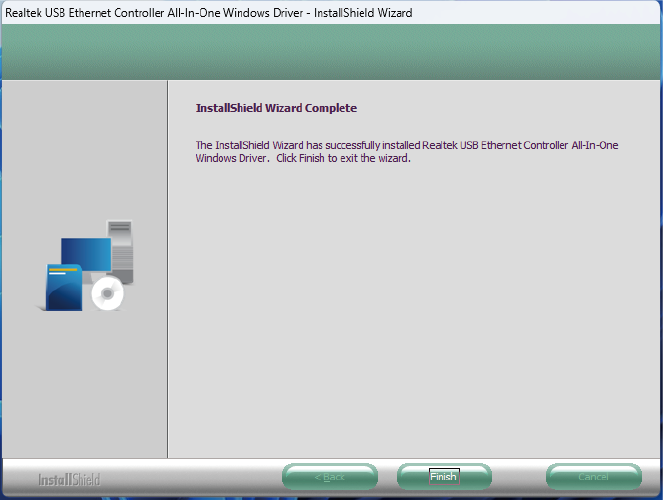
After the Driver is successfully installed, select Finish to exit the wizard.
For Mac OS
-
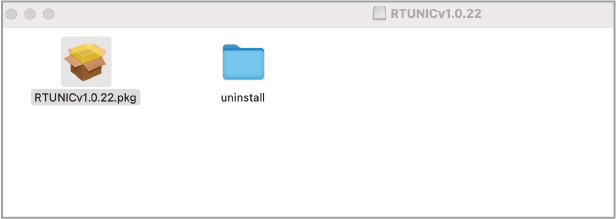
Locate the downloaded folder and double dick the icon on the desktop.
-
Double-dlick the icon to open the file.
-
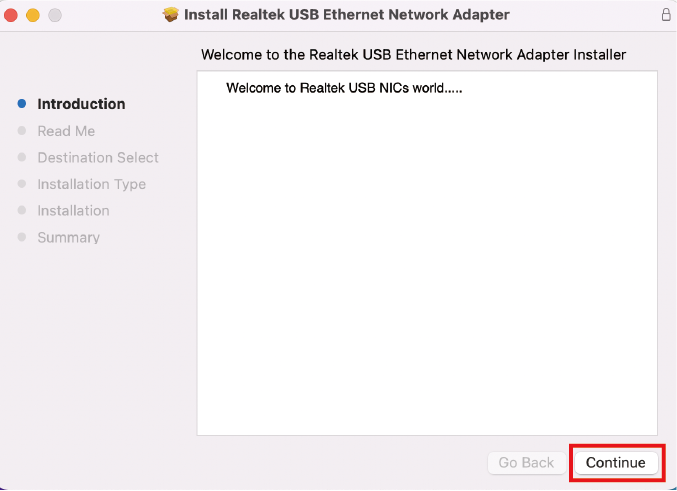
Navigate to the wizard window, and click Continue to the next step.
-
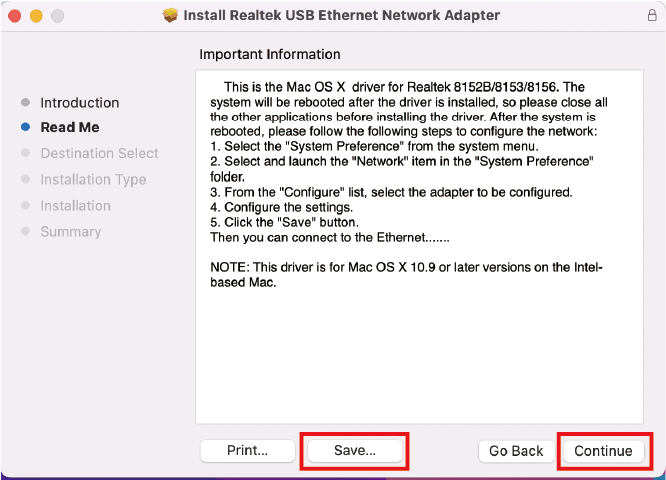
Read the Important Information carefully and click Save, then click Continue.
-
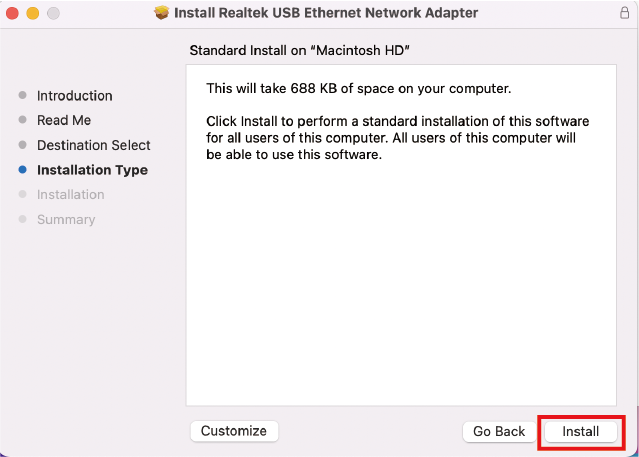
Click Install to perform a standard installation of this Network Adapter.
-
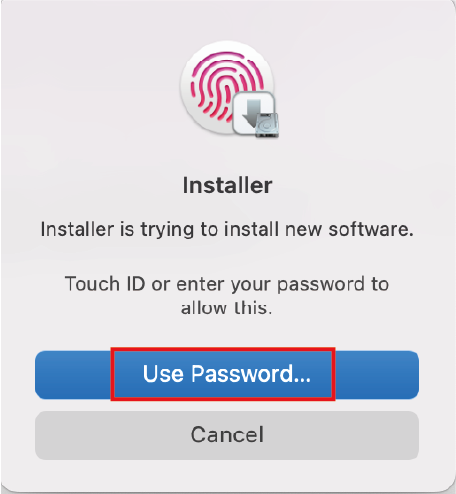
Select Use Password or use Touch ID to allow the software installation.
-
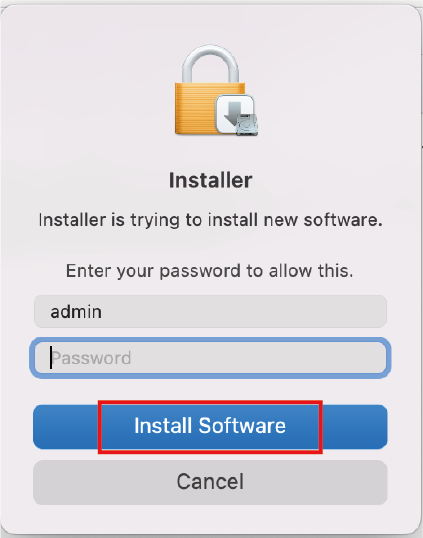
Select Install Software after entering the screen password.
-
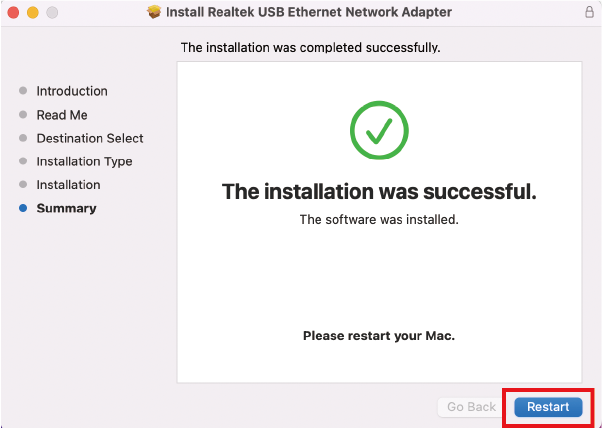
Please wait patiently for the installation to complete, then click Restart.
-
Please restart your Mac.