Chapter 2 4G LTE Mode Configuration
This chapter introduces the steps to configure 4G LTE mode.
4G LTE Mode Configuration
- Hardware Connection
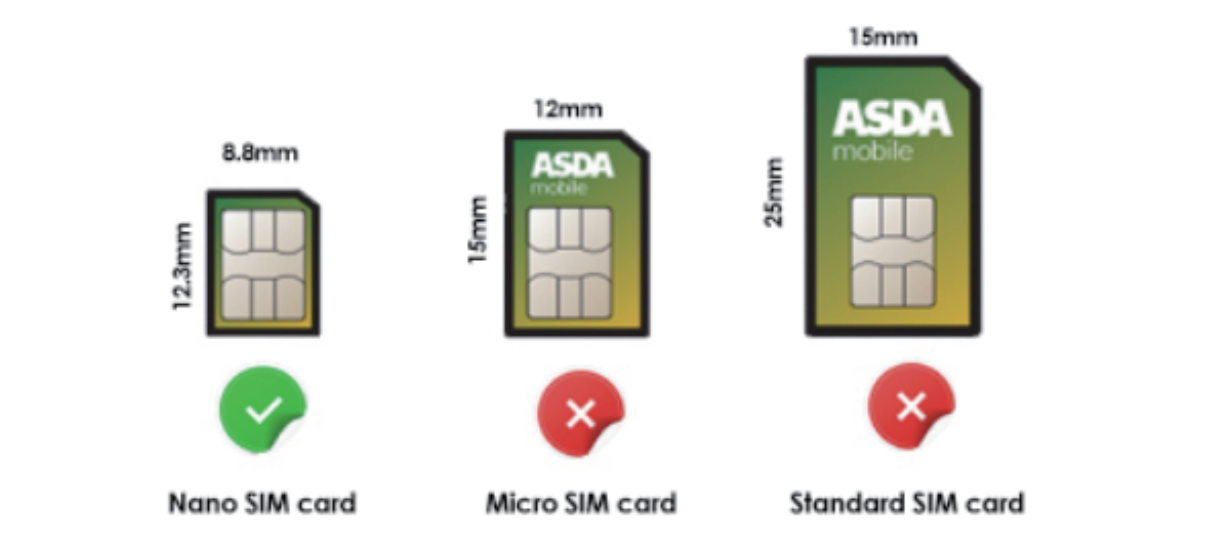
- 1.1 Prepare a compatible Nano SIM card in advance.
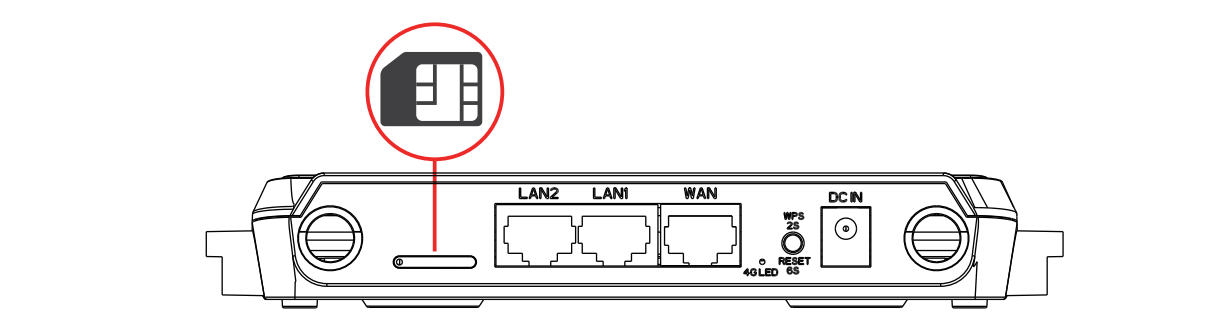
- 1.2 Carefully insert the SIM card into the slot until it clicks into place.
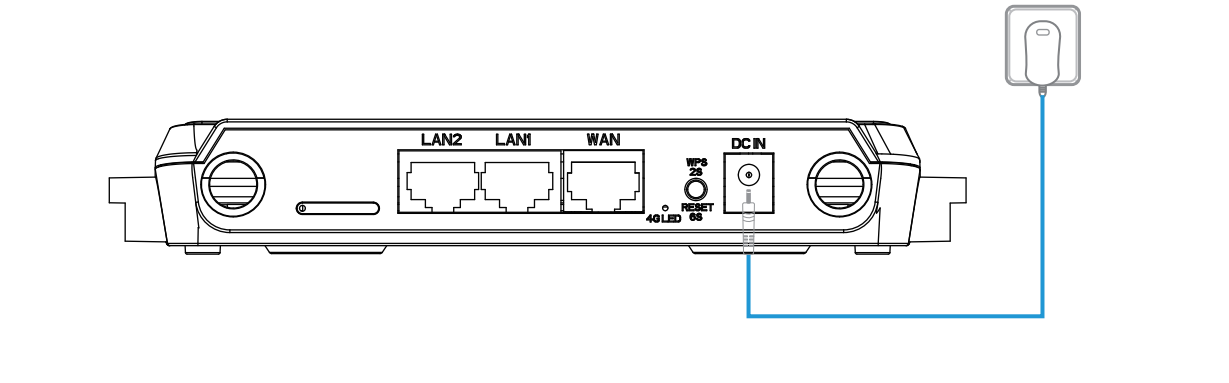
- 1.3 Insert the power adapter into the router’s DC IN port and check the LED’s Status.
- Router Connection Methods
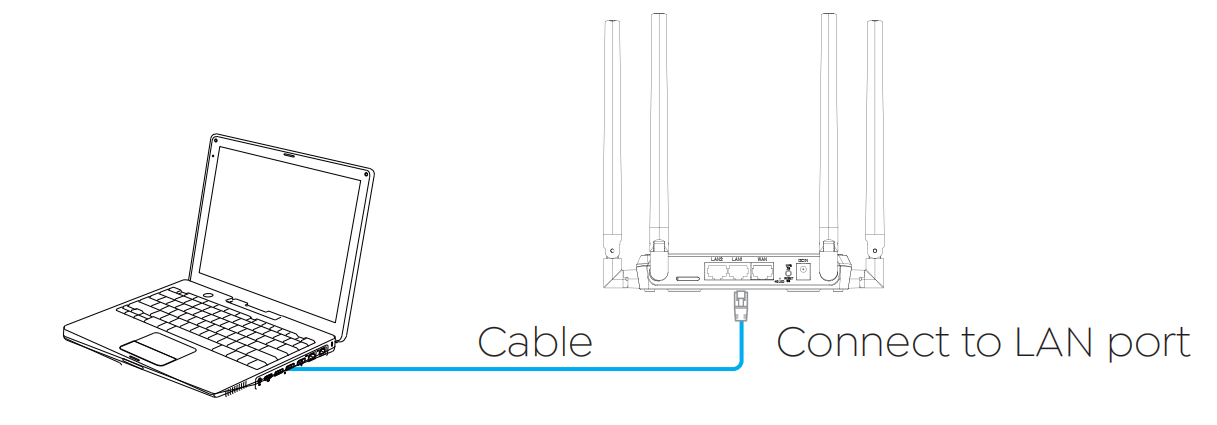
- 2.1 Wired Connection: Use another Ethernet cable to connect your computer to one of the LAN ports on the router.
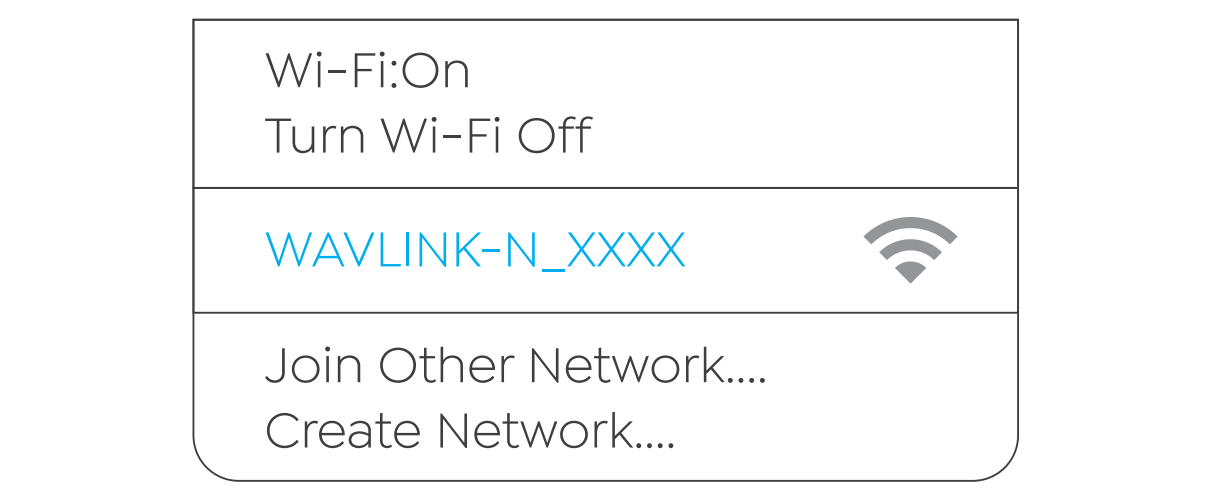
- 2.2 Wireless Connection: On your laptop or smartphone, connect to the default SSID printed on the router: WAVLINK-N_XXXX
- Software Configuration
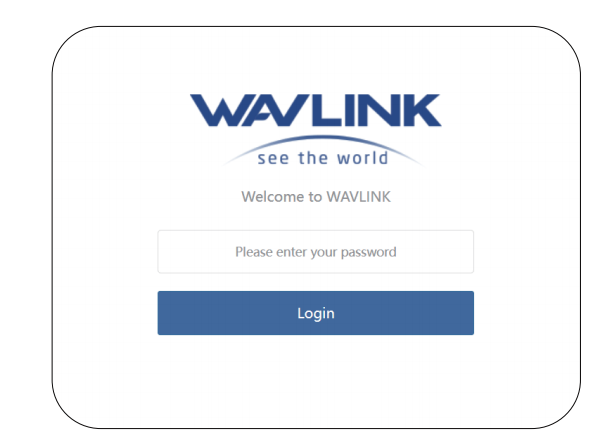
- 3.1 Open a web browser (via wired or wireless connection) and enter http://wavlogin.link in the address bar. You will automatically enter the Wavlink router initial setup page. If not, manually enter 192.168.40.1 in the browser’s address bar.
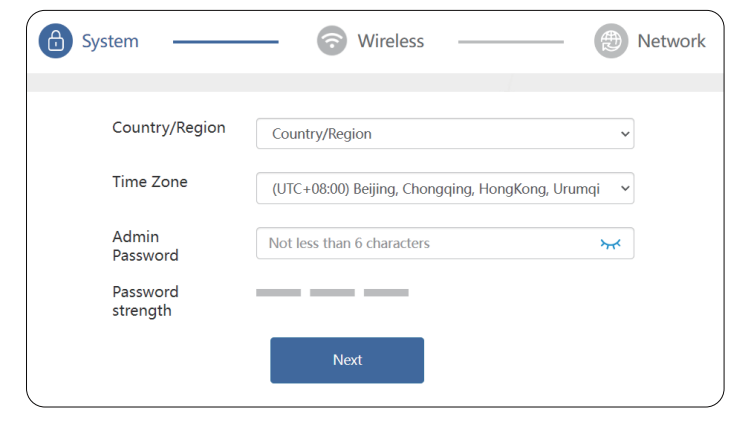
- 3.2. After logging in, select Country/Region and Time Zone, create a New Login Password. Click Next to continue.
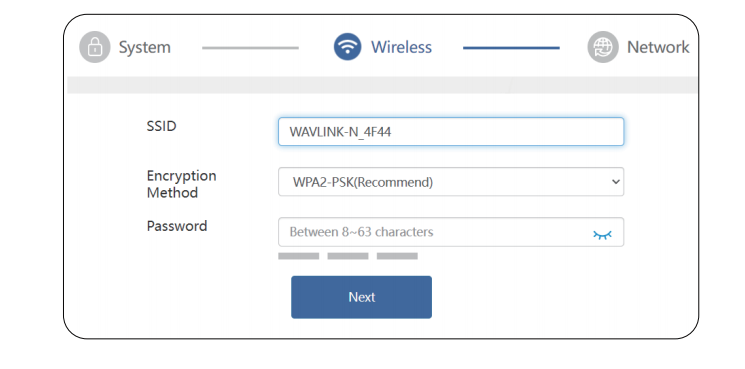
- 3.3 Customize the Wi-Fi SSID, Encryption Method and Password. Click Next to continue.
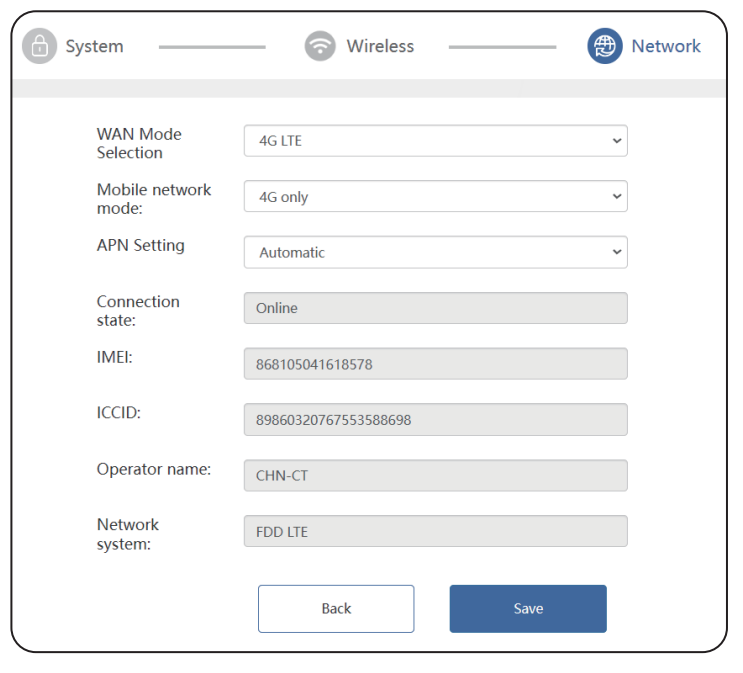
- 3.4 At the Network page, choose 4G LTE for WAN Mode Selection, the system automatically identifies and displays the SIM card information.
-
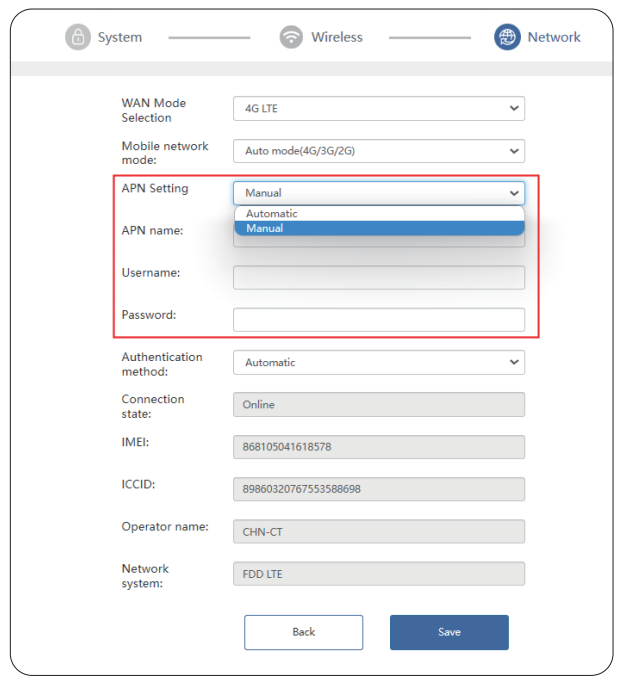
Note: For most service providers, a 4G router will automatically detect APN (Access Point Name) settings. However, on rare occasions, you may need to manually configure the APN settings before accessing the internet. To do so, you must obtain the correct configuration from your mobile service provider in advance.
-
Solution: Set the APN manually Please select Manual to manually enter APN Settings, including APN name,User name, Password, and Authorization information.
-
3.5 Click Save to complete the settings.
-
3.6 Connect to the new Wi-Fi network after the setup is complete.