Chapter 6 FAQ & After-sale Service
This chapter includes FAQ and After-sale Service.
• FAQ
FAQ
Q1. How to figure out the maximum resolution(DP1.2/DP1.4) my laptop supports via type-c port?
- Please contact laptop manufacturer to confirm that.
Q2. Why doesn’t my third monitor display when I set the triple display mode?
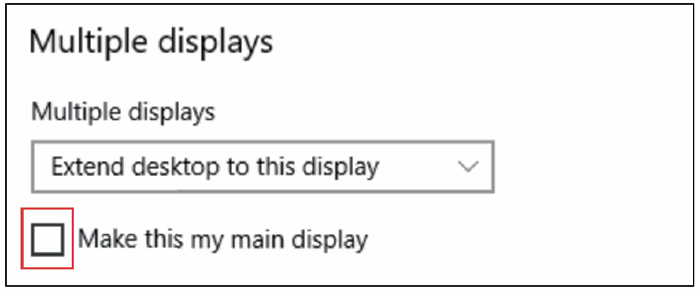
Step 1: Choose the main display
-
Right-click to select “Display settings”.
-
Choose a monitor display and scroll down to “Multiple displays”.
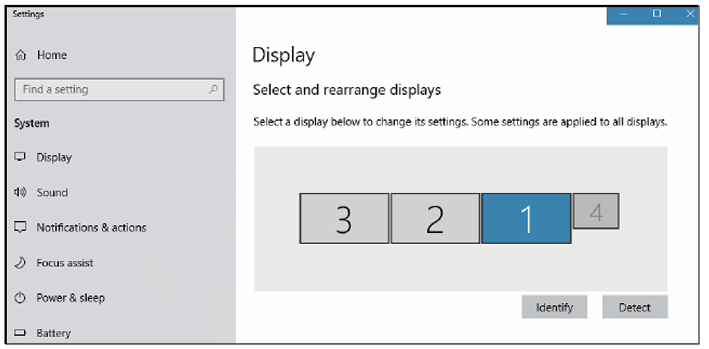
- Mark “Make this my main display”.
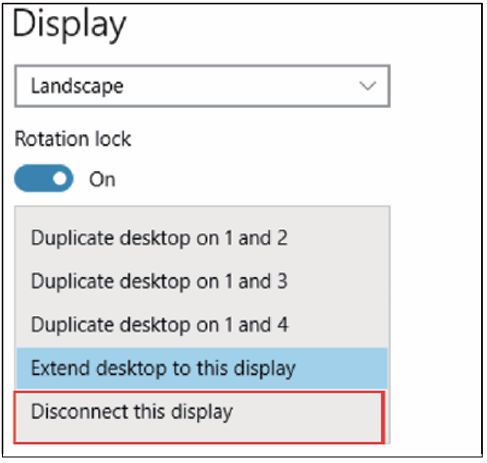
Step 2: Disconnect laptop display
-
Select the laptop display (“1” is the default display for laptop) and scroll down to “Multiple displays”.
-
Select “Disconnect this display”, then laptop display panel will become disconnected.
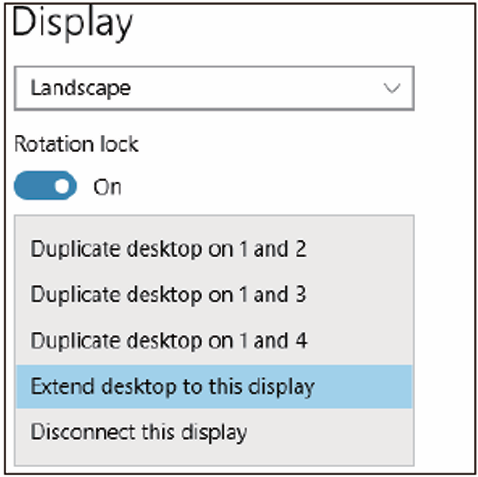
Step 3: Turn on the third monitor display
-
Choose the remaining monitor display then scroll down to “Multiple displays”.
-
Select “Extend desktop to this display” to enable this display.
Q3. Why does it show “slow charging” on my laptop?
- Some users may notice that the charging status shows “slow charging”, this is because some series of laptops have a protection protocol, especially laptops that have both Thunderbolt 3 port and over 100W external DC power adapter. Please solve it by using an external power adapter to charge.
Q4. Why does this Docking power off and reconnect after the PD power supply is unplugged?
- When this Docking switches the power supply from the original PD to the computer power supply, there will be a long delay on the computer that does not support fast switching, resulting in power outage and reconnection on this Docking due to insufficient power supply.
Q5. My Laptop/PC supports PD and DP ALT MODE, but why is it still not working properly?
- Please try to update the PC/Laptop’s BIOS, Graphics Card, and other Drivers to the latest version, or contact our Customer Service.
After-sale Service