Chapter 2 How to Use
This chapter contains the following sections:
Driver Installation
For Windows 10/11/later and MAC OS, it is plug and play, so no driver installation is needed. If the network port of this dock can't be recognized, please visit www.wavlink.com/en_us/WL-UMD301 or www.wavlink.com > Support > Driver > WL-UMD301 to download and manually install the driver.
This dock requires the laptop/PC to support PD and DP ALT mode. Before connecting to the dock, please ensure the USB-C interface of the laptop/PC supports PD and DP ALT mode.
How to Use
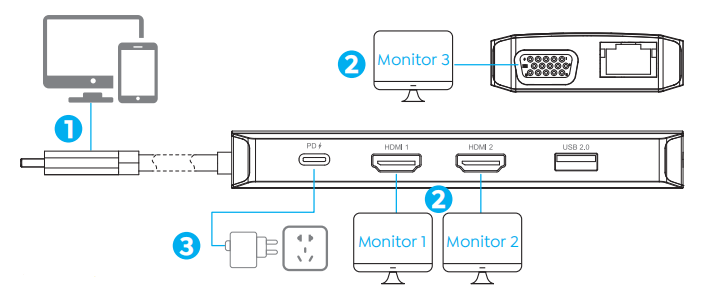
Step 1. Connect the USB-C connector of the docking station to your laptop or phone.
Step 2. This docking station supports triple display. Connect the DP/HDMI ports to the external monitors.
Step 3. If you want to charge your laptop or phone, please connect the USB-C(PD IN) port to the power source.
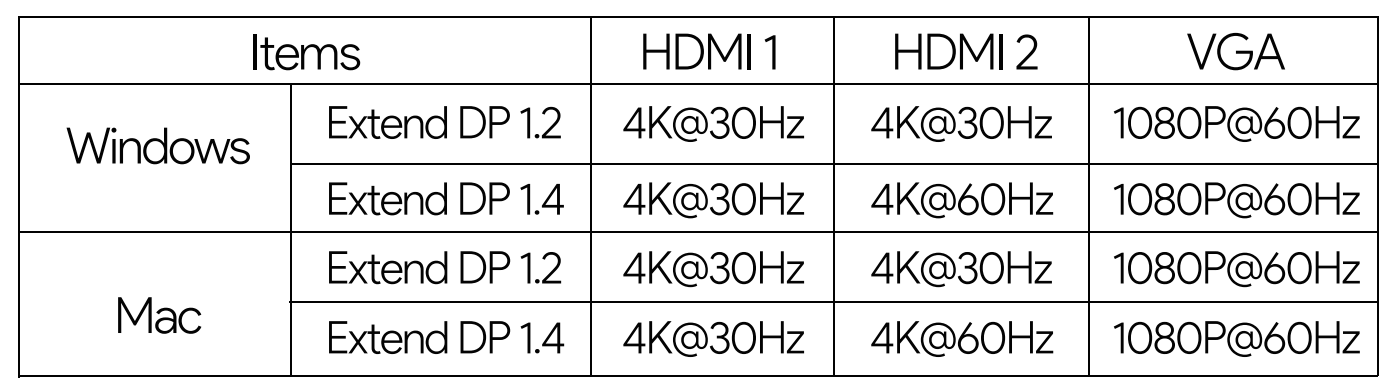
Display Resolution
1.Single Display
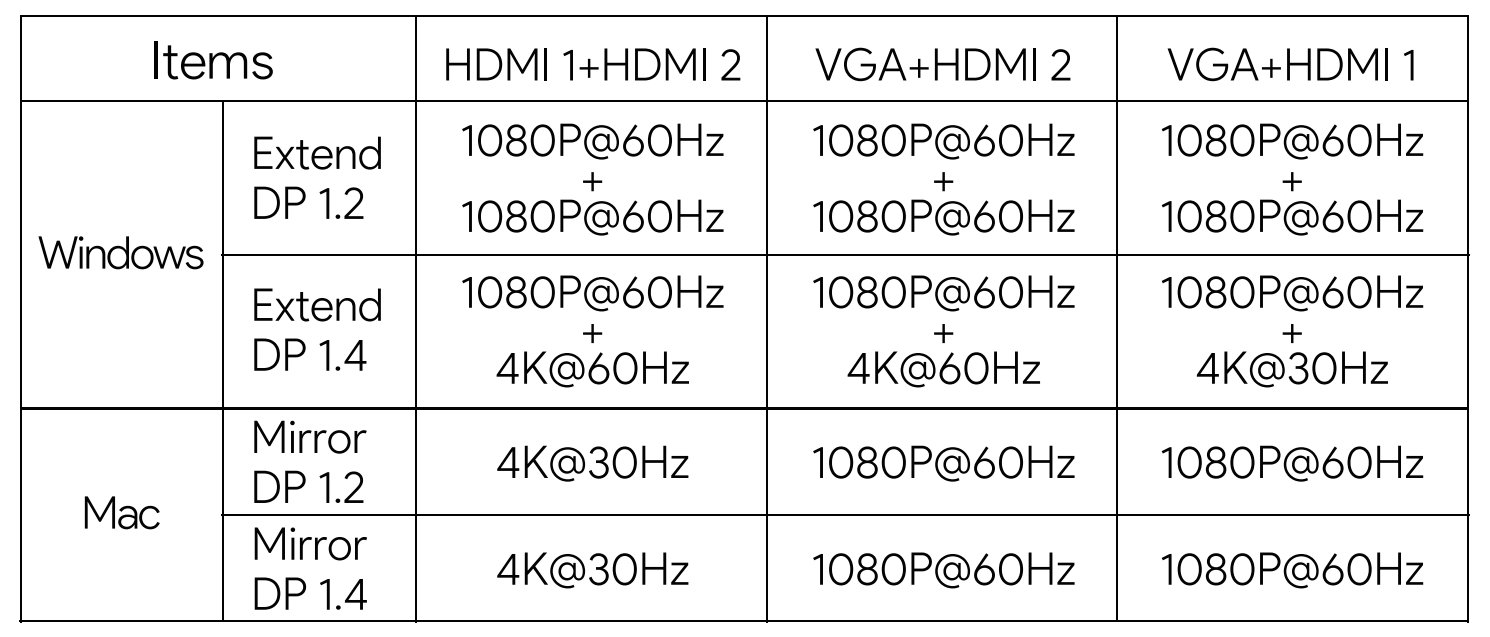
2.Dual Display
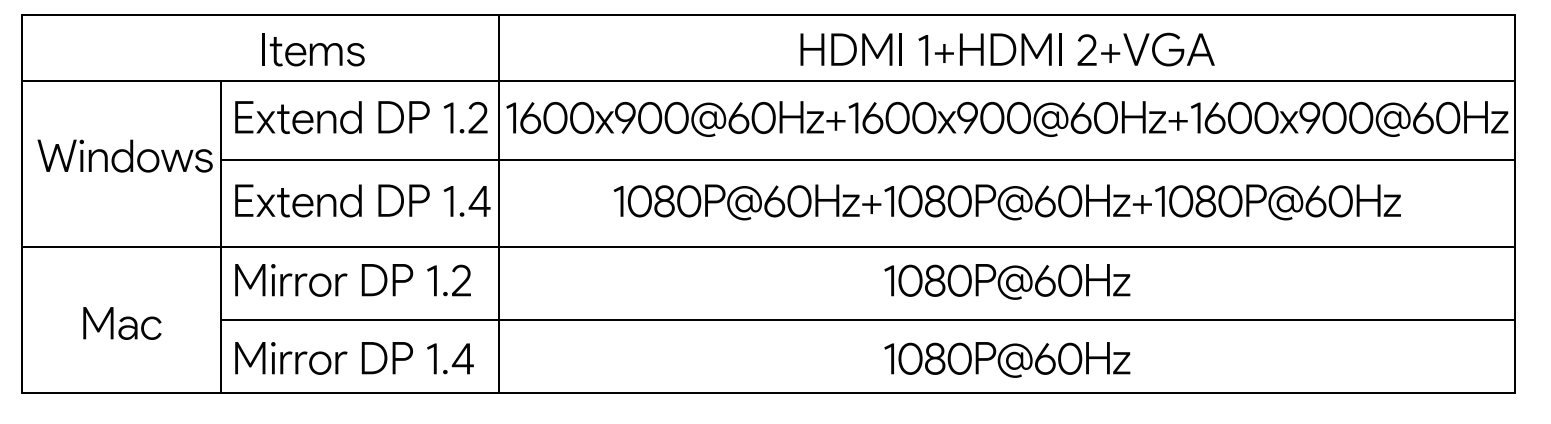
3.Triple Display
Note:
- 4K refers to 3840×2160.
- The above resolutions are factory test results. The resolution may be different depending on the actual situation of the computer and monitor.
- If you want to use the 3 displays with your PC/laptop simultaneously, please make sure that the Graphics card supports at least 4 displays, including your PC's own screen. Check with your PC manufacturer on this.
- Mac OS supports single-stream transport, so only one video source can be output, such as ABB or ABBB (A is the primary display). When multiple monitors are connected, the resolution and refresh rate will be determined by the lowest-spec monitor.
