Chapter 3 Display Resolution and Display Setting
This chapter introduces this docking station's display resolution and display setting.
It contains the following sections:
Display Resolution
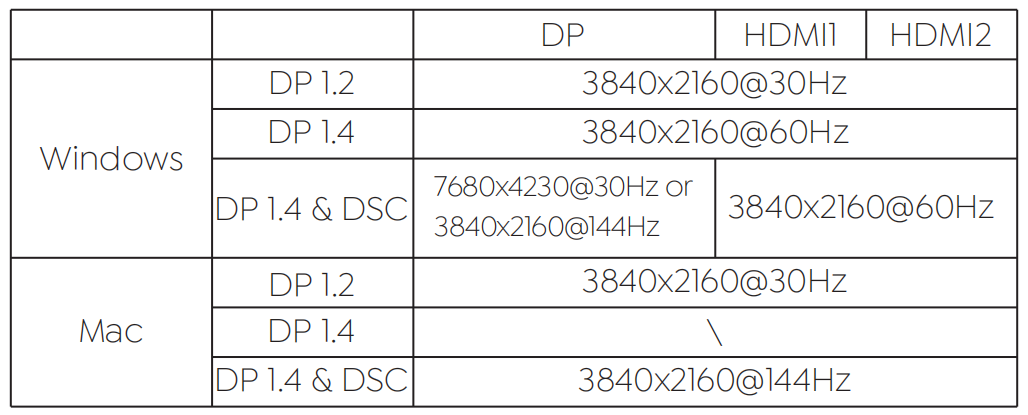
Single Display
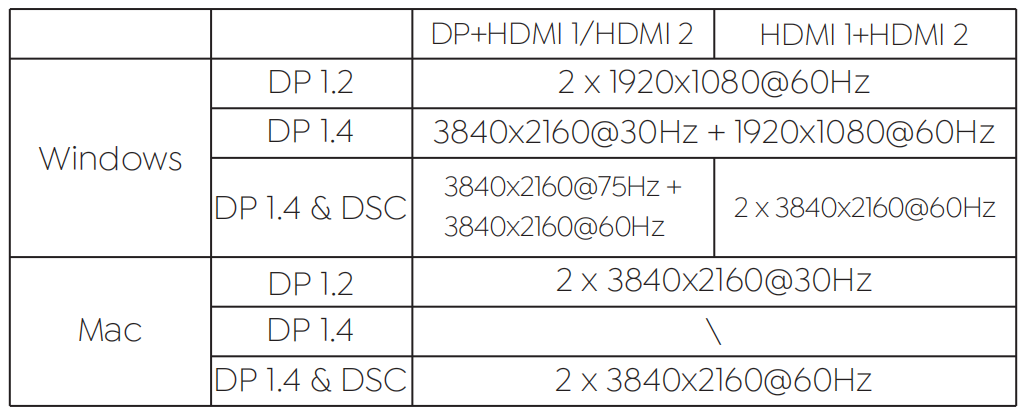
Dual Display
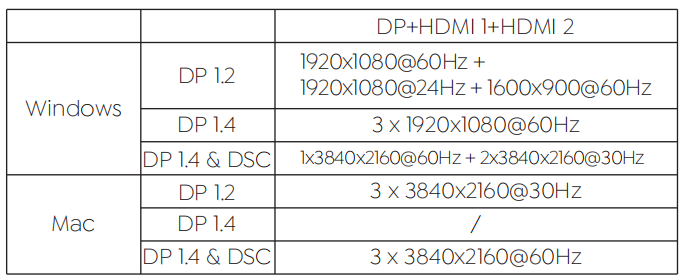
Triple Display
NOTE
- The above resolutions are factory test results; The resolution may be different depending on the actual situation of the computer and monitor.
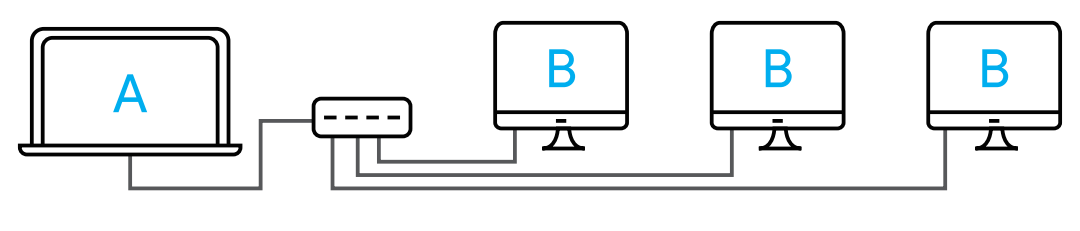
- If you want to use the 3 displays with your PC/laptop simultaneously, please make sure that the Graphics card supports at least 4 displays, including your PCs own screen. Check with your PC manufacturer on this.
- Mac OS supports single-stream transport, so only one video source can be output, such as ABBB (A is the primary display).
Display Setting
For Windows Users
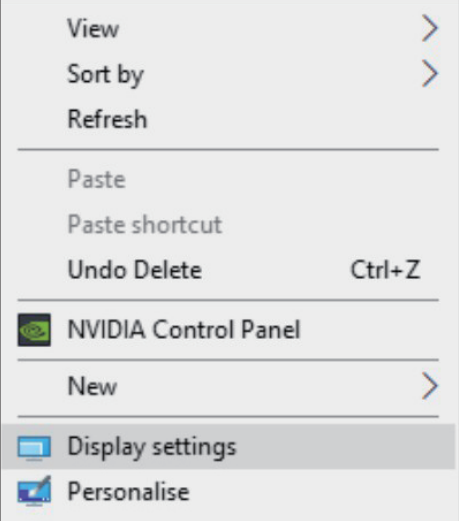
1.Right-click at any spot on your desktop and select "Display settings".
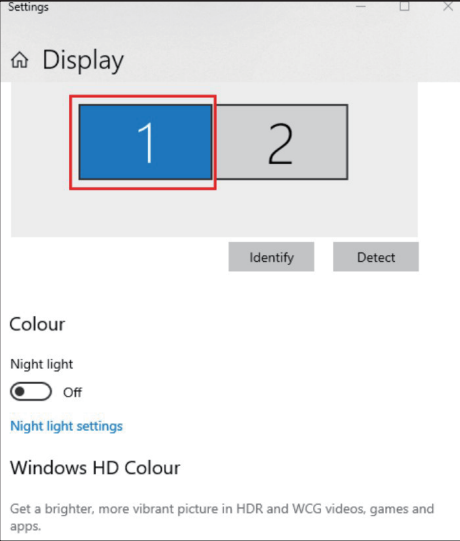
2.In "Display", please select either monitor 1 or monitor 2.
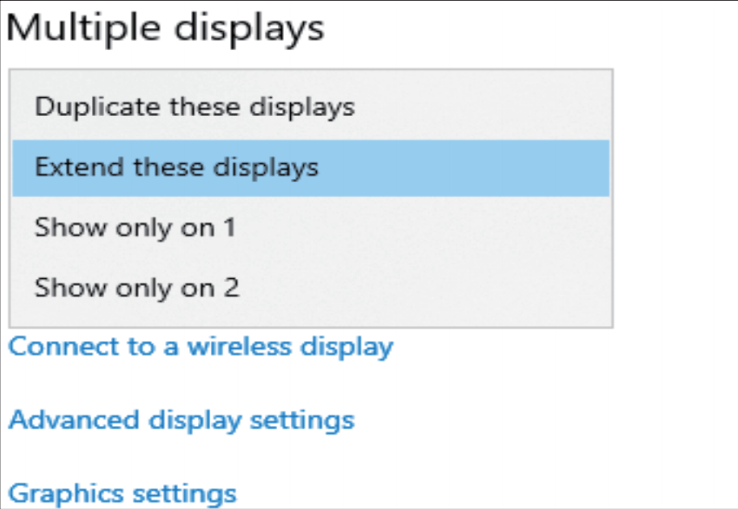
3.Scroll down to the "Multiple displays", and select the mode in the drop-down list that is fit for your need.
For Mac OS Users
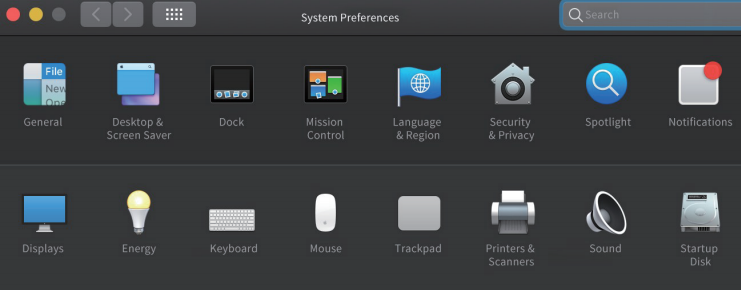
1.Select "System Preferences" and choose "Displays".
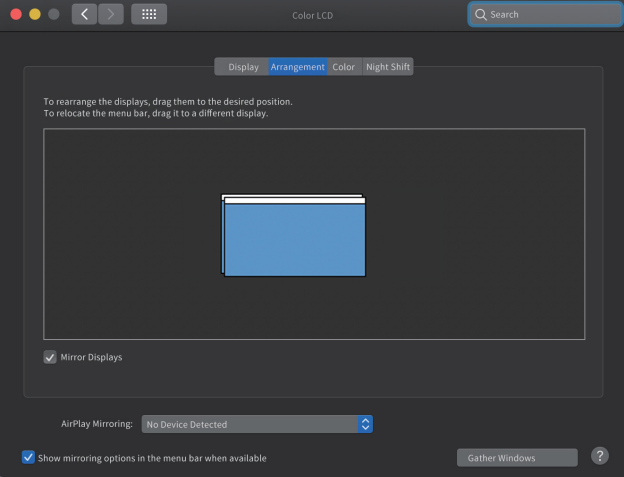
2.Click on "Arrangement" to change the position of displays currently connected.
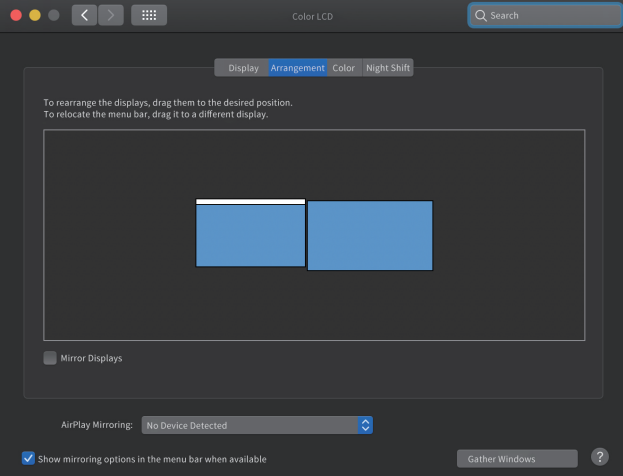
3.Select either extend or mirror mode on your demand.