Chapter 3 Driver Installation and Display Mode
DRIVER INSTALLATION
The DisplayLink driver will be automatically installed when your Windows 10/11 host has connected to the Dock and is on the Internet, if the automatical installation doesn't happen, please enter the www.wavlink.com/en_us/WL-UG3501H to find and download the corresponding driver for this adapter and install it as the following steps:
For Windows
1.Locate the downloaded folder and double-click the driver file you just downloaded.
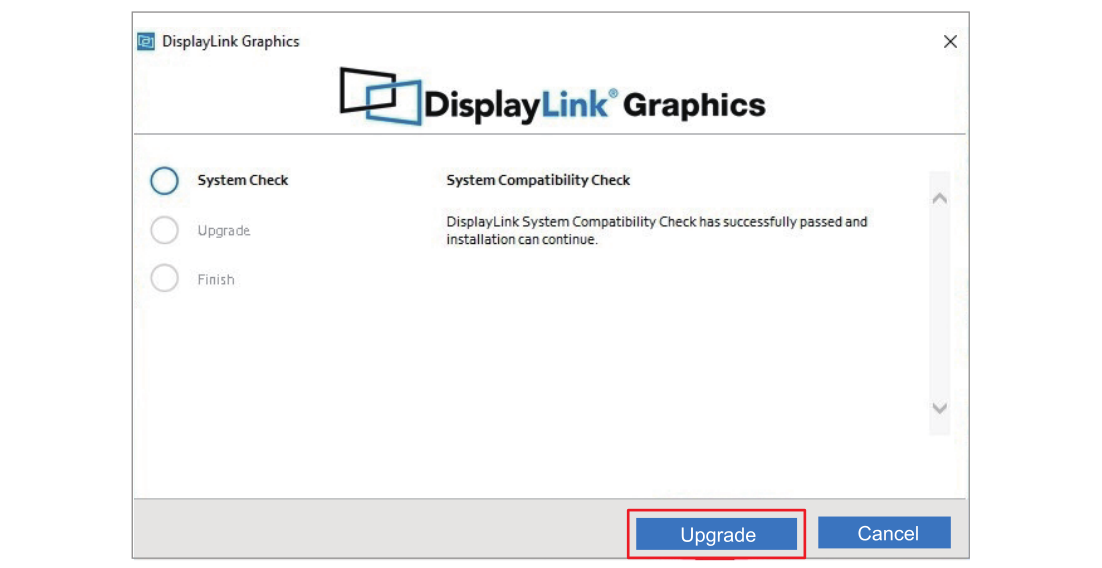
2.Open the file and then follow guide to install the Driver; lf your Windows host has ever installed the Driver, open the file and then click Upgrade.
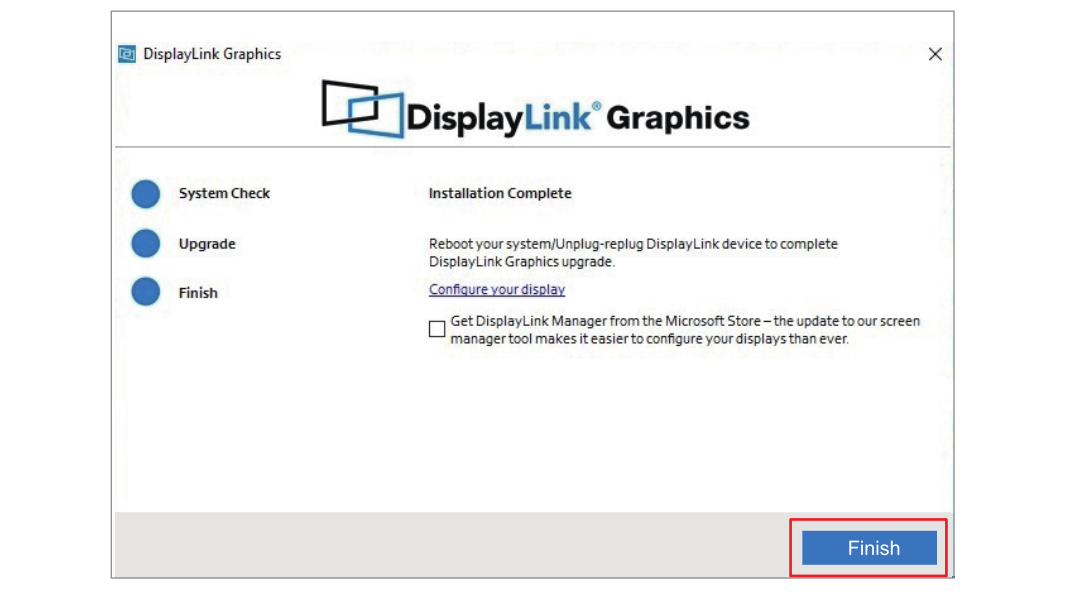
3.Please wait patiently for the completion of the installation. After finishing installation, click Finish.
For Mac
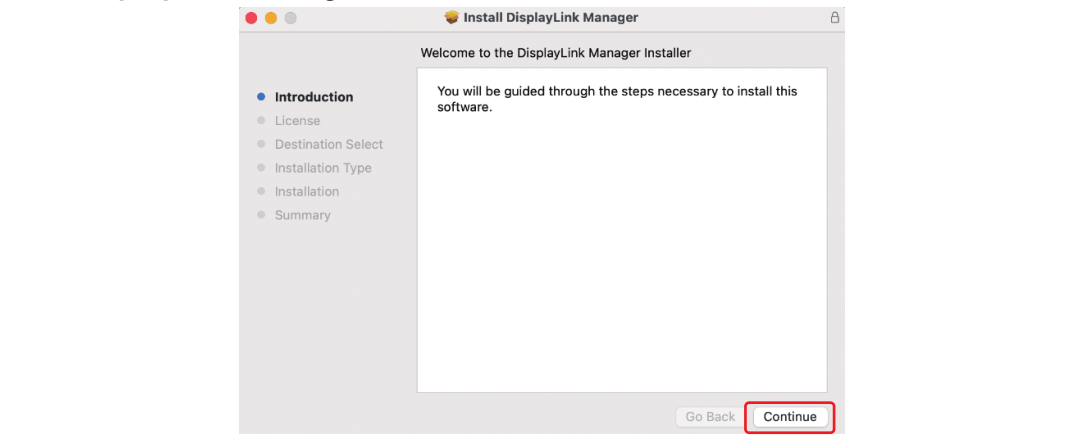
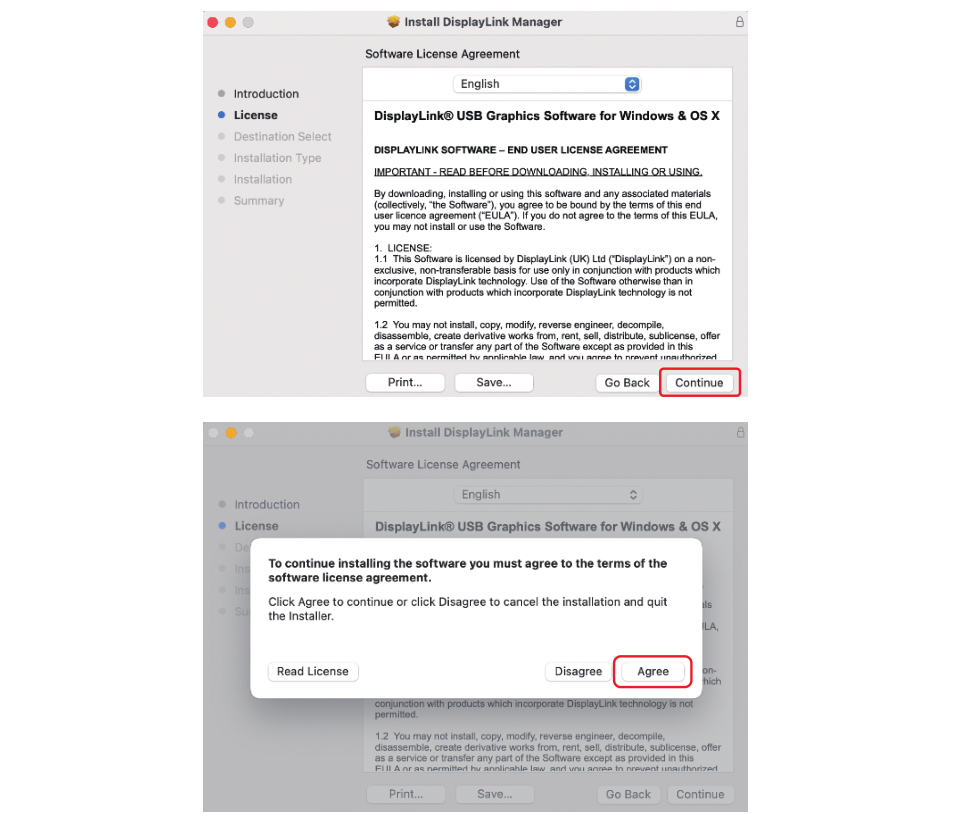
1.Double-click the driver file you just downloaded, navigate to the Install DisplayLink Manager window, click Continue.
2.Click Continue to the next window, then click Agree.
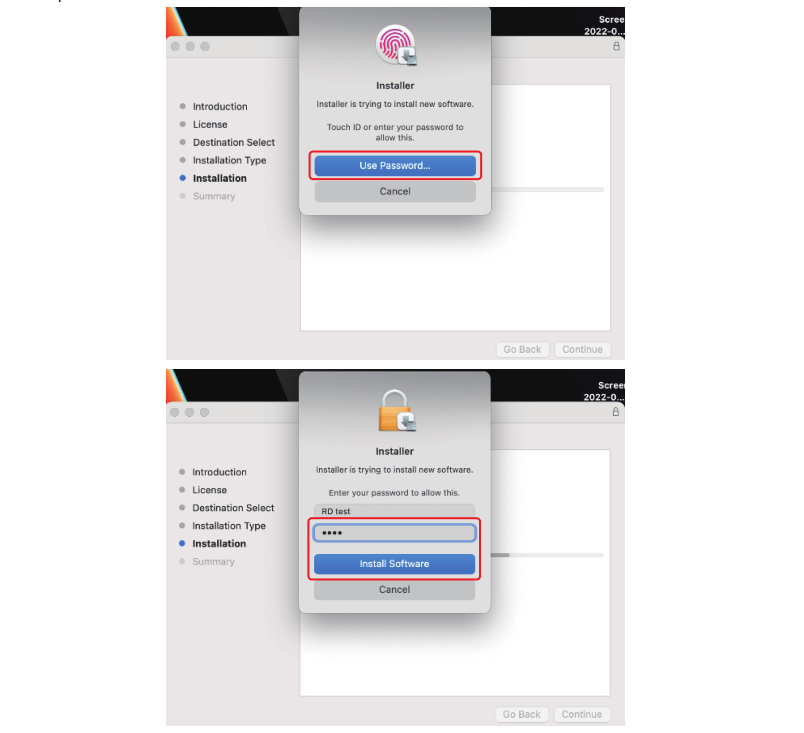
3.Click Install and choose Use Password, then enter the screen password and click Install Software.
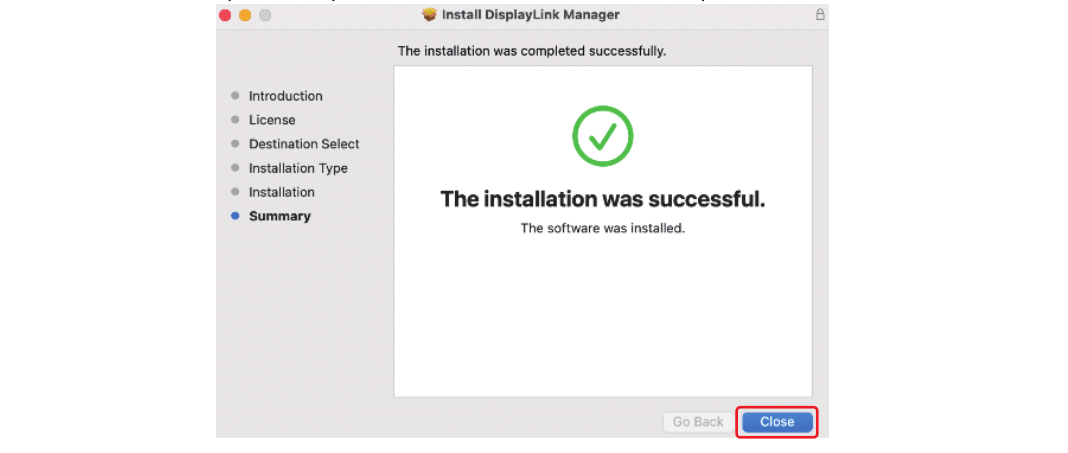
4.Please wait patiently for the installation to complete, then click Close.
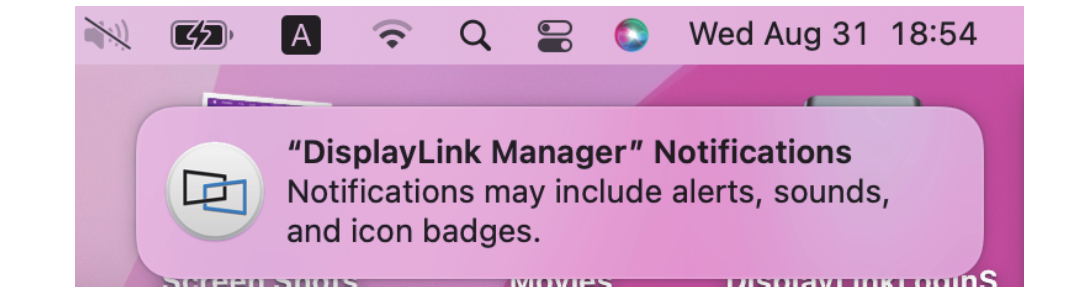
5.If you have enabled notifications from DisplayLink Manager, it will remind you to allow screen recording when it detects that this permission is missing.
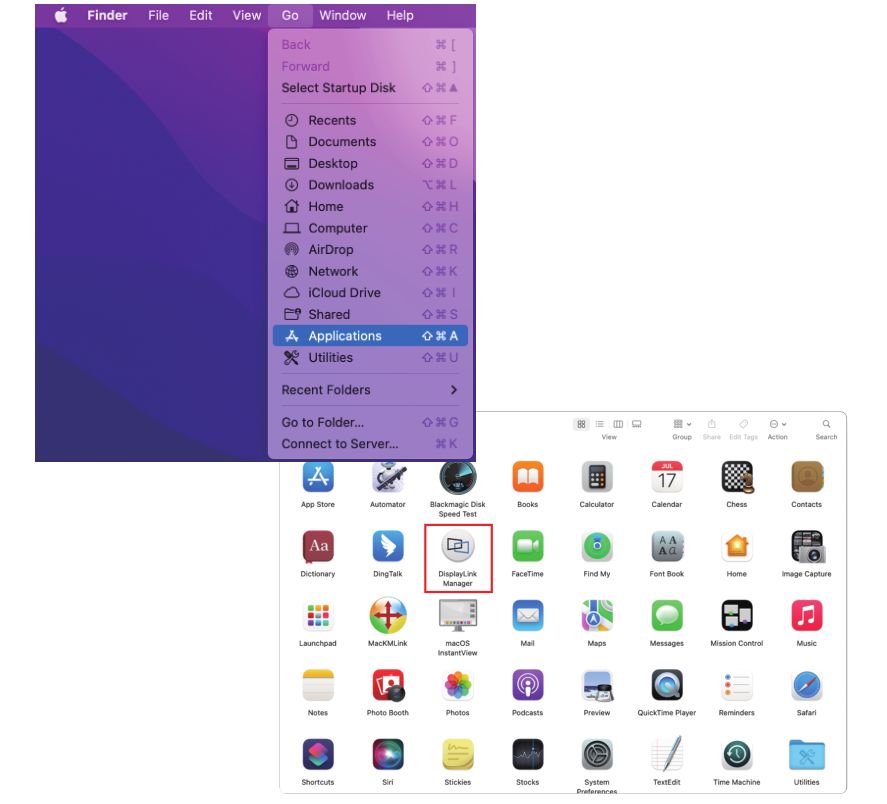
6.If you didn't get the notification from DisplayLink Manager, please click Go in the function bar at the top left of screen, then select Applications and click DisplayLink Manager.
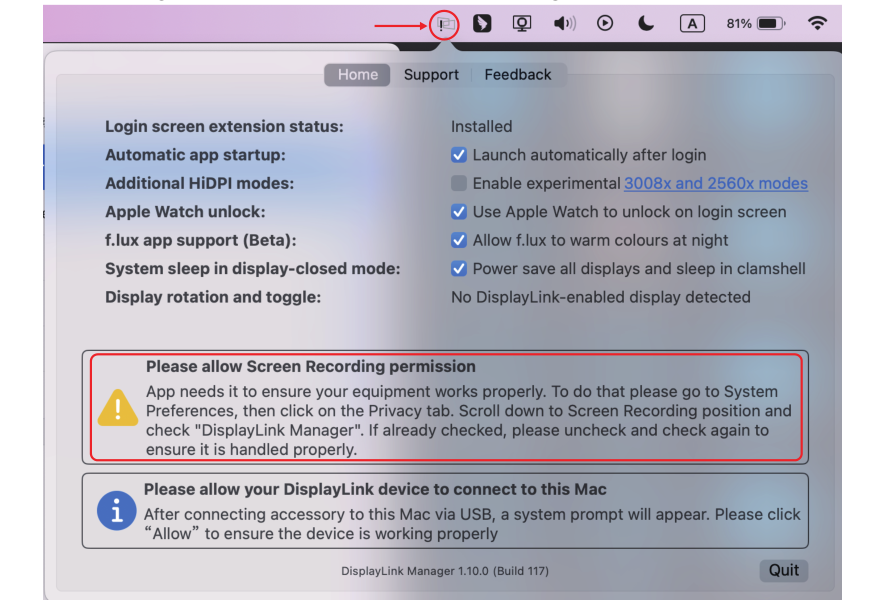
7.Click the DisplayLink Graphics icon in the function bar at the top right of the screen, and the notification will also appear in the DisplayLink Manager window. A warning is found here, you should allow the screen recording permission for DisplayLink Manager.
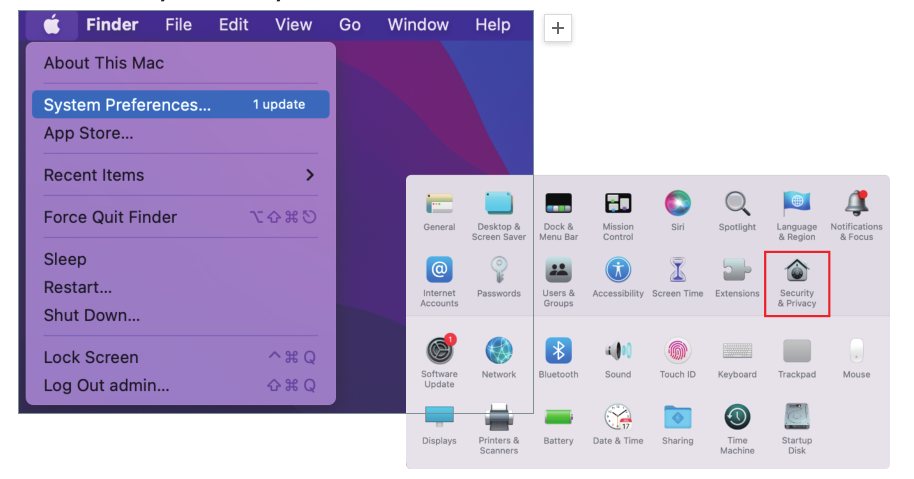
8.Click the Apple icon → System Preferences, then double click Security & Privacy.
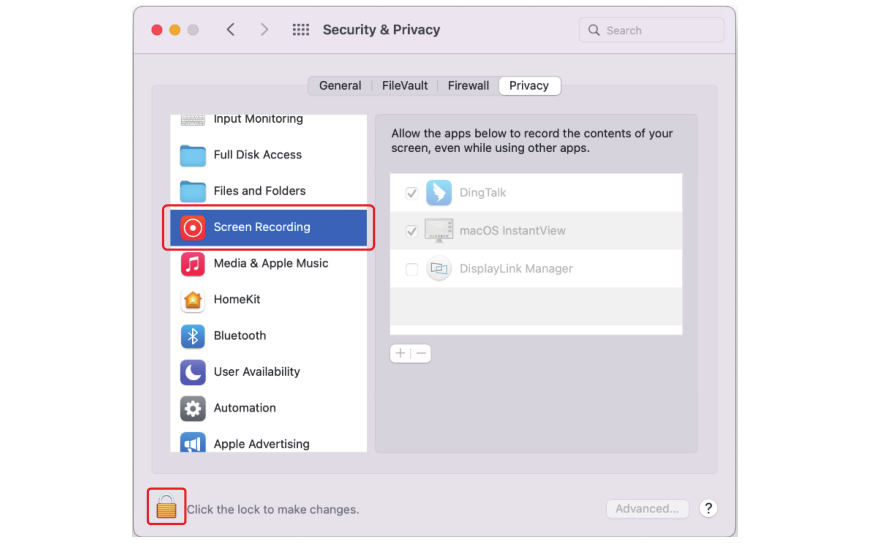
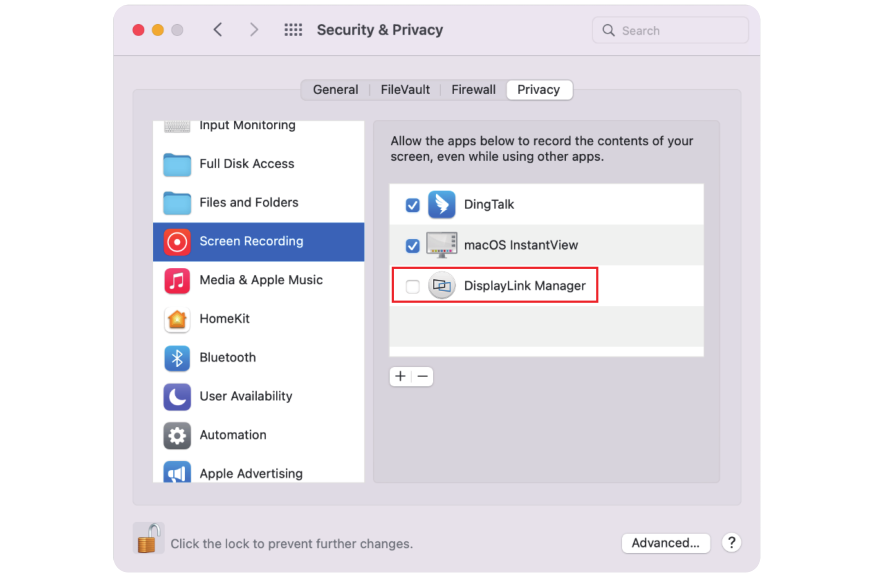
9.Enable Screen Recording to allow the DisplayLink Manager application to capture pixels and send them to your USB peripheral:
9.1 Select Screen Recording in Privacy tab.
9.2 Click the "lock" icon at the bottom left of the window to unlock.
10.When the small window pops up, choose a password or use your fingerprint to unlock.
10.1. lf you use password to unlock, and click Use Password, then enter your password and choose Unlock.
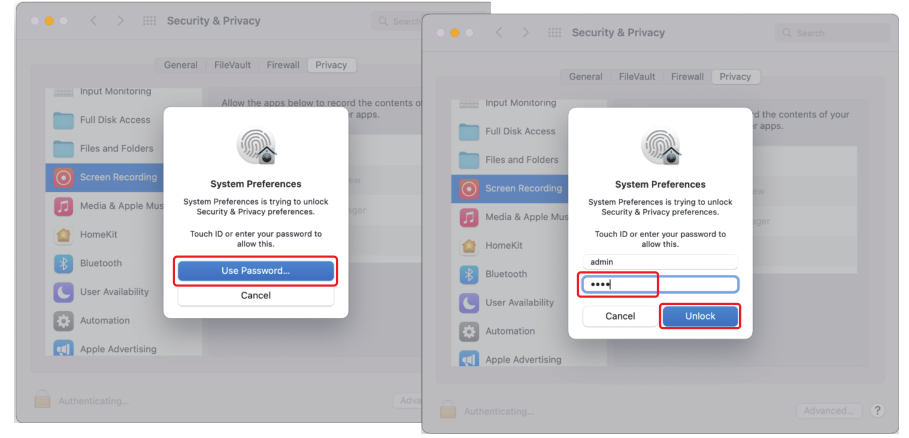
10.2. lf you use fingerprint to unlock, it will jump directly to the next step.
11.Check the DisplayLink Manager in the right list.
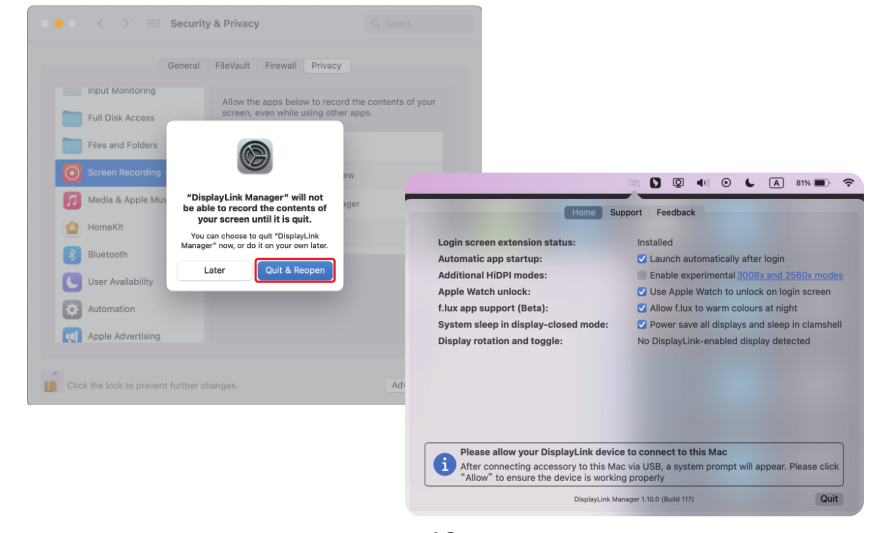
12.Click Quit & Reopen to restart the driver, then you can click the DisplayLink Graphics icon in the function bar at the top right of the screen to ensure whether the warning has been lifted and whether the driver can work properly.
DISPLAY MODE SETTING
Before configuring the settings, please make sure this docking station has been connected to your laptop and monitors correctly.
For Windows
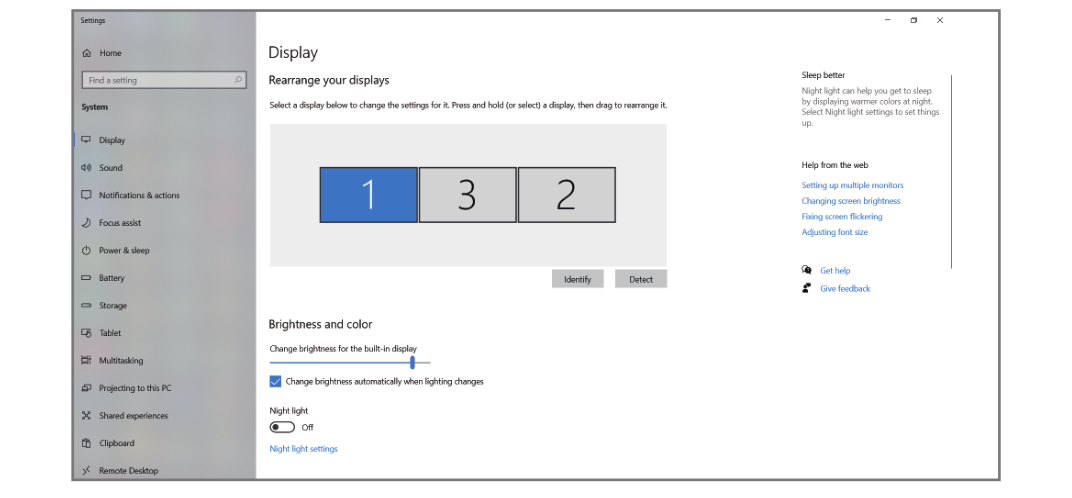
1.Right-click->Display settings.
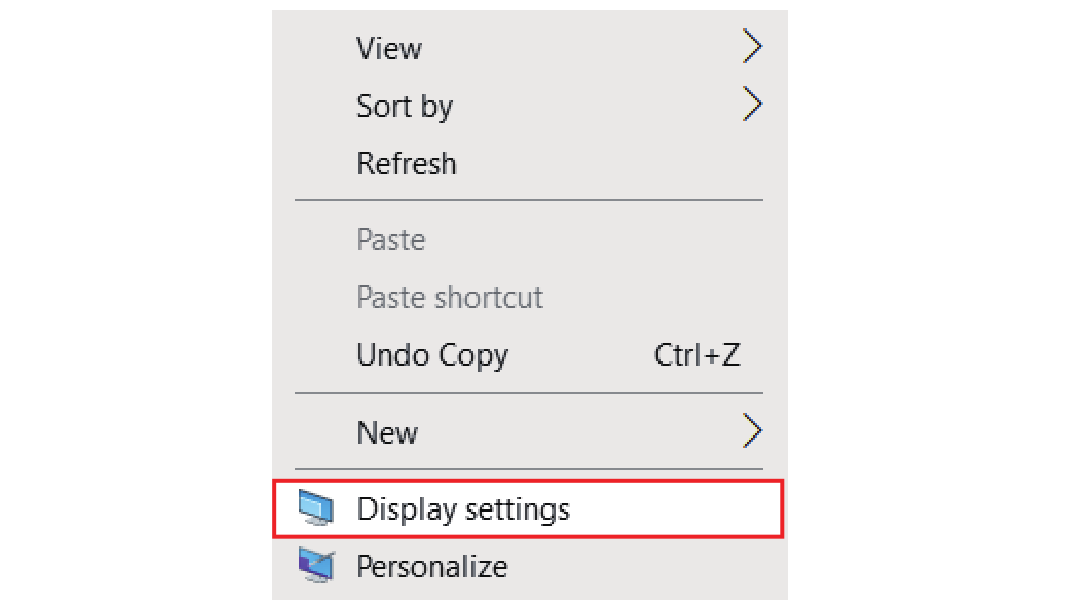
- In "Display", you can enjoy different operations of duplicating, extending and rotating on your monitors.
For Mac OS X12 or Below
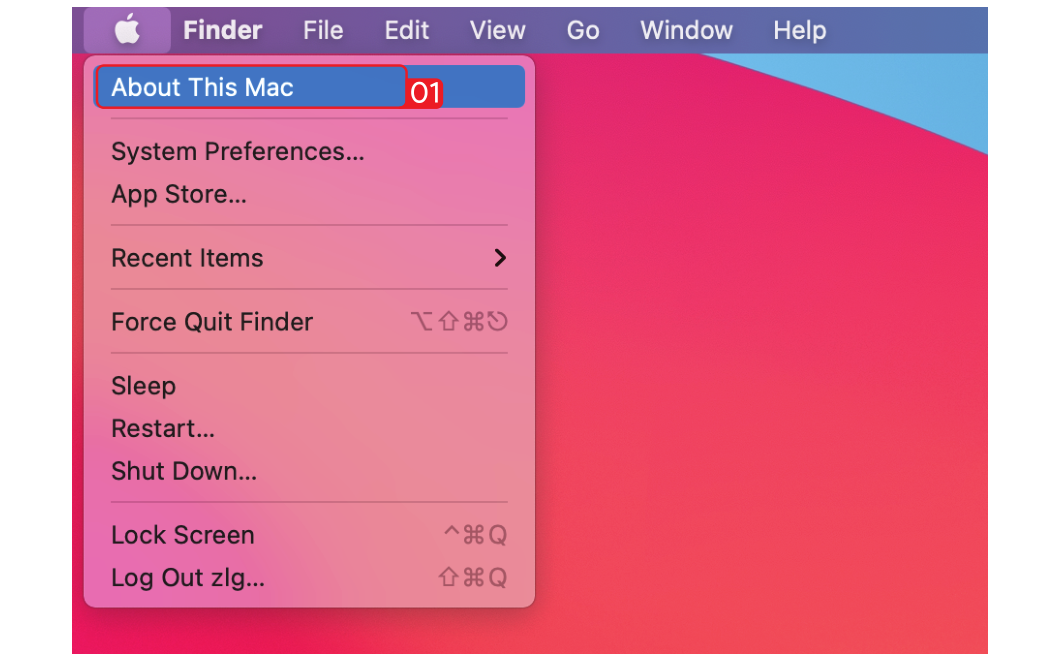
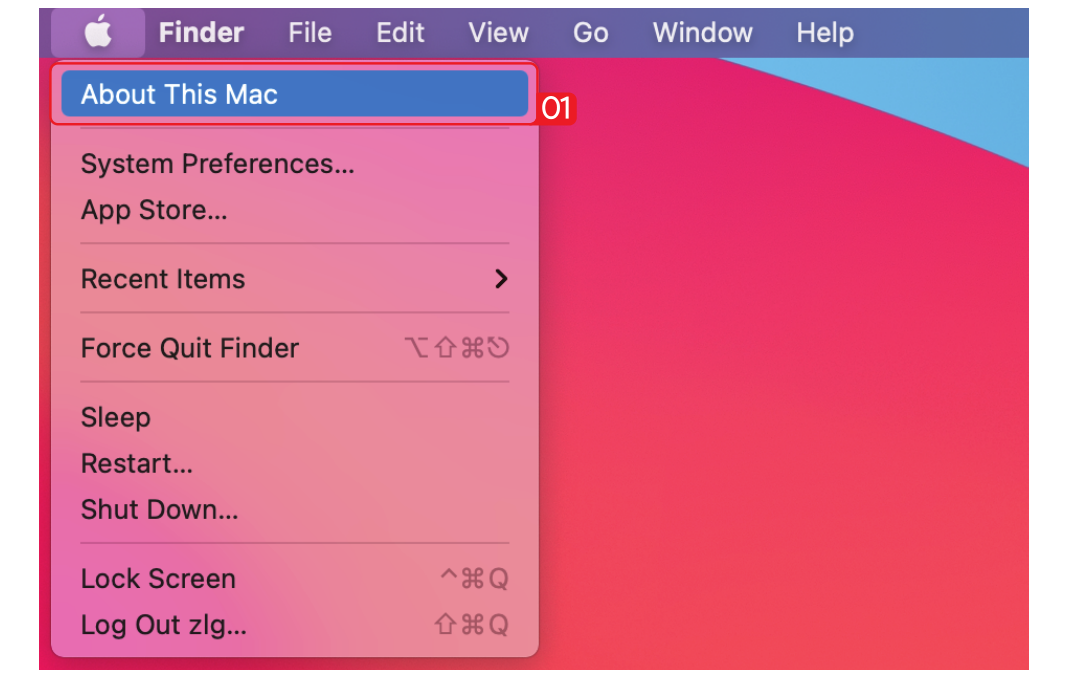
1.Click Apple icon ->About This Mac.
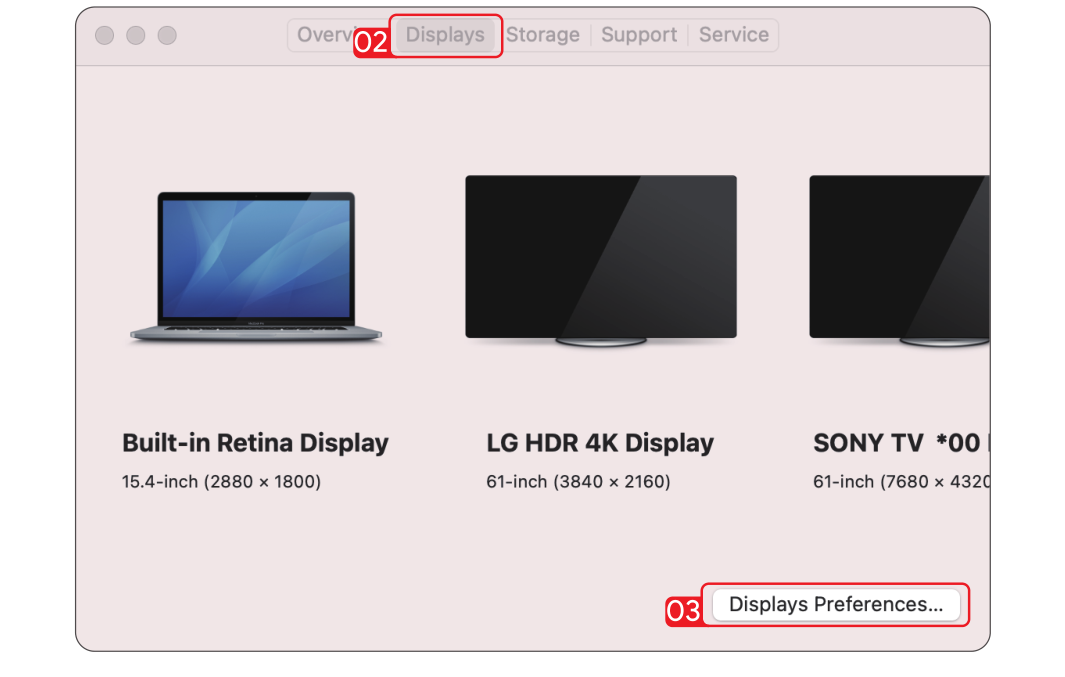
2.Click Displays->Displays Preferences.
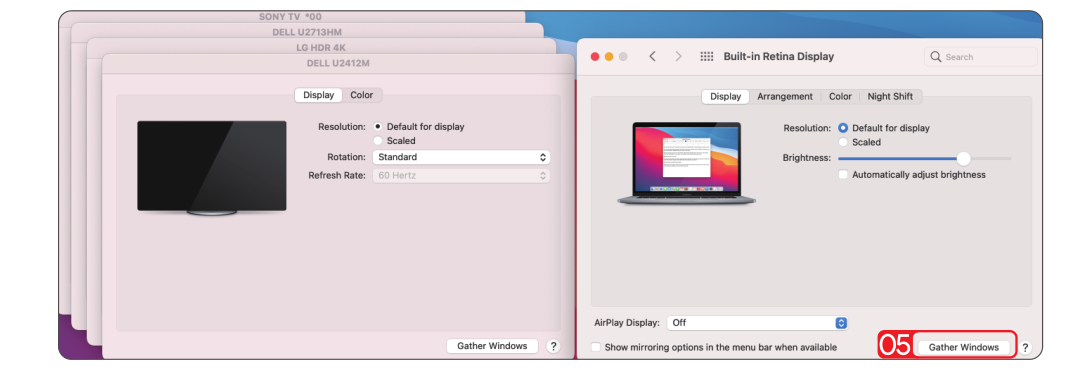
3.Select "Display" from the list, then you can enjoy different operations of mirroring, expanding and rotating on your monitors.
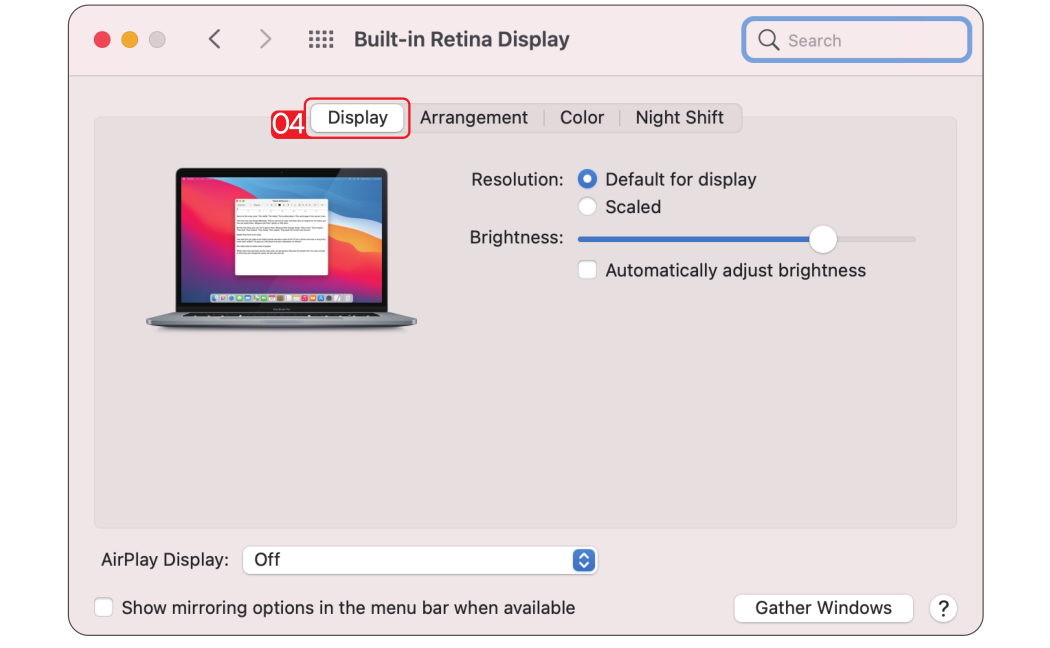
4.Or click "Gather Windows" to gather all connected displays and make separate settings.
For Mac OS X13
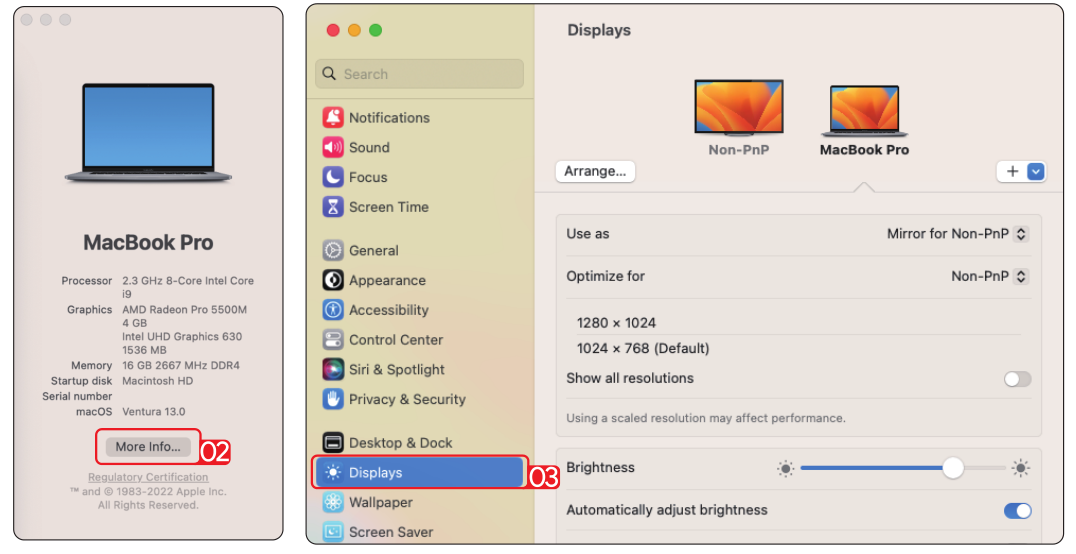
1.Click Apple icon ->About This Mac.
2.Click "More Info...
3.Select "Displays" from the list, then you can enjoy different operations of mirroring, expanding and rotating on your monitors.