Everything Mesh Setup Guide
This chapter contains the following sections :
Everything Mesh Setup Guide
Everything Mesh Model
| Model | Mesh Router | Mesh Extender | LAN Backhaul | Pair Button Name |
|---|---|---|---|---|
| WN531AX3/LUX DX7 | ✔ | ✔ | ✔ | PAIR |
| WN586X3/MIGHTY EX1 | ✔ | ✔ | ✔ | PAIR/Reset |
| WN587X3/MIGHTY EX2 | ✔ | ✔ | ✔ | PAIR/Reset |
| WN583AX3/AERIAL D6X | ✔ | ✔ | ✔ | WPS |
| WN573HX3/AERIAL HD9/Greenwood 6 3000P | ✔ | ✔ | ✔ | PAIR/Reset |
| WN530BE1-A/Skyline Stream 4 | ✔ | ✔ | ✔ | PAIR/Reset |
| WN530BE2-A/Skyline Stream 5 | ✔ | ✔ | ✔ | PAIR/Reset |
| WNF100X3NR-B/QuantumWave 5G Base | ✔ | ✘ | ✘ | PAIR |
| WN573HX1-B/AERIAL HD6/Greenwood 6 1800P | ✔ | ✔ | ✔ | PAIR/Reset |
| WN592AX6-A/Giant Stream6 | ✔ | ✔ | ✔ | PAIR |
| WN536AX6-A/MIGHTY LX2 | ✔ | ✔ | ✔ | PAIR |
| WN586X3-B/MIGHTY EX1 Pro | ✔ | ✔ | ✔ | PAIR/Reset |
| WN588HE6D-A/AERIAL 4G6 | ✔ | ✘ | ✘ | PAIR/Reset |
| WN588HE4D-A/AERIAL HD9D | ✔ | ✘ | ✘ | PAIR/Reset |
| WN572HE4-A/WING 12ML | ✔ | ✘ | ✘ | PAIR/Reset |
| WN588HX3-B/AERIAL HD9S/Greenwood 6 3000S | ✔ | ✔ | ✔ | PAIR/Reset |
| WN588HA2-A/AERIAL HD8S | ✔ | ✔ | ✔ | PAIR/Reset |
| WN573HP3-A/AERIAL HD10/Greenwood 6 3000D | ✔ | ✔ | ✔ | PAIR/Reset |
| WN573HP3T-A/AERIAL HD10T | ✔ | ✔ | ✔ | PAIR/Reset |
| WN572HP3-B/WING 12HP/Greenwood 5 1200G | ✔ | ✔ | ✔ | PAIR/Reset |
| WN583HX3-A/AERIAL D6XH | ✔ | ✔ | ✔ | WPS |
| WN583BE1/AERIAL D3E | ✔ | ✔ | ✔ | WPS |
| WN5372BE1(HALO Nexus X1)/WN5372BE2(HALO Nexus X2)/WN5372BE3(HALO Nexus X3) | ✔ | ✔ | ✔ | PAIR |
| WN551X1-A(HALO Pulse X1)/NN551X2-A(HALO Pulse X2)/WN551X3-A(HALO Pulse X3) | ✔ | ✔ | ✔ | PAIR |
| WN551X1-B(CUBE AIR X1)/WN551X2-B(CUBE AIR X2)/WN551X3-B(CUBE AIR X3) | ✔ | ✔ | ✔ | PAIR |
| WN553X1-A(CUBE PRO X1)/WN553X2-A(CUBE PRO X2)/WN553X3-A(CUBE PRO X3) | ✔ | ✔ | ✔ | PAIR |
| WN553X1-B(HALO AIR X)/N553X2-B(HALO AIR X2)/WN553X3-B(HALO AIR X3) | ✔ | ✔ | ✔ | PAIR |
How to Add New Mesh Device
If you need to add more mesh devices to build up a stronger network in your home, you simply need to pair the new mesh devices with the existing network, The mesh router is capable of connecting up to 6 mesh WiFi nodes to create a mesh network.
Note:
Before adding the mesh device, please make sure that: The main router has been successfully configured and can access the Internet normally. The mesh extender to be added is in factory setting status.
Option 1: Pairing on the Web
- Log in to http://www.wavlogin.link or http://www.waplogin.link.
- Click More->Mesh->Mesh Devices or Advanced->Mesh Network.
- Click Add and then follow the prompts on the screen.
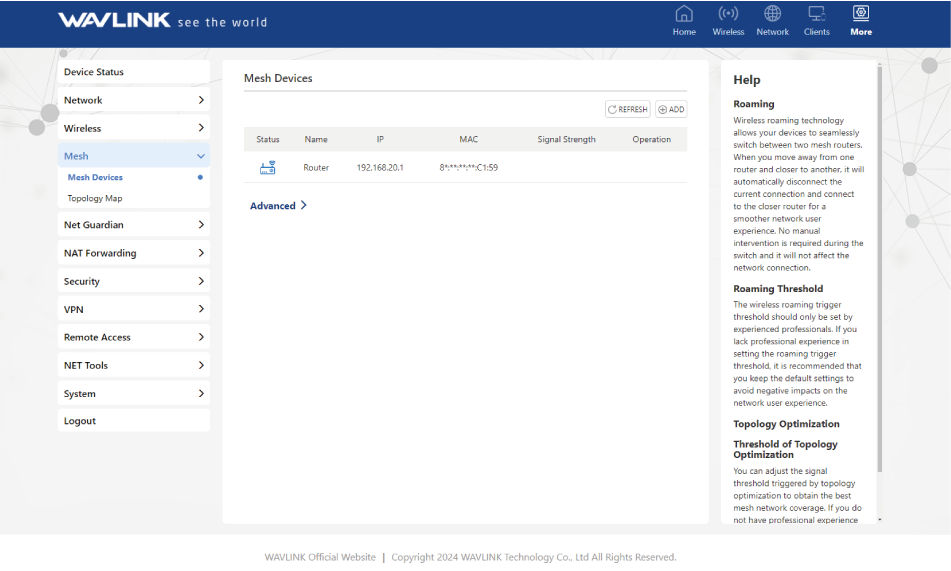
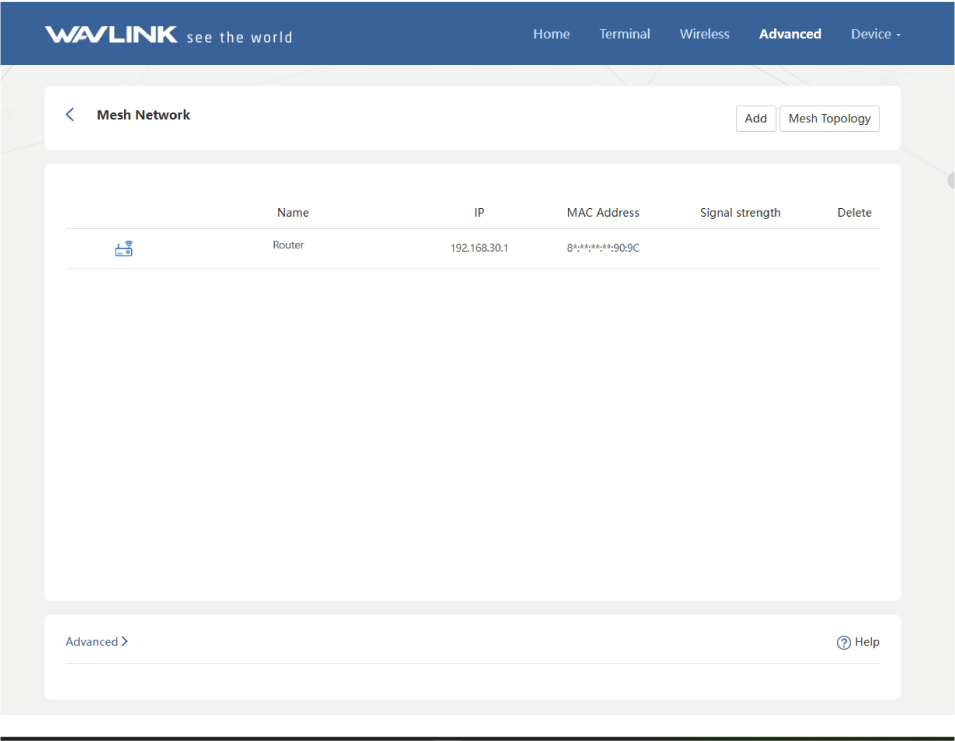
If the mesh node to be added is not scanned:
①Please check whether the main router can access the Internet normally.
②Please judge whether the mesh extender has successfully started pairing status according to the LED status.
③Please rescan it after using.
Option 2: Pairing with Pair Button
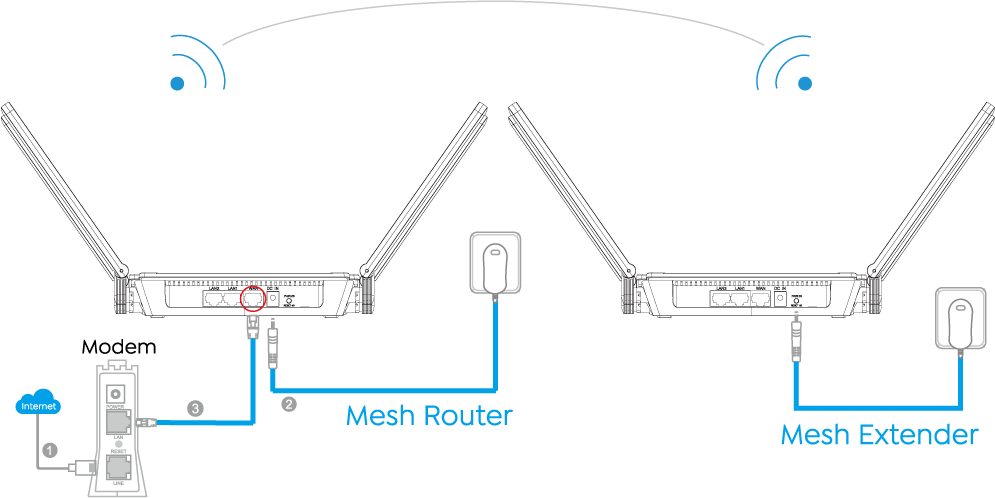
After configuring the main router and when the main router has the network, press and hold the pair button for both the main router and the mesh extender for 2 seconds simultaneously or separately. When LED lights become solid blue, the pairing process is successully completed.
 Tips:
Tips:
The location of the Pair button may be different for different models. The indicator light status is also different. Please confirm the position and status of the pair button before pairing.
Option 3: LAN Backhaul
- lf your wireless signal weakens because of complex environment, you can try this option:LAN Backhaul.
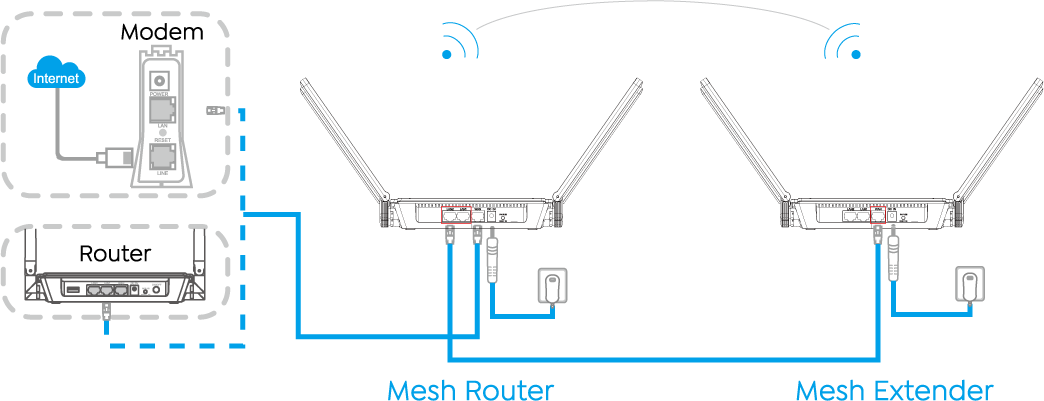
- After mesh router is paired with mesh extender section, then connect the WAN port of the extender to LAN port of your router.