Chapter 6 Upgrade
This chapter introduces the steps of upgrade.
Please ensure that your device is connected to a reliable power source throughout the update process and do not interrupt the update until it is fully completed to avoid any potential issues.
Firmware Upgrade
If you encounter any technical issues, please check and update the APP’s settings if necessary.
Step 1: Download the latest firmware file with “.enc” suffix.

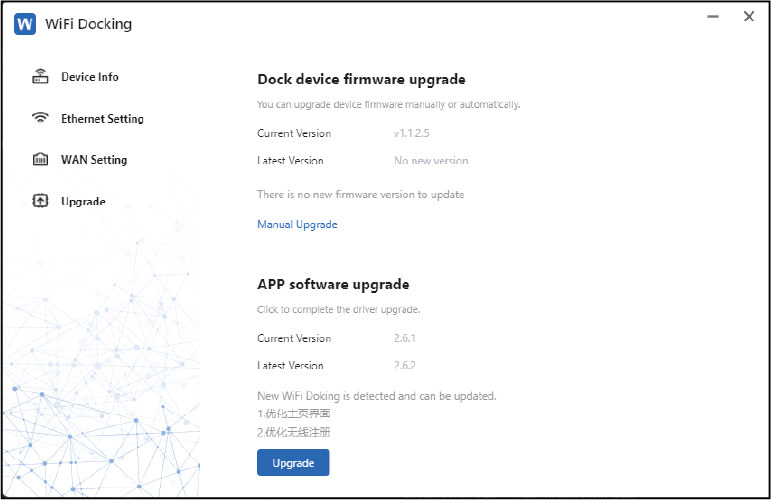
Step 2: Connect your device to your computer. Open WiFiDock APP on your computer. Click Manual Upgrade on Upgrade page.
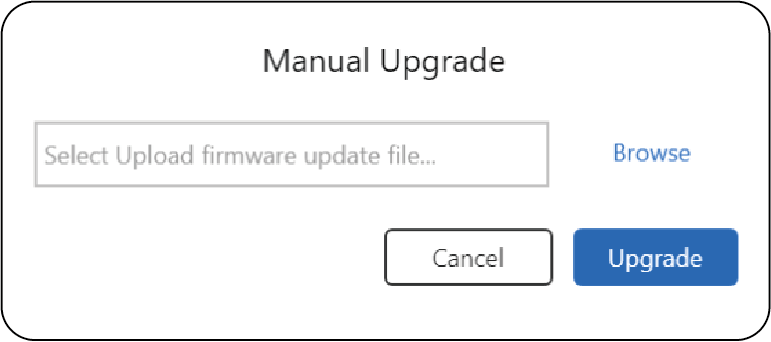
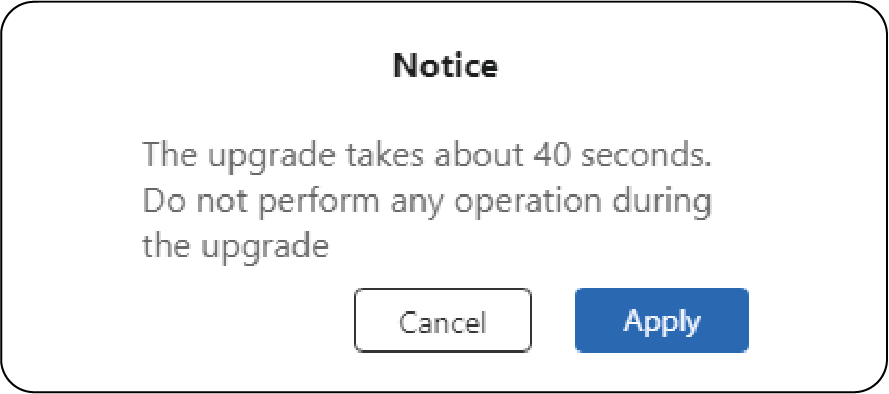
Step 3: Click Browse to locate and select the downloaded firmware file. Choose Upgrade to apply the firmware update. In the event that a Notice prompt appears, click Apply to proceed with the update. Monitor the progress bar until it reaches 100% to ensure the firmware update is complete(40s).
APP Software Upgrade
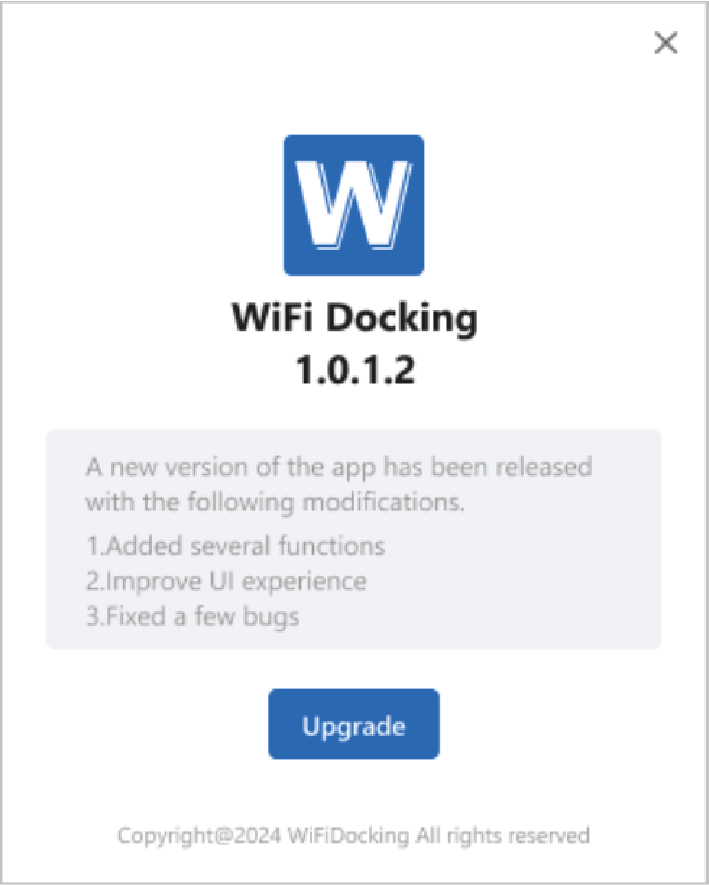
Step 1: Open WiFiDock APP on your computer. Check APP software upgrade prompt on Upgrade page. Click Upgrade.
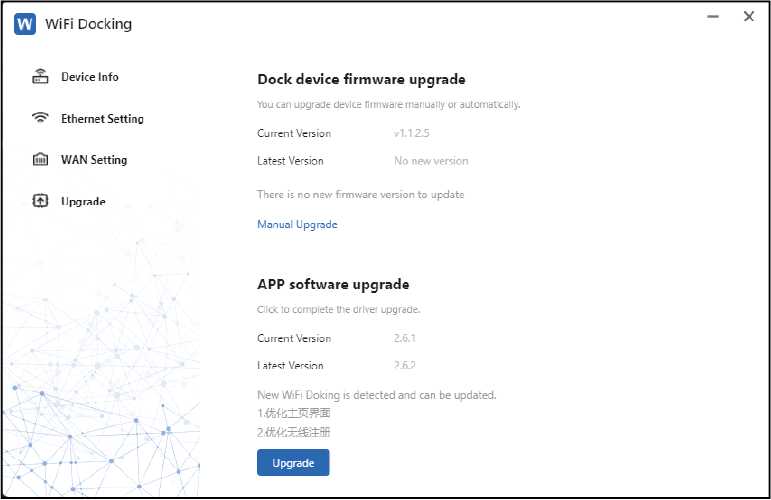
Step 2: Enter APP software upgrade page, then click Upgrade.