Chapter 3 Network Management
This chapter contains the following sections :
Network Settings
The way of network access can be changed as your requirement through configuring the network setting. Choose the WAN Type according to the method provided by the ISP.
-
DHCP: Network parameters configured automatically by your ISP
-
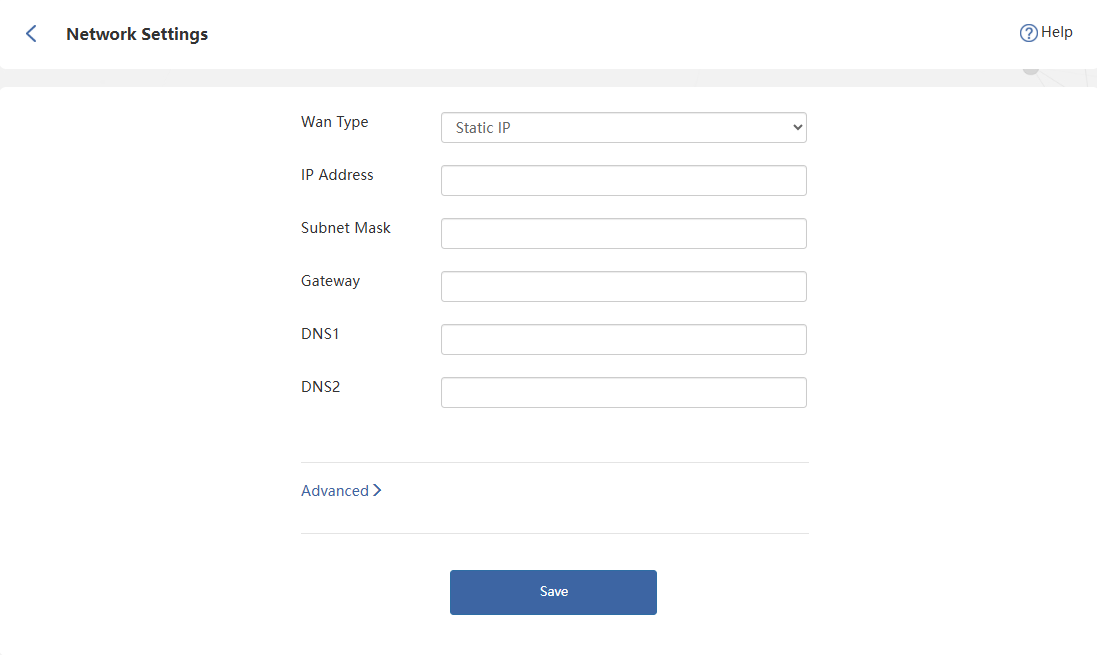
Static IP: Requires manual entry of IP address, Subnet Mask, Gateway, DNS1 and DNS2
-
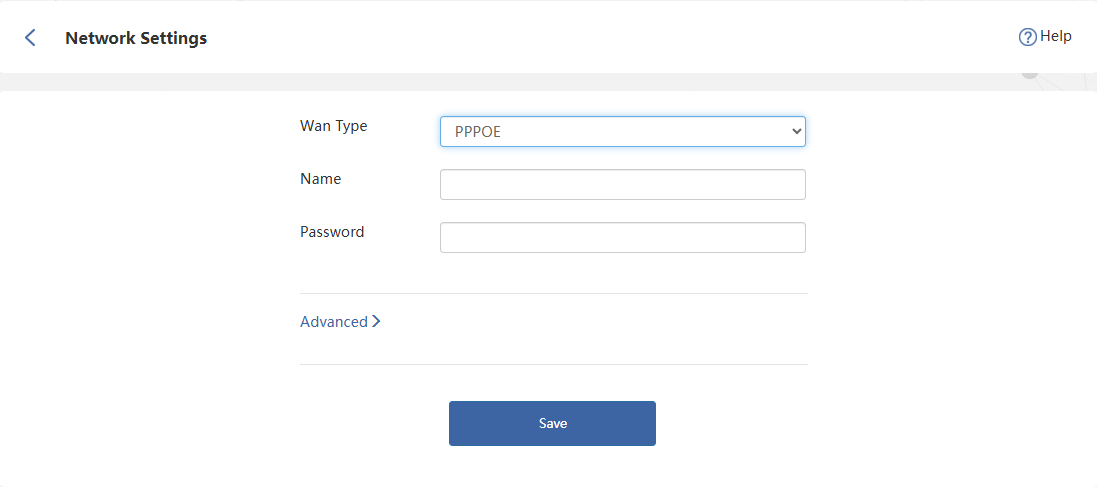
PPPoE: Requires ISP-provided Username and Password.
-
Advanced > Network Settings.
-
Select Wan Type from the list.
1)DHCP(Dynamic Host Configuration Protocol)
- It assigns network information including IP, Subnet Mask, default Gateway and others, managing and assigning IP without manual configuration.

2)PPPoE(Point-to-Point Protocol over Ethernet)
- It is designed for broadband access methods such as ADSL, fiber optics and others to provide a secure network connection.
- The Name and Password provided by your ISP is required.
3)Static IP
- It assigns fixed IP address for the computer automatically. It is designed for servers, remote access, etc., which require long-term stability to ensure the stability of network connections.
- Correct IP Address, Subnet Mask, Gateway, DNS1 and DNS2 is required.
- It assigns network information including IP, Subnet Mask, default Gateway and others, managing and assigning IP without manual configuration.
Advanced Settings
-
Custom MTU(Maximum Transmission Unit)
The MTU(Maximum Transmission Unit) is the largest size of a data packet that can be transmitted over the network. If your ISP requires you to adjust the MTU size, enable this option. Otherwise, we recommend you to keep it disabled for optimal network performance. -
MAC Clone
If the network operator only permits single device to access the internet, you can enable MAC Clone and spoof the MAC address of the originally connected device. This allows other devices connected to the router to access the internet normally. -
Custom DNS
If the network operator assigned fixed DNS address for you, you can enable Custom DNS and input the address provided. Otherwise, manual activation is unnecessary—the router will automatically obtain DNS addresses.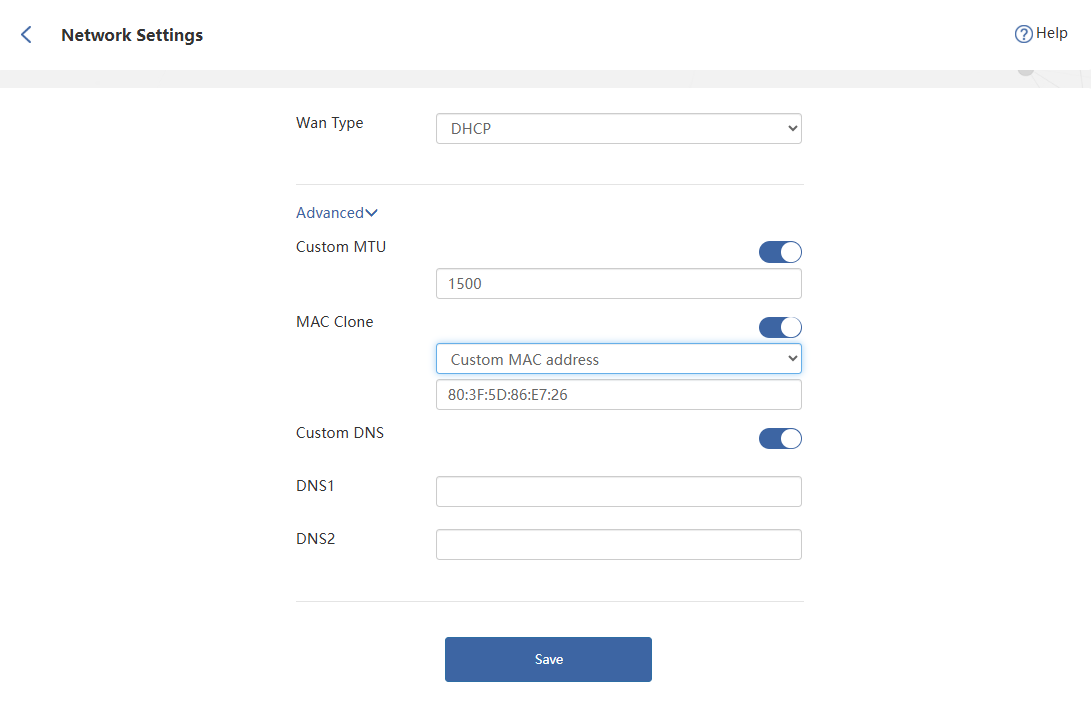
LAN Settings
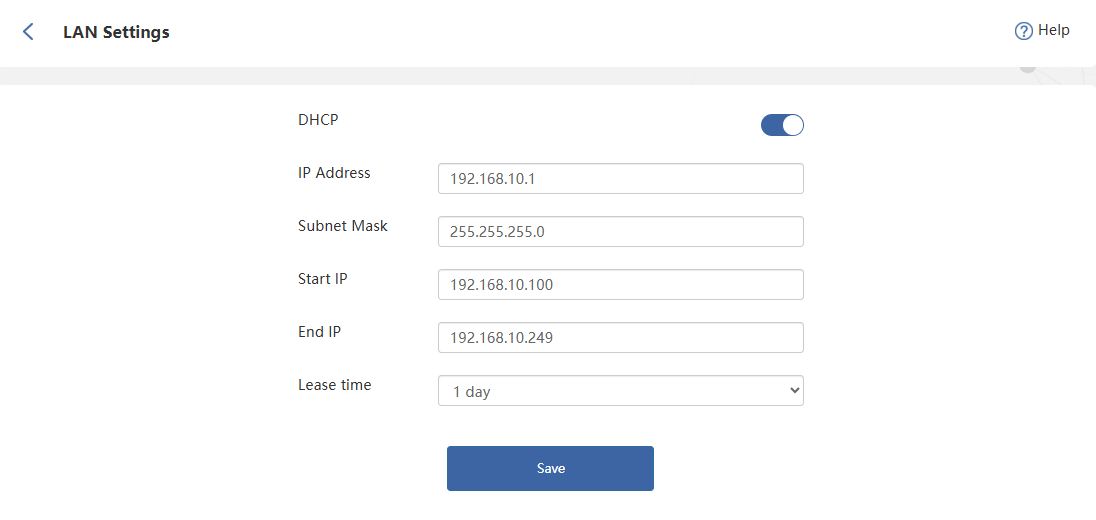
DHCP(Dynamic Host Configuration Protocol) server automatically assigns IP addresses to devices on the LAN. To modify DHCP settings, refer to the instructions below.
-
Click Advanced > LAN Settings.
-
Click to enable DHCP, and configure the corresponding information.
- IP Address: The IP address from which the router connects to the LAN. This can be used to log in to the router's network management page.
- Subnet Mask: The subnet mask that the router connects to the LAN.
- Start IP, End IP: The range of IP addresses that can be allocated by the router to connected devices.
- Lease time: This is the lease time of the IP address that the device obtains when accessing the router. If you need to modify it, please select it again in the Lease Time drop-down list.
- Click Save to finish the setup.
Setting Static IP Binding
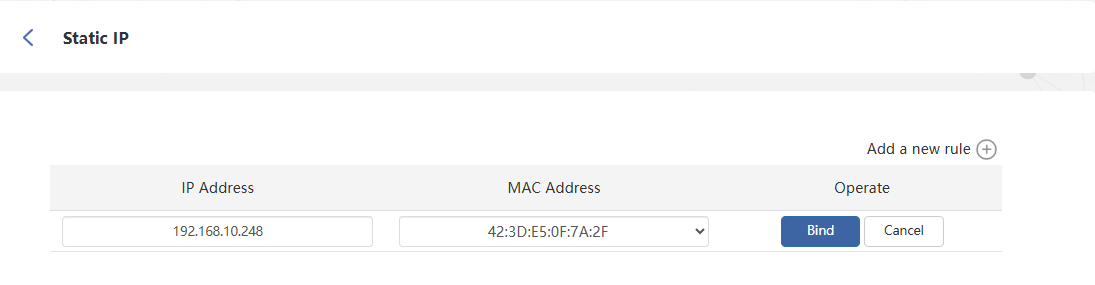
It allows you to link the specific IP to the MAC address of customer devices. Using it, you can assign a fixed IP for the specific device.
-
Click Advanced > Static IP.
-
Click Add a new rule at the top right corner.
-
Input the IP Address and MAC Address from the binding device, then click Bind.
MAC Filter
MAC address filtering applies to both wired and wireless devices. Devices were added have no access to the Internet properly, and also cannot access to router's management interface, but can get the IP address asigned by router.
Note: MAC Filter may not apply to the terminals using random MAC address.
- Click Advanced>MAC Filter.
- Click to enable to MAC Filter.
- If the Guest Network Exception is enabled, those devices from the guest wifi will not limited by the function of MAC filter.
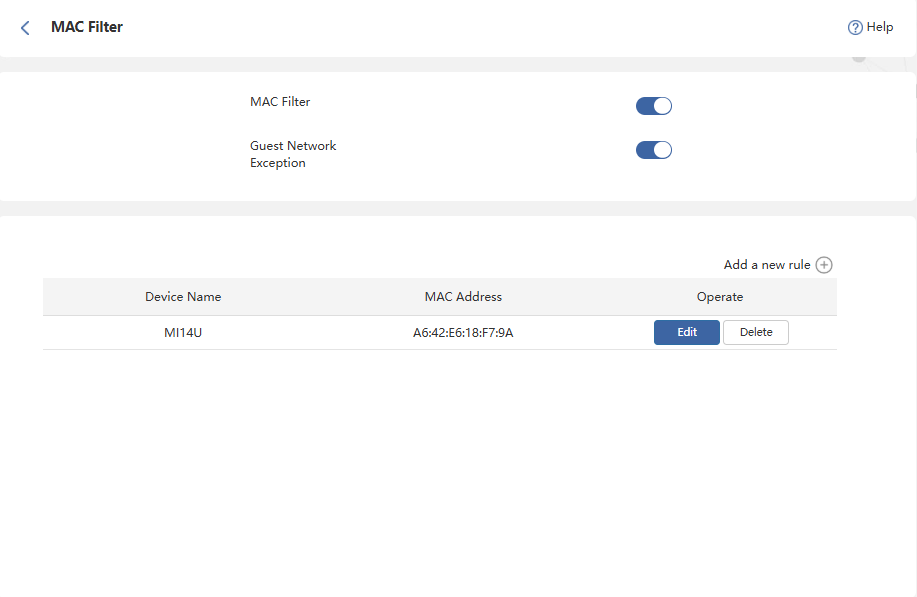
- Click Add a new rule, then select the Device Name and MAC Address to add.

- Or you can manually enter the Device Name and MAC Address to add.

- The device added has been in the list. It is available to edit or delete it.
